
Agents
An Agent is a reusable AI role with its own instructions and chosen access to your workspace. Create one for work you want to repeat in separate chats, delegate to another Agent or start from a Schedule or Form.
What is saved and what runs
Write what the Agent should accomplish in Instructions. Use Scope to choose what it may read or change, Capabilities for the actions it may take, and Skills for reusable procedures. Select other Agents and Integrations when the job needs them.
Each chat keeps its conversation and Runs, which record the work attempted and its outcome. For unattended work, declare the outcome and limits in Responsibility, then register its Schedule or enable its Form.
Create and configure an Agent
New Agents start with broad access in several areas. Choose the resources and actions needed for this role before sending its first task.
- Open the three-dot menu beside Agents or an Agents Folder.
- Choose Add Agent.
- Enter Agent name and Agent description. Use Change icon if you want a different icon.
- Open Instructions → Edit and describe the outcome, sources and rules to follow.
- Open Scope and Capabilities. Choose what this role may read, change and do.
- Choose its Skills, any other Agents it may call and the Integrations it may use.
- Check the settings show Saved. Enter your request in Message this agent and choose Send when you are ready to start work.
- Open the result, Run details and Usage to review what happened.
Profile, Instructions and Readme
Name the role and give people enough information to use it.
- Agent name - Agent initially, with a number if needed. Enter a role such as Catalog reviewer.
- Agent description - Empty initially. Explain when you should use this Agent.
- Change icon - Choose the icon you want to see in the tree and profile.
- Instructions - Empty initially. Use Edit to write Markdown instructions and Markdown to read the formatted version. State the outcome and the sources the Agent should use.
- Readme - Empty initially. Write guidance for people using the Agent, such as example requests and how to check the result.
- New chat - Start a separate conversation. Earlier changes to Tables, reports and other saved work remain in place.
- Recent chats - Reopen a saved conversation. Answer any pending question in that original chat or its requested input control.
Scope settings
Choose both the Definitions and the Tables an Agent needs when its work uses shared meaning and actual records.
- Definitions - All Definitions initially. Choose Selected Definition graphs to select particular Definitions and their related entries. Each added selection starts with Read; enable Write if the Agent should edit it. An empty selected list allows none.
- Organizer - All Organizer with Read and Write initially. Choose Selected folders or artifacts for particular items. A Folder includes its children; select an item inside it to set that item’s own Read/Write. The workspace’s Read/Write checkboxes still limit every item.
- Agents Scope - All Agents with Read and Write initially. Choose Selected Agents-tree nodes to limit which saved Agents this role may inspect or edit. Choose whom it can call separately under Agents.
- Workspace Access - No other workspace initially. Choose Add workspace, enter Workspace username and Workspace password, then Add workspace. Configure that workspace’s resources and permissions separately.
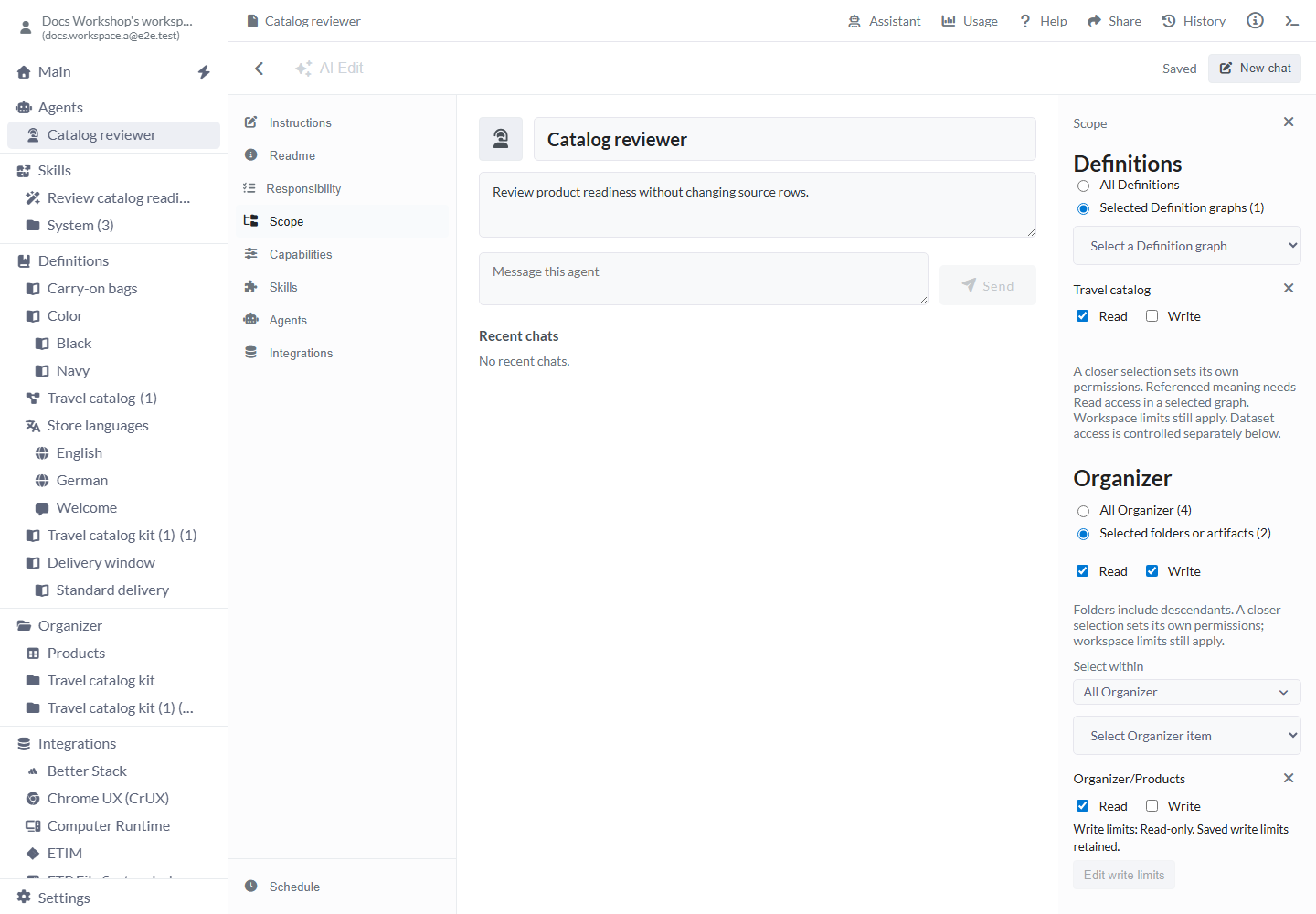
Table and View write limits
For a selected writable Table or saved View, choose Edit write limits to limit which fields and record actions the Agent can change.
- All fields - On when no limit is saved. Clear it to choose exact fields; select at least one current field.
- Allowed field checkboxes - Select fields such as Name when the Agent should correct names while leaving SKU and Price alone.
- Insert records - On without a saved limit. Allow new records using the selected fields and the Table’s data rules.
- Update records - On without a saved limit. Allow changes to existing records in the selected fields.
- Delete records - On without a saved limit. Allow records to be deleted under current data rules and uses.
- Change structure - On without a saved limit and available only with All fields. Clearing All fields turns it off and disables it.
- Save write limits / Cancel - Choose Save write limits to keep the selected fields/actions. Cancel or Escape leaves the saved limits unchanged. Remove unavailable fields before saving a repaired selection.
Let a View refresh without editing records
Keep the View’s Read/Write enabled and clear Insert records, Update records, Delete records and Change structure. The Agent can rebuild the View from its saved recipe when it can read the sources. Choose all record actions and structure access when you intend a full replacement.
Clearing workspace or item Write makes the item read-only while keeping its saved write-limit choices.
Capabilities
For each group, choose All … capabilities or Selected … capabilities. In Selected mode, choose the actions the role needs. An empty selected group allows none. The Agent also needs access to the items used by each action.
- Organizer - Find, create, organize and remove workspace items. Default: All.
- Agents - Inspect and change saved Agents. Default: All.
- Story Authoring - Build and edit Pages, reusable Components, links and data displays. Default: All.
- Datasets - Read and change Tables, fields, keys and records. Default: All.
- Viz Authoring - Create and edit visualizations and choose their data. Default: All.
- Join, Group, Append, Pivot, Transform - Choose actions for each data-preparation tool, such as combining sources, grouping records or reshaping a result. Default: All in each group.
- View - Read, change and refresh saved Views. Default: All.
- Save As - Save a tool’s result as another supported item, such as a View or Table. Default: All.
- Assets - Import Models, create Snapshots, capture a browser view or generate/transform image variants. Default: All.
- Definitions - Read and edit Definitions, implement a data-model agreement or compare it with its Tables. Default: All.
- Agent Runtime - Use services such as Skills, saved connections and recorded AI usage. Default: All.
- Publishing - Publish Pages/Sites, withdraw Page publications and manage App publication. Default: Selected, empty.
- Research - Search the web for research. Default: Selected, empty.
- Skills Authoring - Find, read, create, change or delete user Skills. Default: Selected, empty.
Skills, delegation and connections
All Skills are available initially; other Agents and Integrations require selections.
- Skills starts at Use all Skills. Choose Restrict to selected Skills to allow particular procedures. Use Skills Authoring capabilities separately when the Agent should edit procedures.
- Agents starts at Do not use other Agents. Choose Use selected Agents and select its collaborators. Each called Agent uses its own settings and available limits.
- Integrations starts at Do not use Integrations. Choose Use selected Integrations, then select the saved connection or Computer the role needs. Selecting a service allows creating connections; select the new connection separately to use it.
- For HTTP, Mail or Stripe work, enable the matching action and needed Read/Write as well as choosing its connection. Use saved credentials in the Integration’s controls. Preview mail before sending; sending and inbox tests can submit email.
Declare a Responsibility
Describe what successful work looks like and set limits before starting unattended work.
- Open Responsibility → Declare responsibility.
- Enter Intended business outcome.
- Choose Add completion criterion. Select Business target type, then the target, Property and Condition that prove the outcome in saved data.
- Set Authority expires and Timezone, then enter the limits below.
- Choose Save responsibility, or Save intent without limits to keep an inactive declaration.
- Review the saved outcome, checks, expiry and limits before enabling unattended work.
Responsibility limits
New expiry and limits start blank. Continuation and child Agents share the original remaining allowance. Review the limits again if you change the outcome or its checks.
- Authority expires - Blank initially; Timezone starts at UTC. Choose a future expiry. Changing the display timezone shows the same moment; editing date/time uses that zone.
- Maximum allowed changes - Blank initially. Choose the number of saved actions allowed. Enter 0 when no changes should be allowed.
- Maximum execution duration / Duration unit - Blank initially. Enter an amount and choose Seconds, Minutes, Hours or Days.
- Outcome window from due time / Window unit - Blank initially. Enter an amount and unit for the time allowed from the intended due time. Waiting does not restart this window.
- Whole execution cost ceiling (USD) - Blank initially. Enter the USD limit for the whole execution. The workspace must already have authority to pay for AI and connected-service work.
- Add completion criterion - Add another saved-state check. Every check must match for the outcome to be complete.
- Save intent without limits - Keep the outcome and checks inactive until you are ready to set their limits.
- Save responsibility - Save valid checks and explicit limits. Choose the Agent’s data, connections and capabilities separately.
Completion criterion controls
A new criterion starts with no target type, target, property or condition. Use the remove button to remove a draft criterion.
- Business target type - Choose Table or Dataset to check saved records, or Operating Skill to check a saved procedure.
- Business target / Operating Skill - Select the saved Table/Dataset or Skill you want to inspect.
- Property for a Table/Dataset - Choose Number of matching records for a count, or a field to check that field on the first matching record.
- Match records by (optional) - All records initially. Choose a field such as SKU when you want to identify a particular record.
- Matching record value - After choosing the matching field, enter its value, such as BAG-02 for SKU.
- Property for an Operating Skill - Choose Procedure, Revision, Name or Description.
- Condition - Choose the condition offered for the type: Equals, Is blank, Has no value, Is true or Is false. Counts offer Equals; a numeric field also offers Has no value.
- Expected value - For Equals, enter the expected number or text. Use a matching record field/value when checking one particular record.
Schedule work
A new Schedule starts with Name Agent Schedule, Every 10, Unit minutes and empty Instruction. A saved draft can supply its saved values. Schedules use UTC and need current Responsibility limits.
- Open Schedule → Add Schedule.
- Enter Name, Every, Unit and Instruction.
- Review the panel’s explanation of any missing limits or access.
- Choose Register Schedule when ready, Save inactive draft to keep unfinished setup, or Cancel.
Change and inspect a Schedule
An inactive draft keeps your choices. Registering the Schedule creates recurring work.
- Review saved intent / Discard schedule draft - Edit an unregistered draft or remove it.
- Edit Schedule / Save Schedule - Change an existing registration and save it.
- Remove Schedule / Refresh Schedule - Remove the registration or read its current state.
- History - Review recorded due occurrences and open their Run/thread.
Choose an interval
Minute intervals must divide 60 and be at most 30. Hour intervals must divide 24 and be at most 12. Days and weeks support 1. Minute/hour runs follow clock boundaries, daily runs start at 00:00 UTC and weekly runs at Monday 00:00 UTC.
Example: inspect products without changing them
In Scope, select Travel catalog with Read. Under Organizer, select Products with Read and clear Write; select Travel catalog kit with Read/Write for reports. In Capabilities, choose only the actions needed to inspect records and create the report.
For Products rows BAG-01 / Cabin bag / 79 EUR and BAG-02 / empty Name / 45 EUR, send: Review these products and save a report of missing Name or Price by SKU in Travel catalog kit. Open the report and check it identifies BAG-02’s missing Name, then confirm the source rows are unchanged.
Example: allow one field to be corrected
For Products, enable Read/Write and choose Edit write limits. Clear All fields, select Name, keep Update records, and clear Insert records and Delete records. Choose Save write limits.
You have now allowed corrections to existing product names while leaving SKU, Price, new records, deletions and structure outside this selection. Ask for a missing Name to be corrected and inspect the saved record afterward.
Example: reuse a procedure, keep authoring separate
Create Skill Review catalog readiness with its report template. In the Agent’s Skills section, choose that procedure. In Capabilities → Skills Authoring, keep Selected with no actions.
The Agent can follow the procedure with its other chosen actions. Edit the Skill yourself when the review process changes. For recurring reviews, configure Responsibility and register the Schedule.
Runs, questions and Usage
Answer questions in the original chat. Use the dedicated controls for file uploads or Workspace Access requests. Open Run details to review actions and whether the work completed, failed, was refused or was cancelled. Inspect any saved changes before asking it to try again.
Open Usage. Usage scope starts at This Agent · all recorded history; choose a Run to inspect that Run. Include descendants starts selected; clear it to read only this Agent. Use Refresh usage for a current read. Including subagents already includes This agent. Use Including subagents as the combined total; adding the two summaries counts this Agent’s usage twice. Recorded estimates and missing measurements are identified; settled provider charges are unavailable here.
An Agent keeps previously read content reusable as it selects tools for later work in the same execution. Provider cache reuse can reduce input costs, but is not guaranteed. Scope, Capabilities and spending limits still apply to every action.
Read another Agent’s saved Run
Enable Read retained Run in Capabilities → Agents and give Scope → Agents Read access to the Agent whose history you need. Reading its Run is separate from allowing it to be called or edited. The inspection keeps the original request, later distinct messages, answers and tool results. Shared Definition details are supplied once with exact references, so repeated details use less AI context while the complete evidence remains available. Removing Read access prevents further inspection, including after part of a Run has been read.
Limits and common mistakes
Review the saved setup and results before repeating or expanding work.
- Check Scope and each capability group before the first task; several new-Agent defaults allow broad access.
- Select the exact connections and procedures the role needs, then check applicable operating and spending limits.
- Open the saved report or record to confirm the outcome; review Schedule History for recurring work.
- If an external action’s result is uncertain, inspect it through that service before requesting it again.
- After importing an Agent, review its destination resources and inactive Schedule/Responsibility setup before enabling work.
- You can select up to 50 Definition graphs in Scope and add up to 64 completion criteria in Responsibility.
- Scope permissions do not refresh automatically in another already-open Scope panel yet. Reload that tab to see the saved permissions.
Related articles
- Skills - Reusable procedures and resources.
- Command - Workspace requests without a saved Agent role.
- Assistants - Contextual help for the open object.
- Agent workspace - External agent programs on a selected Computer.
- MCP - Scoped access from external AI clients.
- Schedule - Recurring work and due occurrences.
- Integrations - Saved connections and their credentials.
- Definitions - Shared meaning and implementation agreements.