
Markdown
Markdown is a plain-text document in your Organizer, with an editor and a formatted preview. Use it for meeting notes, research, instructions and drafts that you want to read and edit directly. Use Structure when the document needs named, typed fields, or Page when you are building a published interface.
Create a document
Datavju saves source changes automatically. You do not need a separate Save action. The saved document contains your Markdown text; the preview is a rendering of that text.
- Open the context menu on Organizer or the destination folder.
- Choose Create → Markdown.
- Enter your Markdown in Markdown source.
- Keep Split selected to read the preview beside your source, or choose Edit for more writing space.
- Pause after typing or move focus out of the editor so it saves. Save errors appear above the editor.
Editor controls
Return to Edit or Split whenever you want to continue writing.
- Edit - Starts off. Shows the source editor without the preview. Use it to write a long draft or edit a wide table.
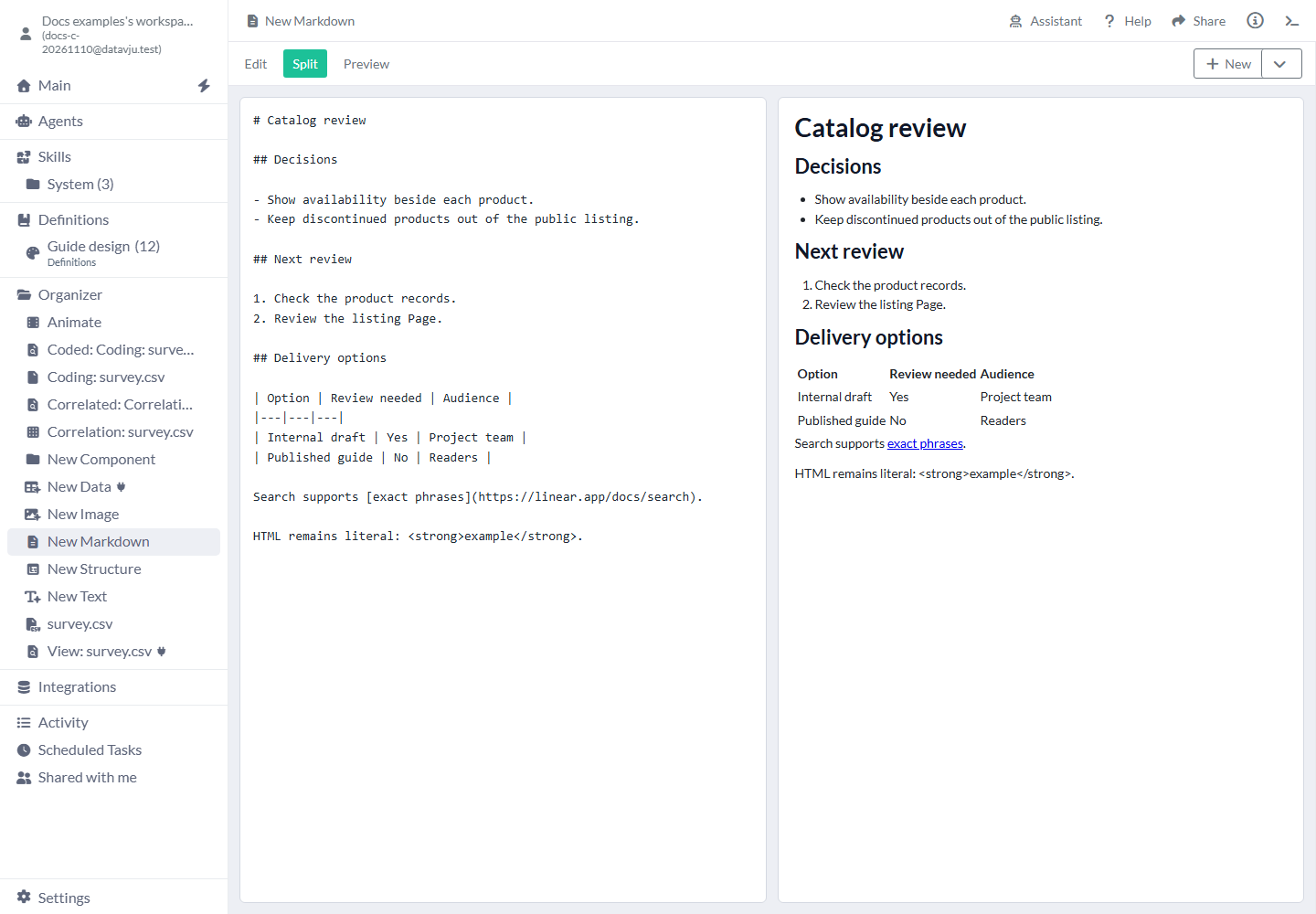
- Split - Starts on. Shows source and preview together. Use it to check headings, links and tables as you write.
- Preview - Starts off. Shows the formatted document. Use it to read the document and follow links.
Supported formatting
Use #, ## and ### for headings; - for an unordered list; and 1. for a numbered list. Use **strong text**, *emphasis* and backticks for inline code. Put three backticks on a line before and after your code to retain its spacing. Pipe tables need a header row and separator row.
Write named web links as [Reference](https://example.com/reference). Bare HTTP and HTTPS addresses also become links in Preview. Web links open in a new tab. Preview shows HTML tags and links inside code as plain text.
Link to a workspace item
Add a link when you want readers to open a Table, Page or another item from your note.
- Open the item you want to link to and choose Info in its header.
- Under Identifiers, use the copy button beside Organizer ID.
- In Markdown source, enter
[Label](item:<organizerId>). Replace Label with the name readers should see and<organizerId>with the copied ID. - Choose Preview and follow the link to check that it opens the intended item.
Open links and reuse a copy
In a document you own, choose Preview and follow the link to open the item in a new tab. Sign in when asked. Each reader needs access to that item; if it is unavailable, check whether it was deleted or shared with the reader. In shared document copies and Agent chat, workspace-item links remain plain text.
To reuse the document in another workspace, include it and every item it links to in the Folder you download as a Model. A Model is a saved bundle of Datavju items. If download reports a missing linked item, include that item or change the link. When you load the Model into another workspace, links open the included copies.
You can ask Main or an Agent with access to the document to write links in the same form.
Use the saved source in another tool
Save your Markdown as a View when you want another data tool to read it. That View has one row containing the document’s source text. New creates a separate View directly. The adjacent Output options button opens the output menu. The data tools read the saved source text. Use a Table when you want each meeting decision or product to have its own row.
- Save as View - Effect: Creates a separate View beside the document, as New does.
- Save as View to... - Effect: Choose the destination folder for the new View.
- Replace - Effect: Choose an existing result from the listed targets and replace it with the document’s saved source. Check the target before applying it.
- Append, Coding, Correlation, Group, Join, Merge, Mutate, Pivot, Transform, Vector, Visualize - Effect: Opens that tool with the document’s saved text as a single row.
- CSV, JSON - Effect: Exports Dataset values in the selected format.
- Google sheets - Effect: Google Sheets export is not available yet.
- Download Model, Create Model Snapshot - Effect: Save the document as a Model file or snapshot for reuse. Include any items it links to.
Assistant, Help and sharing
Open Assistant to ask about or revise this document. Enter your request in Ask about or edit this Markdown document... and choose Submit. Choose Reset Chat to start a fresh conversation. You can also ask Main or a User Agent with permission to create, read, revise or delete a document. If you have it open elsewhere, those editors load the saved changes after their current edits finish saving.
Use Help for the writing steps and formatting summary. Info shows Organizer details. Share uses the normal view/edit invitation controls; check that readers can open any linked items. Markdown has no source-text History control.
Documents written from Definitions
Definitions hold reusable rules and descriptions. When Main uses them to write your document, the banner can show which versions it used. The banner shows the written date, changed or deleted Definitions, and whether the text was edited since then. You can keep editing normally. The banner appears only on documents with recorded sources.
Ask Main to refresh the document from its current Definitions; an authorized User Agent can do the same. Refresh replaces ordinary Markdown and its recorded sources. After a manual edit, you can still see which sources were used for the earlier draft.
Reopen or delete a document
Select the document in Organizer to open it or activate its existing tab. Select the document you want to change before typing.
To delete it, open its Organizer context menu and choose Delete. If a message names other items that use this document, review and update those items before trying Delete again. When deletion finishes, the document disappears from Organizer and its tab closes. Clear the source text when you want to keep an empty document instead.
Examples
Use the meeting-note and delivery-options samples below, then follow their numbered workflows. The third example adds a link to a source.
Meeting-note sample
# Catalog review — 10 November

## Decisions

- Show availability beside each product.
- Keep discontinued products out of the public listing.

## Next review

1. Check the product records.
2. Review the listing Page.
Delivery-options table sample
## Delivery options

| Option | Review needed | Audience |
|---|---|---|
| Internal draft | Yes | Project team |
| Published guide | No | Readers |
Keep meeting decisions beside their context
Use this note to keep the decisions and follow-up work together. Open the relevant Table or Page when you are ready to carry out those decisions.
- Create a document in the project's folder.
- Paste the meeting-note sample above into the source editor.
- Choose Preview. The two sections appear under the document title, with separate bulleted and numbered lists.
- Choose Split to revise the decisions. Reopening the document restores the saved source.
Make a small comparison table
Use the table to compare the two delivery options while writing. Choose a Table when you want to sort, filter or edit each option as a separate record.
- Paste the delivery-options table sample above into the source editor.
- Read it in Split. The pipe-delimited source becomes a table with three columns.
- Change
Project teamtoSupport teamand check the updated preview.
Link research to its source
Keep a named citation beside the statement it supports so the document remains useful when read later.
- Add a sentence such as
Search supports [exact phrases](https://linear.app/docs/search). - Choose Preview and follow the named link.
- Keep the explanation beside the link so a reader can understand why the source matters.
Limits and common mistakes
- Source is limited to 200,000 characters; some characters such as emoji can count as two.
- Coordinate edits when people or Agents work on the same document: the last saved version wins. Keep a separate copy if you need earlier text, because Markdown has no source-text History.
- Use the formatting listed above. Preview shows HTML tags as text.
- Use Share to invite readers to the document, or build a Page for a website.
- Check that your readers have access to the pages you link to.
- If another editor or Agent changes the document, let your current edit finish saving so your editor can load the latest text.
- Use a Table for rows that need their own number, date or other data types.