
Values
A Value is one choice in a Property’s vocabulary, such as Navy under Color. Add Values in Definitions when you want people and Agents to use the same labels and stored choices.
How Values work
Create the Value under its Property. It starts with that Property’s type, association and any Unit or System. Give it a label people recognize and enter the value you want to store: for example, label Navy and text navy.
Link these Values from a Concept to share the choices that apply to that category. Use Table rules separately when you want stored records to accept only particular values.
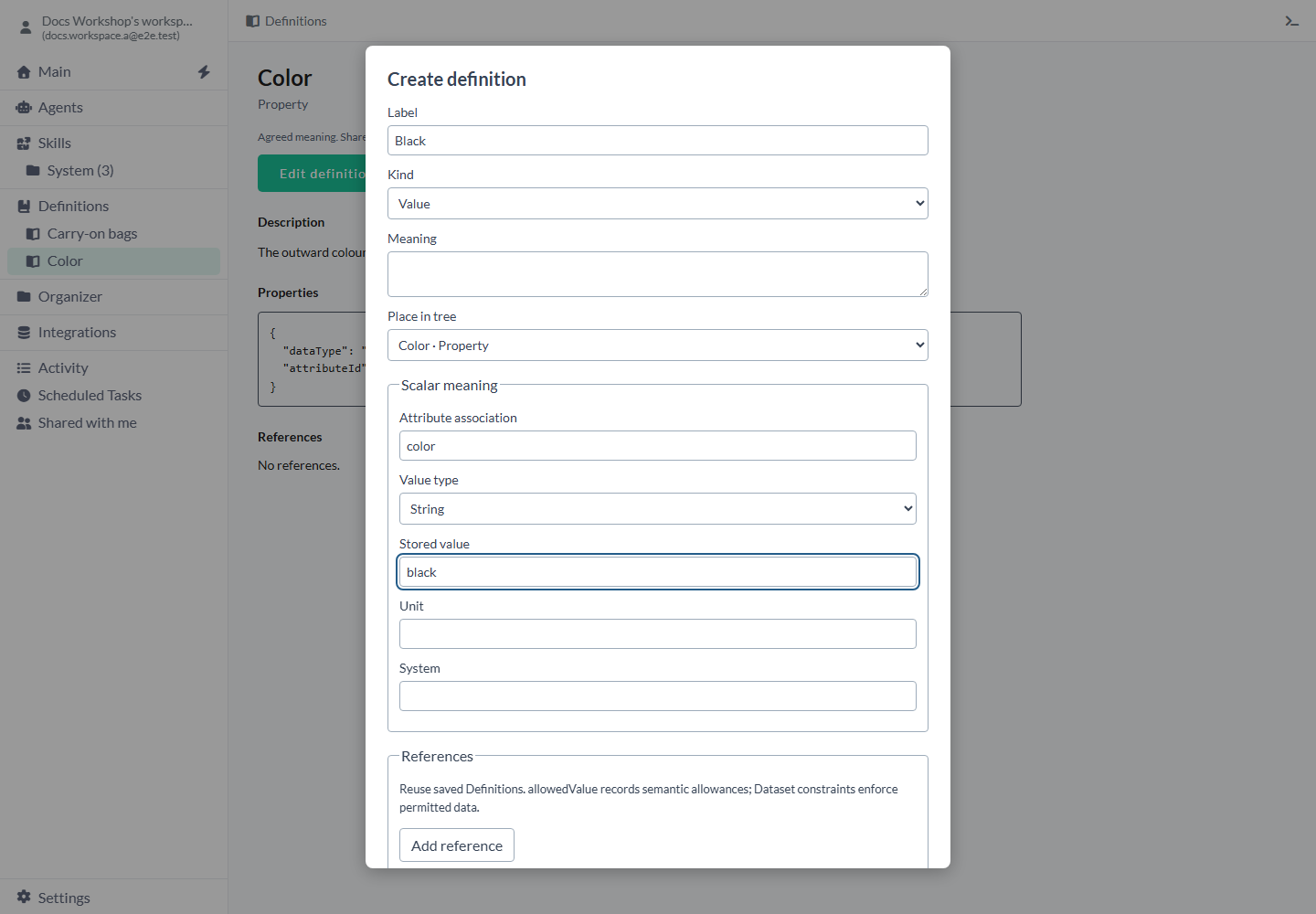
Add a Value to a Property
Start from the Property so the new Value gets the right type.
- Expand Definitions and locate the Property, for example Color.
- Hover over its row, open its three-dot menu and choose New definition.
- Leave Kind at the inherited Value.
- Enter a Label, for example Black.
- Enter Stored value, for example black.
- Check the inherited Attribute association, Value type, Unit and System against the Property.
- Add an optional Meaning or reference, then choose Save definition.
- Select the new entry and inspect the saved properties.
Value settings and defaults
Label is the name people see; Stored value is the exact choice you save. For example, Black can store black.
- Label - Empty and required. Enter the name people should see, such as Black or 128 GB.
- Kind - Value initially when you create under a typed Property. After saving, this choice is fixed.
- Meaning - Empty and optional. Explain an ambiguous choice here.
- Place in tree - Your selected Property initially. Keep the Value under a Property with the same association and type.
- Attribute association - Uses the Property’s short code, such as color, and is read-only.
- Value type - Starts with the Property’s type, which selects the input used below.
- Stored value - String starts empty; enter your exact text. Number starts empty and needs a finite number, including 0 for zero. Boolean starts at Choose Boolean; choose true or false.
- Unit / System - Start with the Property’s Unit/System when present, otherwise empty. Check their meaning before editing; convert quantities explicitly if units change.
- References - Empty initially. Add reference starts an allowedValue link with an empty Target. Choose an existing Value or change Relationship for another kind of link. Remove unlinks the row.
- Save definition / Cancel - Choose Save definition to keep the completed Value or Cancel to abandon the draft.
Date, Money and Duration controls
Choose the date, amount or duration in its displayed controls. Use Clear for no value, or enter zero when zero is what you mean.
- Date - Empty initially. Choose a calendar day, such as a release date that stays the same across timezones. Clear clears the value.
- DateTime - Empty initially. Enter wall-clock date and time without timezone conversion, such as a local store opening. Clear clears the value.
- DateTime TZ - Empty with the browser's timezone selected. Choose another Timezone when entering or viewing a launch instant for that zone; a saved instant is redisplayed in the selected zone. Clear clears the value.
- Money Amount - Empty initially. Enter the exact decimal amount, such as 25.50, then choose its Currency.
- Money Currency - Choose currency initially. Select the currency of the amount you entered, such as EUR. Clear empties both fields and saves no value.
- Duration Value / Unit - One blank Value with days selected. Units are minutes, hours, days, weeks, months, years and seconds. Enter 30 and choose minutes for a 30-minute duration.
- Duration Add part - Adds a blank part with days selected. Combine parts such as 2 days and 4 hours; days and hours stay separate.
- Duration Remove - Appears when there is more than one part; removes only that part.
- Duration Clear - Saves no value and returns to one blank days part. Enter zero deliberately when a zero duration is intended.
Enter a calendar duration
Use whole numbers for calendar parts and keep every part positive or every part negative. Keep months as months and days as days when your duration follows the calendar.
Example: labels separate from tokens
Create Property Color with type String and association color. Open its menu → New definition, enter Label Black and Stored value black, then Save definition. Repeat with Navy and navy.
Open Carry-on bags → Edit definition. Choose Add reference, keep Relationship allowedValue and select Color / Black. Add Color / Navy the same way, then Save definition. You now have one colour vocabulary shared with this category.
- Black - Stored value: black Saved type: String
- Navy - Stored value: navy Saved type: String
Example: preserve text codes and numbers
Under a String Property Size code, create Size 042 and enter Stored value 042, then Save definition. Under a Number Property Capacity with Unit GB, create 128 GB and enter Stored value 128, then Save definition.
Size 042 keeps its leading zero because you chose text. Capacity stores the number 128 with the unit shown separately. Enter each stored value explicitly; the label is there to help people recognize it.
Example: keep a delivery duration in separate parts
Use two parts for a delivery window that includes days and hours.
- Create Property Delivery window with association delivery-window and Value type Duration, then Save definition.
- Open its menu → New definition and enter Label Standard delivery.
- In Stored value, enter Value 2 and keep Unit days.
- Choose Add part, enter Value 4 and select Unit hours.
- Choose Save definition and inspect the saved 2 days 4 hours.
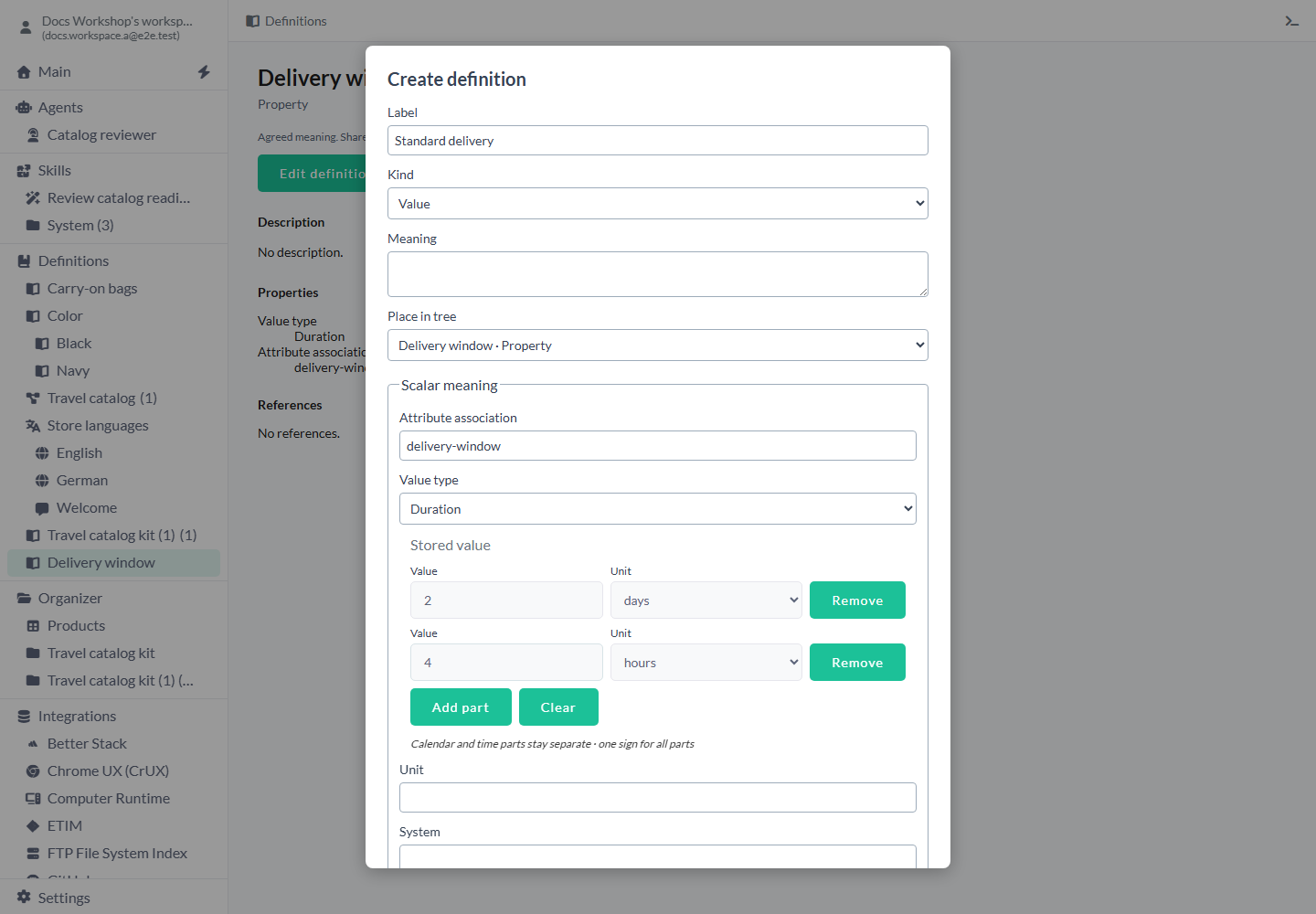
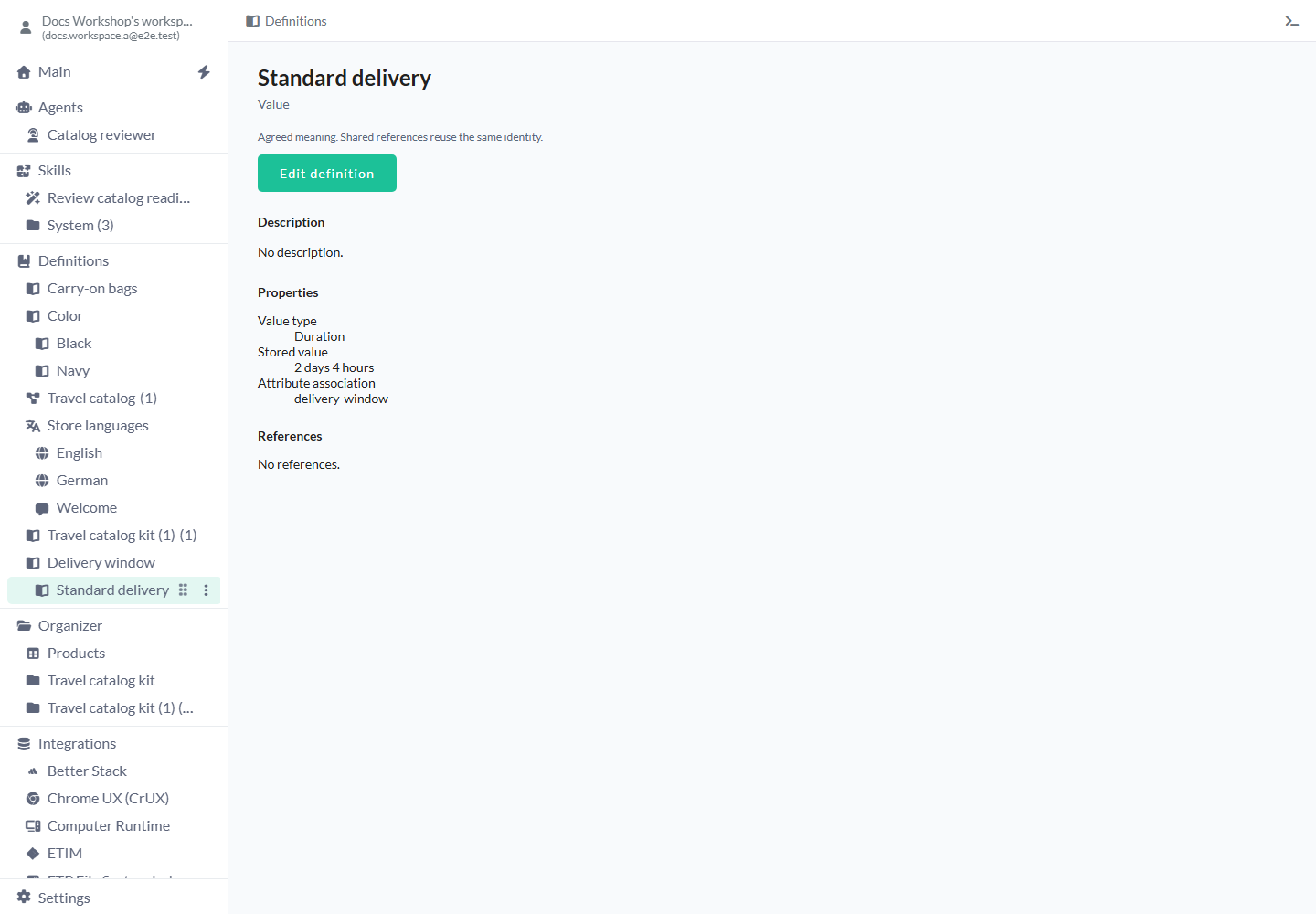
After saving, open the Value to check its type and duration.
Edit a Value
Open the Value to change its label, meaning or stored choice.
- Select it in Definitions and choose Edit definition.
- Change Label, Meaning, Stored value, Unit, System or References as needed.
- Choose Save definition and review the saved details. If another client saved a newer version, choose Reload saved entry, review it and make your changes again.
Limits and common mistakes
Check the Property and type when a value cannot be saved.
- Choose String for exact text codes, Number for quantities and Boolean for true/false choices.
- Keep the Value under a Property with the same association and type.
- Change or remove a Concept’s link when its permitted choices change; the Value stays available for other Concepts.
- Review uses before deleting a Value, then resolve any links listed in the deletion preview.
- Keep Label and association within 250 characters each, Meaning within 2,000 and Unit/System within 250 each. You can add up to 200 references.
Related articles
- Properties - define the parent attribute.
- Concepts - link permitted Values.
- Definitions - inspect shared meaning and data-model agreements.
- Locale System - manage language variants separately.