
Skills
A Skill is a saved procedure that Main Command or a saved Agent can follow when it matches your request. Create one for a repeatable process, reference or report template you want to reuse.
What you save in a Skill
Give your Skill a name and a description of when to use it. Write the procedure in Markdown and add small text resources when it needs a reference or template. The AI can find the description, then read the procedure and resources when needed.
Choose what an Agent may read or change in the Agent’s own settings. Saving a Skill keeps the instructions ready; send a task or register a Schedule when you want work to start.
Create a Skill
Create it in the Folder where you want to find it later.
- Open the three-dot menu beside Skills or an editable Skills Folder.
- Choose Create Skill. Your new editable Skill opens immediately.
- In Overview, enter Name and Description.
- Open Procedure and write Procedure (Markdown).
- Set Integration, Resources and Entry Points as needed. Wait for Saving… to finish and check the Revision shown at the top.
Choose the Skill settings
Valid edits save automatically.
- Overview → Name - Skill initially, with a number when needed. Enter an action such as Review catalog readiness.
- Description - Empty initially. Say when to use the procedure and what result it should produce.
- Integration → Linked Integration - No linked integration initially. Choose a saved HTTP API or Computer Runtime connection when the procedure needs it. Select that connection separately in the executing Agent’s Integrations settings.
- Docs URL - Empty and optional. Enter an absolute HTTP or HTTPS link to the reference for your procedure.
- Procedure (Markdown) - Empty initially. Write clear inputs, numbered actions and how to check the result. Put optional reference detail in Resources.
- Resources - Empty initially. Add small Markdown, plain-text or JSON files for the procedure to read.
- Entry Points → System - Selected initially. Makes the Skill available to Main Command.
- Entry Points → Agent - Selected initially. Makes it available to saved Agents that can use this Skill. Keep at least one entry point selected.
Install a library Skill
Use a library template when it already covers your process. The installed copy opens as an editable Skill.
- Open an editable Skills Folder’s menu and choose Install Skill.
- Search the library and select a template.
- Review its description, entry points, Docs link and any required integration.
- Keep or change the suggested name.
- If required, choose the compatible connection. Templates without an integration requirement use no connection here.
- Choose Install Skill.
Add a reference or template
Add the file explicitly, then edit the saved resource using autosave.
- Open Resources → Add resource.
- Enter Path, such as templates/review.md.
- Choose Format: Markdown, Plain text or JSON. Markdown is selected initially.
- Enter Content, then Create resource.
- Open the saved resource row to edit it later. Wait for the Skill’s autosave to finish.
Resource controls
The list shows each file’s path, type, format and size.
- Path - Empty for a new file. Use a unique relative path up to 160 characters. Each part starts with A–Z, a–z or 0–9; subsequent characters can also include dots, hyphens and underscores. Separate parts with /. SKILL.md is reserved in any letter case.
- Format / Content - Choose Markdown for formatted guidance, Plain text for notes or JSON for structured data. Enter valid JSON when that format is selected.
- Cancel resource - Close the unfinished new file without adding it.
- Discard file draft - Restore the saved file when you want to abandon its unsaved edits.
- Remove resource - Remove the selected file from this Skill.
Organize your files
Paths starting references/ appear as References; templates/ or assets/ appear as Templates; other paths appear as Resources. Store text here and keep live records, images and other working files in Organizer.
Example: review catalog readiness
Create Review catalog readiness. Describe it as Inspect product data for missing names or prices and write a review without changing source rows. Add this procedure, then wait for autosave to finish.
For sample rows BAG-01 / Cabin bag / 79 EUR and BAG-02 / empty Name / 45 EUR, ask your Agent to follow the Skill and save a report. Check that its report identifies BAG-02’s missing Name and says how many records it checked. Choose source Read and report-Folder Write in the Agent’s Scope.
Procedure for a catalog-readiness review.
1. Read the Product agreement in Definitions.
2. Inspect the selected Products Table without changing source rows.
3. Find records missing Name or Price.
4. Write a review listing each SKU and the missing fields.
5. State how many records were checked.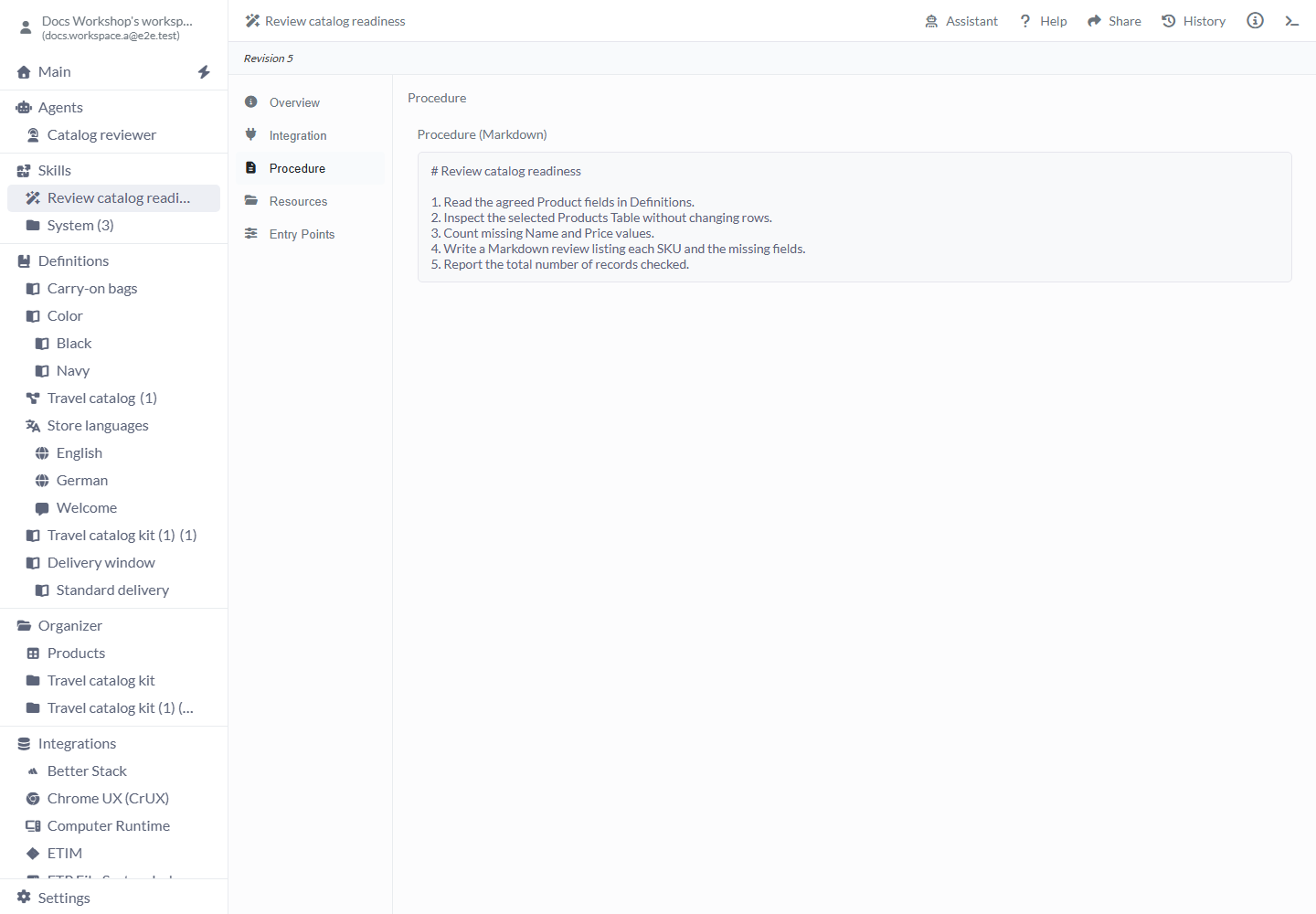
Example: reuse a report template
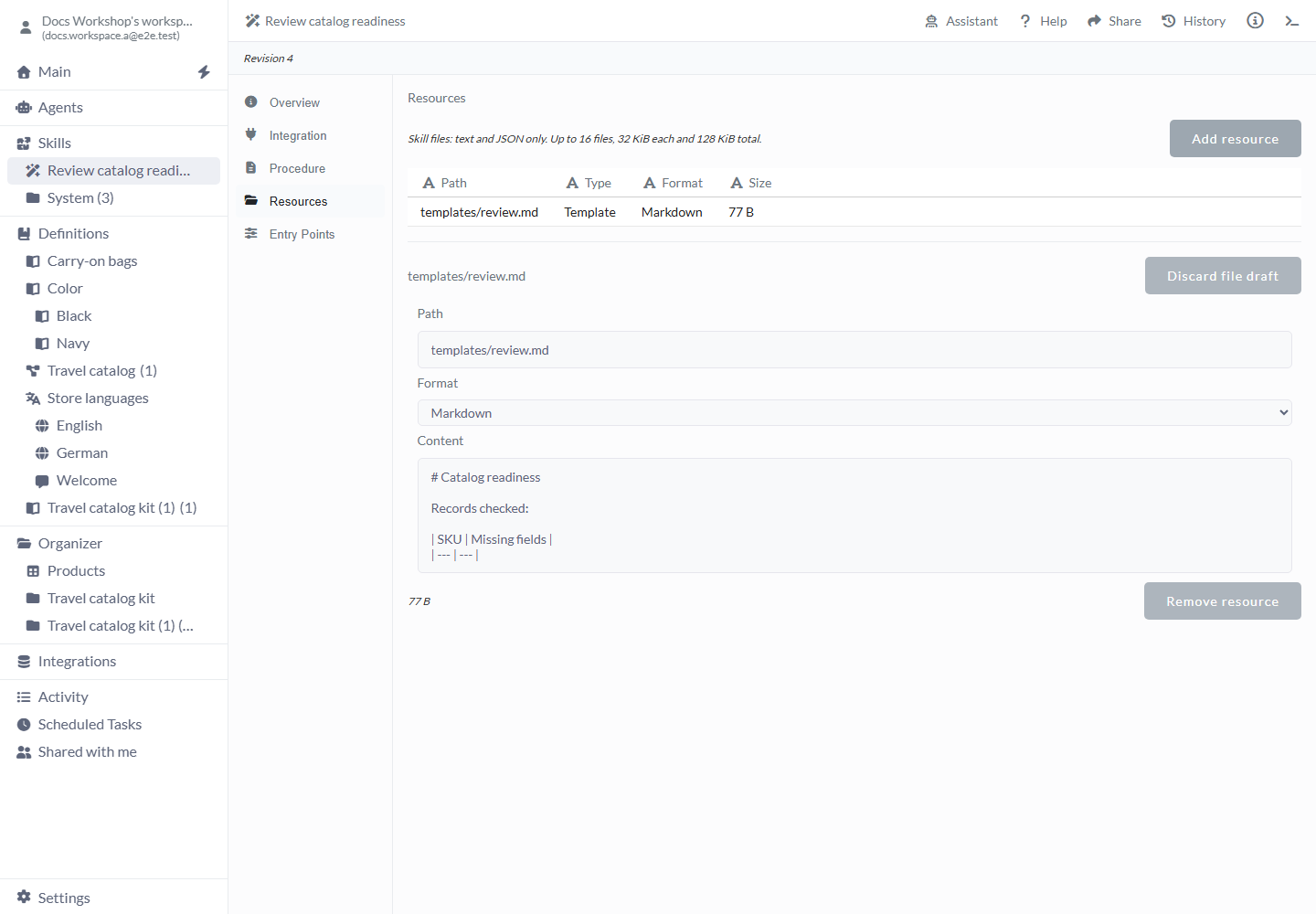
In Resources, add templates/review.md with Format Markdown and the content below, then Create resource. Name this path in your Procedure so the AI knows when to read it.
You can now use one report layout for later reviews. Edit the template when the process changes; reports already written keep their earlier content.
Content for templates/review.md.
# Catalog readiness

Records checked:

| SKU | Missing fields |
| --- | --- |
Organize and recover your edits
Use Add Folder to group procedures and drag your own Skills into editable Folders. Rename and Delete are available from editable entries’ menus; deleting a Folder also removes its children.
- System - Built-in System Skills are read-only. Open Concepts, Tools and Workflows to read their procedures. Create or install an editable Skill for your own process.
- Inspect current Skill - If someone saved a newer version while you were editing, read that saved version before deciding what to keep.
- Discard draft and reload / Reapply my draft to this revision - Load the current saved version, or inspect it and deliberately apply your draft to that revision.
- Copy draft - If the Skill was deleted elsewhere, copy your preserved unsaved text so you can keep the work.
- Retry save / Retry creation / Refresh Skills - Retry the displayed save or creation problem, or reload the tree after a read failure. Inspect any saved result before making another copy.
Limits and common mistakes
Read the save error and correct the preserved draft when an edit cannot be saved.
- Keep at least one of System and Agent selected in Entry Points.
- Name allows 250 characters, Description 5,000 and Procedure 50,000.
- Use up to 16 text resources, at most 32 KiB each and 128 KiB combined.
- Choose the Agent’s tools, data and connections separately. Allow Skills Authoring only when it should edit procedures.
- Relink or clear an unavailable linked connection; the Skill stays editable.
Related articles
- Agents - Choose Skills and the access a role needs.
- Command - Request work with available Skills.
- Integrations - Set up a linked connection.
- Definitions - Write down shared terms and your data structure.
- Models - Include user Skills in a reusable setup.