
API
API gives a saved Table or generated Data result an HTTP endpoint that another application can call. Use Read (GET) to retrieve rows, or Create (POST) on a Data item to run its saved AI configuration with supplied input. Each request needs the Bearer Token you configure in Datavju.
Enable and publish an endpoint
Start with a saved Table, a supported View, or a Data item with generated output. API settings belong to that saved item and save as you change them.
CSV has an Enable API switch but no API Config toolbar entry. Reading a View built directly from a CSV source through this API is not available yet. Use a saved Table for the read examples below.
- Open the item in Organizer. For a Table or View, choose Show Table options if its sidebar is closed.
- Turn on Enable API. This creates an unpublished endpoint with Read (GET) on and Create (POST) off.
- Choose API in the toolbar to open API Config.
- Keep Domain Type → Datavju Domain and enter Endpoint Path, such as
brief. - Copy Bearer Token into your calling application's private configuration. Keep it out of public pages and shared screenshots.
- Choose the methods you need. Keep Create (POST) off for an ordinary Table read.
- Turn Published on when the settings are ready, then call Endpoint Preview with the matching method and authorization header.
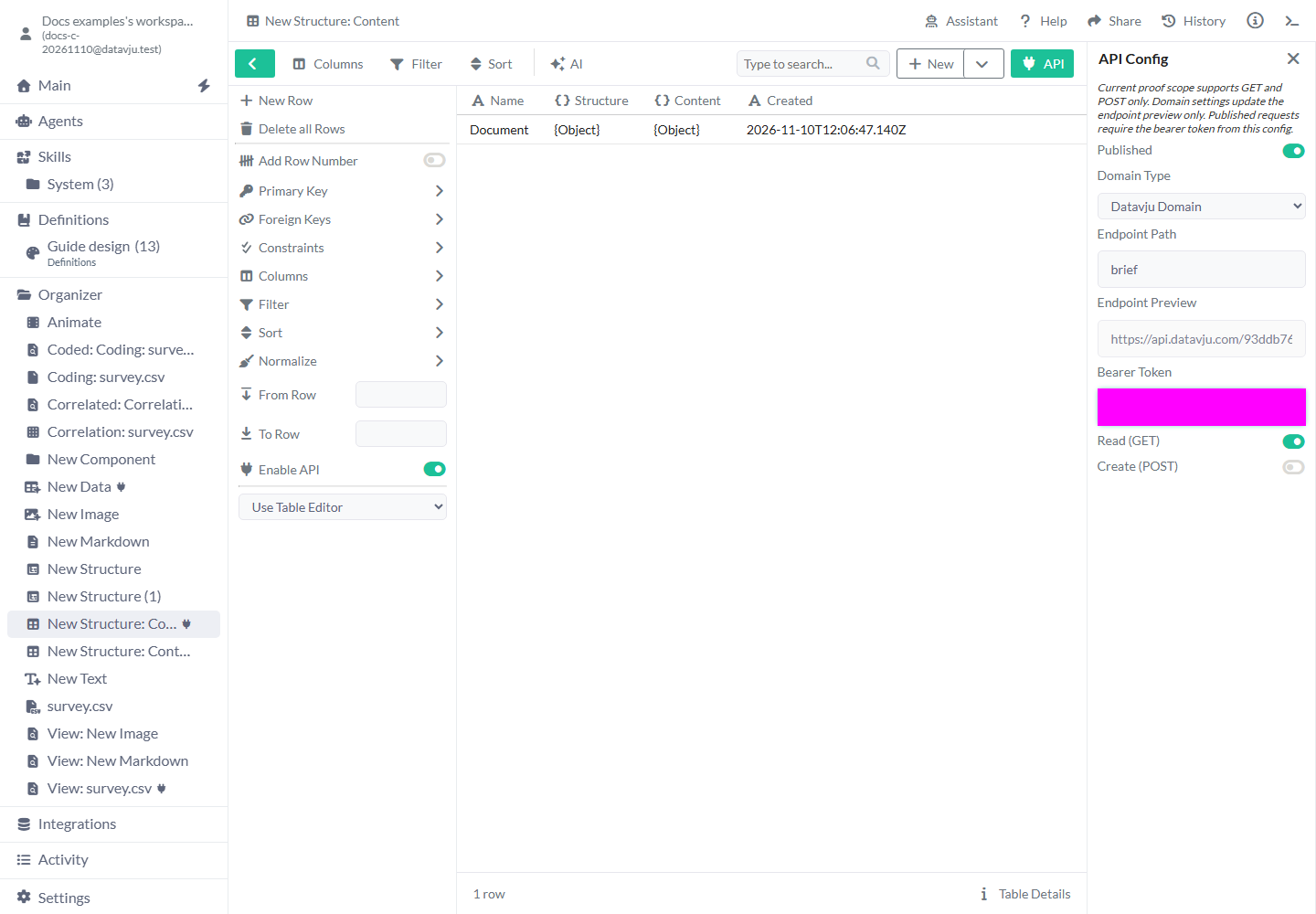
Configure access and methods
Published and Enable API control access separately. Turning Published off keeps your settings; turning Enable API off removes them.
- Enable API - Default: Off. Turn it on to create API settings. Turning it off removes those settings; enabling again creates a new token and defaults.
- Published - Default: Off for a new API. Turn on after reviewing access and methods. Turn off to stop requests while keeping the configuration.
- Domain Type - Default: Datavju Domain. Keep this for the Datavju API host. Use Own Domain changes the preview only; own-domain routing is not available yet.
- Own Domain Name - Default: Empty; shown for Use Own Domain. Changes only the preview host, for example
api.example.test. An omitted scheme displays as HTTPS. - Endpoint Path - Default: Empty. Enter a memorable path such as
brief. When supplied, requests must match it exactly. Use an explicit path so callers have one agreed URL. - Endpoint Preview - Default: Generated, read-only. Copy the full URL, including the long item identifier before your path. Changing the path leaves that identifier in place.
- Bearer Token - Default: Generated automatically. Replace it to change the credential callers must send. Update callers after the change saves. Clearing it prevents authorized requests.
- Read (GET) - Default: On. Returns rows using their field names and native JSON values. Turn off if the endpoint should only run Data requests.
- Create (POST) - Default: Off. Turn on for the Data-generation request described below. It runs the saved Data model and returns its first result row.
Read rows with GET
Send the exact Authorization: Bearer header. Opening the URL in an ordinary browser tab does not supply this header.
Set DATAVJU_API_URL to Endpoint Preview and DATAVJU_API_TOKEN to your private token. A successful GET returns a JSON array, including when the Table has just one row. A Table with no rows returns an empty array.
The response can include structured Object and Array fields. Check the JSON response itself before choosing which fields to use in another application.
curl --fail-with-body "$DATAVJU_API_URL" \
  --header "Authorization: Bearer $DATAVJU_API_TOKEN"
Run Data generation with POST
POST uses the provider, API, model and transformations already saved on a Data item. Each call makes a new generation request and can incur provider usage. The returned value is the first transformed result row; this call leaves the Data item's stored rows in place.
All three top-level body fields are required. Extra fields are refused.
For request-supplied Instructions and Input, open each field’s editor and choose Source → Text Input, then Generate once to save that configuration. A saved Dataset source with rows supplies that field again when the call runs, overriding the submitted value.
Request fields
Supply each field with its required JSON type.
- instructions - String. For example, Extract item and quantity. supplies this call’s instructions when Source is Text Input.
- input - Array. For example, a user message containing Please send 12 blue notebooks. supplies the call’s input when Source is Text Input.
- responseSchema - Object. A JSON schema for item and quantity replaces this call’s response schema.
Send a generation request
For a Data item configured for OpenAI Responses, save the example body below as request.json.
- Open the configured Data item, generate its initial output and enable API.
- Set its Endpoint Path, turn Create (POST) on and publish it.
- Set the URL and token for this Data endpoint, then send the request below.
- Check the returned object against your schema and saved transformations. The saved provider must support the supplied input and schema.
{
  "instructions": "Extract item and quantity.",
  "input": [
    {"role": "user", "content": "Please send 12 blue notebooks."}
  ],
  "responseSchema": {
    "type": "object",
    "properties": {
      "item": {"type": "string"},
      "quantity": {"type": "number"}
    },
    "required": ["item", "quantity"],
    "additionalProperties": false
  }
}
curl --fail-with-body "$DATAVJU_API_URL" \
--header "Authorization: Bearer $DATAVJU_API_TOKEN" \
--header "Content-Type: application/json" \
--data @request.jsonExamples
These examples use a saved Structure Table with one document named Document. Its API path is brief and Read (GET) is on.
Read a document record
A Structure Table includes its document content as structured JSON alongside Name and Created.
- In Structure, save your brief as a Structure Table and open the resulting Table in Organizer.
- Enable API, set Endpoint Path to
brief, and turn Published on. - Run the GET request above with this Table's URL and token.
- Read Name and Content from the returned row. In the example, Name is Document; Structure and Content are JSON objects, and Created is a timestamp string.
Give another application only the fields it needs
Select fields in your application after reading the response. Hiding a column in the Table does not remove that field from this API response.
- Keep the bearer token in your server's environment.
- Call the endpoint from your server using the example code.
- Use
documentNameswhere you need the list of saved document names.
const response = await fetch(process.env.DATAVJU_API_URL, {
  headers: {Authorization: `Bearer ${process.env.DATAVJU_API_TOKEN}`}
});
if (!response.ok) throw new Error(`API returned ${response.status}`);
const rows = await response.json();
const documentNames = rows.map(row => row.Name);
// Example: ["Document"]
Stop access while keeping your settings
Use Published when you want to resume with the same path and token later.
- Open API → API Config and turn Published off.
- Repeat an authorized GET. It returns 404 and supplies no rows.
- Turn Published on to resume. A missing or wrong bearer token returns 401 even while Published is on.
- To replace a token instead, change Bearer Token, let the change save, then update your caller. The previous token no longer authorizes requests.
Limits and common mistakes
- Use GET for row reads and POST for configured Data generation. PATCH, DELETE and arbitrary row insertion are not available through this API.
- Keep bearer tokens in private server-side configuration. Browser code delivered to visitors exposes its embedded credentials.
- Copy the whole Endpoint Preview. The item identifier and Endpoint Path both matter.
- Review every returned field. Hiding a Table column does not exclude it from a direct saved-Table GET.
- Check errors before using a response: 401 means authorization failed; 404 can mean disabled, unpublished, wrong path or a method that is off.
- A Transform View can refuse GET with 400 when its operations cannot be compiled for this endpoint. Test the actual result before connecting another application.
- GET results and a published Page's data can differ in supported operations. Publishing a Site does not publish this API configuration.
Related articles
- Data generation - configure the model, schema and transformations used by POST.
- Structure - save a document as a structured Table.
- Table - edit stored rows and fields.
- Site - publish Pages for visitors.
- Schedule - refresh saved data on a timetable.