
FTP Acquisition
FTP Acquisition reads a specific CSV or XML file from an FTP server and opens it for import. Use it when another system supplies a recurring file, such as a stock feed or an order export, at a known remote path.
How FTP Acquisition works
FTP Acquisition is part of Files. It connects to the specified server account, checks the file and saves the connection details with the source item. CSV or XML then reads that file and determines the imported columns and rows.
The connection reads one named file. Use Integrations and its separate FTP File System Index when you need information about a directory’s files. Editing imported rows does not upload changes to the FTP server.
Connect a CSV or XML file
Use the access details for the account allowed to read the remote file.
- In Organizer, open the destination folder’s menu and choose File Upload → CSV from FTP or XML from FTP.
- Open the new item if the configuration form is not already open.
- Fill in Host, User, Password and File Path. Use the exact remote file path supplied for that account.
- Leave Secure on for FTP with TLS. Turn it off only when you deliberately need a server that uses plain FTP.
- Choose Check Configuration. Confirm the message Connection and file path ok! before continuing.
- Choose Use Configuration. The saved source opens in the CSV or XML preview.
- Review the parsing settings or selected XML fields, then choose Import to save the rows.
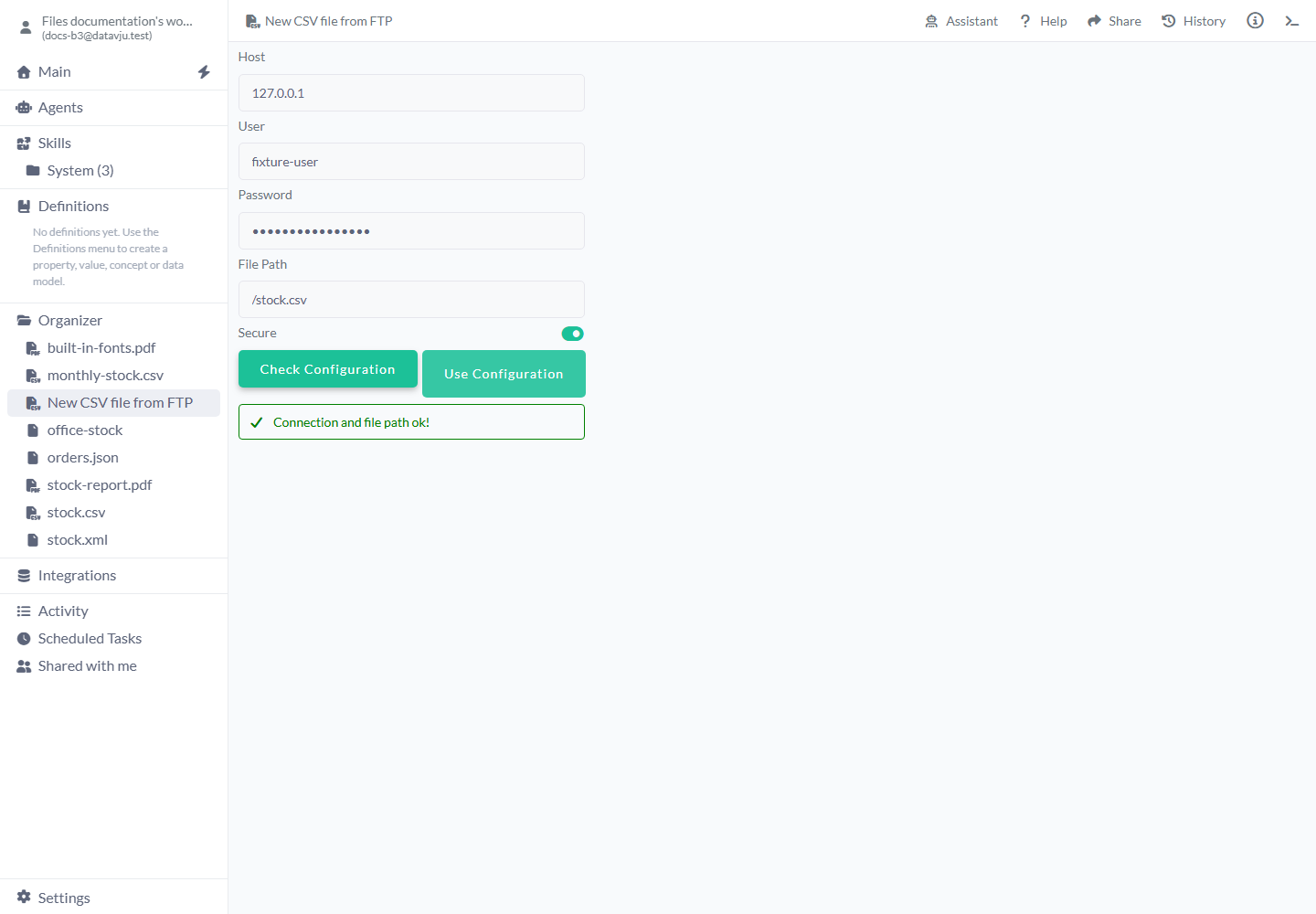
Check the connection and file before choosing Use Configuration.
Connection settings
A new form has empty access fields and Secure on. Existing sources reopen with their saved values.
- Host - The FTP server’s hostname, without an ftp:// scheme or file path. For example, feeds.example.org. The current form uses the standard FTP port, 21; a custom-port control is not available yet.
- User - The account name supplied by the file provider, for example stock-reader. It is not necessarily your Datavju email address.
- Password - The password for that FTP account. Enter it in this masked field and update it here when it changes. It is saved with the connection so the source can be read again.
- File Path - One exact file in the account’s accessible FTP filesystem, such as /exports/stock.csv. Directory names, spelling and letter case must match what the server accepts. Choose a CSV path for CSV from FTP or an XML path for XML from FTP.
- Secure - On by default. Uses explicit FTP over TLS, also called FTPS. Turn it off only for an intentional plain-FTP connection. A TLS failure is reported; Datavju does not silently retry in plain FTP. SFTP over SSH is not available here.
- Check Configuration - Checks login/connection and access to the named file. Run it after changing a setting. A connection error and a missing-file error are reported separately.
- Use Configuration - Becomes available after a successful check. Saves the source details and opens CSV or XML preview. This step does not yet import the file’s rows.
- Configure FTP - Available in the CSV/XML FTP preview. Reopens the saved connection details when the host, account, password or path needs reviewing.
- Change to CSV from FTP - Available in a local CSV preview. Switches that item to the FTP source workflow; complete the connection form, review the new source and import it.
Worked examples
The paths and data below illustrate the information to agree with your file provider.
Read a stock CSV over FTPS
Choose CSV from FTP. Enter the provider’s host and account details, use /exports/stock.csv as File Path and leave Secure on when the server supports FTPS. After Check Configuration and Use Configuration, leave Header Row on and choose Comma. Import saves two stock rows.
Contents of the remote stock.csv
sku,name,quantity
001,Desk lamp,24
002,Office chair,8
Rows after CSV import
sku | name         | quantity
001 | Desk lamp    | 24
002 | Office chair | 8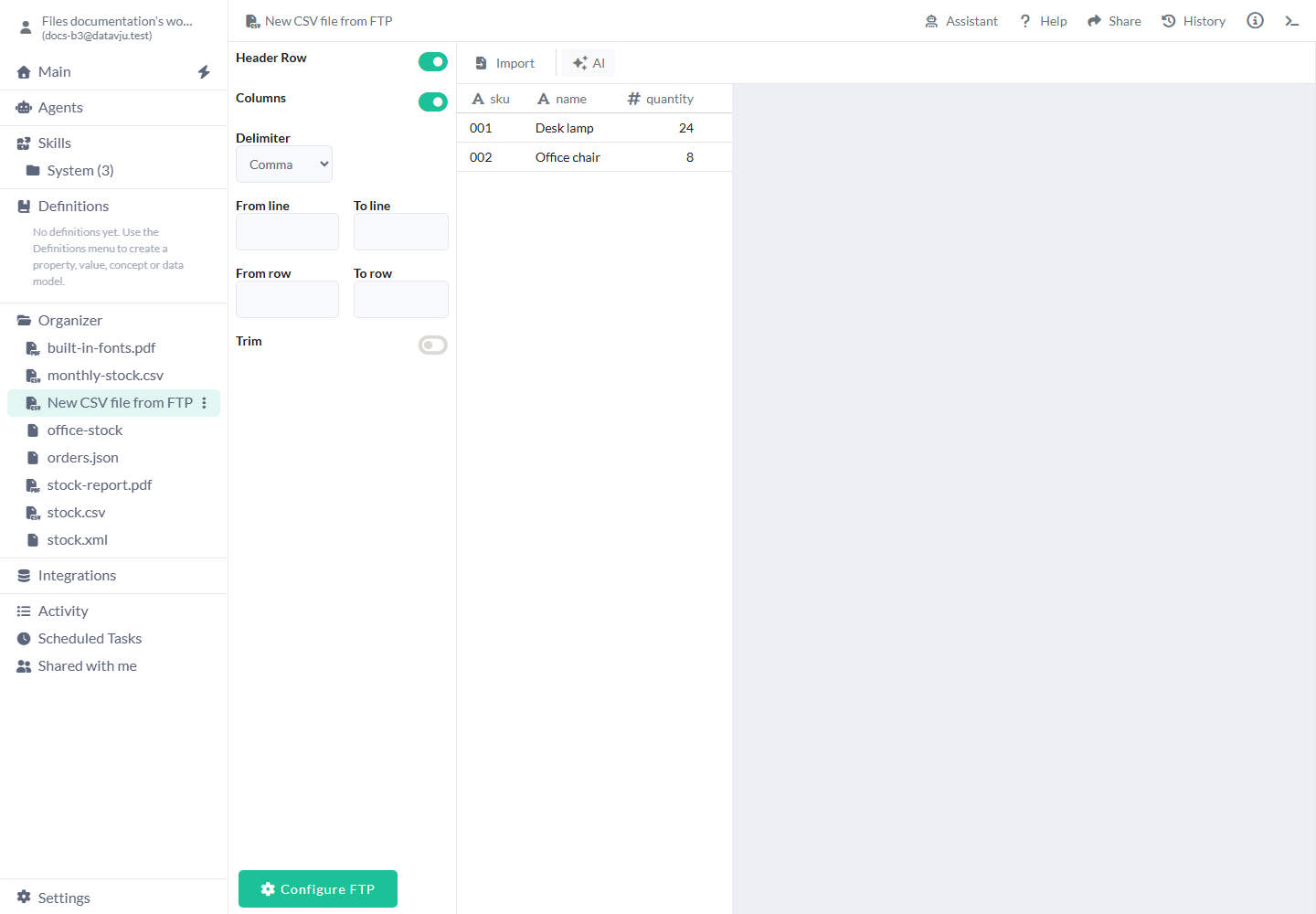
The CSV preview uses the remote file you checked.
Read an XML export
Choose XML from FTP and set File Path to the XML export, such as /exports/stock.xml. After Use Configuration, expand XML → rows → row and its record node, then check id and name. Import saves the two selected records.
Contents of the remote stock.xml
<rows>
  <row><id>1</id><name>Desk lamp</name></row>
  <row><id>2</id><name>Office chair</name></row>
</rows>
Values selected in XML; generated columns use the full XML paths
id | name
1  | Desk lamp
2  | Office chair
Refresh a saved FTP CSV
A refreshable imported CSV offers Refresh and Schedule in its sidebar.
- Open the imported CSV and choose Refresh to retrieve the configured remote file again with the saved CSV settings.
- Check the resulting row count and values. Refresh replaces that CSV’s saved rows with the accepted source result.
- Choose Schedule if you want the shared scheduling controls to repeat the supported refresh.
- If access details change after import, open the sidebar and choose Reimport, then Configure FTP. Update the settings, choose Check Configuration and Use Configuration, then review the source and choose Import.
Limits and common mistakes
A successful file-access check and a successful CSV or XML import are separate results.
- For a connection failure, check Host, User, Password and the provider’s TLS requirements. A server that expects SFTP cannot be used through this form.
- If the connection works but the file check fails, confirm File Path against that account’s directory and read access. A readable directory is not the same as a readable file.
- Changing the connection fields requires Check Configuration again before Use Configuration.
- A successful connection check does not validate the CSV or XML contents. Review their preview and complete Import.
- CSV refresh requires a complete transfer, compatible columns and valid parsing before accepting the replacement. A failed refresh keeps the last accepted rows and settings.
- A correctly transferred CSV containing only headers can replace the saved rows with an empty result. Check that the provider intended an empty file.
- Direct XML Refresh and Schedule controls are not available yet.
- This form reads a specific file; directory indexing and uploading files back to the server are separate tasks.
Related articles
- Files - Choose a file format and compare the ways to bring files into your workspace.
- CSV - Choose delimiter, header and field types for a CSV source.
- XML - Select elements and attributes from an XML source.
- Integrations - Find connection tools, including FTP File System Index.
- Schedule - Repeat and inspect supported source refreshes.
- Table - Work with the imported rows.