
Command
Command carries out a workspace request from a short description. Use it to find saved resources, create folders or data, inspect existing work, or make supported changes across tools without opening each tool first.
Command and its neighbours
Select the bolt beside Main to open Main Command. You can also start a conversation in Main. Choose Recents there to return to earlier conversations or find Needs attention.
For work centred on one folder, use Folder Command or Folder Assistant. For help about the open tool, use its Assistant; for a focused edit, use AI. Agent workspace instead connects Codex or Claude Code on a Computer using your provider account.
What Command reads and saves
You can ask Command to find and work with items you can access, including items shared with you. Give the full Organizer path when several items have the same name, such as Organizer/Sales/Orders. Your existing access applies to each item it reads or changes.
You find created folders and files in Organizer, changed rows in their Tables, and Page or Viz changes in their editors. Use Definitions to keep the business terms and rules you agree. Open each requested result to check it, then use the conversation to review how the work was done.
Run a workspace request
Drag the window header to move it. Choose Close Main Command or press Escape to close it while work continues. Return to Main to check progress or answer a question.
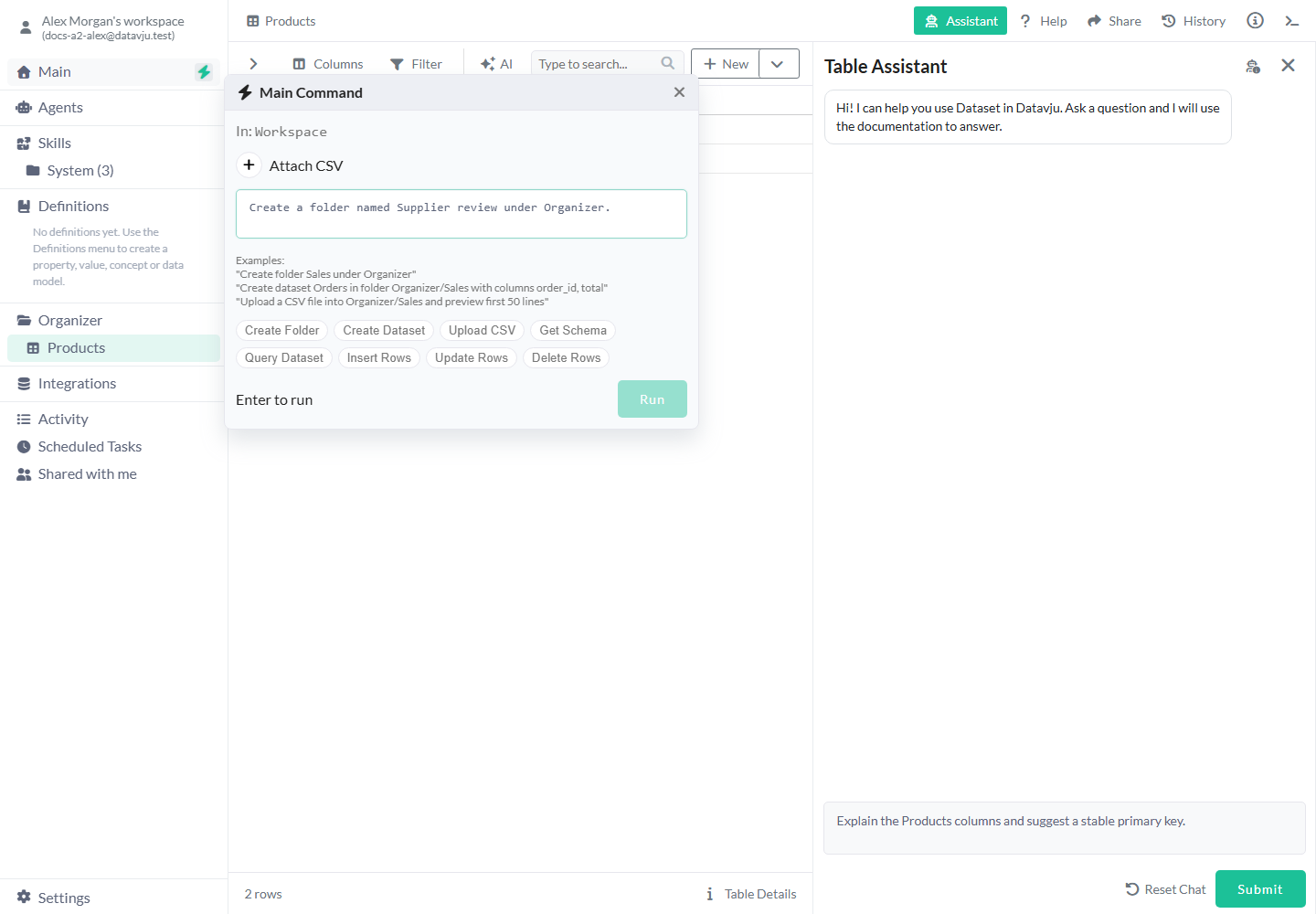
- Find Main in the sidebar and select the bolt on its right. Check Main Command and In: Workspace in the popover.
- Enter the desired outcome in Describe what to do in workspace.... Include source names, destination paths and any data to preserve.
- Optionally choose Attach CSV to add files before running, or select a quick action described below.
- Select Run or press Enter. Use Shift+Enter for a new line. The submitted request stays visible while run details replace the input controls.
- Answer any question in the same conversation. Use Type your answer... and Submit Answer for text, or the displayed file-upload or FTP form when requested.
- When the result appears, use Open beside a created or updated item and inspect the saved contents.
Give the result and destination in your request.
Input and quick actions
You can type a request directly or use a quick action as a starting point. A Dataset is the data behind a Table or a tool's saved result; the Dataset actions below work with that data.
No quick action is selected initially. Select one again to clear it. To choose your own external provider and model, open Agent workspace; Main Command uses Datavju's configured AI.
- Request text - Starts empty. Your typed request is used when present, including when a quick action is selected. Prefer exact paths such as
Organizer/Sales/Ordersand stable row keys such asorder_id = A104. - Attach CSV - Choose one or more CSV files from your computer. You see each filename beside the draft. Choose Remove beside a file to leave it out of this request.
- Create Folder - Offers a folder-creation request. With no typed text its example creates New Folder in Organizer. Supply a different name and destination explicitly, such as Organizer/Supplier review.
- Create Dataset - Offers a Dataset-creation request. Its no-text example names New Dataset, with string id and name columns and id as the primary key. Describe your own schema and key when those defaults do not fit.
- Upload CSV - Offers an upload/preview workflow. Its example uses Organizer/Sales and a first-50-lines preview. Name your intended folder and whether you need preview or import.
- Get Schema - Inspects a Dataset's columns. Its example contains a Dataset placeholder, so provide the saved Dataset name/path rather than running a placeholder as if it were a real ID.
- Query Dataset - Reads rows; its example asks for the first 20. Say which filters to use and whether you need a sample or all matching rows.
- Insert Rows - Requests insertion into a named Dataset. Provide the actual row values and destination, for example one order with a unique order_id.
- Update Rows / Delete Rows - Change or remove the rows you identify. Use the Table's primary key—the column or combination of columns that uniquely identifies a row—and give every key value. For example, update the order whose order_id is A104.
Continue a conversation or answer later
Continue related requests in the same conversation. Keep lasting decisions in Definitions, instructions in documents, and reusable procedures in Skills, so you can use them again after a long conversation.
- Keep follow-up answers in the same thread, for example
Use the Products Table in Organizer/Catalogwhen asked which Products you mean. - If you leave the popover, open Main, choose Recents, then look under Needs attention to find unresolved input.
- Answer the displayed question, upload request or FTP configuration there. The same thread resumes; you do not need to repeat the original request.
- After completion, inspect its result and the actual item. You can continue with a follow-up such as
Format that View's price column as currency.
Supported work
A relevant Skill supplies reusable instructions and may use a saved service connection. Give access to the items and connections it needs. Ask for an available Save as action when you need another kind of result; Command explains which choices the source supports.
- Find items by name or path, including items shared with you. Answer the short follow-up if several items match.
- Create folders and Tables, import CSV from a file, URL or FTP, and inspect columns or rows. Enter FTP passwords only in the requested secure form.
- Read, add, change or delete rows. Your Table's validation rules and access still apply. Ask to change displayed column values when you want to preserve the stored source values.
- Create and configure Groups, Joins, Transforms and Appends. Open the tool to inspect its preview, then save the result you need.
- Work with a View, a saved way to explore data: inspect its settings, change supported display formats, filters, sort or search, refresh it, or insert its full result into an eligible Table.
- Inspect and make supported changes to Pages and Vizzes, including their data connections and Link destinations.
- Create and revise Definitions for your business terms and rules, check their Tables and relationships, or create and revise reusable Skills.
- Create, read, revise and delete plain Markdown in your own Organizer. Shared Markdown is outside those current document tools.
Understand a completed result
Use Open beside a result to inspect it. You can also find supported new folders, Tables and other items in Activity. If progress stops updating, return to the conversation and open the affected item to see what was saved.
Check the listed new items before choosing Undo: it removes those creations from Organizer. To correct changes to an existing item, open it and request a specific follow-up change. Check an external service directly when you need to confirm or correct an action there.
Expand run details to see the tools used and the recorded plan. Open the resulting item to check its contents, and use a Site's publishing screen to check a publication.
Examples
These examples organize a supplier file, format sales percentages and group orders into country totals.
Organize an incoming supplier file
Create a destination folder, then import a two-product CSV into it with a new Command request.
- Open Main Command and enter
Create a folder named Supplier review under Organizer. - Select Run, then Open beside the created folder. Check its name and location.
- Close the completed popover and reopen the bolt beside Main for a new request. Choose Attach CSV and attach a file with
sku,name,pricerowsLAMP-01,Desk lamp,49andLAMP-02,Floor lamp,89. Ask to import it into Organizer/Supplier review. - Answer any upload/import question in the same conversation. Open the imported file and check both saved rows.
Use this CSV for the example:
sku,name,price
LAMP-01,Desk lamp,49
LAMP-02,Floor lamp,89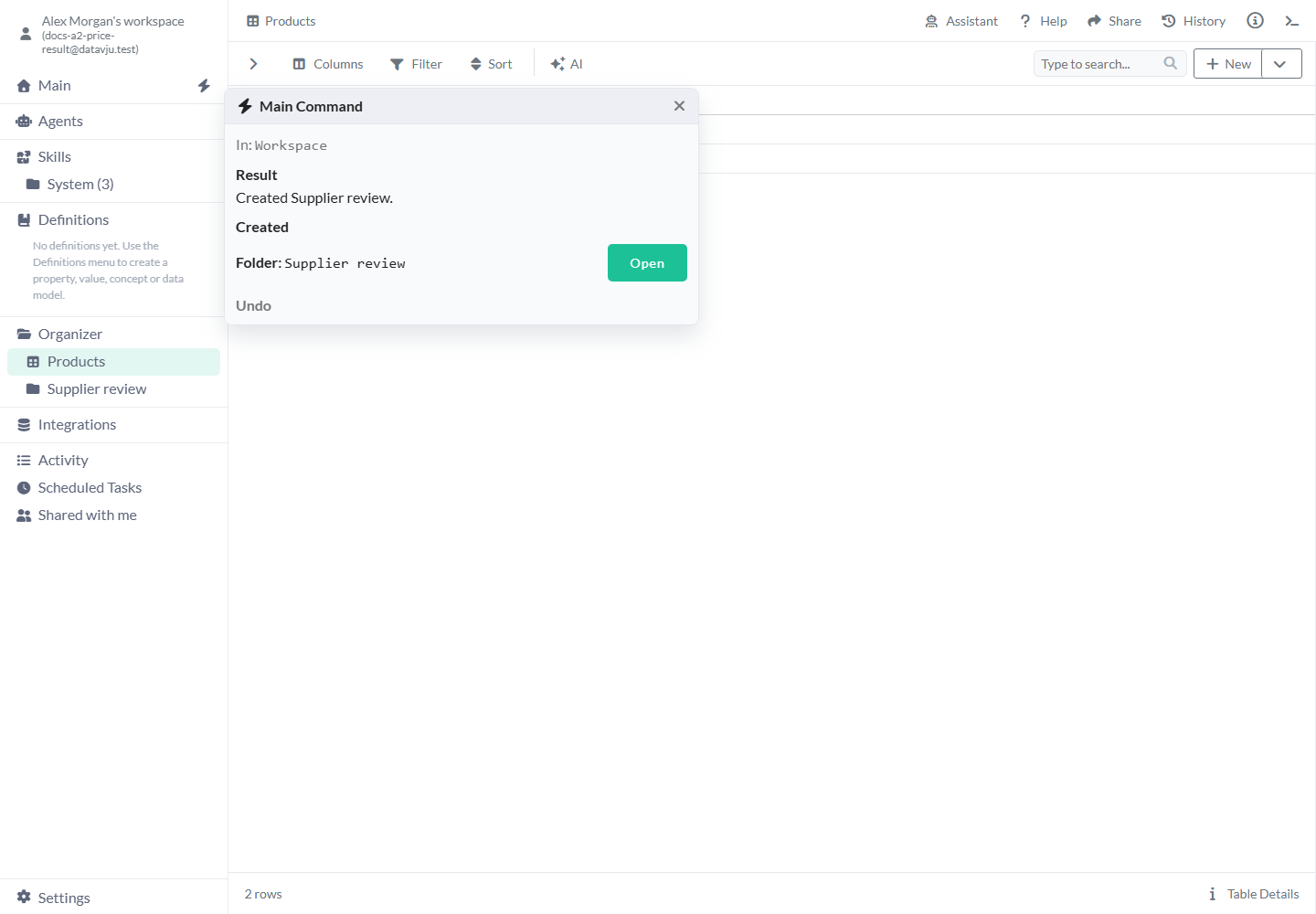
Open the created folder to check its name and location.
Format a saved sales View
Display fractional margin values as percentages while preserving the numbers used for sorting and calculations.
- Start with a saved View named Regional sales whose numeric margin values include
0.125and0.2. - Ask
Format margin in Organizer/Sales/Regional sales as Percentage with one decimal place. Keep the source values unchanged. - Open the View and check
12.5%and20.0%. Close and reopen it to check that the format stays saved. You can still sort and calculate using the original fractional numbers.
Prepare a regional summary
Create a Group to compare total revenue for Germany and France from three source orders.
- Use an Orders Table with Country and Revenue rows
DE,20,DE,30andFR,40. - Ask
Create a Group from Organizer/Sales/Orders in Organizer/Sales. Group by Country and sum Revenue. - Open the returned Group and check the saved fields and preview: DE totals 50 and FR totals 40, with ordering determined by its sort settings.
- If you need a reusable named result, ask for the supported Save as View action or use it in the Group tool. Creating the Group node and saving its output are separate results to inspect.
Limits and common mistakes
Check source paths and saved results before repeating a request that may already have changed data.
- Give the source path, destination and every primary-key value for a row change. Replace example Dataset placeholders with your actual item name or path.
- After configuring a Join or Transform, inspect its preview and choose an available Save as action for the reusable result you need.
- Ask for all matching rows when you need a complete result. Check the import or saved result as well as any preview sample.
- Keep credentials out of prompts and attachments. Use the dedicated authentication or FTP controls when requested.
- A refused, failed or interrupted operation may need investigation. Inspect current saved state before repeating a creation, deletion or external action whose outcome is uncertain.
- If Command asks a question, answer in the same conversation. If it reports an unavailable operation, use the suggested supported action or the relevant tool's controls.
Related articles
Use Organizer to inspect saved results, or Skills and Definitions to keep instructions and business rules for later work.
- Organizer: Find the created or updated workspace objects.
- Definitions: Record the meaning and rules behind your request.
- Assistants: Work conversationally in the current tool.
- AI Edit: Make one focused change to the open item.
- Agents: Save a reusable responsibility and its access.
- Skills: Reuse procedures and supporting resources.
- Activity: Return to supported newly created objects.