
Definitions
Definitions is where you write down what your business terms and data mean. Use it to share vocabulary, plan the Tables and fields you need, and compare that plan with your actual data.
What you can define
Start with a Concept for a shared term, a Property for an attribute such as Color, and Values for its choices such as Black and Navy. A data-model agreement describes your Tables, fields and relationships. You can then create the Tables from that agreement or connect it to Tables you already have.
Choose the right Definition
A Property sets an attribute’s type; its child Values provide reusable choices.
- Concept through New definition - Explain a term, add descriptive properties and link related terms. For example, define which bags count as Carry-on bags.
- Property through New definition - Define a reusable attribute and its type. For example, Color as String or Capacity as Number with Unit GB.
- Value through a Property's New definition - Add a choice under a Property. For example, Navy with stored text navy.
- Row review through New definition - Define the records, terms and statement a person will review and accept. Follow Row Review to collect their deliberate signature.
- New data model - Plan Tables, fields, record identifiers and relationships, then connect that plan to your data.
- New design system - Create shared design tokens and Component requirements.
- New locale system - Manage languages, translated messages and their fallback order.
Create shared meaning
Create a term or attribute first, then reuse it wherever that meaning is needed.
- Hover over Definitions and open its three-dot menu.
- Choose New definition.
- Choose Kind: Concept for a term, or Property for an attribute. Enter Label and Meaning.
- Choose Place in tree to decide where you will find the entry.
- For a Property, enter Attribute association (a stable short key such as color) and choose Value type. For a Concept, enter any descriptive Properties (JSON) as an object, or keep {}.
- To link an existing entry, choose Add reference. Enter Relationship and choose its Target by name and path.
- Choose Save definition and review the saved details.
Agree and implement a data model
Use this sequence for a new Table. Keep existing data separate until you deliberately choose it in Dataset binding or Column binding.
- Choose Definitions → New data model.
- Enter Travel catalog in Data model name, then Create model.
- Choose Add table, enter Products in Name and its Meaning, then Save agreement. Leave Dataset binding unbound to plan a new Table.
- Choose Add field for SKU. Choose Logical type String and Required, then Save agreement. Repeat for Name (String) and Price (Money).
- Choose Edit table → Add key component. Select SKU to identify each product by its unique code, then Save agreement.
- Open Implementation. In New Tables in choose Organizer or the destination Folder, then Implement data model.
- Choose Check implementation. Review the fields and key, then open Products in Organizer.
Agreement views and settings
Use these controls to plan your structure and connect it to existing Tables when needed.
- Agreement - Start here to add or edit the agreed Tables, fields and relationships.
- Diagram - Inspect the Tables and their relationships. Use Zoom in, Zoom out, 100% and Fit to view. Selecting a Table or connection shows its details.
- Implementation - Create missing Tables or compare existing ones with the agreement. Choose Check implementation when you want a fresh comparison.
- Dataset binding - A new Table starts at Unbound — agreed intent only. To use an existing Table, choose it here; then connect each agreed field through Column binding.
- Logical type - String initially. Choose Array, Boolean, Date, DateTime, DateTime TZ, Duration, JSON, Money, Null, Number, Object, Password or String to match what the field means. For example, choose Money for an amount with currency.
- Insert default - None initially for a String field. Choose Random UUID when new records should get a generated identifier if you leave it out. Save and implement this change; supplied identifiers and existing records are kept.
- Required - Off initially. Turn it on when every record must contain a value in this field.
- Column binding - Unbound initially. Choose the actual column that stores this field in the selected Table. Renaming a column later keeps this connection.
- Add key component - No key initially. Add each field needed to identify a record, use the arrows to order multiple fields and Remove to remove a draft component.
- Constraint type → New constraint - Unique initially. Choose Unique for distinct values, Check for conditions, or Exclude for conflicting values/ranges. Choose New constraint, configure it, Add constraint and Save agreement. Follow Data Model for the full constraint controls.
- Add foreign key - Choose Child table, Parent table and Parent key, then choose a Child field for each key component. This connects records such as order lines to their order; matching fields need the same types.
- Place in tree - Choose where to display the entry in the tree. Its Table or relationship still describes the same data.
- Save agreement / Close - Choose Save agreement to keep the change or Close to leave the draft. If someone saved a newer version, Reload saved entry loads it for review.
Implementation actions
Check implementation reads the current Tables. Implement data model saves the changes needed by the agreement.
- Check implementation - Compare your actual Tables, fields, keys and supported rules with the agreement. Review matches, differences and unavailable or unbound fields. Check again after later changes; the result shows when it was checked.
- New Tables in - Organizer initially. Choose the Folder for newly created Tables. Existing Tables stay where they are.
- Implement data model - Create missing Tables/fields and apply supported agreed requirements. Existing connected data is kept. If data or types conflict, correct the reported problem before retrying. Running it again on a matching agreement leaves it unchanged.
- Convert existing fields… - In Agreement, review existing key fields you want to turn into a record relationship. Preview the records and mapping before confirming.
- Convert declared fields… - In Implementation, review an explicit type change, its current values and the tools or Pages using them. Resolve the listed decisions before applying it.
- Reset implementation… - Review the data-model agreement and Folder before removing all bound Tables and their records, including existing Tables you connected later. Keep any included sources you need to rebuild the result.
Example: share one colour vocabulary
Create Property Color with association color and type String. Under it, add Black storing black and Navy storing navy. Create Concept Carry-on bags, choose Add reference and link both Values with Relationship allowedValue. Add a uses link to Color, then Save definition. Your category now shares those colour choices. To standardize a supplier’s BLACK text, prepare that source separately in a data tool.
Example: agree a Products Table before records exist
Create Travel catalog → Products with required String SKU, String Name and Money Price. Set SKU as its primary key: the field that identifies each product. Choose Implement data model, then Check implementation. The new Products Table appears in Organizer and the check shows String/String/Money plus the matching SKU key. You can now add product records.
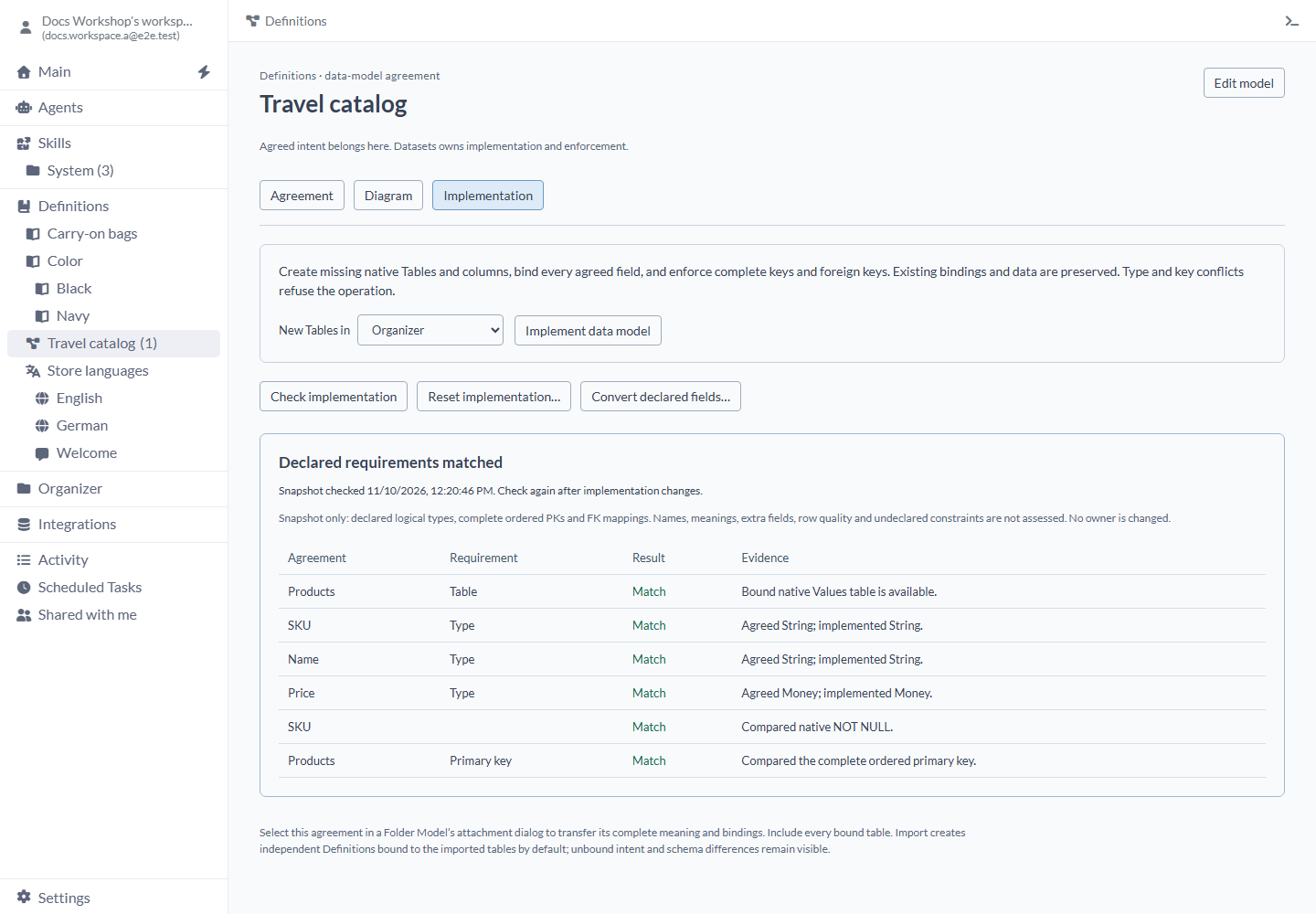
Edit, reference and transfer Definitions
Open an entry to read it, then choose Edit definition, Edit model, Edit table or the field/relationship edit action. Save the change using that editor’s Save control. To take the setup to another workspace, include the agreement and every connected Table in a Folder’s Model Advanced Options, then review the imported copy there.
Delete a Definition
Deleting Definitions removes the agreed meaning while keeping the actual Tables and records. Review the preview first.
- Open the entry’s three-dot menu and choose Delete.
- Review the named entry, child count and any listed uses.
- If another Definition or Agent uses it, change that use first. Choose Refresh preview to check again.
- Choose Delete definition to confirm, or Cancel to keep it.
Limits and common mistakes
Run Check implementation after changing your agreement or Tables. Review its timestamp and the requirements it compared.
- Choose every field of a combined record key and map relationships in the same order.
- Open listed uses before deleting a Definition. Resolve their references and refresh the preview.
- Configure Agent access separately when an Agent needs to read or edit Definitions and Tables.
- Review type conversions explicitly, including their effects on existing records and Pages.
Related articles
- Concepts - Define terms and reusable references.
- Properties - Define typed attributes.
- Values - Store typed vocabulary entries.
- Data Model - Configure complete field, constraint, key and binding controls.
- Locale System - Manage locales, Messages and fallback.
- Design System - Agree reusable visual tokens and Components.
- Row Review - Declare complete record acceptance.
- Models - Take your Definitions and Tables to another workspace.