
Bucket
A Bucket stores files and folders in your workspace. Use it to keep original supplier exports, documents, images or a folder of assets together. You can upload files, arrange them in folders and download them when you need them.
How storage works
Open the Bucket's item in Organizer to see its files and folders. Each file has a path inside that Bucket, such as suppliers/april/products.csv.
Files keep their uploaded content. Uploading another file to exactly the same path replaces that content. Files with the same name in different folders have different paths and remain separate.
Use File Upload when you want a supported file type to open in its tool or be imported as data. Use Bucket when the file itself is what you need to store. Use an Organizer Folder to arrange workspace items such as Tables, Pages and Buckets.
Create a Bucket and upload files
Create a Bucket in the Organizer location where you want to keep the files.
Successful uploads are retained immediately in the Bucket. Reopen the item to read the current stored files.
- Open the Organizer's menu, then choose Create → Bucket. You can also create a Bucket inside a Folder or Prototype.
- The new New Bucket item opens and initially shows No files or folders. Rename the Organizer item when you need a more descriptive name.
- Choose Upload files, then select one or more files in the file picker.
- Wait for the upload status to finish. Check the Name, Type, Size and SHA-256 columns. SHA-256 is a checksum calculated from the file content, useful when checking that two files are identical.
- Choose Download beside a file when you need its original content.
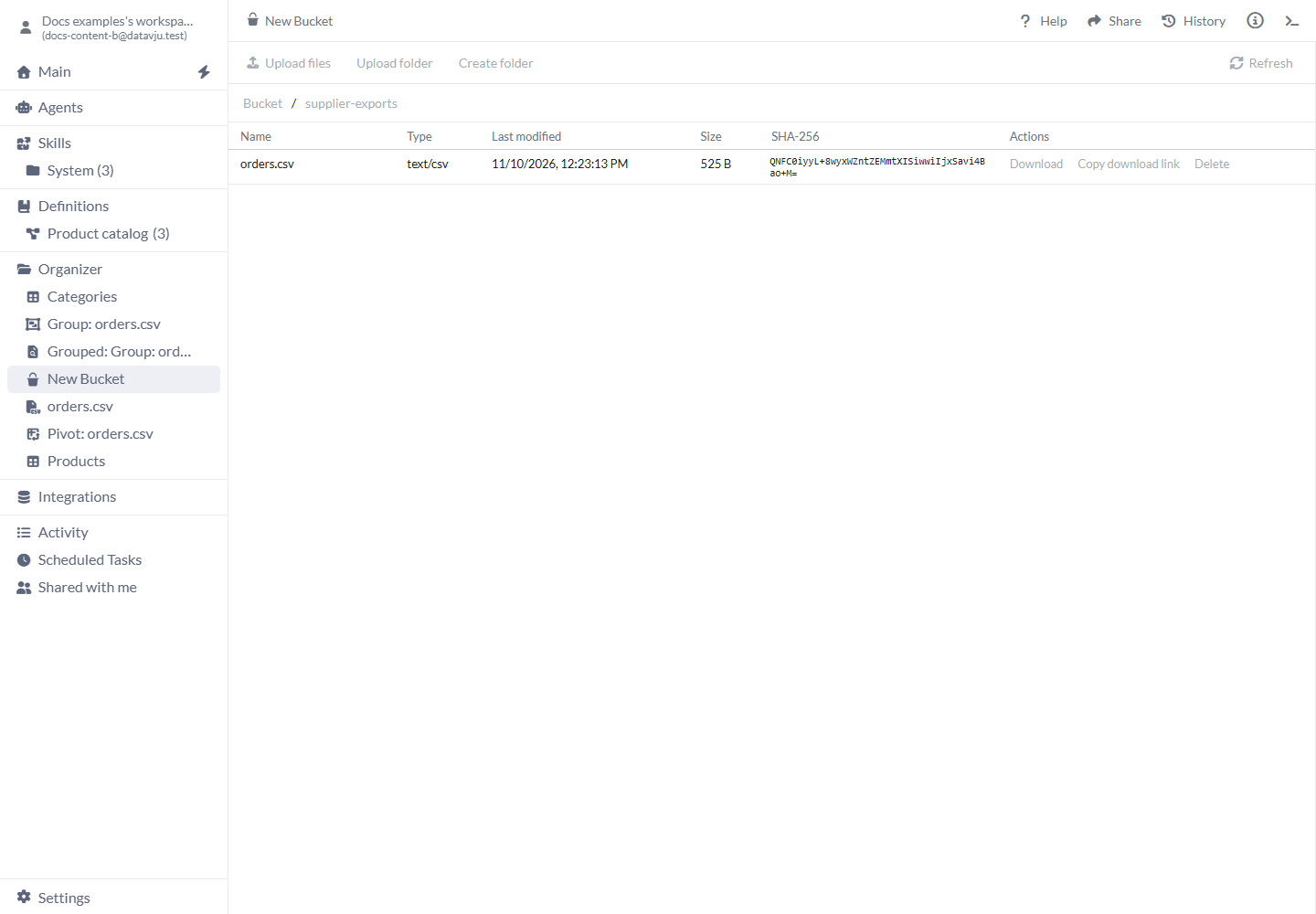
Keep an original export in a Bucket folder for later download.
Organize files into folders
Create and open the destination folder before uploading files into it.
Cancel closes the new-folder form. Existing files stay at their current paths when you create a folder.
- Choose Create folder.
- Enter Folder name, then choose Create. Use a single folder name without
/. - Open the folder by selecting its name.
- Choose Upload files to store files at this location, or Upload folder to upload a local folder with its relative file paths.
- Use the Bucket breadcrumb or a parent breadcrumb to return to that location.
Controls and file details
The listing shows the current folder. Its file actions apply to the file on that row.
- Upload files - What it does: Uploads the selected files into the current folder. No files are selected by default. Example: Upload two PDFs into
contracts/. - Upload folder - What it does: Uploads the files selected by the folder picker, keeping their relative paths beneath the current location. Example: Upload a local
campaignfolder containing images and text. - Create folder - What it does: Creates an empty folder inside the current location. Folder name starts empty. Example: Create
2026before uploading this year's exports. - Refresh - What it does: Reloads the current file listing. Example: See files uploaded by a collaborator.
- Name - What it does: The file or folder name at the current path. Folder names open their contents. Example:
products.csv. - Type - What it does: A file's content type, or Folder. Example:
text/csvorapplication/pdf. - Last modified - What it does: The stored object's modification time, displayed in your browser's local time. Example: Check whether this is the newly uploaded export.
- Size - What it does: File size displayed in B, KB or MB. A dash means unavailable. Example: Distinguish a full export from an unexpectedly empty one.
- SHA-256 - What it does: The stored file-content checksum, shown as base64 text when available. A dash means unavailable. Example: Compare checksums when checking identical file content.
- Download - What it does: Issues a download for that exact file. Example: Retrieve the original spreadsheet.
- Copy download link - What it does: Copies a temporary download URL for that exact file. It expires in five minutes. Example: Pass a file to an authorized process that can fetch it immediately.
- Delete - What it does: Opens a confirmation for a file or folder. Folder deletion includes every file below it. Example: Remove a disposable test upload.
- Load more - What it does: Appears when the listing has another page. Adds more entries to the visible list. Example: Continue through a large asset folder.
Share and access files
Use the Bucket item's ordinary Share controls. Read access allows listing and download; write access is required for uploads, creating folders and deletion. A read-only Bucket keeps its file navigation and download controls available.
Copy download link gives you a link that expires after five minutes. Anyone holding it can download that file before it expires. Obtain a new link when the old one expires.
The browser must allow clipboard access to copy the link. If copying fails, use Download for a local copy or allow clipboard access before trying Copy download link again. An already copied link keeps its original expiry time when you refresh the listing.
Examples
For the supplier example, create and open sources/2026/ before uploading the export.
Keep the source export alongside imported data
The local supplier-april.csv file has the two product records shown below.
Choose Upload files and select that file. The listing then contains one CSV at sources/2026/supplier-april.csv; Download returns its uploaded content. To work with the two product records as rows, separately upload the CSV through File Upload → CSV and import its selected fields. Keep the original in the Bucket for later download.
sku,name,stock
LAMP-01,Desk lamp,8
CHAIR-02,Office chair,3
Replace a file or keep both versions
Before replacement, reports/price-list.csv contains LAMP-01,25. Open reports/, choose Upload files and select a new local price-list.csv containing LAMP-01,27. Afterwards, the listing still has one price-list.csv; Download returns LAMP-01,27. The earlier content was replaced.
To retain both monthly files, create and open each month's folder before uploading. Use the separate paths listed below.
Folder names are part of the file's path. A new path retains a separate file; the same path replaces it.
- reports/april/price-list.csv -
LAMP-01,25 - reports/may/price-list.csv -
LAMP-01,27
Upload a campaign folder
Open the empty Bucket folder campaigns/. Choose Upload folder and select a local spring folder containing the three files listed below. Their paths are kept inside campaigns/.
Open spring inside campaigns to download individual files. All three keep their uploaded content.
- spring/hero.png -
campaigns/spring/hero.png - spring/catalog.pdf -
campaigns/spring/catalog.pdf - spring/copy.txt -
campaigns/spring/copy.txt
Limits and common mistakes
Use separate folder paths when you need to keep several versions of a file.
- Uploading an existing path replaces its content. Automatic file-version history is not available yet.
- Use File Upload to import CSV or JSON records, or to open a PDF in its document tool.
- Obtain temporary links when you are ready to use them; they expire after five minutes.
- Folder rows may have no size, date or checksum. Open the folder to inspect its individual files.
- Upload controls are unavailable without write access and while an operation is busy. If an upload fails, inspect the listing before retrying; earlier files in a multi-file upload may already have completed.
- Upload folder keeps the selected folder's relative paths beneath the currently open folder. Check the breadcrumb first so you do not put a second folder tree inside the wrong location.
- Including Bucket files in a Model download or snapshot is not available yet.