
HTML
HTML imports selected values from a web page into rows in your workspace. Use it for information that is available in the page’s HTML, such as a product list, a directory or a simple published table.
How HTML works
HTML is one of the sources under Files. Datavju retrieves the page on its server, cleans the HTML and presents a tree of tags. You select the values to keep; Import saves them as columns and rows in the same Organizer item.
Repeated tags can supply multiple rows, such as one row for each list item. The result is separate from the remote page. Use CSV or JSON when the source offers a structured export; use Story when you want to build a page in Datavju.
Import values from a page
Use a page whose relevant information is present in the HTML returned by its address.
- In Organizer, open the destination folder’s menu and choose File Upload → HTML from URL.
- Paste the complete address into New HTML Document from URL. Pasting the address creates and opens the HTML item.
- Expand XML, then html and body. Continue through tags until you reach the content you need.
- Check the field or repeated element you want to import. For a list, expand ul and li and select its value node.
- Inspect the preview for the expected values and number of rows. Use the node menu for flattening or type filtering when needed.
- Choose Import. Reopen the item and check the saved rows before using them in another tool.
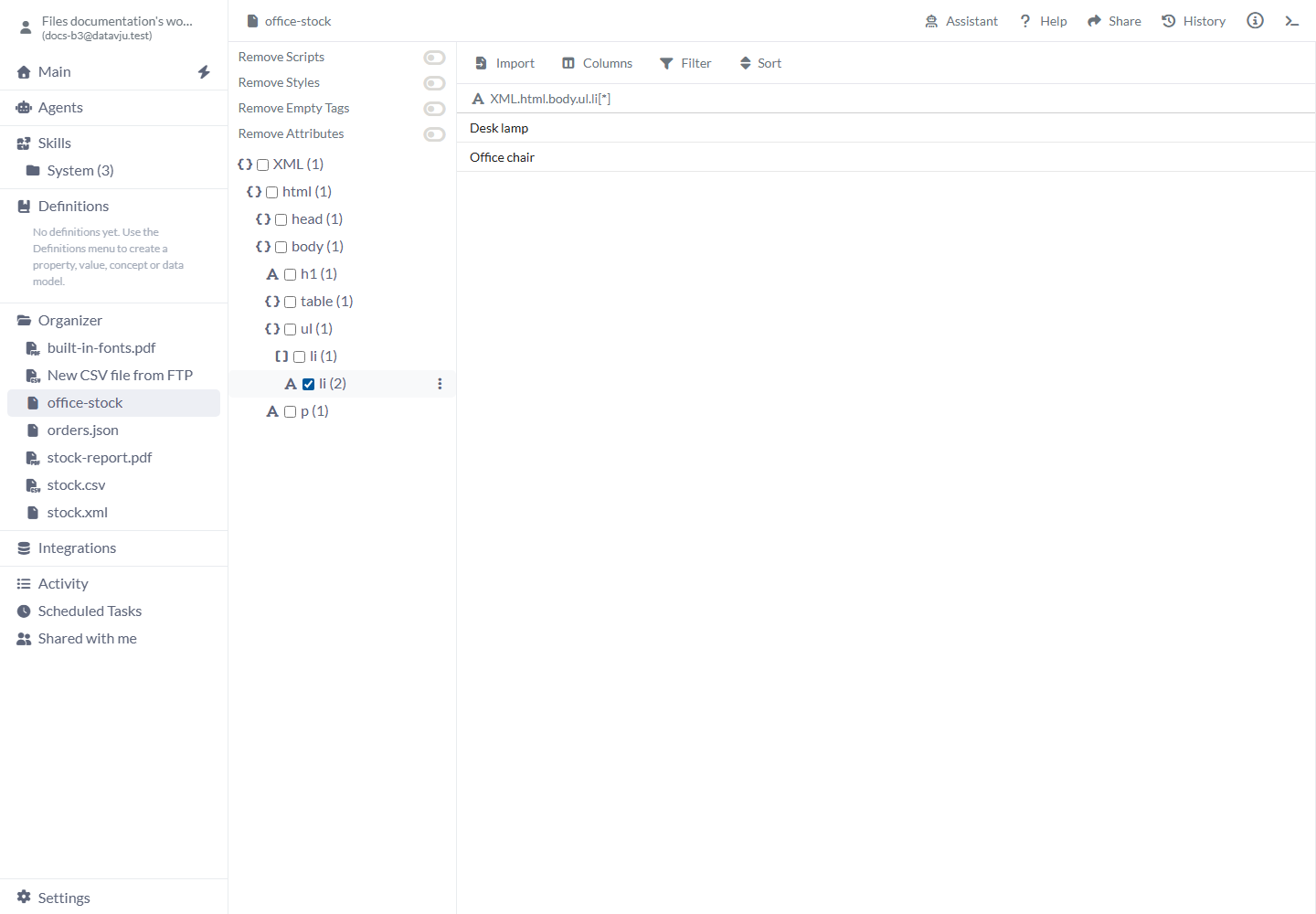
A repeated list item supplies one imported row per product.
HTML cleanup settings
Cleanup removes scripts, styles, empty tags and attributes by default. The four cleanup switches do not yet show their effective initial values.
- Remove Scripts - Controls removal of script tags from the acquired HTML. The acquisition default is on. A script used by a website to load products does not become imported product data.
- Remove Styles - Controls removal of style tags. The acquisition default is on. Use the extracted values rather than expecting the page’s visual styling in the result.
- Remove Empty Tags - Controls removal of empty leaf tags, including empty tags left after cleanup. The acquisition default is on. A tag with no text or child content may disappear from the tree.
- Remove Attributes - Controls removal of HTML attributes. The acquisition default is on. Attributes such as class or href may therefore be absent from the discovered tree.
- Keep Attributes - Appears when Remove Attributes is explicitly on. It is intended to keep named attributes while removing others. A reliable attribute-name list is not available yet.
Choose rows and columns
A new page has no selected fields, flattening choices or array type filters. Open the menu beside a node for options supported by that node.
- Expand icon and checkbox - Expand to reveal child tags; check a node to include it. Expanding body alone adds no columns. A repeated li tag may have another li node beneath it, shown with a count.
- Do not flatten - Default. Retains the selected object or array as a value. Use it when a group of nested values should stay together.
- Flatten to rows - Outputs the selected collection’s entries as rows. Use it when you want one row per repeated item. Check the preview because nested groups can repeat other selected values.
- Flatten to columns - Outputs entries as separate columns. For a consistently arranged table row, it can separate the first and second cell positions.
- To row keys and To row values - Objects only. Outputs property names or property values as rows. Use the preview to check whether these describe the data you want from the selected tag.
- All elements - Default for an array. Includes all its discovered element types.
- String, Number, Object, Array, Boolean and NULL - Only types present in that array appear. Choose a type to restrict its entries. Use the saved table’s Filter for conditions on values such as a price.
Worked examples
The same page can supply a list of product rows or a single heading, depending on the checked path.
Import a product list
Expand XML → html → body → ul → li. Select the repeated value node shown as li with a count. The preview contains Desk lamp and Office chair as two rows. Choose Import to save them.
Relevant source HTML
<html><body>
  <ul><li>Desk lamp</li><li>Office chair</li></ul>
</body></html>
Preview and imported values
XML.html.body.ul.li[*]
Desk lamp
Office chair
Select a page heading
For the HTML below, expand XML → html → body and check h1. The preview contains the page heading as one value. Import saves a one-row result you can use as a source for further work.
Relevant source HTML
<html><body>
  <h1>Office stock</h1>
  <p>Contact <strong>sales</strong> for orders.</p>
</body></html>
Heading selected from the tree
XML.html.body.h1
Office stock
Work with the imported result
Use Table controls for Columns, Filter, Sort and Search. Use Transform to prepare the extracted values and View to save a derived result.
Check the source again when its structure changes. A website can rename tags, move content or change the number of repeated elements independently of your saved data.
Limits and common mistakes
Inspect the returned HTML and the selected preview rather than assuming they match a browser’s visible page.
- Browser login, interactive clicks and execution of a website’s JavaScript are not available in this HTML import. Content loaded only after those actions may be missing.
- The cleanup switches do not yet show their effective initial values. Default acquisition removes scripts, styles, empty tags and attributes.
- A reliable Keep Attributes name list is not available yet.
- The visible tree root is XML. Continue through html and body to reach the page content.
- No columns means no output paths are selected. Expand the tags and check the values you need.
- Direct HTML Reimport, Refresh and Schedule controls are not available yet.
- Creating another HTML URL source with the same item name in the same folder is not available yet.
- Acquiring a page can fail because its address is unreachable, access is restricted or the acquisition service is unavailable. Check the source and retry the import when it is readable.
- Importing values does not change the original website. Use the result within the source’s permitted use.
Related articles
- Files - Choose a file format and compare the ways to bring files into your workspace.
- XML - Read selected XML tags and attributes.
- CSV - Import a tabular export when one is available.
- JSON - Import a structured data export.
- Table - Inspect and filter the saved rows.
- Transform - Prepare extracted values.
- Story - Build a page using Datavju’s page editor.