
MCP
MCP connects an external AI client to the Datavju tools and resources you choose. Use it to inspect data or make changes from Claude Code, Codex or another compatible client, then open the saved results in Datavju.
What a connection can do
Your client sends requests to Datavju over HTTP. The connection saves the tools and resources you allow; each request also uses your current Datavju permissions. Reading needs Read access. Changes need Write access and the relevant tool.
Changes save to your workspace: for example, an inserted record appears in its Table and a created View appears in Organizer. Your external client manages its own conversation and AI service. Saved Datavju Agents have their own instructions, permissions and Runs.
Create a connection
Have a compatible client ready and decide which data it needs. Start with one Table and reading tools when you want to inspect data.
- Open Settings → Account → Security and find MCP connections.
- Under Choose your client, select Claude Code, Codex or Other client. Claude Code is selected initially.
- Enter an optional Connection name, such as Catalog inspection. A blank name uses the client name. Names can contain up to 80 characters.
- Choose the tools, then choose access under Organizer, Integrations, Definitions and Agents as described below. Empty selections give no access to that area.
- Choose Create connection. Copy the setup for your client before closing this screen; the access token is shown only once.
- Connect or restart your client using the displayed instructions. Choose Copy first request to try the suggested request, adapting it to the resources you selected.
- Choose Done after saving the setup. The connection appears under Active connections with its expiry and access summary.
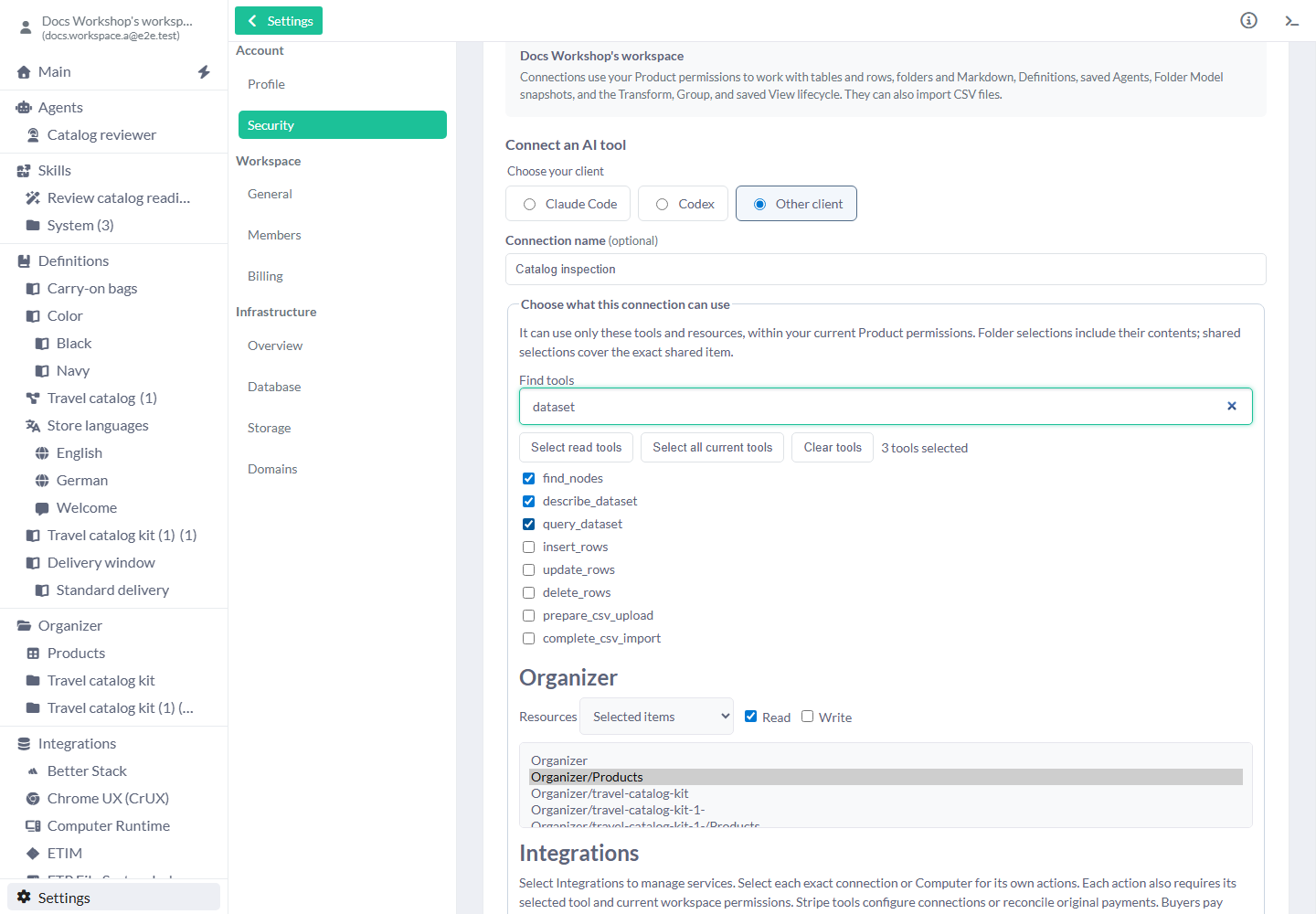
Catalog inspection can find and read Products. Row-writing tools and Write are left clear.
Choose tools
No tools are selected initially. Select a tool only when you want the client to perform that action; resource access is chosen separately.
- Find tools - Filters the visible tool list by name or description. Searching does not change your selections.
- Select read tools - Replaces your selection with the currently available reading tools. Use it for broad inspection, then clear any tools you do not need.
- Select all current tools - Replaces your selection with every tool available now, including actions that change data or contact services. Choose it only when you intend that breadth.
- Clear tools - Removes every selected tool. Use it before choosing a small set from scratch.
- Individual checkboxes - Select the displayed name, such as
query_datasetfor reading rows or Send HTTP request for using a saved HTTP API connection. Hover over a tool to read its description. New tools are not added to an existing connection automatically.
Choose resources and permissions
Choose both the action and its resources. Allowing a tool alone gives it no access to a Table, Definition, Agent or connection.
Organizer
Choose the workspace items the client may read or change.
- Resources - Starts at Selected items with nothing selected. Choose the exact Tables, Views or Folders needed. A selected Folder includes its contents. A shared selection covers the exact shared item. All items I can access also includes future items you can access.
- Read and Write - Read starts selected; Write starts clear. Keep Read only for inspection. Enable Write when the selected tools need to save changes, and check that you can edit the selected resources yourself.
Integrations
Starts with no selections. Choose each exact saved connection or Computer the client needs. Selecting a service allows adding a connection; it does not grant the actions of all its connections. Selecting the Integrations root allows integration management when the chosen tools and your permissions also allow it.
Review Selected connections before creating access. Stripe entries show Test or Live and the merchant account; numbered names distinguish repeated imported copies. Choose the intended connection using that detail.
Definitions
Choose shared business meaning and implementation agreements.
- Meaning - Starts at Selected Definition graphs with no graph selected. Choose Select a Definition graph to add the complete branch the client needs. All Definitions also covers future Definitions you can access. Select readable graphs for any referenced terms outside the chosen graph as well; following a reference gives no additional access.
- Read, Write and Remove - Each newly selected graph starts with Read enabled and Write clear. Enable Write for Definition editing. Use Remove to take a graph out of the connection. You can select up to 50 graphs.
Agents
Choose the saved Agents the client may inspect or use.
- Agents tree - Starts at Selected items with nothing selected. Choose the Agents the client needs. All Agents also covers future accessible Agents.
- Read and Write - Read starts selected; Write starts clear. Read allows the selected reading tools to inspect Agents. Enable Write with the appropriate tools to change their setup. Calling an Agent also needs its specific tool and applicable permissions.
Save the client setup
The setup contains the access token. Save it in the intended private client configuration before choosing Done. Keep it out of shared files and screenshots.
Claude Code
Use the generated terminal command for this connection.
- Exit an open Claude Code session with
/exit. Choose Copy command and run the displayed command in your terminal. - Run
claude, then enter/mcpand check that Datavju is connected.
Codex
Use the generated personal configuration for this connection.
- Choose Copy configuration. Open your personal
~/.codex/config.tomland add the displayed configuration. Replace an existing Datavju section if present. - Restart the Codex client you use so it loads the configuration.
Other client
Use a client that supports HTTP with a bearer token.
- In your client, add an HTTP MCP server. Expand Server URL and access token and use Copy URL and Copy token for the corresponding fields.
- If the client asks for a header, use
AuthorizationwithBearer <access token>as its value. Save and check that Datavju tools are available.
Copy and visibility controls
Show access token reveals the token; Hide access token masks it again. If copying is unavailable in your browser, reveal it and select and copy the text manually. Copy first request copies the example request without running it. Done closes the one-time setup.
Example: inspect a product catalog
Suppose Products contains BAG-01, Cabin bag, 79 EUR and BAG-02, an empty Name, 45 EUR. You want a list of missing names without changing the catalog.
- Choose only
find_nodes,describe_datasetandquery_dataset. Under Organizer, keep Selected items, select Products, keep Read and leave Write clear. - Create the connection and finish client setup. Ask: Find Products, inspect its columns and read the rows. List products missing Name by SKU.
- Check the response against Products in Datavju. BAG-02 should appear in the missing-name list; both source records remain as they were.
Illustrative input records for the catalog check. Use your actual column names and types.
[
  {
    "SKU": "BAG-01",
    "Name": "Cabin bag",
    "Price": {
      "amount": "79",
      "currency": "EUR"
    }
  },
  {
    "SKU": "BAG-02",
    "Name": null,
    "Price": {
      "amount": "45",
      "currency": "EUR"
    }
  }
]
Example: read a supplier API
Suppose you have saved an HTTP API connection called Supplier API in Integrations. You want the external client to fetch availability using that connection.
- Choose Send HTTP request. Under Organizer, enable Read and Write. Select the exact Supplier API connection under Integrations. Dataset, Definition and Agent selections can stay empty for an HTTP-only request.
- Create the connection and ask the client to read the supplier’s availability endpoint for BAG-01. The request uses the authentication saved in Supplier API and returns the response to your client.
- To store the returned availability, also allow the appropriate Dataset-writing tool and the writable destination Table. Ask the client to save the response there, then open that Table to check it.
Example: inspect one Agent’s recorded usage
You can read recorded Datavju Agent usage through a separately selected tool.
- Choose Read Agent AI usage and cost, enable Organizer Read and select the exact Agent under Agents with Read.
- Ask the client for that Agent’s recorded history or an exact Run. If you want included child Agents, select every child it needs as well.
- Review missing measurements and estimates with the result. Usage recorded by your external AI client and settled provider charges are unavailable through this read.
Work with saved results
The selected tools can work with the same saved resources you open in Datavju.
- Use stored Table or View rows to check a complete result, requesting subsequent pages until finished. Transform and Group previews contain bounded samples.
- For generated CSV files, the client prepares an upload, uploads the bytes to the returned address and completes the import. Open the resulting file in Organizer.
- For Models, the selected authoring tools can create Definitions, Tables, saved Agents and Folder Model snapshots. Inspect the saved setup in Datavju, then use the normal Model export/import controls for an independent copy.
- For Mail, select the exact Mail connection and tools. State and preview need Organizer Read; configuration and external actions also need Write. Preview sends nothing. Sending and inbox tests can submit email.
- For Stripe/Checkout, select the exact saved connection, the required Page and Tables, the intended tools and required Read/Write access. Check Test/Live and merchant details. Buyers pay through the published checkout.
Replace or revoke a connection
Active connections shows the connection name, expiry, tool count and resource selections. Existing access cannot be edited here.
- Choose Revoke beside the connection you want to stop. Its next requests, unused CSV-import upload links and MCP-issued Model Snapshot links lose access. Changes already saved in Datavju remain.
- To change access, replace lost setup or renew an expired connection, create a new connection with the intended choices.
- Update your client with the new setup. Under Having trouble connecting?, follow the replacement instructions if an old client entry overrides the new one.
Limits and common mistakes
Standalone connections expire after 30 days. You can have five active at once; revoke one before creating a sixth. Hosted Agent workspace sessions manage their connections separately.
- A connection accepts up to 50 selected Definition graphs and 64 selections each for Organizer, Agents and Integrations.
- If an action is refused, check its selected tool, its resource selection and your current Product permissions. An empty selection grants no access in that area.
- If a create, write or external action has an uncertain response, inspect the saved result before repeating it. Repeating creation can create another item.
- For connection failures, open Having trouble connecting? and check reachability, expiry and revocation. A local Datavju address works only on the same computer. Clients that require browser sign-in are not supported yet.
- The MCP skills tool reads the built-in System catalog. To use your own saved Skills as procedures, use Main Command or a saved Agent.
- Bucket upload and download links already issued remain usable until their five-minute expiry, including after you revoke the MCP connection.
Related articles
- Datasets - Read and change stored records.
- Models - Package a working setup for independent reuse.
- Agents - Configure a saved role and inspect its Runs.
- Integrations - Create the connections your client can use.
- Skills - Save reusable procedures for native Agents and Command.