
Organizer
Organizer is the tree where you find your Folders, Tables, files, Pages and Sites. Use its menus to create something in the right Folder, open existing work or arrange related items together.
How the tree works
Click an item’s name to open it and use its icon to expand any children. A Folder groups related work. When you rename or move an item, the tools already using it keep using that same item. A shortcut gives you another way to open the original. Keep shared business terms in the separate Definitions tree.
Create a Folder and an object
Start by opening the menu on the Folder where you want the new item.
- Hover over Organizer, or the intended Folder, and open its three-dot menu.
- Choose Add folder.
- Enter the Folder name in the inline field and press Enter. Use Escape to cancel the unfinished name.
- Open the new Folder's three-dot menu.
- Choose Create → Table for editable records, Create → Markdown for notes, or another choice below.
- Open the new item and add its content. Follow that editor’s saving controls.
Creation and source options
Choose what you want to bring into this Folder. The available choices depend on the item whose menu you opened.
- Add folder - Create a Folder and enter its name in the tree.
- Command - Ask Datavju to do work in this Folder. New items requested there are created in that Folder when the task allows it.
- Generate - Choose Data, Image or Text to open a tool for AI-generated content, then enter its instructions there. Audio and Video are shown but disabled.
- Create - Create one of the items explained below. Each opens its own editor or selection screen.
- File Upload - Choose CSV, CSV from FTP, CSV from URL, HTML from URL, JSON, Model, PDF, SAV (SPSS), XML or XML from FTP. Select your file or source, then complete the format’s import steps.
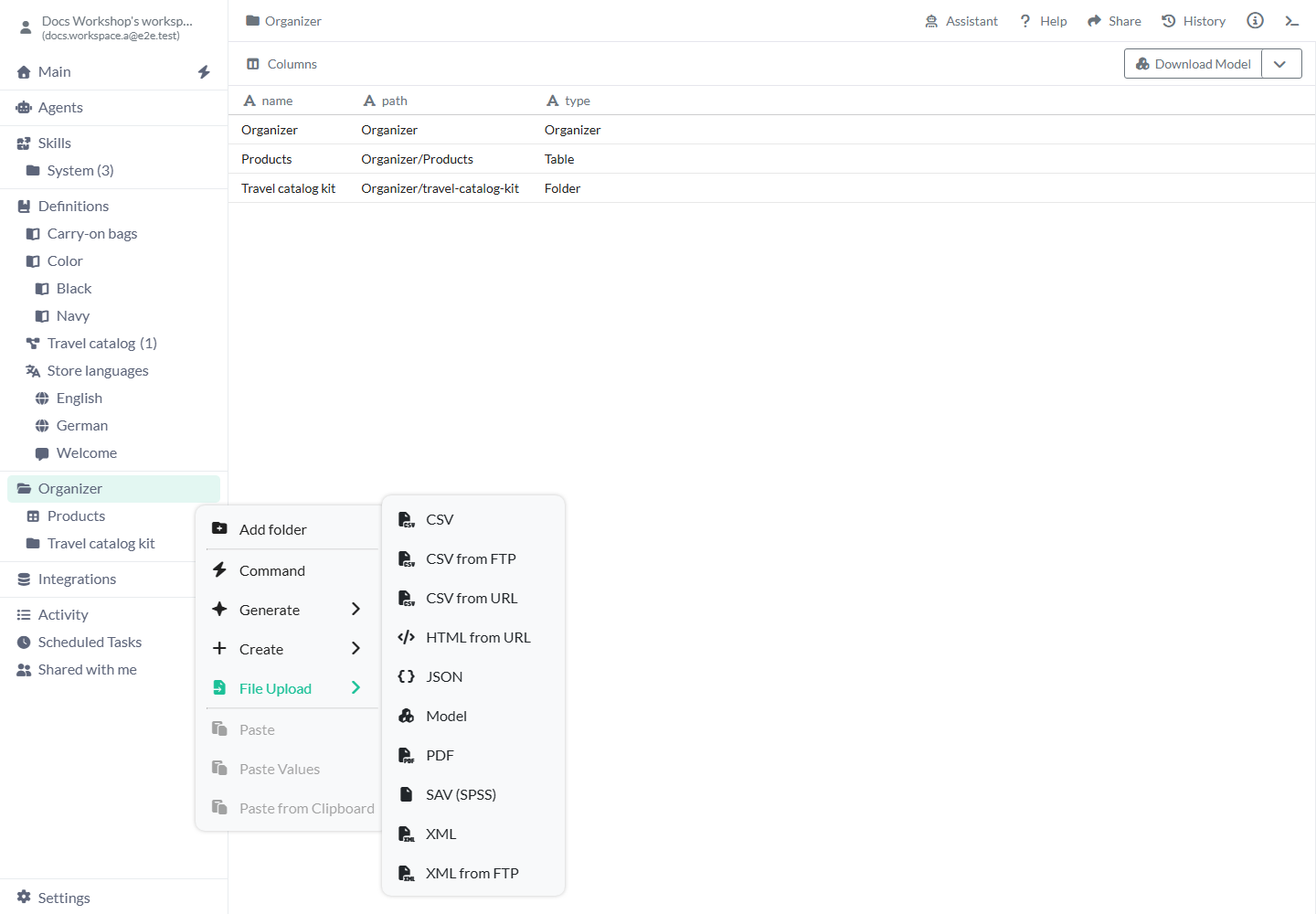
Choose what to create
A Table stores records; a Page arranges content. Select the entry for the result you want.
- Bucket - Keep original files in a private file store. Uploading a CSV here keeps the file; use File Upload → CSV when you want to import its records.
- App - Create an App with a Home Page. Build Pages for an experience people can open inside the workspace.
- Component / Component from Template - Create reusable Page content. Component opens a choice of component types; Component from Template starts from a saved template.
- Markdown - Write notes or procedures in a Markdown document.
- Page / Page from Template - Arrange content and data on a blank Page or start from a saved template.
- Prototype - Create a prototype Folder with a terminal Home. Set up its Computer when you are ready to run it.
- Site - Create a Site with a Home Page. Add Pages that share its settings and publication.
- Structure - Build a hierarchy in the structure editor and edit the properties of its entries.
- Table - Create an empty Table, then add fields and records. Use its settings for row identifiers and data rules.
- Viz / Viz from Template - Create a visualization from scratch or from a saved template.
- Animate - Create an SVG animation and edit its shapes, sequences and keyframes.
Rename and move items
Choose a destination that accepts the item and give it a name that is unique there. You can scroll or expand Folders while dragging; follow the highlighted destination.
- Open the exact item's three-dot menu and choose Rename.
- Enter the new name and press Enter.
- To move an item, drag its row to the destination Folder or Organizer.
- Check the highlighted destination before releasing, then reopen the item to confirm its new location.
Copy, paste and shortcuts
Open the source item’s menu to copy it, then open the destination Folder’s menu to paste. Available paste actions depend on what you copied and where you paste it.
- Copy, then Paste - Make a separate copy you can edit. Check the copy’s data and settings after pasting; what is included depends on the item type.
- Paste Values - For supported data items, copy the current result records into a new Table. Use this when you want to work with the values themselves.
- Paste from Clipboard - Create an item from supported clipboard content, such as JSON or a copied Component. The choice is enabled when compatible content is available.
- Create Shortcut - Create another entry that opens the original item. You see later changes to that original and need permission to open it.
- Download source - Download the selected item’s source, such as its original file, stored records or Page content. The available download depends on the item type.
Other item actions
Open the item’s three-dot menu to find these actions; the choices depend on its type.
- Share - Choose who can open the item and what they may do with it. Review the recipient and permissions in the sharing dialog.
- Replace File - Select a new source file for a supported imported item. Review its format and compatibility choices before confirming.
- Open in new tab - Open the same saved item in another browser tab.
- Info - View Name, Type, Path, identifiers and the other items that use this one. Use the Copy buttons when you need to supply its ID or path.
Navigate with the keyboard
Focus the tree. Use Up/Down to move between visible items, Home/End to reach an end, and Right/Left to expand or collapse a branch. Type a name’s initial to find the next match. Press Enter or Space to open the selected item. Press Shift+F10 for its actions, use the arrow keys to choose an action, and press Escape to return or close the menu.
Check uses before deleting an item
Before deleting a source, check which other items use it. Datavju lists uses that you need to resolve before deletion can proceed.
- Open the item and choose Info.
- Review Dependent On for its sources and Used By for the items that use it.
- Open the item’s three-dot menu and choose Delete. Read any confirmation or list of uses.
- If deletion is blocked, open each listed item and change or remove its use of this source. Check again before retrying Delete.
Follow a Folder deletion
For a Folder with children, the dialog lists each item and the number completed. Review any error before trying another deletion.
- Not started / Deleting / Done / Error - Follow each item’s progress. Deletion stops at an error; items already marked Done remain deleted.
- Minimize - Hide the dialog while deletion continues. Use the Folder’s working indicator to reopen it.
- Close - Dismiss the finished result. Locked items may have fewer actions while deletion is running.
Example: organize a catalog review
For a supplier catalog review, create Catalog review and put Supplier products, Normalize prices and Missing product data inside it. Supplier products is your source, Normalize prices prepares it, and Missing product data is the report you inspect. You can now find all three together and open Command on this Folder to request the next review. The preparation tool keeps reading the same source after you move it.
Example: reuse a setup as a Model
Put a reusable catalog setup in Travel catalog kit. Open Model Advanced Options, include the Travel catalog agreement and download its required Products Table. In the destination workspace choose File Upload → Model. After import, open the new Folder and its Products Table to start working with your own copy.
Limits and common mistakes
Open the three-dot menu on the destination Folder before pasting.
- Open a pasted item and review its data and settings. Choose Paste Values when you want a Table of result records.
- Use Replace File to change a supported imported source and complete its format checks.
- Configure sharing and Agent access separately when other people or Agents need to use these items.
- Wait for Info to finish loading its uses before deciding a source is safe to remove.
Related articles
- Datavju overview - how the workspace fits together.
- Definitions - Agree shared terms and your data structure.
- Models - Reuse a setup in another workspace.
- Files - Choose a file format and import its contents.
- Activity - reopen supported created/shared/published objects.