
Agent workspace
Agent workspace runs Codex or Claude Code beside the Datavju item you are working on. Use it when you want an external agent to work with saved workspace data and files on a Computer, using your own provider account and explicitly chosen Datavju access.
How it works
Choose which tools and items the agent can use before starting. Your existing access still applies. The selected Computer keeps the program's files and provider sign-in; you find saved Tables, Pages and documents in Datavju as usual.
Use this panel when you want your own Codex or Claude Code account. Choose Main Command for work using Datavju's AI, a tool's Assistant for help beside an item, or Agents for reusable responsibilities. Check your selected provider's billing account before using it here; provider billing is separate from Datavju.
Start a session
If access choices fail to load, use Retry before starting. An unavailable selected Computer blocks Start; choose an available Computer instead. If the panel says hosting is not configured, starting a session is unavailable in that environment.
- Select the terminal icon labelled Agent workspace at the far right of the current section's top toolbar.
- Under Computer, keep New private Computer or choose a saved Computer. The private Computer is created on first use. Choose an existing one when you want to share its files, programs, sign-in and capacity with other sessions or Prototypes using it.
- In Choose what this connection can use, select tools and the exact resources needed for your task. No tools or resource items are selected initially.
- Choose Model, Effort and Approvals for the provider you want, then select Start Codex session or Start Claude Code session.
- Complete provider sign-in and check the connection before sending your first request.
Choose tools and workspace access
Start by selecting the tools and items needed for your task. Both lists are initially empty.
Select an item in each category the task needs; an empty category gives the agent nothing there. Check these choices before attaching context or sending a request. See Workspace settings for the same access controls when connecting a client outside this panel.
- Find tools - Filters the offered operations. Select read tools replaces your choice with the current read-only set; Select all current tools selects today's list; Clear tools selects none. Use individual checkboxes for a narrower task.
- Organizer - Selected items is the default, initially empty. Select the item or folder the agent needs. A selected folder includes its contents; a selected shared item covers only that shared item. All items I can access also includes future accessible items. Read starts checked and Write unchecked; a resource selection is still necessary in selected mode.
- Integrations - Select the saved connection or Computer and its matching tools. Choose the Integrations root for adding or removing services; choose each saved connection for its own actions. For an HTTP request, select Send HTTP request, that HTTP connection and workspace Read and Write. Datavju uses its saved sign-in details.
- Definitions - Describe business terms, fields and rules. Selected Definition graphs starts empty; choose a graph to include its related Definitions with Read. Add Write when you want changes, or choose All Definitions for work across all your Definitions.
- Agents - Selected items starts empty, Read checked and Write unchecked. Select exact saved Agents or All Agents, plus the tools the external program needs to inspect, configure or run them.
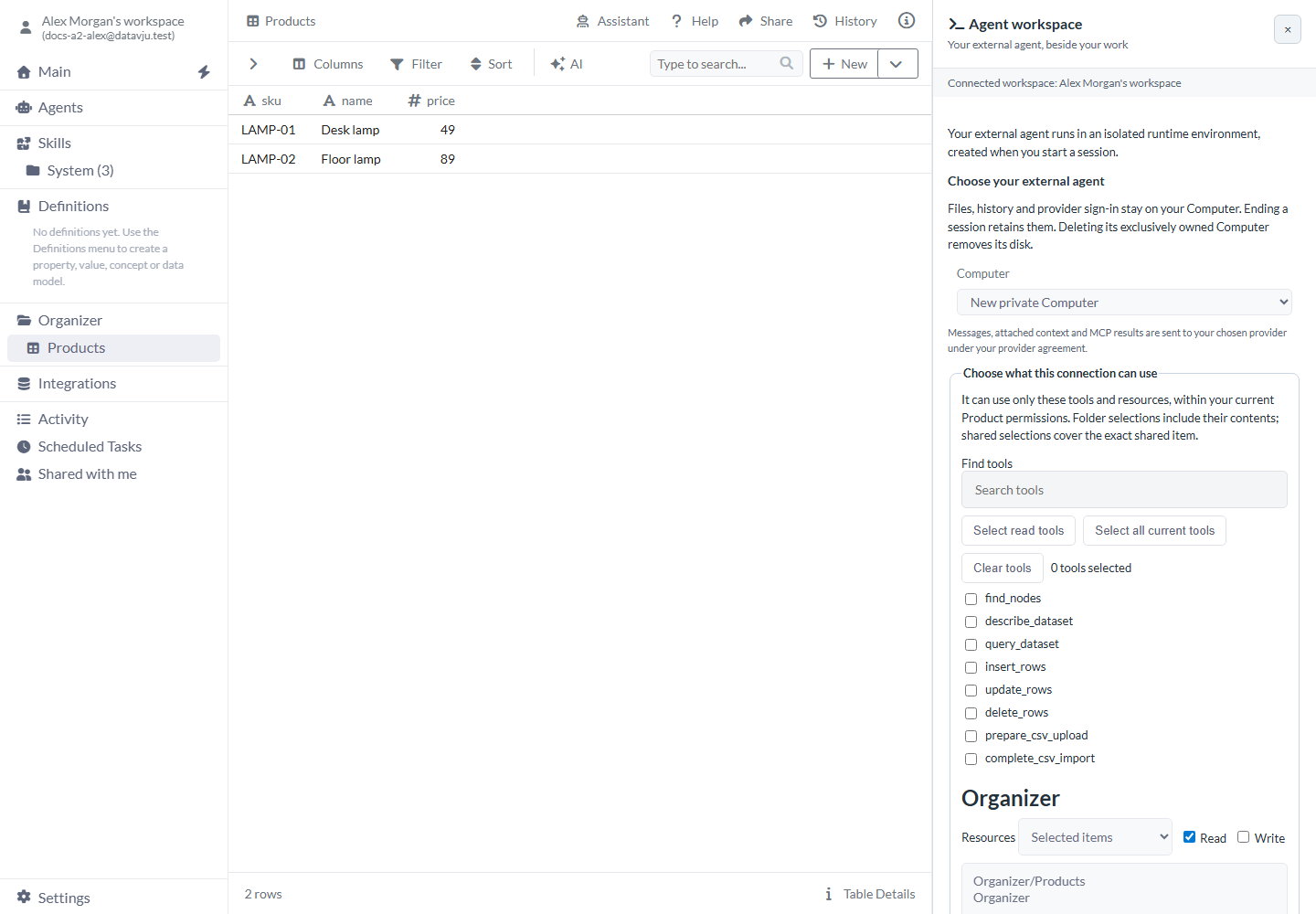
Choose the tools and saved items needed for the task.
Model, effort and approvals
Change these choices between messages, including while the session is suspended. They apply to the next message and stay saved when you hide and reopen the panel. Wait for active work to finish before changing an unavailable control.
- Model - Starts at the provider's default. Choose another offered model when your account supports it. The list comes from Codex or Claude Code and can change; read the provider line after sign-in to see the model in use. If your account cannot use that model, choose another after the reported error.
- Effort - Starts at the selected model's default. Move the slider, or focus it and use the arrow keys, to choose one of that model's supported levels. For example, choose a higher offered level for a difficult investigation. The reset arrow, Reset effort to vendor default, clears the override. Changing Model also resets Effort.
- Approvals — Run without approval - Lets the program continue permitted work without confirmation prompts. Codex starts with this choice. Use it when you want work to continue within the access you selected.
- Approvals — Ask for approval - Lets you review the program's approval requests. Claude Code starts with this choice. You may still need to answer an ordinary question with either selection.
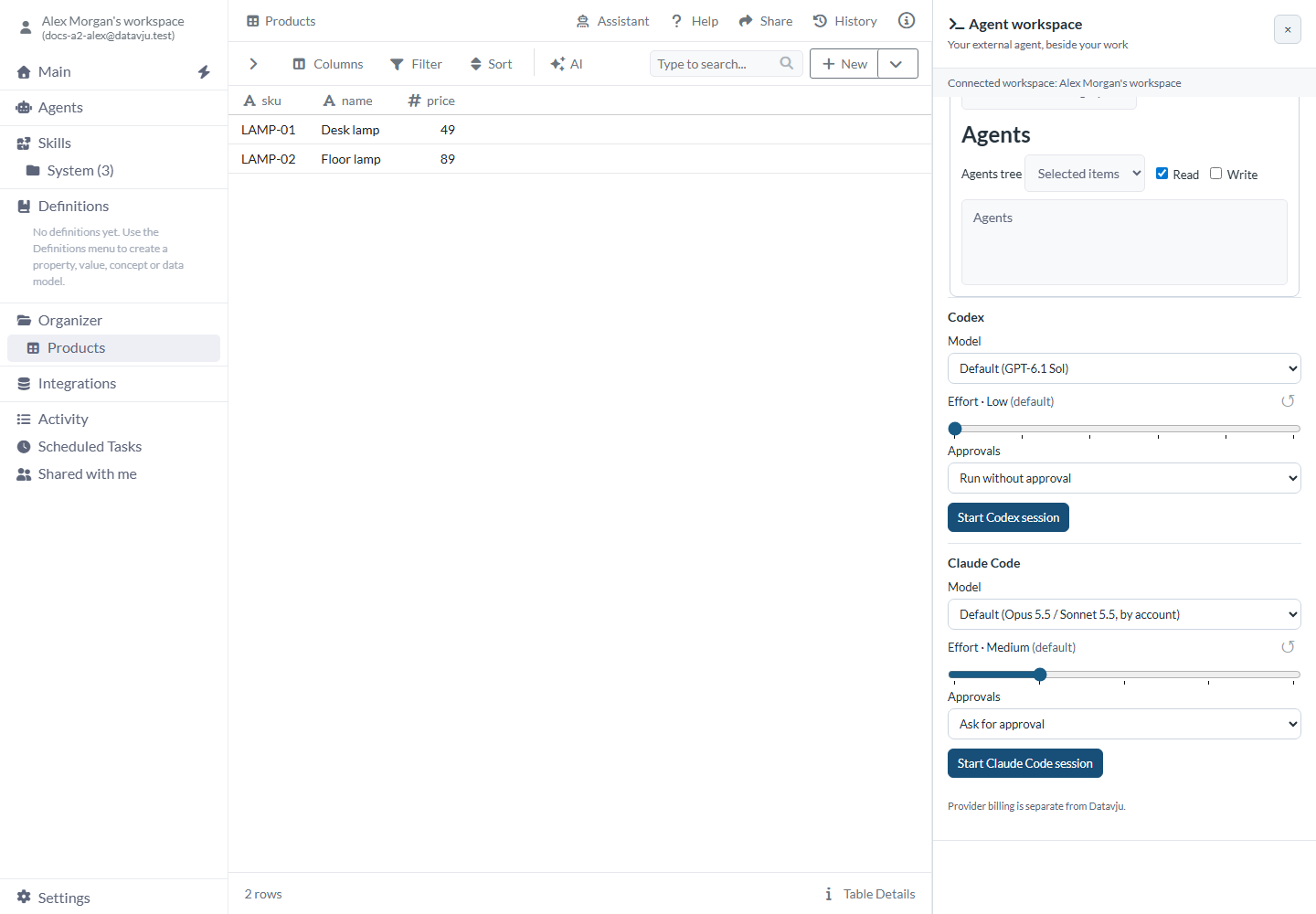
Review provider settings before starting the session.
Sign in to the provider
Your subscription sign-in stays on the Computer across suspend or restart. If you use the API-key fallback, enter it again after suspension or restart. Enter keys only in the dedicated key field. Remember that another session using the same Computer also uses its provider sign-in.
- For Codex, choose Continue with ChatGPT, open the displayed provider sign-in page and enter the displayed code. Follow any provider instruction to enable device-code authorization.
- For Claude Code, choose Continue with Claude, open its sign-in page, paste the returned code into Paste the code from Claude sign-in, and choose Complete sign-in.
- Use Check sign-in to verify the provider account and Datavju connection. Follow any reported error before continuing.
- If you intend to use an API account instead, choose Enter API key (fallback), enter the key only in the dedicated field and choose Sign in with API key. Charges belong to that provider account.
Give the agent saved context
If a question offers answer buttons, select one to fill the answer and then choose Send answer. If a request displays Response (JSON), enter valid JSON matching the displayed fields before choosing Send answer. Read the requested values and use Deny or Cancel turn when you do not want to provide them.
Save changes before choosing Use current item so the agent can read them. The same saved item stays attached if you navigate elsewhere. Ask the agent to import a generated CSV when you want it in Organizer, then open the imported file to check its rows. You can read code in a reply; use an intended program or tool when you want to run it.
- Open the saved Table, Page, document or other item you want the agent to use.
- Choose Use current item. Review the attached item's name and path.
- Write a request that names the desired result, destination and any data to preserve, then choose Send.
- Answer a question in its request area and choose Send answer. For an approval request, read the requested command or access, then choose Allow once, Deny or Cancel turn.
- Inspect the actual saved result in Datavju. Expand a tool entry to read its reported outcome or error when needed.
Read and copy messages
Messages show headings, lists, tables, inline code and code blocks. Named and plain HTTP(S) links open in a new tab; wide code blocks and tables scroll inside the message. HTML is shown as text. Hover over or focus a message to reveal its local time and Copy message; copying preserves the original text and Markdown. Hover over the time for its full date and time.
Manage the panel and session
If you work in Prototype Home, use its Chat and Terminal views to continue one conversation with the same Computer and application. The Agent workspace dock keeps its own conversation beside your other work.
- Hide Agent workspace - The header X hides the panel while work continues. Reopen it from the current section's toolbar to see the conversation and pending requests. The open panel stays with you as you navigate sections.
- Resize - Drag the panel's left edge. Width starts at 420 px and is retained across hide/reopen until page reload; the minimum is 320 px on a sufficiently wide viewport.
- Stop - Interrupts the current turn. Changes already accepted in Datavju or by an external service may remain saved. Inspect them before retrying.
- New chat - Clears the panel's current conversation, draft and attachment so you can start another task. Your provider sign-in, model, effort and Computer files stay in place, along with saved Datavju changes. Finish or stop running work first, and keep any messages you need before clearing the chat; previous chats cannot be selected in this panel.
- Suspend / Resume session - Stops and restarts compute while retaining the conversation and files. Pending recovery can instead offer I have checked — resume; inspect prior effects before selecting it.
- End session - Ends this conversation and its Datavju connection while keeping the Computer's files and provider login. Use it before switching between Codex and Claude Code.
- Sign out - Signs the program out on that Computer, including for other sessions using the same account there.
- Delete session - Removes that session and its files. A Computer used only by that session is removed with it; a Computer shared with another session or Prototype remains. Use Hide or Suspend when you want to keep the session instead.
Examples
These examples use a product catalog to show read access, file import and starting another task with the same Computer.
Inspect a supplier catalog
Use a read-only session to check the product columns before you grant access for changes.
- Save a Products Table with
LAMP-01, Desk lamp, 49andLAMP-02, Floor lamp, 89. - Start with read tools and Read access to Products. Attach it with Use current item.
- Send
Describe Products and check which column could identify each product. Do not change the Table. - Compare the answer with the saved Table. The expected result is an explanation of the observed columns and identifiers; the two saved product rows remain unchanged.
Import a generated file
Bring a file from the Computer into Organizer so you can inspect and use its rows in Datavju.
- Give the session the CSV upload/import tools and Write access to a chosen Organizer/Supplier review destination.
- Ask it to create a two-row CSV on its Computer with columns sku and reviewNote, then import it into that destination. For example, use
LAMP-01, Check shade dimensionsandLAMP-02, Confirm cable length. - Open the imported file in Organizer and check both saved rows. If the agent only gives you CSV text or a Computer file path, ask it to complete the import.
The file to import contains:
sku,reviewNote
LAMP-01,Check shade dimensions
LAMP-02,Confirm cable length
Start another task without clearing files
Start a fresh conversation when you want to keep the same Computer and provider sign-in for another task.
- Finish a catalog task and inspect its saved results.
- Choose New chat, then attach a different saved item and send the new request.
- The conversation starts afresh, while the same Computer files and provider login remain. Use End session instead when you need to switch programs.
Limits and common mistakes
Check the selected access and saved results when a session stops or asks you to recover it.
- Check long work before the fixed limits: a turn stops after 30 minutes, an idle session suspends after 15 minutes, and an unanswered request cancels after 10 minutes.
- Use Stop to interrupt work, Suspend to pause compute, or Delete session to remove its saved files as described above. After an interruption, check what changed before repeating the request.
- Choose a model your provider account can use. If the program reports an account or model error, correct that choice before continuing.
- Select access to each item and service the task needs before starting. Attaching a Table or sharing a Computer keeps those access choices in effect.
- Messages, attached context and MCP results go to your selected provider under that provider agreement. Keep secrets in their dedicated credential controls.
Related articles
Use Integrations to manage the Computer, or Workspace settings to connect an AI client outside this panel.
- Agents: Configure reusable Agents inside Datavju.
- Command: Request work across your workspace.
- Assistants: Get help and supported actions in the current tool.
- MCP: Understand the connection used by an external client.
- Workspace settings: Choose standalone connection access and inspect recorded usage.
- Integrations: Manage saved Computers and service connections.