
Files
Use File Upload in Organizer to open a file with the tool that understands its format. You can preview CSV, JSON or XML records before importing them, open a PDF, or set up a supported file from a URL or FTP server. Importing records gives you a Dataset: a set of rows and columns you can use in other tools.
Choose a format
Open the menu for Organizer or your destination Folder, then choose File Upload. Select the format your file actually contains.
- CSV - When to use it: You have a local delimited export, such as orders or inventory. What opens: CSV preview and import settings.
- CSV from URL - When to use it: An accessible web address provides the CSV export. What opens: The URL setup for a CSV source.
- CSV from FTP - When to use it: A supplier provides a CSV file on an FTP server. What opens: FTP connection and remote-file setup.
- JSON - When to use it: Your local export contains named objects or arrays, such as a product list. What opens: A structure tree and selection preview.
- XML - When to use it: Your local file contains XML elements, such as a supplier feed. What opens: The XML tree and selection preview.
- XML from FTP - When to use it: The XML feed is stored on an FTP server. What opens: FTP connection and remote-file setup.
- HTML from URL - When to use it: You want data from the HTML returned by a web address. What opens: URL setup and the HTML tool.
- PDF - When to use it: You have a PDF document to read or extract information from. What opens: The PDF tool.
- SAV (SPSS) - When to use it: Your statistical data is supplied as an SPSS file. What opens: The SAV import flow.
- Model - When to use it: You received a Datavju workspace package ending in .mdl. What opens: Model import and its content choices.
Open the format's guide
For the full settings and steps, open the guide for your format:
- CSV — choose delimiters, headers, rows and columns.
- JSON — select records and fields from an object or array.
- XML — select fields from repeated XML elements.
- HTML — retrieve HTML and select the data it contains.
- PDF — read documents and use the available extraction tools.
- FTP Acquisition — connect to a server and select a remote CSV or XML file.
Upload a local file
The upload creates a new Organizer item. Complete the import in the tool that opens.
CSV, JSON and XML need their import choices completed after upload. When JSON shows No columns., expand its tree and select the fields you want.
- Open the menu for Organizer or the Folder where the file belongs.
- Choose File Upload, then CSV, JSON, XML or PDF, as appropriate.
- Select your file in the file picker. A new item appears in Organizer and opens in its tool.
- For CSV, JSON or XML, inspect the preview and select the rows or fields you need. PDF opens for reading in its own tool.
- For CSV, JSON or XML, choose Import when the preview contains the intended records and values.
- Check the imported rows, column types and row count before using them in Group, Join or another tool.
Check the preview
Check the structure and a few known values before importing the complete result.
Delimited files
For CSV, check the delimiter and header choices first. If an entire line appears in one column, choose the delimiter that separates its fields. Check that the first data record remains in the preview after choosing headers.
Look at representative identifiers, dates and amounts. For example, keep product code 0007 as text if those leading zeroes are part of its identifier. Use the CSV guide for the complete import settings.
Structured files
For JSON and XML, expand the structure to find the repeated records and their fields. Select the fields that belong to each record, then check that the preview has one row per intended item.
For a JSON product list, select each product's sku, name and price fields. Check the actual values in the preview; choosing a parent object or a flattening action can produce a different result. Follow the JSON or XML guide for that structure.
Documents and web content
Open a PDF to inspect its pages, then use the PDF guide when you need extraction. Check extracted values and rows before using them in calculations.
For HTML, inspect the content retrieved from the URL and select the required fields. Interactive content loaded later by a website may need a different source. The HTML guide explains the available controls.
Open a remote file
Choose the menu entry for both the format and the place where the file is stored.
Use your connection's credential fields for sign-in details. The FTP Acquisition guide covers the connection and path choices.
- Choose File Upload, then CSV from URL, HTML from URL, CSV from FTP or XML from FTP.
- Enter the address or choose the FTP connection and remote file in the setup that opens.
- Retrieve or preview the file, then complete that tool's import choices.
- Check the resulting rows and values. Set up any recurring retrieval using the controls explained in that format's guide.
Update an imported file
Choose the action that matches what changed:
- Reimport - Use it when: You want different fields or import selections from the saved file. Result: Reopens its import choices so you can preview and import again.
- Replace File in the item's Organizer menu - Use it when: You received a newer local file for the existing source. Result: Uploads replacement content through that format's checks. Inspect the result or any displayed refusal.
- Refresh, where offered - Use it when: You want to rebuild from the source available to that tool. Result: A local JSON source uses its saved file and selections; a remote tool uses its configured retrieval behavior.
- File Upload again - Use it when: You want to keep both exports as separate Organizer items. Result: Creates another source alongside the first.
Replace a local export
To replace a file, open its Organizer menu, choose Replace File, select the new file and inspect the resulting rows. Check any error before continuing. Use Reimport when the wanted fields or structure changed.
Upload a new version when a file changes on your computer. Local imports keep the uploaded content; they do not monitor your computer's original file path.
Store originals alongside your data
Create a Bucket when you want to retain files for download. For example, keep the original supplier export and specification PDF in a dated Bucket folder, then separately import the CSV you need for analysis.
Use an Organizer Folder to arrange workspace items such as imports, Tables and Views. Use folders inside a Bucket to arrange the stored files.
Examples
The CSV example has three orders for North with quantities 8, 3 and 4, and three for South with quantities 5, 2 and 6.
Import a six-row order export
You receive orders.csv with six records and the fields sku, name, region, month, units, price, status and description.
Choose File Upload → CSV, inspect the delimiter, headers and values, then Import. The result contains six order rows. Open Group from that data when you want regional totals; keep the imported rows for order-level work.
Import products from a JSON list
This example imports supplier-products.json, a two-product list shown below.
Choose File Upload → JSON. Expand JSON, products and object, then select its sku, name and price fields. Confirm the two product records in preview and choose Import.
The result has LAMP-01/Desk lamp/25 and CHAIR-02/Office chair/80. Its headers include the selected paths, such as JSON.products.object.sku. Use the JSON guide's naming controls if you need shorter column names.
{
  "products": [
    {"sku": "LAMP-01", "name": "Desk lamp", "price": 25},
    {"sku": "CHAIR-02", "name": "Office chair", "price": 80}
  ]
}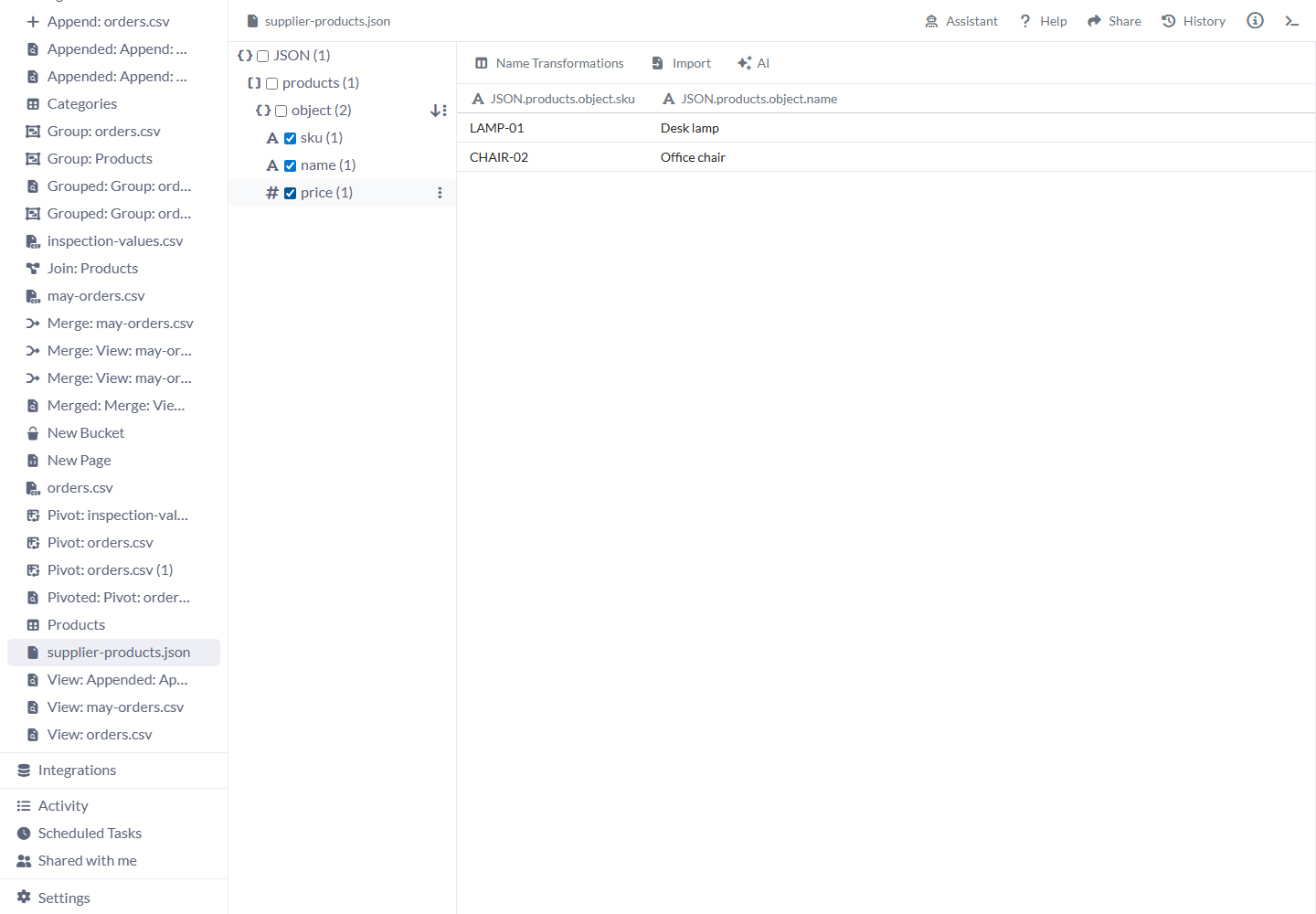
Select the fields inside each product record.
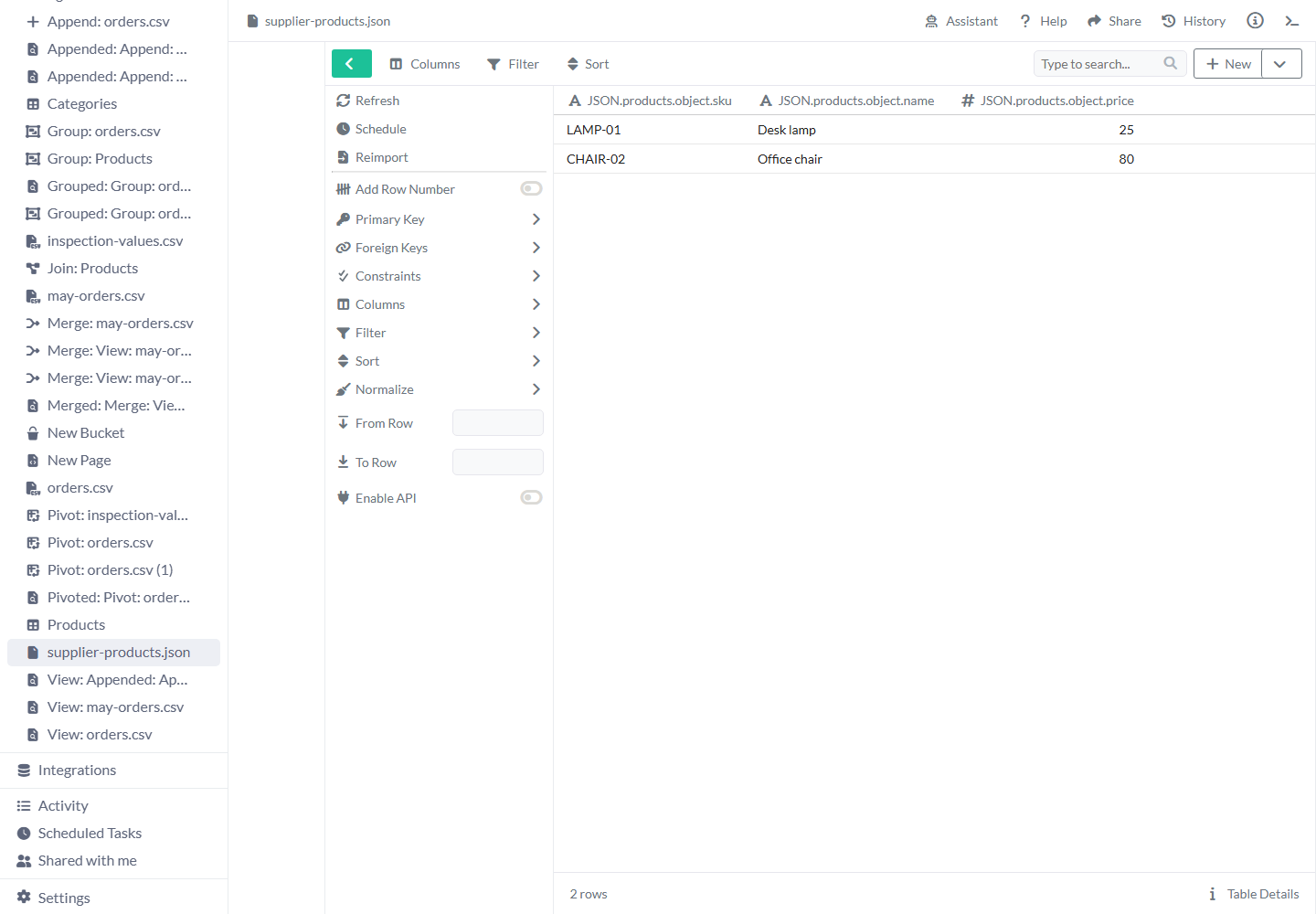
Import creates two product rows with the selected path-qualified columns.
Limits and common mistakes
Check the imported records before using a new source in other tools.
- Choose the actual format. Renaming an extension leaves the file's content unchanged.
- Inspect saved rows after Import as well as the preview, especially for large files or mixed values.
- Check delimiters, headers and selected paths when you see the wrong row or column structure.
- Upload a replacement when a local file changes, or use a remote source for recurring retrieval.
- Check a source's sign-in requirements and returned content before relying on a URL.
- Use Model import for packaged workspace content and Bucket for original file storage.