
Coding
Coding helps you group survey answers, interview notes and support feedback by theme. In Code Book, you name each theme and add matching rules or selected quotes. Use the matching excerpts and counts to check your classification, then save a View to use the coded rows in other tools.
Start a code book
Choose a column with a different value for every row, such as a respondent or support ticket number. Coding uses it to show which record a quotation came from.
- Open the source Table or saved View.
- Open Output options beside New and choose Coding.
- At Please select a unique identity column, choose the column that uniquely identifies each record, such as Respondent.
- Open the menu on the Code Book row and choose Add Folder to organize related themes.
- Select the new folder and enter its name in the adjacent details panel.
Create a Filter Code
A Filter Code finds matching text across records. After naming the code, add a rule by dragging in text to match.
Dragging selected text onto a folder or the Code Book row creates a new Filter Code there. Dragging onto an existing Filter Code adds a condition to that code. Conditions can be edited after the drop; they are not fixed to the original selection forever.
- In the Code Book row or folder menu, choose New Filter Code.
- Select it and replace New Filter with a meaningful name.
- Select a phrase in a source value, then drag that selection into the code's details area.
- Check the new condition's column, operator and value. A dragged phrase starts with Contains.
- Read the matching excerpts and the count beside the code name.
Create a Quote Code
Use a Quote Code when the exact passage matters, rather than all records matching a phrase.
- Open the Code Book or folder menu and choose New Quote Code.
- Select the code and rename it.
- Select text in a source record and drag it into the Quote Code.
- Check the recorded quotation against the source record and column.
- Your quotation shows the record’s identifier, source column and selected passage. Use a Filter Code when you want to find similar text across several records.
Settings and controls
Code names, colors and conditions are saved on this Coding item. Use Save when you also need the coded rows in a separate View.
Code name and color
New Filter Codes start as New Filter in yellow, and new Quote Codes start as New Quote. Edit the name in the code-details header. The color swatch chooses the code's visual highlighting; changing color does not change which records match.
Use folders to organize related codes. Add the matching conditions to each Filter Code.
Filter conditions
Each condition has a source-column selector, operator and text value. Choose the column containing the content you mean to inspect; matching a respondent identifier is different from matching Feedback.
Text comparisons ignore letter case, so Slow export also matches slow export. Contains accepts a regular expression, a pattern for finding text: Slow.*export finds Slow followed by any characters and then export. Characters such as ., * and ? have special meanings; Does Not Contain uses literal text. Invalid patterns can fail the query. An empty string means saved text with no characters; null means a missing value. Some comparisons currently fail on null values.
For one column, several Equals, Contains or Starts With conditions let a record match any of those conditions. Add a negative condition such as Does Not Contain to exclude records from those matches. A negative condition by itself currently returns no matches.
Use the condition's cross to remove it. Its drag handle, Drag to copy to another filter code, copies it to another code. Check the resulting matches after editing a rule; a count is useful only when its rule expresses your intended theme.
- Equals - Matches: The complete value. Example value:
Slow export - Does Not Equal - Matches: Values different from the complete value. Example value:
No comment - Contains - Matches: Case-insensitive regular-expression match; the starting operator after a text drop. Example value:
Slow.*export - Does Not Contain - Matches: Values without the phrase. Example value:
refund - Starts With - Matches: Values beginning with the text. Example value:
Cannot - Does Not Start With - Matches: Values without that beginning. Example value:
Test: - Is Empty - Matches: Empty strings; nulls can fail. Example value: No text comparison needed.
- Is Not Empty - Matches: Non-empty strings; nulls can fail. Example value: No text comparison needed.
Source layout and exploration
Table View offers Table (the starting layout), Table and Details, and Details. The combined view lets you retain the overview while reading a long response. Details has Previous row and Next row controls for the current result.
Group Columns groups the source presentation by selected fields. Columns, Filter, Sort, From Row, To Row and the search box shape which source records you inspect. Use them to narrow the records you read while keeping your saved answers.
Code Filter starts at No filter. Choose Rows with code to review classified records or Rows without code to find work still uncoded. Removing the filter restores the broader source result.
Save the output
Code-book edits are saved on the Coding item. The Save menu also offers Save as View, which uses the default result name and location, and Save as View to..., which lets you choose the destination folder. Save creates a separate coded View from the current source and code book. The output includes the source fields plus _code_name, _code_type and _code_value. One source record can appear more than once when several codes or source columns match. Open the saved View to use the coded rows in another tool. Your original feedback Table stays available for further analysis.
Move, merge or delete codes
Drag a code onto a folder or the Code Book row to move it. Dropping a Filter Code onto another Filter Code merges its conditions into the target and removes the dragged code. Use the condition’s Drag to copy to another filter code handle when you want to retain both codes.
The code or folder menu has Delete. Delete removes the selected item; do not assume deleting a folder also deletes every child. Move codes you want to keep before removing their folder.
Examples
Use these three survey answers to find a repeated theme, keep an exact quote and review uncoded responses.
Respondent,Feedback
A,Quick setup and clear instructions
B,Slow export but clear instructions
C,Slow export and confusing setup
Find repeated export complaints
Use Respondent and Feedback from the example data above.
- Choose Respondent as the identity column.
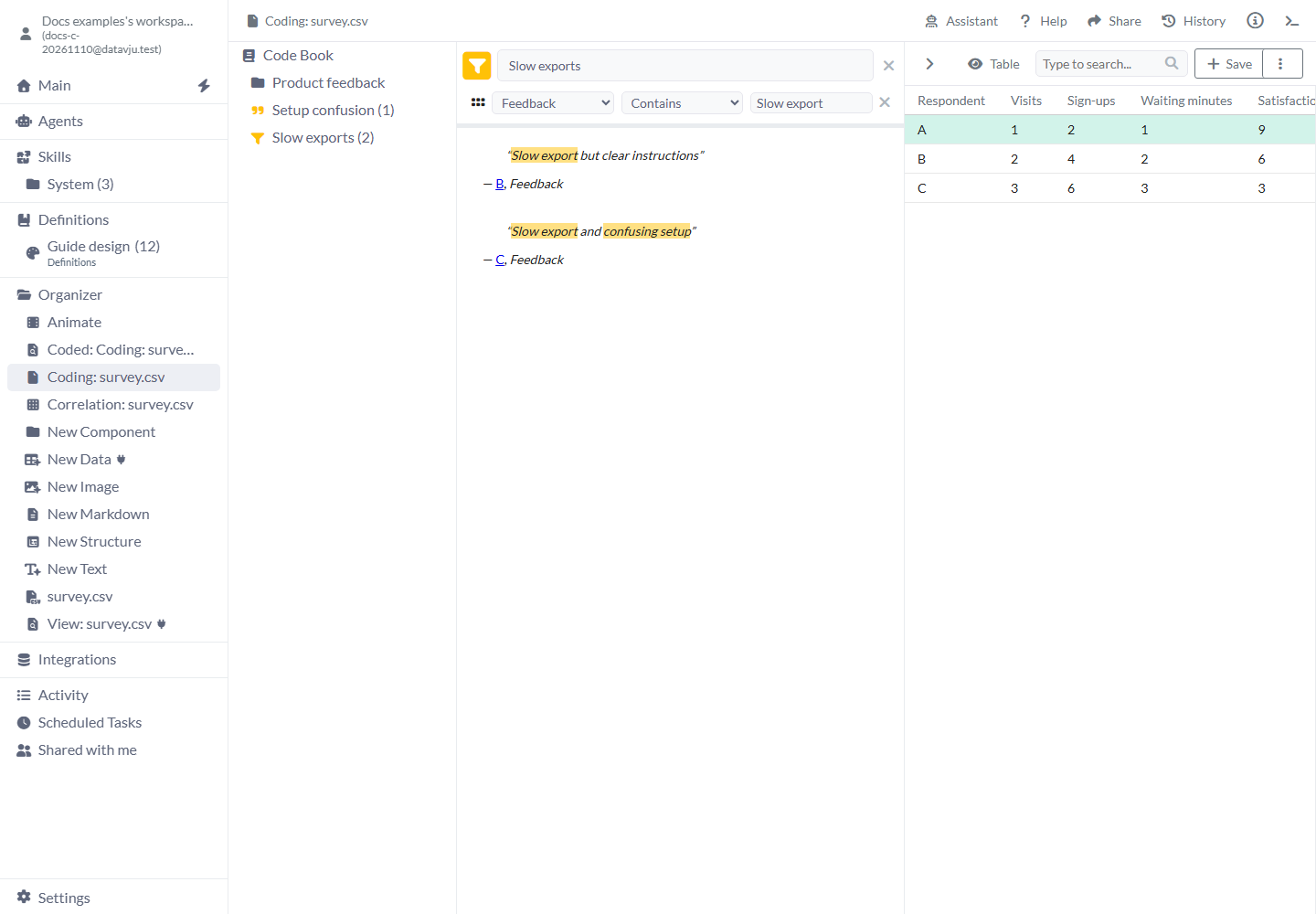
- Create New Filter Code and name it Slow exports.
- Select
Slow exportin response B and drag it into the code details. - Keep the Feedback column, Contains operator and
Slow exportvalue. - The code matches B and C and shows a count of
2. Response A stays in the source but is not a match.
Retain an exact quotation
A Quote Code keeps one respondent’s wording without matching other responses.
- Create a Quote Code named Setup confusion.
- In response C, select
confusing setupand drag it into that code. - Read the stored quotation with its respondent and column context.
- Confirm that confusing setup is shown for respondent C in Feedback.
Review remaining responses
For simple literal phrase codes, the source-row filter helps find responses still needing attention.
- After applying your codes, open Code Filter.
- Choose Rows without code.
- Read each remaining response in Table and Details.
- Return to No filter to inspect the complete source list, then Save a coded output when ready.
Help and supported AI actions
The toolbar Help button currently opens generic Datavju help for Coding. The dedicated Coding Assistant is a placeholder. You can ask Main or a User Agent with permission to save a table result as Coding. Then open that Coding item and build its Code Book using the steps above.
Limits and common mistakes
- A duplicate or unstable identity column makes exact quotations unreliable. Establish the identity before coding.
- The highlighted source text and Rows with code / Rows without code filters look for the literal phrase. Their results can differ from the conditions you see on the selected code. Code Filter currently has no effect on grouped source results. Check the selected code’s matching excerpts when using regular expressions or negative conditions.
- Empty condition values are not supported yet; keep the visible value field filled, including for Is Empty. Check that your source text contains values before comparing it.
- An empty code has no meaningful matching rule. Add a selection and inspect its conditions.
- A phrase match can group different meanings. Read the matched excerpts rather than accepting the count alone.
- A Quote Code and a Filter Code answer different questions. Exact selection and repeated text matching are separate workflows.
- The Coding Assistant is currently a placeholder; this guide describes the manual code-book workflow.
- Any Coding views you have open refresh when you change the source answers. Check quotations and matches affected by your edits.
Related articles
- Correlation - compare numeric measurements.
- Viz - visualize results.
- View - reuse a saved result.