
Locale System
A Locale System keeps the languages and translated messages you use across Pages and a Site. Create one in Definitions when you want to maintain shared text in several languages and choose which language to use while a translation is unfinished.
What a Locale System saves
A Locale is a language, optionally with a region, such as English en or German de-DE. A Message is a piece of reusable text, such as a welcome greeting, with a translation for each Locale. Message groups help you organize that text.
Choose a fallback Locale when another language should be used for missing or Initial translations. Your Pages use the saved Messages; follow the Site guide to choose which languages to publish.
Create a system and add a Locale
Start with English, then add the other languages your content needs.
- Open Definitions’ three-dot menu and choose New locale system.
- Enter Store languages in Locale system name, then Create locale system.
- Open the system. It starts with English, tag en, as the default Locale.
- Choose New locale. Enter Name, choose Language and optional Country or region, and review Language tag (BCP 47).
- To use English while this translation is unfinished, choose English in Add fallback locale, then Add fallback.
- Choose Create.
- To change the system’s default, select the system, choose Default locale and Save.
System and Locale settings
Choose your tags and fallback languages explicitly. To use English for unfinished German text, add English to German’s Fallback order.
- Name - Use a readable name such as Store languages or German. A new child starts empty.
- Description - Empty and optional. Explain the system, Locale, group or Message. Use Translator note below for guidance specific to translation.
- Default locale - English initially. Choose the one primary Locale for the system. Published content in that default uses / and supplies x-default for language discovery.
- Language - Choose language initially on a new Locale. Selecting German supplies de in the tag.
- Country or region (optional) - No region initially. Choose Germany when you want German formatting conventions for Germany, giving de-DE.
- Language tag (BCP 47) - Required. Review the tag made from your choices, or enter a more specific language, script, region or formatting extension. Use recognized tags such as de-DE.
- Fallback order - Empty initially. Choose Add fallback locale and Add fallback to append a language from this system. Use the up/down arrows to change order or Remove to unlink it. Each chosen language’s own fallbacks are tried too.
- Save / Discard - For an existing entry, Save keeps your changes and Discard restores the latest saved version. For a new entry, use Create or Cancel.
Create and preview a Message
Choose New message to enter translations. Create a group first if you want to organize related text.
- Select the system or an existing Message group.
- Choose New message. To make a group first, choose New message group, enter Name and Key, choose Create, select the new group, then New message.
- Enter Name and Key, for example Welcome and welcome. A blank creation Key is derived from the Name.
- Enter Translator note to explain where the text appears and its variables.
- Enter each Locale’s translation and select its translation state.
- Choose Create, or Save for an existing Message.
- In Preview, choose Locale and enter Example arguments (JSON) for any named variables.
Message settings
New translation cells start at Initial. Choose Translated, Reviewed or Final when the text is ready to use; Initial cells use the configured fallback.
- Name - Empty initially. Enter the readable name, such as Welcome.
- Key - Enter a stable key such as welcome or catalog-heading. Start with an ASCII letter or number, then use letters, numbers, dots, hyphens or underscores. Keys must differ within a group, ignoring case.
- Translator note - Empty and optional. Explain context and variables, such as Greeting above the catalog; name is the customer’s name.
- Locale translation - Enter Unicode MessageFormat 2 text. For example,
Welcome, {$name}.inserts the supplied name argument. Correct any syntax error before saving. - Initial - Selected for new or absent cells. Choose Translated, Reviewed or Final to use the text you entered, or keep Initial and configure a fallback language.
- Translated - Mark this text translated and ready to use.
- Reviewed - Mark it reviewed; the translation remains available.
- Final - Mark it final; the translation remains available. Publish your Site when you want visitors to receive the saved text.
- Preview Locale - Default locale initially. Choose a language to see its resolved text and any fallback notice.
- Example arguments (JSON) - {} initially. Enter an object such as
{"name":"Ada"}to test variables. These inputs are used only for your preview.
Example: a named customer greeting
In Store languages, add German de-DE with English as its fallback. Create Welcome with Key welcome and these translations, then Create.
- English - Enter
Welcome, {$name}.and select Final. - German - Enter
Willkommen, {$name}.and select Reviewed.
Preview the customer name
Select German in Preview → Locale and enter the arguments below. You see Willkommen, Ada. You can reuse this Message for another customer by supplying another name.
Example arguments for the name variable.
{"name":"Ada"}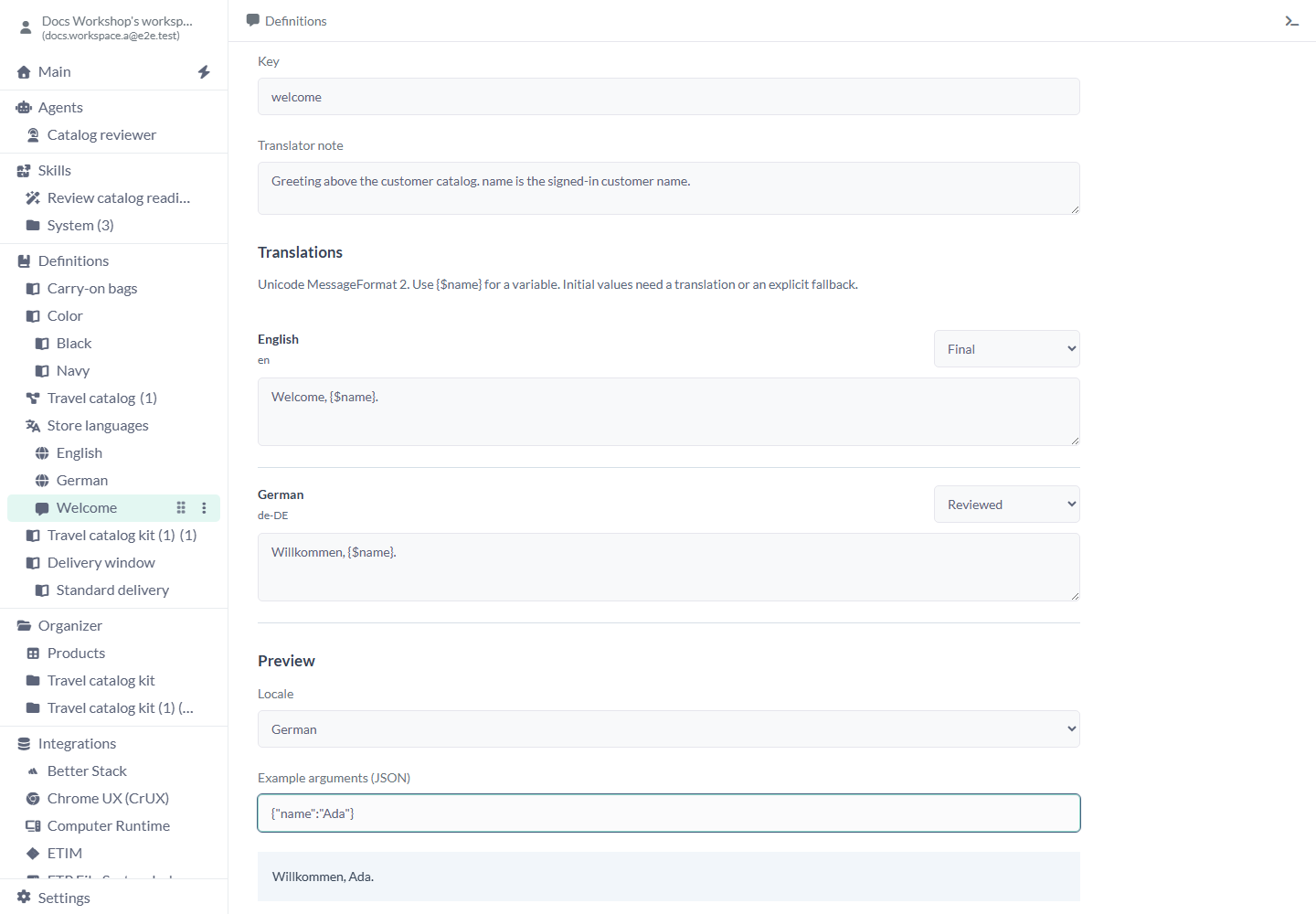
Example: an unfinished translation
On Welcome, change German’s state to Initial and choose German in Preview. With English in German’s Fallback order, you see Welcome, Ada. and Using English fallback. Choose Discard to restore the saved Reviewed German translation.
When you want an intentionally blank translation, save an empty value with Translated, Reviewed or Final. That language then displays the blank value you chose.
Connect the system to a Site
When your messages are ready, follow the Site guide to choose the Locale System and languages for your Site. Connect Page text to the saved Messages, review each language, then Publish the changes you want visitors to receive.
Limits and common mistakes
Check the preview and fallback choices before publishing.
- Choose fallbacks from this Locale System and keep the chain free of loops.
- Keep prices, currencies, eligibility and legal terms in your business data and rules; select the Locale for language and formatting.
- Preview the named arguments your Pages will supply and inspect any fallback notice.
- If someone else saves the entry while you are editing, review the save error. Use Discard to load the latest version, then reapply your changes.
- Keep Name within 250 characters and Description within 2,000. Enter a valid Key explicitly if the name cannot produce a suitable one.
Related articles
- Definitions - Write down shared terms and your data structure.
- Properties - Define attributes, value types and units.
- Models - transfer selected Definitions and content.
- Site - choose and publish Site Locales.