
JSON Builder
JSON Builder lets you edit nested Object, Array and JSON values as a tree. Use it to change delivery details in a row, build a list of tags or inspect a response schema. Your changes save in the Table or tool where you opened the editor.
Where to find JSON Builder
In a Table, select a row and open an Object, Array or JSON field in Row Details. To edit one cell, double-click it to open Cell Details, then choose Edit value. You’ll also see this tree when configuring structured responses in Data and Text.
Objects, arrays and values
The tree represents the actual nested value, rather than a flat list of columns.
- Object - A set of named properties. For example, delivery can contain city and days. Each property name should be unique within that object.
- Array - An ordered list. Its entries have numeric positions and their names cannot be edited. Deleting an entry moves later entries up.
- String, Number and Boolean - A String starts empty, a Number starts at 0 and a Boolean starts at false. A String value "3" differs from the Number 3.
- Null - An explicitly empty value, displayed as NULL. It has no editable scalar text. An empty String or an empty Object is not Null.
Edit a nested value
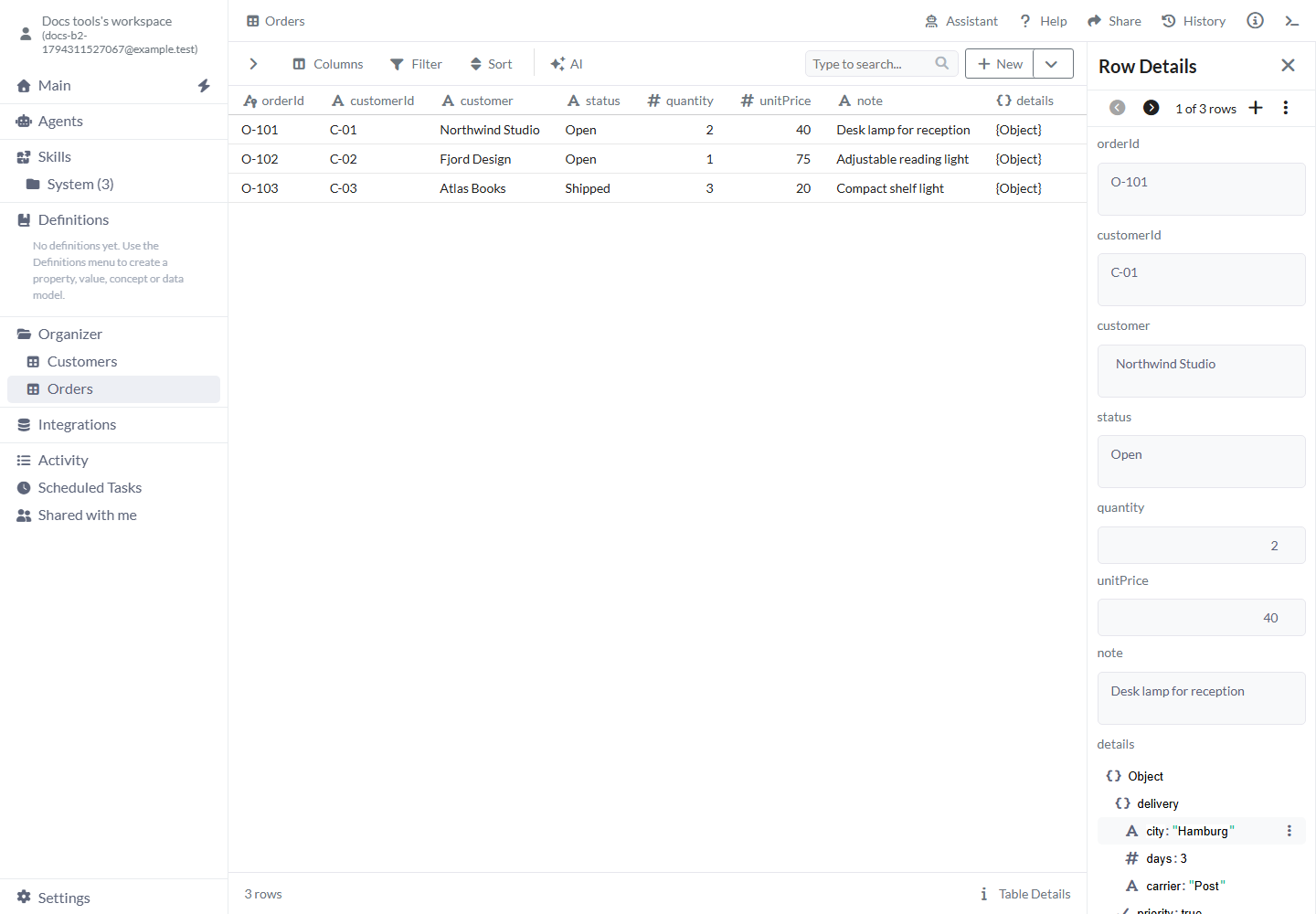
For this example, an Orders Table has a primary key orderId and an Object column details.
- Open Orders and select the O-101 row to open Row Details. Find details and expand Object.
- Expand delivery. Change the city value from Berlin to Hamburg. Press Enter or move to another field.
- Open delivery options. Choose String, rename the new property from String to carrier, and enter Post as its value.
- Close Row Details and reopen O-101. The saved delivery contains city: Hamburg, days: 3 and carrier: Post. Other fields in the row stay intact.
Before the edit.
{
  "priority": true,
  "delivery": {
    "city": "Berlin",
    "days": 3
  }
}
After the edit.
{
  "priority": true,
  "delivery": {
    "city": "Hamburg",
    "days": 3,
    "carrier": "Post"
  }
}
Your changes save in the Object field of this order.
Tree controls
You’ll see the controls available for this field and your access.
- Add Object / Add Array - If the value is empty, choose Add Object for named fields or Add Array for an ordered list. Some fields allow only one of these choices.
- Expand / Collapse - Show or hide the children of a container. This changes the displayed tree, without removing children from the value.
- Options menu - Use the ellipsis beside an item. A writable Object or Array offers Array, Boolean, Null, Number, Object and String to add a child. A scalar cannot contain children.
- Property name - Editable for children of an Object. New properties initially take their type name, such as String; repeated additions use String (1). Give them meaningful, unique names such as carrier. Array positions are fixed by order.
- Value - Edit the scalar beside its name. Number accepts numeric text and Boolean accepts exactly true or false. Correct an invalid draft before the new value can save. String preserves text as text.
- Set as Root Node - Show only a nested Object or Array to work in a smaller tree. It does not move the object or replace the stored root. Use the breadcrumb to return.
- Delete - Remove the selected item and everything inside it. Check the property name and breadcrumb before deleting a branch. Your changes follow the save behavior of the screen you’re using.
- Keyboard - Tab reaches disclosures, inputs and options. Enter or Space activates a button. Escape closes a menu and returns focus; Enter or Escape in an input leaves the field. Neither is an undo action.
More examples
Use the same editor for ordered lists and response settings.
Example: build a list of delivery tags
A structured value can mix containers and scalar types. Start with details containing delivery and priority.
- Open Object options and choose Array. Rename the new property to tags.
- Open tags options and choose String. Enter fragile in the new position 0.
- Add another String under tags and enter reception in position 1. The value is now tags: ["fragile", "reception"].
- Delete position 0 if fragile no longer applies. reception moves to position 0. Close and reopen the row or setting to check the saved list.
Two ordered String values in the tags Array.
{
  "tags": [
    "fragile",
    "reception"
  ]
}
Example: inspect a response schema
When you configure a structured response in Data, you may see properties such as summary with type string and score with type number. These describe the response you want. A generated record could contain summary: Desk lamp and score: 3. Finish the schema settings, then run Data to create the response.
An example record with the String and Number fields requested by a schema.
{
  "summary": "Desk lamp",
  "score": 3
}
Saving and read-only values
Existing row edits save through the Table as you make them. A New Row stays a draft until you choose Add New Row; read-only values can be inspected without editing.
- Row Details / Cell Details - Your accepted edits save as you make them. Add a primary key before editing an existing Table row. If you see an error, correct the value in the editor.
- New Row - Build the value in the row draft, then choose Add New Row to save the complete record.
- Read-only values - Expand branches and inspect their values. Use Set as Root Node to focus a branch, then the breadcrumb to return. Ask for edit access when you need to change the value.
- Tool settings - Finish through that panel’s normal save or confirmation control. Reopen the setting to check the saved value, then run the tool when you’re ready to use it.
Limits and common mistakes
Check the breadcrumb and property name before changing a branch.
- To import a JSON file into rows, open JSON. Use this editor to change a structured field or setting.
- Give each property a unique name within its Object. Reusing a name can replace the other value when the JSON is built.
- Choose the type when adding an item. If you add the wrong type, delete that child and add it again with the type you need.
- Use the breadcrumb to return after Set as Root Node. Your value stays at its original path.
- Enter exactly true or false for Boolean values. Use a Null item for an empty value and a String item for text.
- In an input, Escape leaves the field. To reverse a saved edit, enter the earlier value explicitly.
Related articles
- Table - Edit the row that owns a structured cell.
- JSON - Import a JSON file or response as source data.
- Data generation - Configure and run a structured AI response.
- Definitions - Describe business meaning separately from a JSON value.