Datavju overviewUnderstand the shared foundation and how Datavju's main capabilities fit together.
OrganizerFind and organize workspace resources using folders, shortcuts, and shared items.
DefinitionsManage shared definitions, understand their types, and connect them to implemented resources.
ConceptsDescribe shared business concepts and connect their meaning through properties and references.
PropertiesDefine reusable attributes, their value types, units, and shared business meaning.
ValuesDeclare named, typed property values that establish a consistent shared vocabulary.
ModelsPackage connected resources for reuse, import, export, snapshots, and restoration.
Locale SystemDefine supported locales, translations, fallback languages, and reusable messages across experiences.
AgentsConfigure agents, their instructions, capabilities, resource permissions, and saved execution history.
SkillsCreate, install, and manage reusable instructions and capabilities for agents.
Agent workspaceUse hosted external agents alongside workspace content through their native tools.
CommandUse Main Command and Folder Command to request tasks and revisit conversations.
AssistantsGet contextual explanations and supported changes within the tool you are using.
AI EditApply focused natural-language changes using each tool's supported structured editing controls.
IntegrationsConfigure reusable service connections for accessing external systems from your workspace.
MCPConnect external AI tools to Datavju through explicitly granted operations and resources.
ActivityReview recorded resource creation and sharing events across your workspace.
Workspace settingsManage account settings, workspace configuration, access permissions, and recorded AI usage.
Data ModelDefine tables, fields, keys, and relationships, then bind or implement those definitions.
DatasetsUnderstand stored records, column types, keys, and the structures behind your data.
TableCreate and edit records, manage columns, and filter, sort, or search data.
Row ReviewDefine complete record reviews, included information, and statements requiring deliberate acceptance.
ViewExplore derived datasets and refresh results using their saved processing layers.
FilesImport CSV, JSON, XML, HTML, and PDF files; configure supported FTP sources.
CSVImport a CSV as a retained source, then derive catalog and review results from it. Preview and parsing settings precede stored Dataset rows.
JSONImport selected JSON structure into rows and columns while retaining the file and selection settings. Use it for synthetic product feeds with nested objects or arrays.
FTP AcquisitionUse FTP to acquire a source file, inspect its parsing and retain an imported source for repeatable inbound refresh. FTP file acquisition is separate from an AI HTTP connection and from the FTP File System Index integration.
VectorCreate embeddings from dataset fields and find records through semantic similarity.
JSON BuilderEdit nested JSON objects and arrays wherever structured data configuration is required.
LayersUnderstand how saved processing steps connect sources and form reusable data pipelines.
TransformClean values, calculate fields, and reshape data through configurable transformation steps.
JoinCombine related datasets using matching fields, join types, and selected output columns.
AppendStack records from multiple datasets by mapping columns into shared outputs.
MergeReuse a compatible layer from another View within your current data pipeline.
GroupAggregate records by selected fields using calculations, filters, sorting, and rollups.
PivotReshape records into matrix summaries with grouped dimensions, measures, and totals.
MutateApply Text, Data, or Image tasks to datasets and retain generated results.
ReplaceRebuild existing data outputs while preserving their supported identities and settings.
CodingAnalyze qualitative information using code books, filters, coded queries, and counts.
CorrelationCompare variables through correlation matrices and the tool's other supported statistical modes.
VizBuild charts, metrics, maps, and visual compositions connected to your data.
MarkdownWrite, edit, and preview formatted documents alongside your other workspace resources.
StructureCreate hierarchical documents with configurable nodes, properties, and AI-assisted content generation.
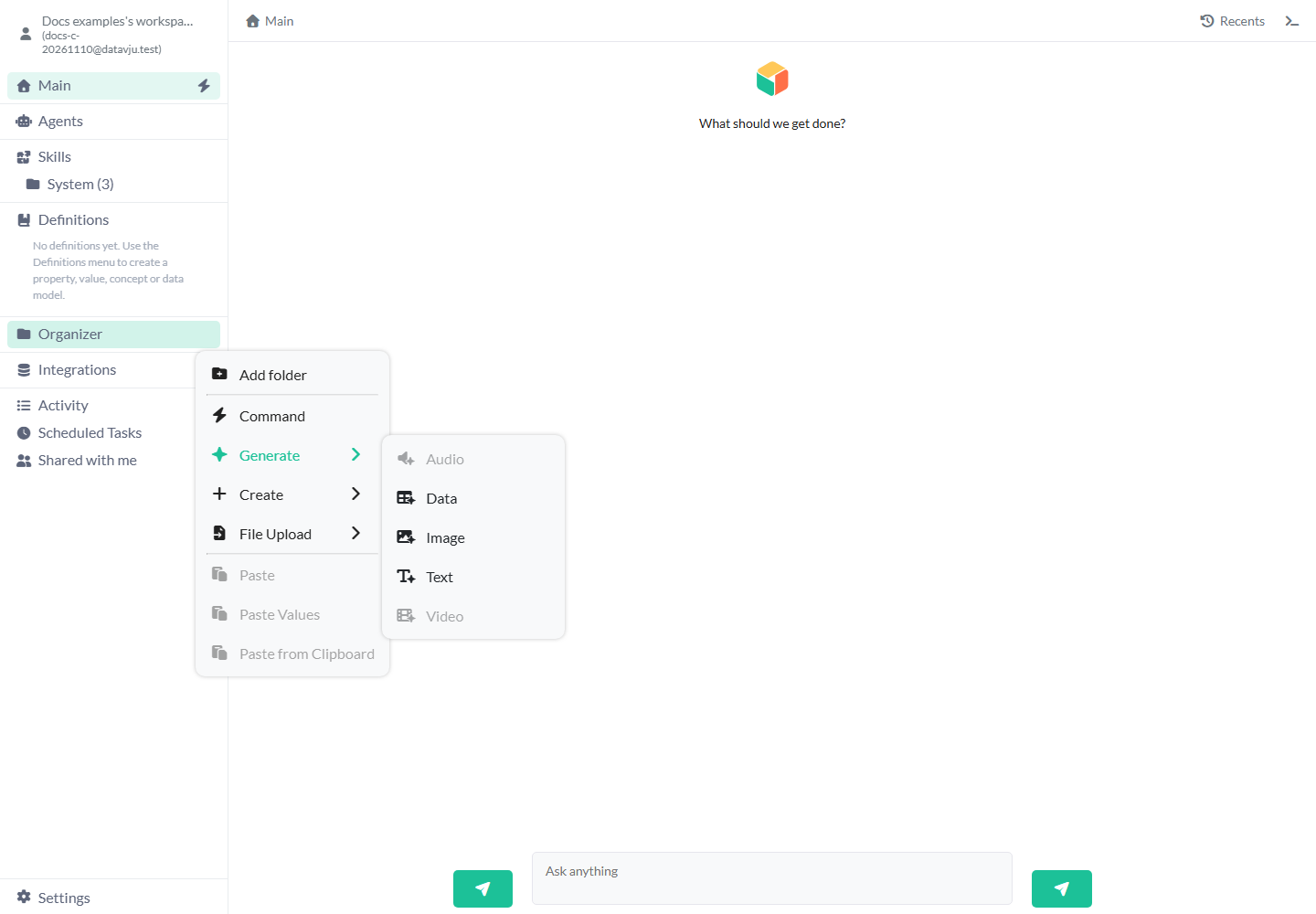
GenerateExplore the shared generation launcher and find the appropriate AI creation tool.
TextGenerate and store freeform text using configurable AI providers and models.
Data generationGenerate structured records with the Data tool using schemas and transformations.
ImageGenerate image assets with supported AI models and inspect their stored outputs.
AnimateCreate and edit SVG animations using groups, paths, sequences, and keyframes.
Audio (planned)Planned AI audio generation; its creation entry is currently disabled.
Video (planned)Planned AI video generation; its creation entry is currently disabled.
Design SystemDefine shared design tokens, themes, typography, and component requirements across interfaces.
StylesControl appearance through reusable styling rules applied across components and pages.
StatesDefine conditional component and page variations affecting appearance, content, or behavior.
ResponsiveAdapt layouts and styling to work across different screen sizes.
InteractionsConnect events, variables, functions, and actions to make interfaces respond.
StoryUnderstand the shared visual authoring system behind Datavju's components and pages.
ComponentConfigure reusable interface elements, their properties, data bindings, and component-level behavior.
PageCompose components into complete pages with layouts, data bindings, and interactive behavior.
SiteOrganize pages, configure routes and domains, preview changes, and publish sites.
APIExpose supported datasets through configured endpoints for access by external systems.
Page metadata (Head)Configure page titles, metadata, links, scripts, and other document head elements.
ScheduleConfigure supported recurring tasks and manage saved agent schedules and responsibility settings.
XMLXML imports the elements and attributes you select from an XML file.
HTMLHTML imports selected values from a web page into rows in your workspace.
PDFPDF imports text and drawing information from selected pages of a PDF file.
BucketA Bucket stores files and folders in your workspace.
No articles match your search. Try a different word.
Ingen artikler samsvarer med søket. Prøv et annet ord.