
PDF imports text and drawing information from selected pages of a PDF file. Use it when you need to inspect document content as rows, keep page-level records or prepare an extraction for further work.
How PDF works
PDF is a file import option under Files. You choose pages and an output mode, then inspect the parsed result. Import saves those rows and settings in the same Organizer item.
Primitives gives a row for each extracted text fragment or supported drawing element. Per Page View gives one row per selected page, with page dimensions, an array of extracted elements and a screenshot. Choose the mode based on whether you want to work with individual elements or whole pages.
Import PDF pages
A new PDF uses the whole document and Primitives output until you change its settings.
- In Organizer, open the destination folder’s menu and choose File Upload → PDF.
- Select the PDF, then open the new item in Organizer.
- Set From Page and To Page if you need only part of the document. Leave both blank to use all pages.
- Choose Primitives or Per Page View in Output Mode.
- Check the preview for the expected pages, text and rows. Choose Import to save the result.
- Use the saved table’s Columns, Filter, Sort and Search controls to inspect the imported data.
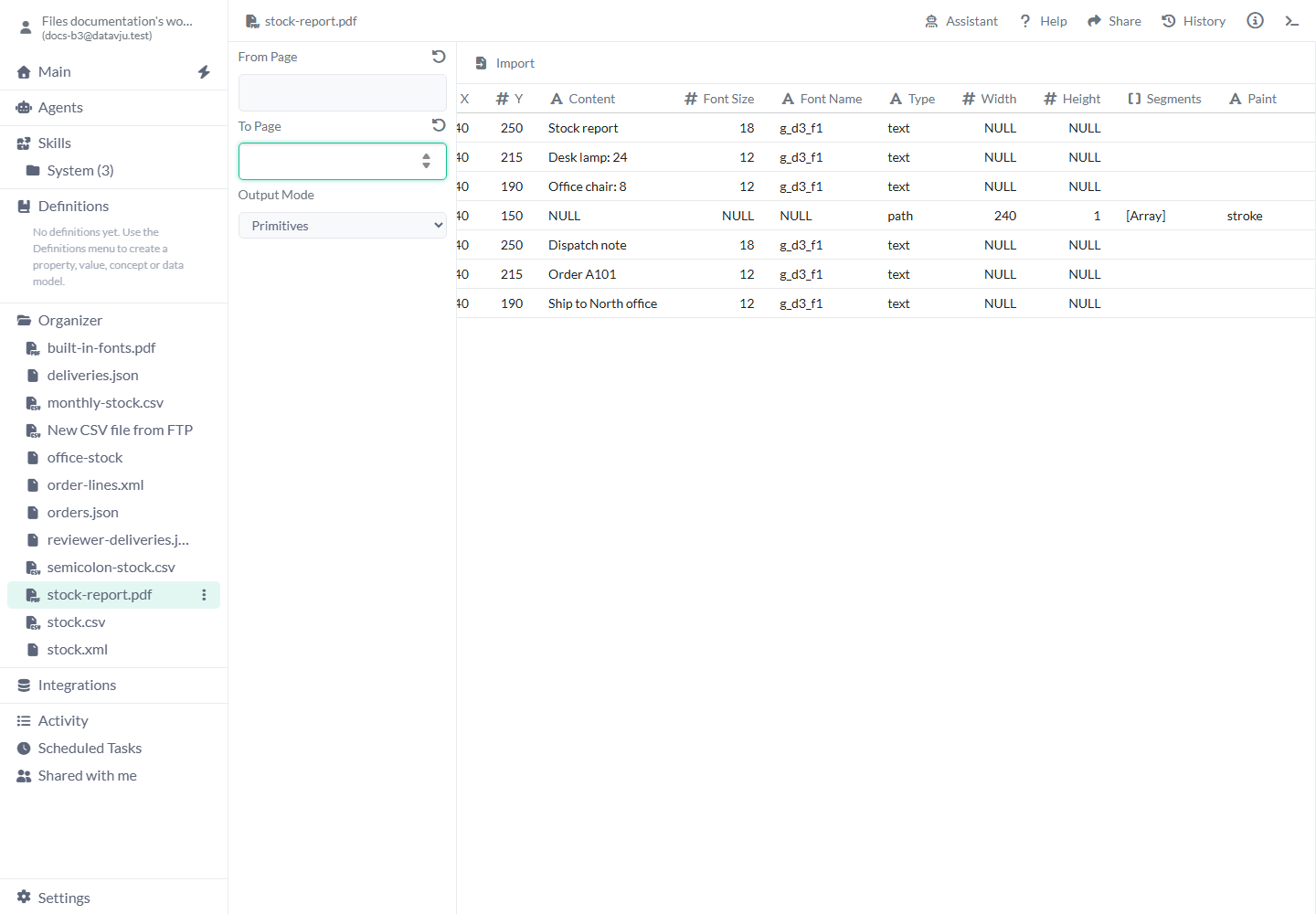
Primitives exposes text and drawing details as separate rows.
Page and output settings
A new import has blank page bounds and Output Mode set to Primitives.
- From Page - Blank starts at page 1. Enter a one-based page number such as 2 to begin with the second page.
- To Page - Blank ends at the final page. A number includes that page: From Page 2 and To Page 3 reads pages 2 and 3. The end is capped at the document’s page count.
- Reset icons - The curved-arrow icon beside each page field clears that bound. Reset From Page to begin at the first page again.
- Output Mode: Primitives - Default. Creates rows for extracted text and supported drawing elements. Text rows include Content, page, coordinates, Font Size, Font Name and Type. Drawing rows include their geometry and may have empty Content. Use this mode to inspect where a label or value occurs.
- Output Mode: Per Page View - Creates one row per selected page with Page, PageWidth, PageHeight, Orientation, Primitives and Screenshot. Use it to keep the page’s content and appearance together. This mode needs the PDF rendering service.
- Reimport - In the imported sidebar. Returns to page/output settings and removes an existing primary key. Choose Import again to save the result with the new range or mode.
- View PDF - In the imported sidebar. Opens a reconstructed view of the imported elements. Its previous and next arrow buttons, or the left/right arrow keys, cycle through the imported pages. The Page indicator identifies the current page, starting at Page 1. Press Esc to close the viewer.
Worked examples
These examples use a two-page report: stock on the first page and dispatch details on the second.
Inspect a stock report’s text
Choose Primitives with both page bounds blank. In the imported table, inspect Content and Type. The text below becomes separate text rows with their positions; the report’s ruled line is a drawing row with empty Content.
Text in the source PDF
Page 1:
Stock report
Desk lamp: 24
Office chair: 8

Page 2:
Dispatch note
Order A101
Ship to North office
Selected columns from Primitives output
Page | Type | Content
1    | text | Stock report
1    | text | Desk lamp: 24
1    | text | Office chair: 8
1    | path | null
2    | text | Dispatch note
2    | text | Order A101
2    | text | Ship to North office
Import just the dispatch page
Set From Page to 2 and To Page to 2, leave Primitives selected and choose Import. The saved rows describe the second page’s three text fragments, with Page equal to 2. Use the reset icons before a later import if you want the whole document.
Text rows from the selected page
Page | Content
2    | Dispatch note
2    | Order A101
2    | Ship to North office
Keep a record for each page
Choose Per Page View and use the reset icon beside each page bound. This 420-by-300-point report produces two landscape page rows, each with its own Primitives array and Screenshot. Choose View PDF after import to inspect the reconstructed content.
Page-level output; Primitives and Screenshot are additional columns
Page | PageWidth | PageHeight | Orientation
1    | 420       | 300        | landscape
2    | 420       | 300        | landscape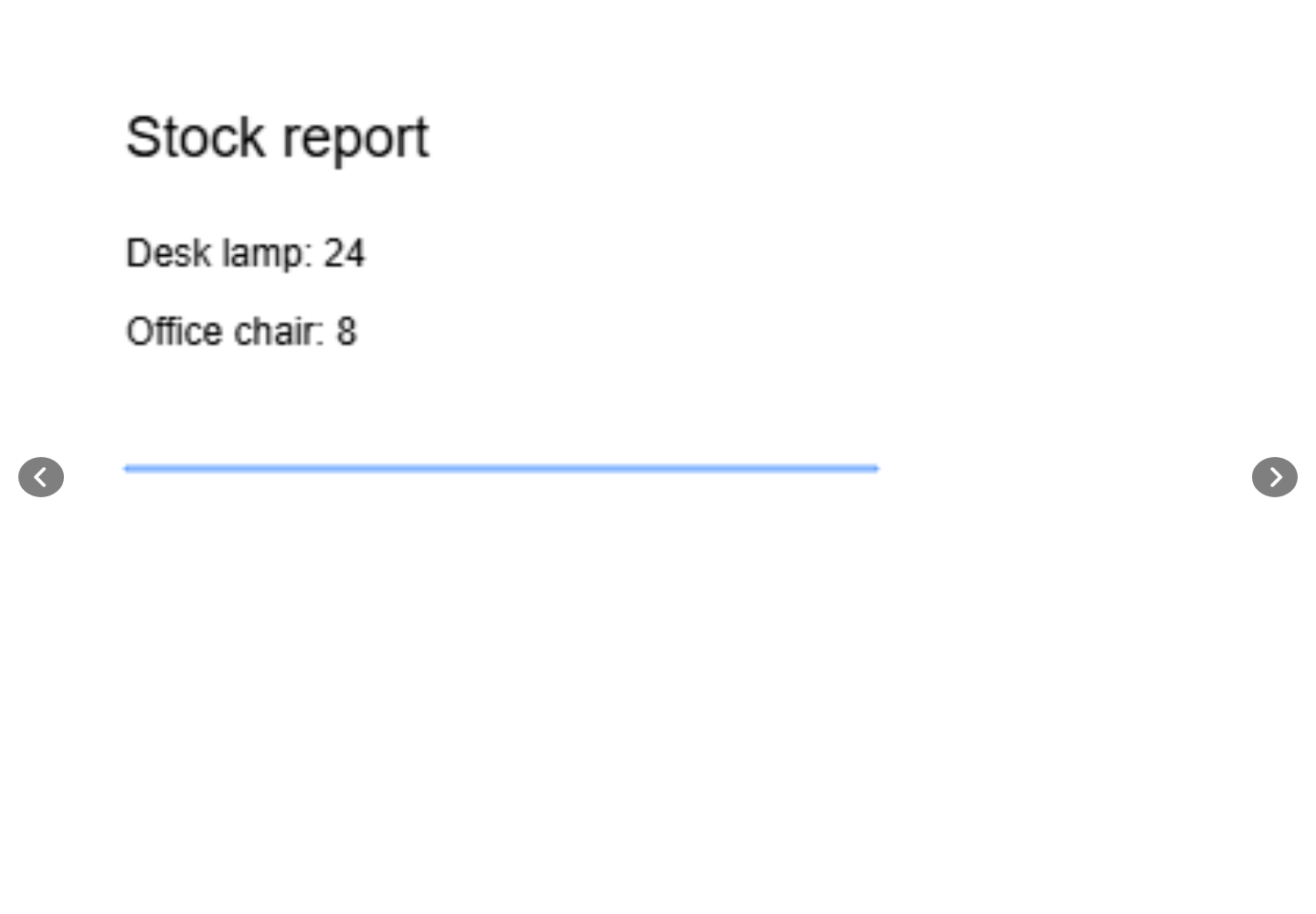
View PDF reconstructs the elements saved by the import.
Prepare the imported data
Use Filter to focus on text rows or a page. Use Transform when you need to prepare the extracted values, then save a separate View for the result.
A PDF can draw one visible line using several text fragments. Check the extracted rows and their positions before treating them as names, prices or order lines.
Limits and common mistakes
Check what the PDF actually contains and what the selected mode returns.
- OCR for scanned pages and automatic business-table reconstruction are not available yet. Image-only pages may have no embedded text to extract.
- Per Page View can fail if the rendering service is unavailable even when text extraction works. Try the mode appropriate to the result you need and report a service error if it persists.
- From Page later than To Page selects no pages. Check both bounds if the preview is empty.
- View PDF starts at Page 1 even when you imported a later page. Use its arrow buttons to select an imported page.
- Deleting a page number to clear a saved page limit is not available yet. Use the reset icon beside the field.
- The viewer reconstructs imported elements; its appearance can differ from the original PDF. Use the original file when exact document appearance matters.
- Direct PDF Refresh and Schedule controls are not available yet. Reimport reviews the current stored file and replaces its selected result.
- Large PDFs are read into memory for parsing. Start with the pages you need and check completion before using the imported result.
Related articles
- Files - Choose a file format and compare the ways to bring files into your workspace.
- Table - Inspect, filter and sort saved rows.
- Transform - Prepare extracted values for another result.
- View - Save a derived result from the imported content.
- CSV - Import data that already has explicit rows and columns.
- HTML - Extract values from a web page’s structure.