
Data Model
A data model describes the Tables, fields and relationships your business needs. Create one in Definitions when you want to agree the structure before adding records, or check that existing Tables match your plan. You can then create the missing Tables from the model and enter or import your records.
Plan your Tables
In Agreement, describe each kind of record and the fields it needs. For example, Products needs a SKU, name, category and price. Categories needs a category identifier and name.
Choose a primary key: the field, or combination of fields, that uniquely identifies each record. A product SKU can identify one product. An order line may need both an order identifier and a line number.
Add a foreign key when one Table refers to another. Products is the child Table; Categories is the parent. Mapping Products.category_id to Categories.category_id means each product's category must refer to an existing category.
Use Table to maintain the records. Use Row Review when someone needs to review and accept a complete record with its related information.
Create a data model
You can leave the model unbound while you discuss the structure. Unbound means you have described the Table or field but have not connected it to a Table that stores records.
- Open the three-dot menu beside Definitions and choose New data model.
- Enter Data model name, then choose Create model.
- Choose Add table. Enter Name and Meaning, then choose Save agreement. Leave Dataset binding as Unbound — agreed intent only if you will create the Table later.
- Choose Add field in that Table. Enter Name, Meaning and Logical type, then choose Save agreement. Repeat for the remaining fields.
- Choose Edit table, then Add key component. Select the field that identifies a record. Add further components when the full key needs several fields; use the arrows to put them in order.
- Choose Save agreement. Add your other Tables and their keys before connecting them.
Connect two Tables
If the parent key has two fields, select both corresponding child fields. For example, a reference to one order line needs both order_id and line_number.
Enable Required on each child reference field when every record must have a parent. An optional reference can remain empty. For a key with several fields, a null component leaves that reference unchecked, so require every component when the whole relationship is mandatory.
- Open Agreement and choose Add foreign key.
- Enter Name, such as Product category. Use Meaning to explain the relationship.
- Choose Child table, then Parent table. You can select a parent from another data model if you have access to it.
- Choose Parent key. Use its Primary Key or a declared Unique key.
- Under Complete foreign-key mapping, select a child field for every parent field shown. Match their types and use each child field once.
- Choose Save agreement, then open Diagram to inspect the connection.
Create the Tables
Existing connected Tables, columns and records are kept. Run the action again to complete missing parts of a partly built model. If you see a type, key or permission error, correct the named problem and try again.
- Open Implementation.
- Under New Tables in, choose the destination. It starts at Organizer; select a Folder to keep the new Tables together.
- Choose Implement data model. Datavju creates missing Tables and fields and applies the agreed keys and rules.
- Read the result, then choose Check implementation.
- Open the created Tables to enter or import records. Add parent records, such as Categories, before child records that refer to them.
Connect Tables you already have
Select the actual Table and columns even when their names already match. If you leave a field unbound and implement the model, Datavju creates a new column for it.
- In Agreement, choose Edit table for the Table description.
- Set Dataset binding to your existing Table and choose Save agreement.
- Edit each field. Under Column binding, select the column that stores its values, then save.
- Open Implementation and choose Check implementation to see differences.
Agreement settings
Use these controls to describe each Table, field and rule before applying them to records.
Names and editing
Give entries familiar names and save each change before closing its editor.
- Name - What to choose: Required; starts blank for a new entry. Use the name people use for this information. Example: Products or Product category.
- Meaning - What to choose: Optional; starts blank. Explain what one record or field means. Example: One product available to order, identified by SKU.
- Place in tree - What to choose: Starts at the chosen location. Move the description to another place in Definitions. Its Table connection stays the same. Example: Keep product-related descriptions together.
- Save agreement - What to choose: Saves the entry you are editing. Correct any displayed error and save again. Example: Save a price field after choosing Number.
- Close - What to choose: Closes the editor. Save first to keep your edits. Example: Leave a field editor after saving.
- Reload saved entry - What to choose: Appears after someone else changes the entry. Loads their saved version. Example: Review a colleague's latest key change before editing again.
Table and field settings
Connect existing data where needed and choose the type and key for each field.
Choose Money for an amount with its currency, Duration for a length of time, Date for a calendar day, DateTime for a local date and time, and DateTime TZ for an instant with timezone meaning. Choose the actual type even if a text value looks similar.
- Dataset binding - Default and result: A new Table description starts unbound. Choose an existing stored Table to connect it. Example: Connect the Products description to your Products Table.
- Add key component - Default and result: A new Table starts without a primary key. Add each identifying field in order. Example: Use sku, or order_id followed by line_number.
- Key arrows / Remove - Default and result: Reorder or remove fields from the declared key. Example: Correct the order of an order-line key.
- Logical type - Default and result: New fields start as String, which holds text. Select the type their values need. Example: Keep 0007 as String; choose Number for quantity.
- Insert default - Default and result: String fields start at None. Choose Random UUID to generate an identifier when a new record omits it. Values you supply are kept. Example: Give each request a generated identifier.
- Required - Default and result: Off for a new ordinary field. Enable it to require a value; primary-key fields already require values. Example: Require a product name. Empty text, zero and false each count as a value.
- Column binding - Default and result: Starts unbound. After connecting the Table, choose the existing column for this field. Example: Connect price to the stored price column.
Add rules for records
In Edit table, Constraint type starts at Unique. Choose a type, select New constraint, complete its fields, then Add constraint and Save agreement. Use Cancel constraint to abandon a new rule or Remove constraint to remove a listed rule. Implement the model to apply saved rules to records.
For the room-booking rule, add one Column element with room and Equals. Add a second Date / time range element with start and end. The rule rejects two bookings when both comparisons match: they use the same room and their times overlap. A booking ending at 11:00 and another starting at 11:00 can sit next to each other.
Primary and Unique keys support the offered types. Duration and Password are unavailable because their stored comparisons cannot identify records reliably in these keys.
- Unique - What to select: Select every column that must be unique together. Selection starts empty. Example: Prevent two customer records from using the same email address.
- Check - What to select: Add typed comparisons and combine them with And or Or. The condition starts empty. Example: Require quantity to be greater than zero.
- Exclude - What to select: Use Add element for each comparison. Choose Column with Equals or Not equal, or Date / time range with Start column and End column. Example: Prevent overlapping bookings for the same room. Date ranges include their start and exclude their end.
Inspect the model and check your Tables
Choose Diagram to see the Tables and their connections. PK 1, PK 2 and so on show key order; FK marks a field used in a foreign key. Select a connection to see its complete mapping below the diagram. Select a Table name or Open foreign key to inspect it.
Use Zoom in, Zoom out, 100% and Fit to view to navigate. Scroll when a zoomed diagram extends beyond the screen.
In Implementation, choose Check implementation. Read Match, Mismatch, Not bound, Unavailable, Unsupported or Not assessed beside each requirement. A successful check shows Declared requirements matched. Check again after changing Tables: the displayed result records the time you last checked.
Use a mismatch to decide where to make the correction. Change Agreement when your plan was wrong, or change the Table when its fields or rules were wrong. Additional columns are allowed; review the records themselves separately for completeness and accuracy.
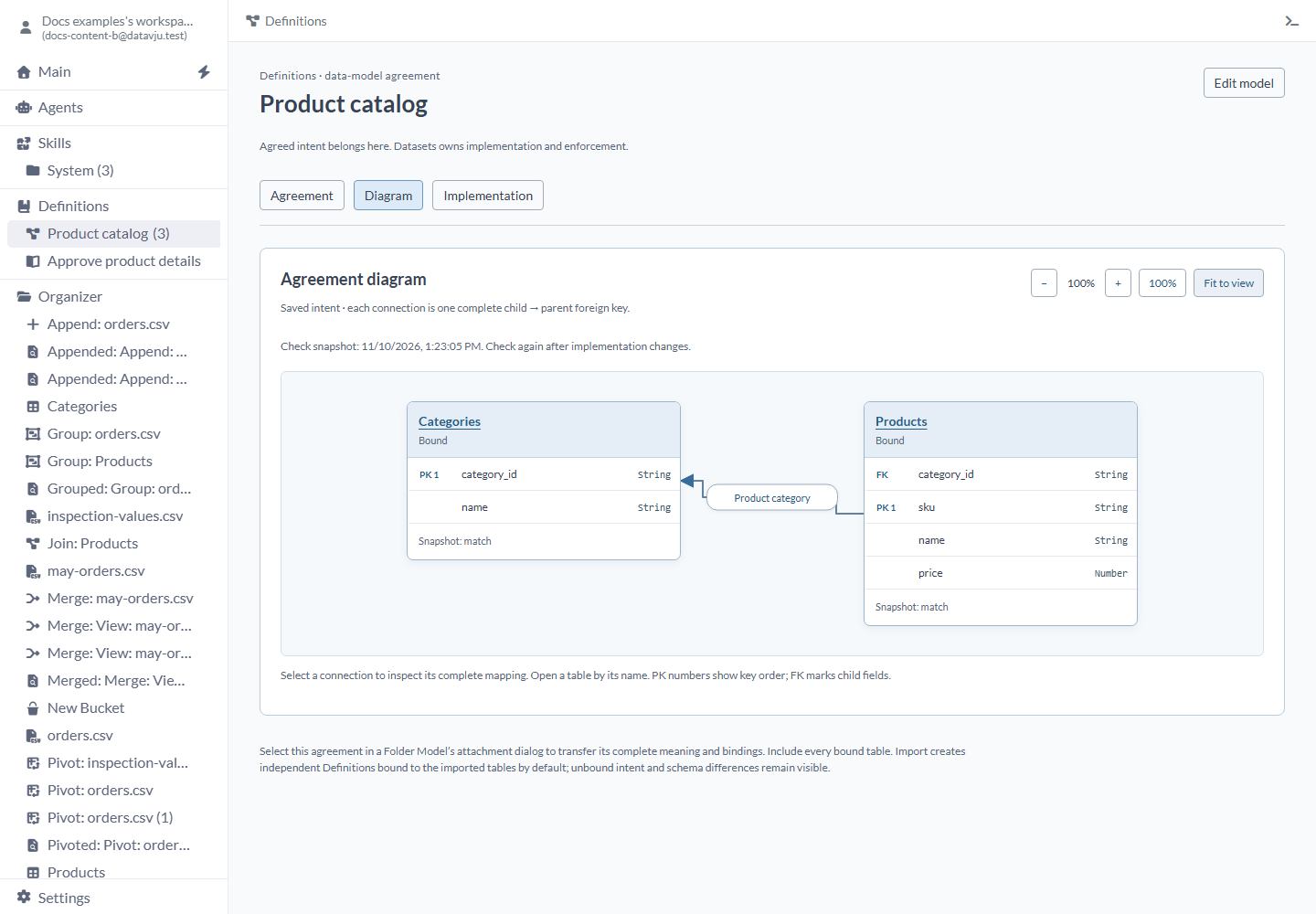
The diagram shows which fields connect the two Tables.
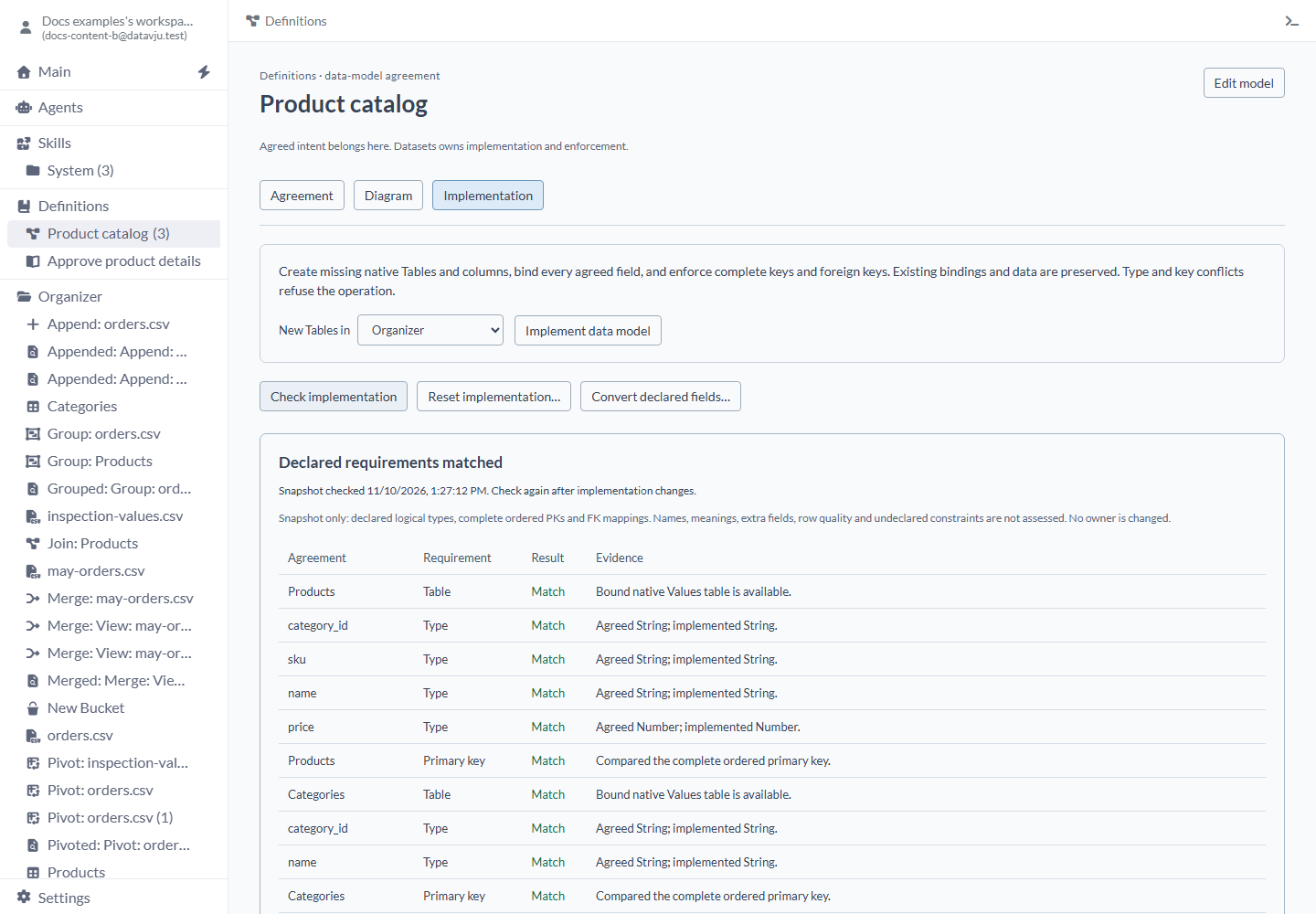
Check implementation compares the agreed structure with your connected Tables.
Convert existing fields
Use Agreement → Convert existing fields… when existing fields should become a complete reference to another Table. Select the relationship and every key field, review the preview, then choose Convert references. Existing descriptions and records are kept; the conversion connects the complete fields to the selected parent key. Review again if an input changes.
Use Implementation → Convert declared fields… when existing amount/currency or value/unit fields should become Money or Duration. Select the field to keep and its companion fields, or the fixed currency and amount units offered in the review. Check the displayed values and affected Tables and Pages before applying.
If calculations use the old fields, review each one. Keep recipe keeps its existing calculation; Edit recipe opens the calculation editor. For example, a calculation that divided minor currency units by 100 may need changing after conversion to Money. Complete every required decision before applying. Cancel to keep the existing data, or review again if it changes.
Transfer or reset a model
To copy your model to another workspace, put its Tables in a Folder. In that Folder's Model attachment dialog, select the agreement under Definitions and include every connected Table. After import, open the copied model and choose Check implementation to check its copied Tables.
Delete bound Tables with Reset
The data-model agreement remains so you can build it again. Read any reported dependency or partial-result message before taking another action.
Tables this agreement refers to in other data models are kept. If items outside this agreement depend on its bound Tables, or a bound Table is unavailable or incomplete, Reset refuses before changing them.
- Open Agreement and check every connected Table.
- Open Implementation → Reset implementation…
- Choose the Implementation Folder containing the bound Tables.
- Warning: Reset bound tables deletes every Table bound to this data-model agreement and all rows in those Tables, including existing Tables you connected later. Choose Reset bound tables only when you intend to delete all of them.
Examples
For the product example, create Categories with String category_id as its primary key and String name. Create Products with String sku as its primary key, String name, String category_id and Number price.
Put products in categories
Add Product category, mapping Products.category_id to Categories.category_id, then implement the model.
Enter Categories first: category_id=lighting, name=Lighting. The product below refers to that category.
The diagram connects Products to Categories, and Check implementation reports the complete relationship. Use an existing category identifier when adding each product.
- LAMP-01 - name: Desk lamp. category_id: lighting. price: 25.
Identify an order line
Add order_id and line_number as the ordered primary key of Order lines. The two records below identify different lines of the same order.
To refer to one exact line from another Table, include both fields in its foreign-key mapping. To refer to the order as a whole, connect to the Orders Table instead.
- A101 - line_number: 1. sku: LAMP-01.
- A101 - line_number: 2. sku: CHAIR-02.
Find a type difference
Your existing Table stores launch_date as String with the text 2026-11-10. Declare the field as Date and connect it to that column. Check implementation reports Mismatch for the type. Read the column as Date using its Change type control, review any unreadable values, then check the model again.
Limits and common mistakes
Check the complete keys and connected Tables before applying or resetting an implementation.
- Enter or import records after creating the Tables. Describing a Table and implementing its fields prepares their structure.
- Choose a stored Table for Dataset binding. Use a View when you need a calculated result for display or analysis.
- Select the intended Tables and columns, especially when several have the same name.
- Include every component of a key and foreign key. Use the arrows to keep their order correct.
- Relationships between different Tables can form a loop; self references are currently unsupported. Keep Row Review's included relationships free of loops.
- Rerun Check implementation after storage changes and review data quality separately.
- Resolve listed references before deleting a Definition. Your actual Table records remain when you remove the description.
Related articles
- Table - enter records and manage keys and rules.
- Datasets - understand rows, columns and calculated results.
- Row Review - review and accept complete records.
- Definitions - organize shared business meaning.