
Replace
Replace updates an existing Table, View or supported tool input with a new result. You keep the destination in the Organizer while changing the data it uses. Use it when a report or transformation should continue using the same saved item after you revise its source or calculation.
Choose what you want to update
A Dataset is a saved collection of rows and columns. Replacing a Table or View rebuilds its saved contents from the producing result. Replacing a tool’s input lets that tool continue with its existing settings and the new data. Other saved Views may still need Refresh to rebuild their own stored results after the change.
Choose the right action
Open the output menu in the source you want to use.
- Replace - Use the current source or calculated result to update an existing destination. Start here when you want the producing result’s fields and settings.
- Replace and Keep Settings - Offered in Transform’s Save menu. Use it when the destination’s current column names, order, visibility, formatting, filters, sorting, functions and search should be retained where the same fields remain available.
- Save as View - Create a separate saved result when you want to keep the current destination as it is.
- Insert - Add rows to an existing writable Table or supported imported source when you want to keep its existing rows.
- Replace File - Use this Organizer action when you want to supply a new file to an imported source. Configure the file’s import settings through its own tool.
Replace a saved Table or View
Check the complete result you want to use before choosing its destination.
- Open the source Table, View or transformation. Check its fields, values, filters and sorting. For Transform, finish every step first.
- Open the arrow beside New in a Table or View, or beside Save in Transform, Join or Mutate. Choose Replace.
- In the destination chooser, use Type to search... to find the saved item. Read its full Folder path and name.
- Choose the intended destination. Selecting it starts replacement; there is no separate confirmation button.
- Wait for the operation to finish. Open the existing destination and check the new rows, column types and displayed settings.
- Refresh saved Views that use this destination when you want them rebuilt from its new data.
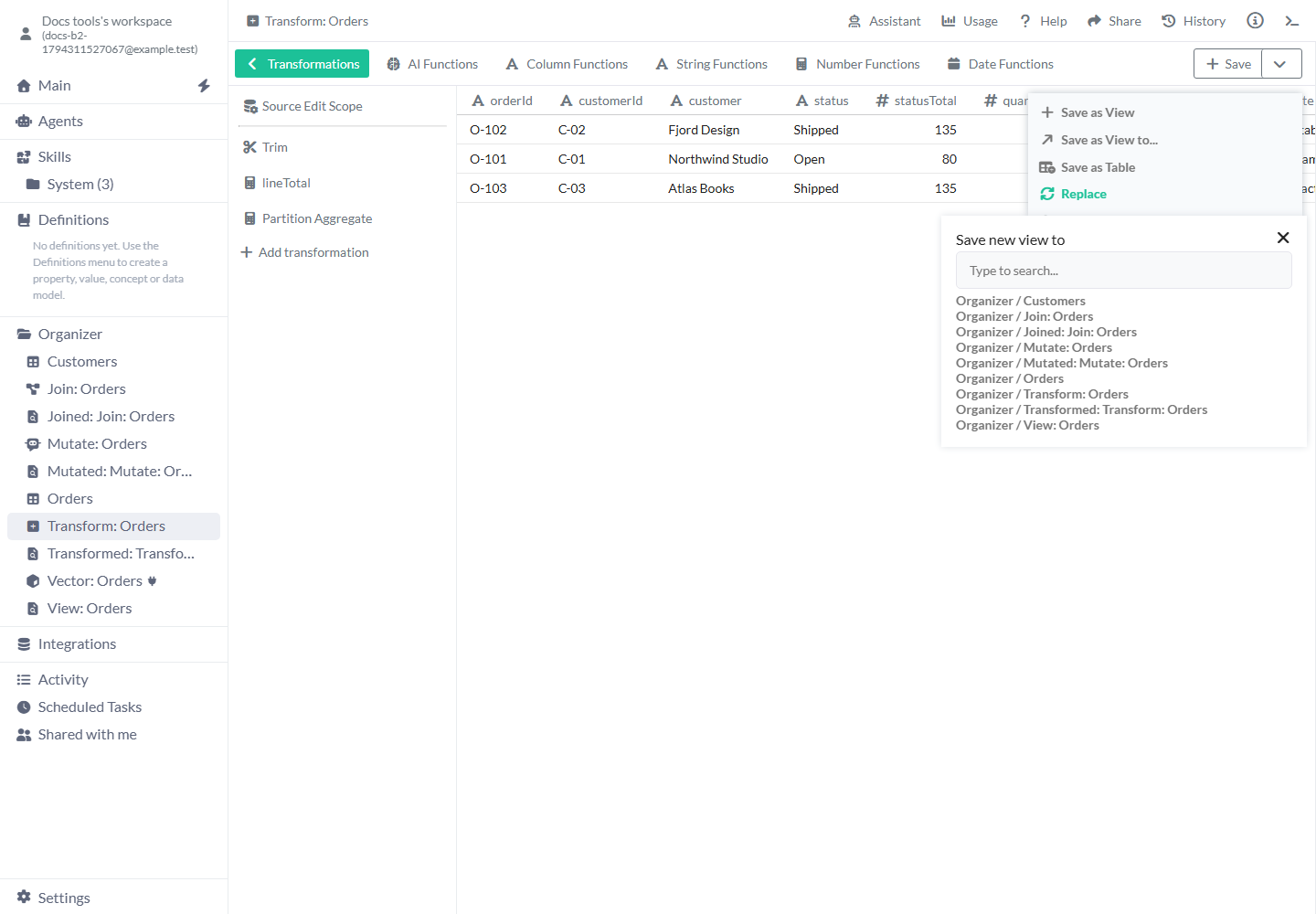
Select the destination only after checking its name and full path.
Destination chooser
The chooser currently uses the heading Save new view to for these output actions. You are selecting an existing item for Replace.
- Type to search... - Starts empty. Type part of the destination’s name to narrow the list. Clear it to show all offered destinations.
- Folder path and item name - Each result shows its location, such as Organizer / Monthly orders. Select the complete destination row to apply the replacement.
- Close - Closes the chooser before selecting an item. Use it to return to the source and check your choice.
- Available destinations - The list depends on where you opened Replace. A Table or View offers Tables, Views, Group and Transform. Transform, Join and Mutate also offer the supported tool inputs described below. You need permission to change the selected data.
Keep the destination’s settings
Choose Transform → Save arrow → Replace and Keep Settings when you need the destination’s presentation and query settings.
- Columns - Keeps the existing order for matching fields, then adds new fields. Existing names, visibility, data types and formatting are retained for matching fields. Removed fields disappear.
- Filters and sorting - Keeps rules for fields that remain available with a compatible type. Review the result when fields or types have changed.
- Functions - Retains applicable active column functions. Check generated columns and functions that refer to other fields after a source change.
- Search - Keeps the destination’s saved search, including a cleared search. A retained search can make the visible row count smaller than the rebuilt data.
- Ordinary Replace - Uses the producing result’s applicable settings. For example, a destination field renamed Order amount returns to lineTotal when the producing Transform names it lineTotal.
Replace a tool’s input
Choose a tool destination only when you want its existing calculation or tasks to use the incoming data.
- From a Table or View to Group or Transform - The selected tool switches to the incoming Dataset and retains its grouping or transformation steps. Your previous input remains saved. The incoming fields must support the existing settings.
- From Transform, Join or Mutate to a tool - The selected Group, Join, Mutate or Transform keeps its configured steps, while its current input data is rebuilt from the producing result. Check other work that uses that same input.
- Change Mutate’s source directly - Use the replace-source control beside the Dataset in Mutate’s sidebar, then choose the source Dataset. Check where each task gets its input, then choose Submit when you want new responses.
- Rebuild a tool’s saved output - After changing the tool’s input, inspect its preview. Use its Save or Replace action to update a saved output; that saved output has its own stored rows.
Worked examples
Update a saved report, keep its column name, or reuse an existing transformation with revised source data.
Example: update a calculated order list
You have a Transform with lineTotal = quantity × unitPrice and a saved View named Transformed: Transform: Orders.
- In Transform, add Partition Aggregate with status as Partition Columns, Sum as Aggregate and lineTotal as Value Column. Name its output statusTotal.
- Check the preview: O-101 has lineTotal 80 and statusTotal 80. O-102 and O-103 have lineTotal 75 and 60, and statusTotal 135 on both rows.
- Open the Save arrow and choose Replace. Select Transformed: Transform: Orders.
- Open that same View. It now contains statusTotal beside the order details. Existing links to this saved item can continue using it.
The updated saved order result.
[
  {
    "orderId": "O-101",
    "status": "Open",
    "lineTotal": 80,
    "statusTotal": 80
  },
  {
    "orderId": "O-102",
    "status": "Shipped",
    "lineTotal": 75,
    "statusTotal": 135
  },
  {
    "orderId": "O-103",
    "status": "Shipped",
    "lineTotal": 60,
    "statusTotal": 135
  }
]
Example: keep a report’s column name
In the saved order View, you renamed lineTotal to Order amount. The producing Transform still calls it lineTotal.
- Open the producing Transform and check its current totals.
- Open the Save arrow and choose Replace and Keep Settings.
- Select the saved order View. Reopen it after replacement.
- Check that Order amount is still the displayed name and that its values match the current calculation. New fields such as statusTotal are also available.
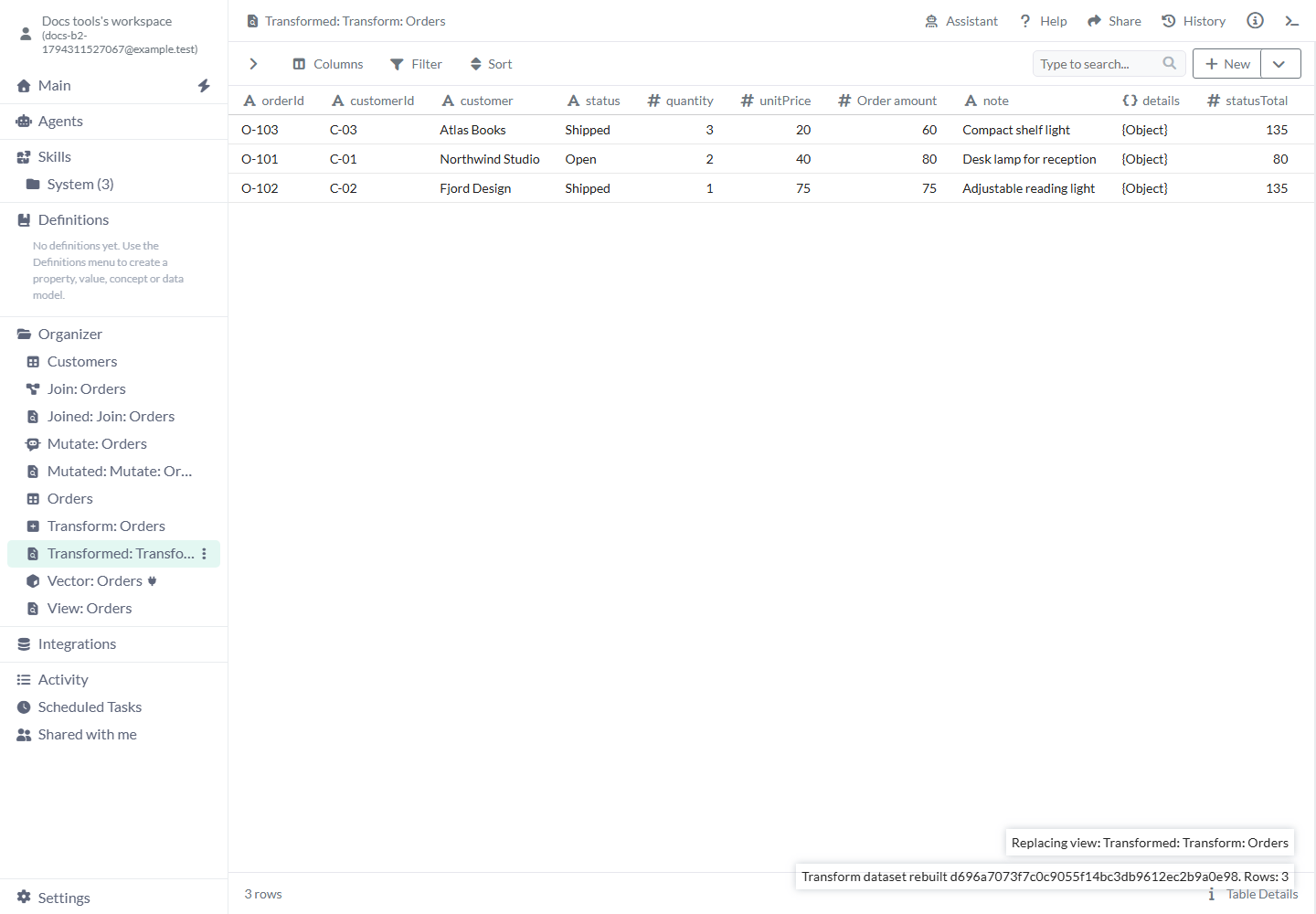
The destination keeps Order amount as its displayed field name.
Example: use a revised order source
Revised Orders has the same fields as Orders, but O-101 has quantity 4 instead of 2. The existing Transform calculates lineTotal from quantity and unitPrice.
- Open Revised Orders. Open the New arrow and choose Replace.
- Select the existing Transform: Orders tool.
- Inspect the tool. Its Trim, Calculated Field and Partition Aggregate steps remain configured.
- Check O-101: quantity 4 multiplied by unitPrice 40 now gives lineTotal 160. Open the original Orders Table separately when you want to inspect its unchanged quantity 2.
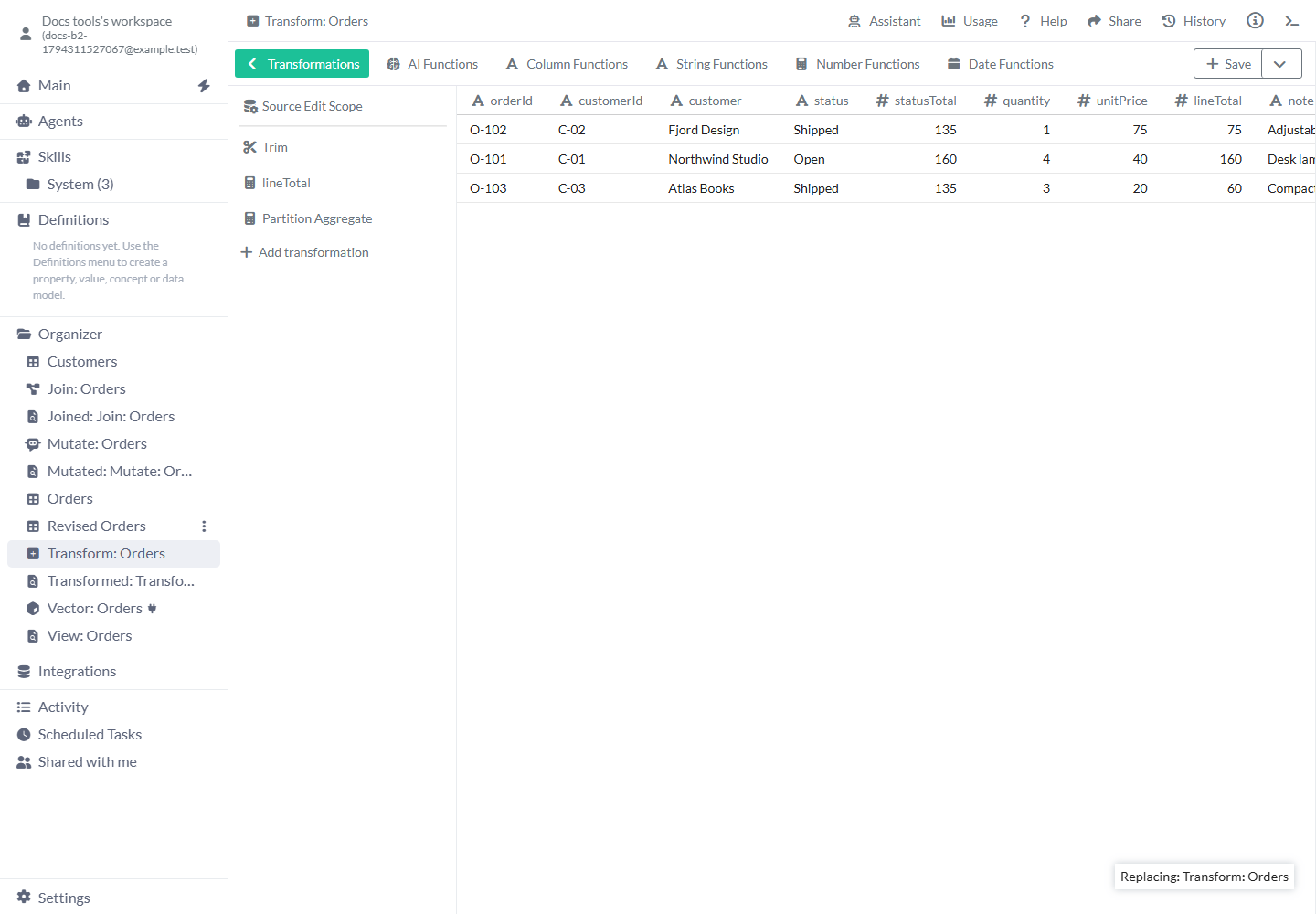
The tool keeps its steps and calculates them using the new source.
Limits and common mistakes
Check the selected source and destination before applying the change.
- Selecting a destination starts replacement. Use Save as View first when you need a separate result to compare.
- A replacement can remove previous rows or fields. Check work that uses those fields, then refresh its saved results as needed.
- The destination chooser offers only the types supported by the current action. Use the destination’s own source or import controls for other changes.
- An incoming source needs the fields used by the destination tool’s existing steps. Check field names and types before switching its input.
- Transform’s Source Sample (rows) limits editing previews. The saved replacement uses the full transformation unless the sequence itself contains a row restriction.
- If a replacement would make a View depend on itself, save a new View or choose a destination with a separate source.
- Read the failure message and reopen the destination before retrying after an interrupted response. The destination may already have been updated.
- Refreshing a dependent View and updating published content are separate actions. Use the relevant tool’s controls to deliver those changes.