
Activity
Activity lists recently created workspace objects, items newly shared with you, and published Site versions. Use it to find something that just became available, see who created it, and open the saved item.
How the feed works
When you open Activity, you see the latest 100 events, newest first. New events appear as you work, so the open list can grow beyond 100. Select an event to open the item it describes.
Use the item's History to investigate changes inside it, an Agent's conversation to follow its work, or Scheduled Tasks to check a scheduled run.
Find and open an item
Open an item from its creation, sharing or publication event when you want to inspect its current contents.
- Select Activity in the left sidebar.
- Find the item by its description under What, its creator under Who, or its location under Where.
- Select the row, including its Open area, to open the item.
- Check the item's current contents. For example, open a Table to inspect its rows, or a Site to inspect its current configuration.
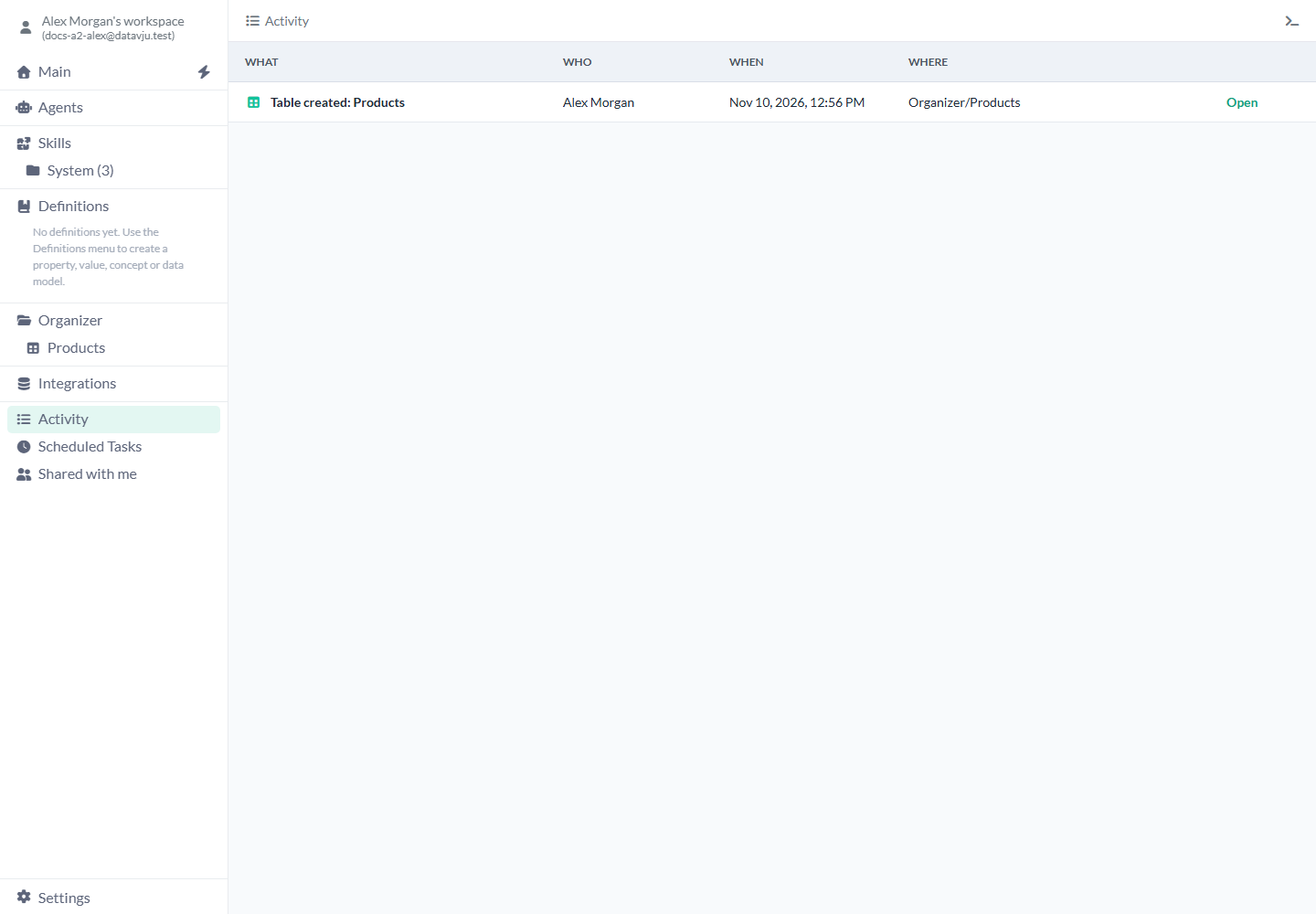
Select a row to open the saved item.
Read the columns
Use these columns to identify the item you want to open.
- What - The type, action and name, such as
Table created: Products. Look for created, shared or published. Hover over shortened text to read the complete description. - Who - The person who acted. If a tool did the work, you see its name and the person who requested it, such as
Main Command for Alex. - When - The event's date and time in your browser's local format. Use your browser's timezone when comparing it with another record.
- Where - The location at the time of the event. Shared items appear under
Shared with me/...; Site publications includeVersions/<version>. Hover over a shortened path to read it in full. - Open - Opens the item as it is today, with your current permissions. Select a Site publication to open the Site editor; use the Site's publishing controls to visit its public page.
Events you can find
Look here for new items created by you, another person or an AI tool.
- Find folders, Tables, Pages, Markdown documents, Views and other supported items created in Organizer.
- Find supported items created through Main Command or Folder Command, with the Command named under Who.
- Find a new saved Agent here. Open the Agents tree and the Agent itself to inspect folders or later changes.
- Find folders and Markdown documents created by saved Agents. Open the Agent's conversation for its other work.
- Folder Assistant-created folders and HTTP API Assistant-created connections appear after creation.
- Find an Integration query after its data and sidebar entry have been saved. A query is a saved request for data from a connected service.
- An eligible item shared with you appears in your feed when it becomes available. A new published Site version appears after that version is saved.
Examples
These examples use creation and sharing events to return to a Table, a folder and a colleague’s catalog.
Return to a new Products Table
Use the creation event to reopen a two-product Table after leaving its tab.
- In Organizer, create a Table named Products. Add sample rows
LAMP-01, Desk lamp, 49andLAMP-02, Floor lamp, 89using columns sku, name and price. - Open Activity and find
Table created: Productsat its Organizer location. - Select the event. The existing Products Table opens with its current rows. Changing its price later changes the Table, while the creation event remains a creation event.
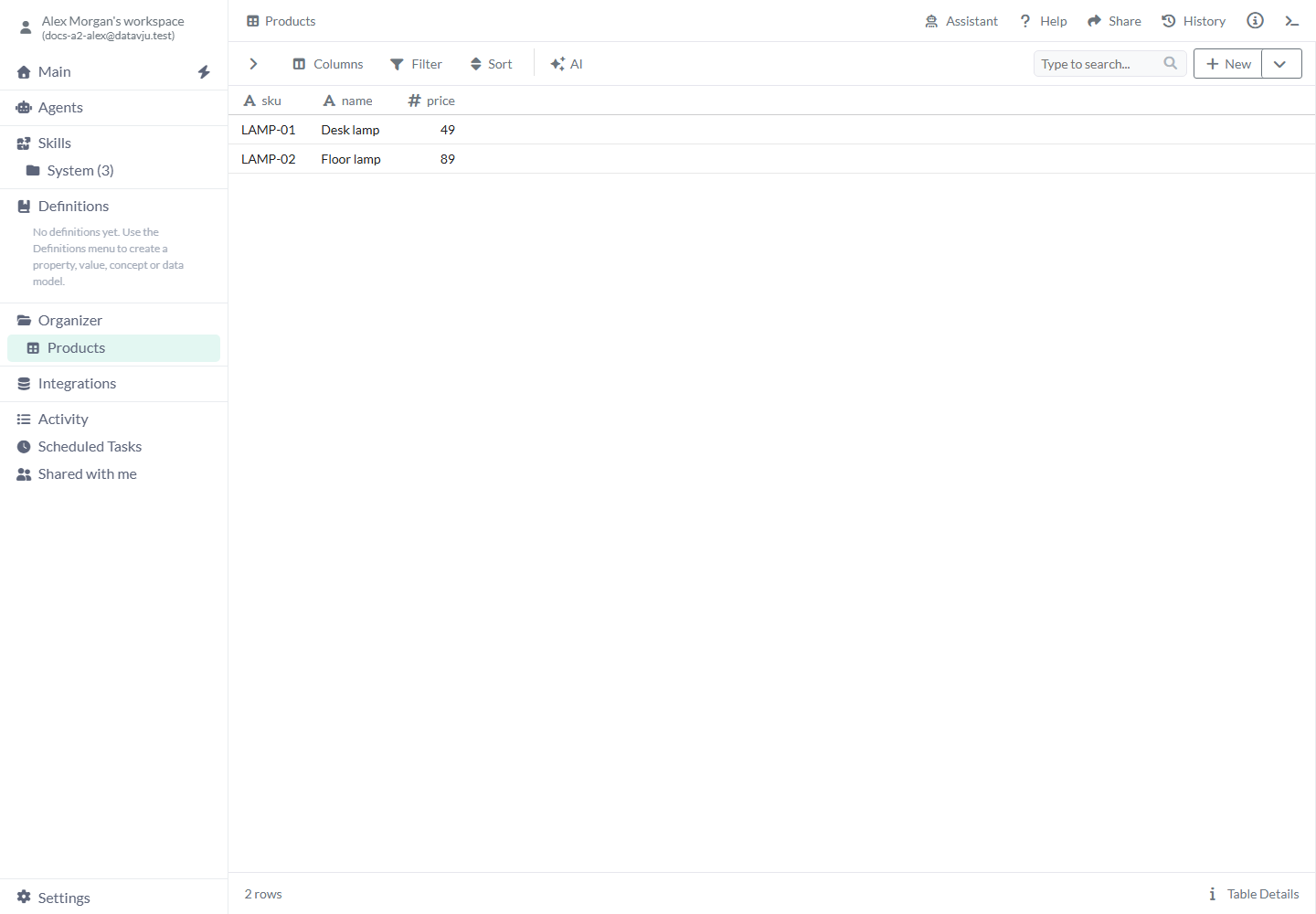
The event opens the Table with its current saved rows.
Find a Command-created folder
Use Who to identify a folder created by Main Command and open it from the feed.
- Ask Main Command to
Create a folder named Supplier review under Organizer. - After creation completes, open Activity and find
Folder created: Supplier review. - Read Who to distinguish Main Command's work from a manual creation. Select the row to open the folder and inspect its contents.
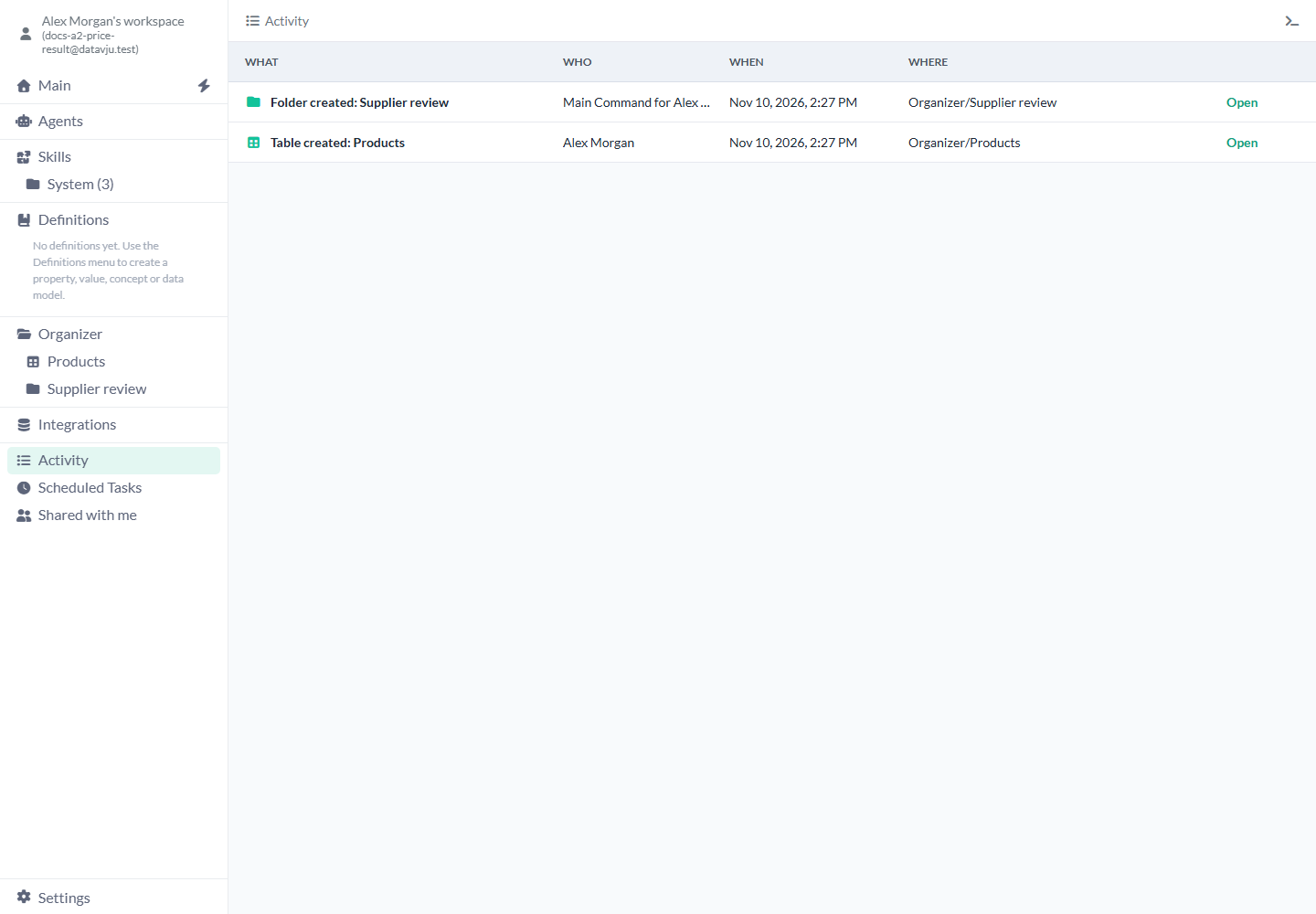
Who identifies Main Command and the person who requested the folder.
Return to a shared catalog
Use the sharing event to return to a colleague’s catalog with the access they gave you.
- A colleague shares an eligible Table called Wholesale products with your account through the email sharing flow.
- Open Activity and find the shared event under
Shared with me/Wholesale products. - Select the row to open your colleague's Table with the access they gave you. If they later stop sharing it, ask them to share it again before reopening it.
Limits and common mistakes
Check Organizer or the relevant conversation when the event list does not show the work you need.
- Use Organizer or the item's sidebar tree to find older work. Activity opens with the newest 100 events and offers no search, filters, paging or manual sort.
- Use the item's available History for renames, moves, column edits and row changes. Activity records supported creations, sharing and Site publications.
- Open Scheduled Tasks for task definitions and run history, or the relevant conversation for messages, questions and AI progress.
- After publishing, check the Site and its saved version. Previews, downloads, snapshots and domain changes have their own results.
- If an event opens an unexpected name or location, check the current item: it may have moved or changed since the event. If opening fails, check whether it still exists and is still shared with you.
- When you see No activity yet., look in Organizer for existing work. The message describes the loaded event list.
Related articles
Use Organizer to find older work, or Schedule to inspect planned work and its run history.
- Organizer: Find and manage saved workspace objects.
- Command: Ask for workspace work and inspect its result.
- Agents: Configure saved Agents and inspect their conversations.
- Integrations: Create connections and saved queries.
- Schedule: Inspect scheduled work and its run history.