
Assistants
Assistants answer questions and perform supported actions for the Datavju tool or folder you have open. Use an Assistant to understand saved configuration, inspect a result, or make an explicit change while keeping the conversation beside that item.
How Assistants work
Ask about the item you have open. For supported explanation questions, the Assistant checks its saved settings before answering. You can ask JSON Assistant to explain import selections, for example, or Table Assistant to inspect and change rows.
Your normal editing access and the tool's validation rules still apply. After a change, check the rows or settings in the item beside the conversation. Use the conversation to read the explanation and follow the work.
Choose Main Command for work across your workspace, AI for one focused edit, or a saved Agent for a responsibility you want to reuse.
Ask about the current tool
Keep the conversation beside the open item so you can compare the answer with its rows and settings.
- Open the saved item or folder you want to work with.
- Select Assistant in its toolbar. Check the panel title, such as Table Assistant, to confirm the target. Coding currently opens a placeholder without a message input; use the tool's editing controls there.
- Type a question in the panel's input, for example
Explain these columns and which one identifies a product. - Select Submit to start the conversation. Wait for the reply before submitting another message.
- Read the response beside the item. Continue in the same conversation for a related follow-up or clarification.
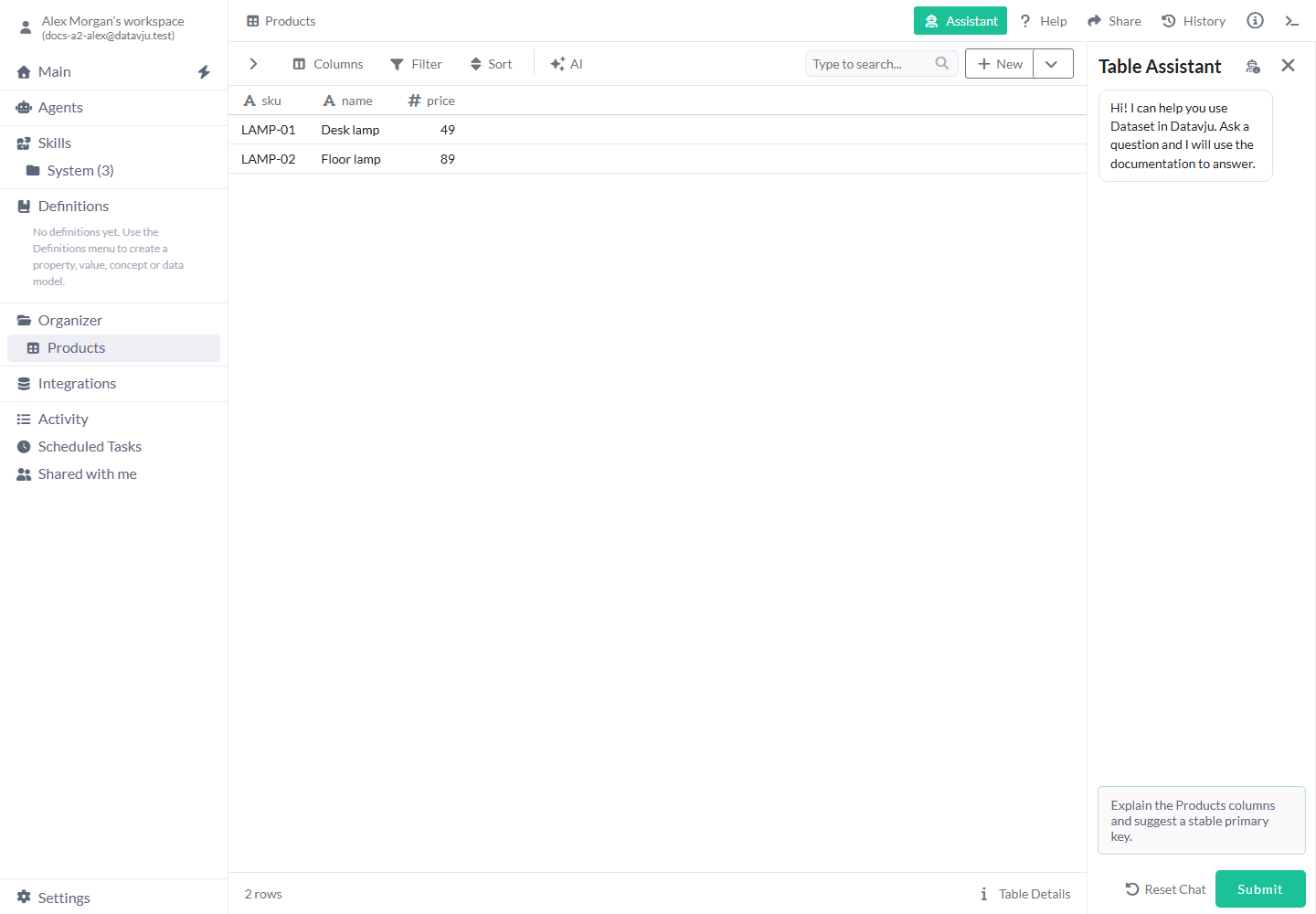
Ask about the open Table before requesting a change.
Inspect scope and capabilities
Folder Assistant normally creates work in the folder you have open. Give a full path when you want to use an item elsewhere; your existing access applies there too. If several items match, answer the Assistant's follow-up with the intended path.
- Select the robot/info icon in the Assistant panel header when it is offered.
- Read Scope to understand which object or folder the panel targets.
- Expand a group under Capabilities to read the actions available in that panel. Groups initially start collapsed and show their capability counts.
- Close the list with X or Escape when finished. Submit a request in the conversation when you want the Assistant to do one of the listed actions.
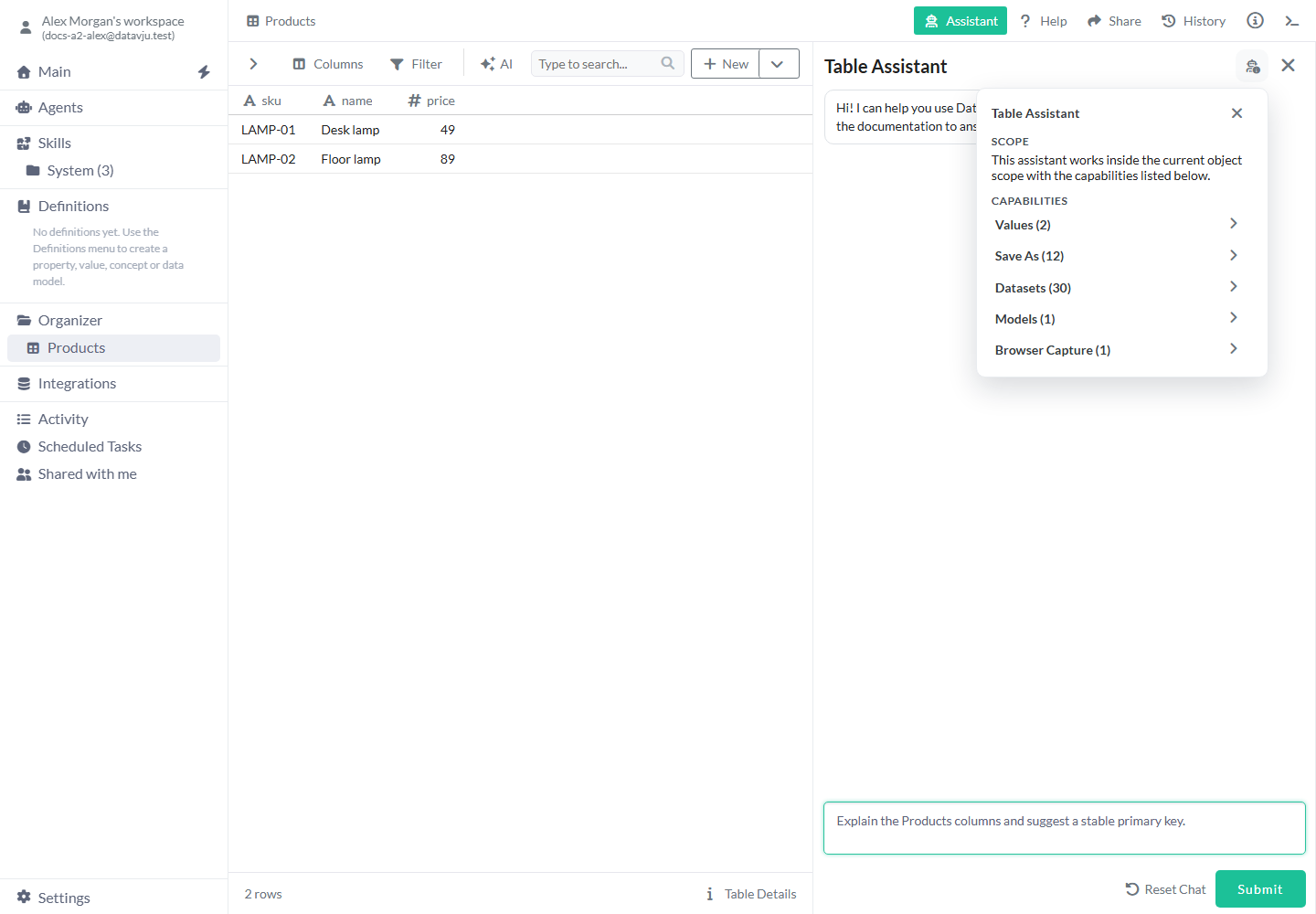
Widen the panel when you need more room to read the list.
Request a change
An explicit edit can save immediately, so review your request before submitting. If the Assistant reports an unavailable action, follow its guidance or open the relevant tool control.
- Check the open item's rows or settings and the panel's available actions.
- Describe the change explicitly. Name columns, values, keys and any result to preserve; for example
Set price to 59 for sku LAMP-01; keep the other products unchanged. - Select Submit and answer any follow-up in the same conversation.
- Wait for completion, then check the changed rows or settings beside the reply.
- Use the tool's output or publishing controls when you want to save another result or publish it.
Panel controls and defaults
To choose your own external provider, model and effort, open Agent workspace. Tool Assistants use Datavju's configured AI.
- Assistant - Opens the current tool's panel and stays highlighted while it is open. Use the header X to hide it; check the item for changes already saved.
- Prompt - Starts empty and uses the current tool's wording, for example Describe a command for this table.... Give a question for explanation or an explicit instruction for a change.
- Submit - Sends your message or answer. It starts a conversation automatically on first use. Wait for the reply before sending another message.
- Reset Chat - Clears the current conversation, draft and pending question so you can start another discussion. Your saved rows, Pages and connection settings stay as you left them.
- Copy message - Appears when you hover over or focus a message. It copies the original text, including Markdown lists, tables and code, rather than an image of the message.
- Run completed in ... / Run failed after ... - Expands recorded run details where available. Review the tool names, outcomes and error information. A pending question has not yet reached that completed state.
- Panel resize - Drag the divider beside the conversation to make it wider. Use this when reading a long answer or the capability list.
What the different Assistants can do
Open an item's Assistant to see what you can ask it to inspect or change.
Check the capability list for the actions available in your current panel. Where offered, ask for a Save as action to create another kind of result, or a Model Snapshot to capture a reusable package. Open a created Viz to inspect and edit it.
- Table - Explain columns, read rows and make supported row changes. Identify a row by its primary key: the column or columns that uniquely identify it. You can also ask to change how column values are displayed while keeping the source values.
- CSV - Ask about the preview and complete an import. After import, read and change supported rows or column output. Set a primary key before asking for a structured table edit.
- JSON - Ask about the selected tree paths, expected import result and columns. Use AI for path-selection edits and the JSON tool's controls to import or reimport.
- Group - Explain grouping and calculations or apply an explicit supported edit. A completed edit refreshes the Group from saved configuration.
- View - Explain the saved filters, sort, search and columns; read a sample, change supported exploration settings, refresh, or insert its complete result into an eligible Table. A View is a saved way to explore data. Open a layer's tool to change that layer's calculation.
- Viz - Explain the layout, charts and attached data, or request a supported Title, Metric, chart or SVG edit. See the Viz guide for its available editing tasks.
- Markdown - Read or edit the document, then check the refreshed editor. Use Model Snapshot where offered to capture the current document in a reusable package.
- Story - Explain a Page, make supported structure or style edits, connect elements to data, or set Link destinations. When inserting a reusable Component, choose a linked instance to follow later source changes, or an independent copy to edit separately.
- Folder - Explain its contents, create supported items, work with accessible Tables and configure supported Group, Join, Transform, Page or Viz work. Answer upload and FTP requests in the same conversation.
- HTTP API - Create, inspect, configure or test a service connection. Follow Open this connection's secret fields to enter credentials in its masked Authentication fields. Select the connection separately when you give an Agent access to use it.
- Mail - Inspect and configure the selected mailbox, prepare and preview messages, save them, send an explicitly requested message, and check its recorded outcome. Enter passwords or OAuth tokens under the connection's Credentials. A sending request can send real email, so specify the recipients and intended message, then check the outcome before repeating it.
- Agent / Agent Folder - Ask about an Agent's settings or the folder's contents. Open the Agent itself when you want to configure or run it.
- Correlation / Structured Output - Ask for guidance about the tool and its documentation. Supply the relevant details in your question and apply changes through the tool's controls; these panels currently have no action for reading or editing your saved configuration. Open Structured Output's Assistant from the JSON schema editor.
- Coding - The current Code Assistant panel shows introductory text without a message input. Use Coding's controls to work on your data.
Questions, progress and recovery
Answer a follow-up in the same conversation. Use the displayed form for a file upload or FTP setup. To answer later, open Main, choose Recents, then find Needs attention and continue that conversation. Earlier conversations are also listed in Recents.
After a browser refresh, reopen the conversation to recover its progress and result. Tables, Views and Vizzes update from saved changes. Reopen another item if you need to check its latest contents.
If a submission fails or its result is unclear, check the item before repeating a change. Use a specific follow-up to correct saved work; use Reset Chat when you want a fresh conversation.
Examples
These examples start with a two-product Table, then use three orders to explain a grouped result.
Understand Products before editing
Ask for an explanation before deciding which column should identify each product.
- Open Products with columns sku, name and price, containing
LAMP-01, Desk lamp, 49andLAMP-02, Floor lamp, 89. - Open Assistant, inspect Scope, and submit
Explain these columns and suggest a stable primary key. Do not change the Table. - Compare the explanation with the two saved rows. If you decide to use sku as the key, create it through the Table's Primary Key controls or ask explicitly for that change.
Update one product
Correct one price by its product key while preserving the other product and both names.
- Use the same Products Table with sku configured as its primary key.
- Submit
Set price to 59 for sku LAMP-01. Preserve the names and the other product. - Answer any necessary disambiguation in that thread. After completion, check
LAMP-01, Desk lamp, 59andLAMP-02, Floor lamp, 89in the saved Table. - Close and reopen the Table to check the saved price. You can then choose Reset Chat to start another discussion while keeping that correction.
Check the saved result against these two rows:
sku,name,price
LAMP-01,Desk lamp,59
LAMP-02,Floor lamp,89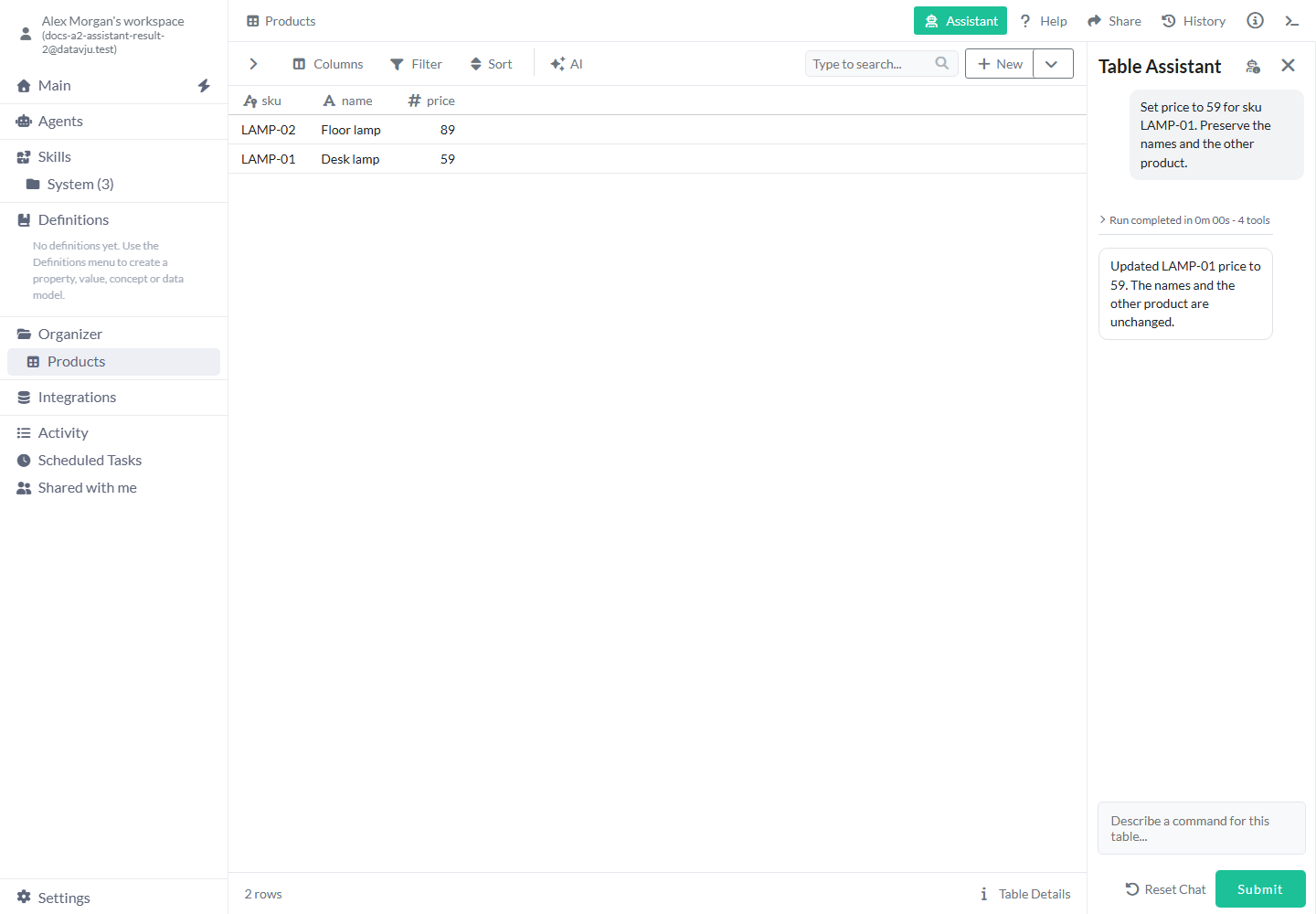
After you reopen Products, LAMP-01 has price 59. LAMP-02 and both product names are unchanged.
Explain a saved regional summary
Use the saved grouping and source rows to understand how the two country totals were calculated.
- Open a Group whose source has Country and Revenue rows
DE,20,DE,30andFR,40, grouped by Country with sum of Revenue. - Ask Group Assistant
Explain why this has two rows and what happens if a second French order is added. Do not change the Group. - Check the explanation against the preview: DE totals 50 and FR totals 40. To try the proposed French order, add it through the Orders Table and refresh the relevant result afterwards.
Limits and common mistakes
Check the current item after a failed or interrupted run before you repeat a change.
- Check the changed item and any requested output after a run. Use the capability list to choose your next request.
- Give exact item paths and check current sharing access when an item cannot be found or opened.
- Ask for all matching rows when completeness matters. Explanations and previews can use samples of large Tables.
- Use JSON's editing/import controls or an Agent's own settings/run controls for work beyond those Assistants' explanations.
- Keep credentials out of chat, instructions and attachments. Use the dedicated masked connection fields when setting up authentication.
- After interrupted work, check the saved item before trying again. To correct a change, edit the item or request the specific correction.
Related articles
Choose AI Edit for a focused change, or Command when the task involves several workspace items.
- Command: Ask for work across the workspace.
- AI Edit: Make a focused change to the open item.
- Agent workspace: Connect an external agent using your provider account.
- Table: Set primary keys and inspect records.
- View: Understand saved exploration and layer results.
- Story: Work with Page structure, data connections and publication.
- Integrations: Configure service connections and authentication.