
XML
XML imports the elements and attributes you select from an XML file. Use it for structured exports such as product stock, order lines or a supplier feed where repeated tags represent records.
How XML works
XML is one of the formats under Files. Datavju reads its tags and attributes into a tree. You select the paths to keep, inspect the resulting columns and rows, then choose Import to save them. The original document remains the source of the import.
Repeated elements, such as product or line, can produce several rows. A selected parent can remain an object or list; choosing its fields or flattening changes that result. Use CSV for files already arranged as delimited rows, or JSON for JSON objects and lists.
Import elements and attributes
Select a few fields first so you can see which repeated element supplies each row.
- In Organizer, open the menu beside the destination folder and choose File Upload → XML.
- Select your XML file, then open the new item in Organizer.
- Expand XML and the tag containing your records. For repeated tags, expand the array and its record node to reveal their fields.
- Check the element or attribute paths you need. For example, select @sku, name and quantity within product.
- Inspect the preview. Open a node’s menu if you need a flattening option or an array type filter.
- Choose Import. Check the saved column names and rows before using the result elsewhere.
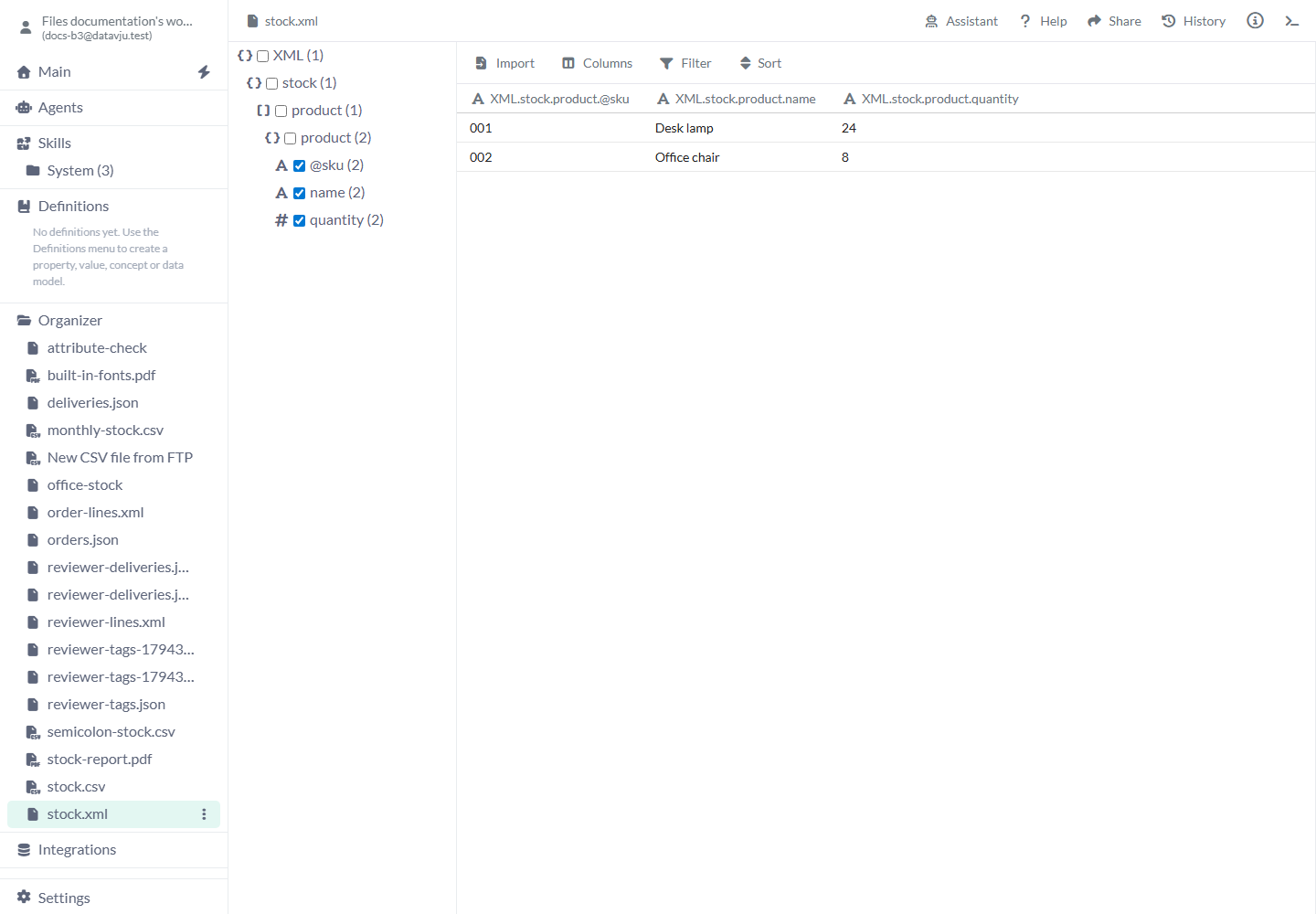
Attributes and child elements can become columns in the same result.
Tree options
A new file has no selected paths or flattening/type-filter choices. Available menu items depend on the node you open.
- Expand icon - Reveals child tags and attributes without selecting them. A repeated product tag can show product and product beneath it; expand both levels to see the record fields.
- Checkbox - Includes that path in the preview. Select @sku for an attribute, name for a child value, or a parent when you want its structured value. Uncheck a path to remove it.
- Do not flatten - Default. Retains the selected object or list together in a cell. Use it when a nested group should stay intact.
- Flatten to rows - Expands a selected collection into rows. Use it for repeated order lines, then check whether other selected fields repeat as expected.
- Flatten to columns - Expands entries into separate columns. Use it only when positions or property names give a useful, predictable column layout.
- To row keys - Objects only. Uses the property names as row values. For a selected object with North and West properties, the result contains those names.
- To row values - Objects only. Uses the property values as rows. For North: 24 and West: 8, the selected values are 24 and 8.
- All elements - Default for arrays. Keeps the discovered element types. Counts in the tree and menu help you recognize the repeated collection.
- String, Number, Object, Array, Boolean and NULL - Only types present in a selected array appear. Choose types to restrict that collection’s entries. These are type choices; use the saved table’s Filter for conditions such as quantity greater than zero.
- Configure FTP - Appears for an XML from FTP source. Reopens Host, User, Password, File Path and Secure in the shared FTP form. Choose Check Configuration and Use Configuration to return to XML.
Worked examples
These imports use attributes for identifiers and repeated elements for the product or order-line rows.
Import stock with product codes
Expand XML → stock → product and its record node, then check @sku, name and quantity. Import creates two product rows. Attribute names retain their @ prefix in the generated columns.
Source file
<stock>
  <product sku="001"><name>Desk lamp</name><quantity>24</quantity></product>
  <product sku="002"><name>Office chair</name><quantity>8</quantity></product>
</stock>
Selected output
XML.stock.product.@sku | XML.stock.product.name | XML.stock.product.quantity
001                    | Desk lamp              | 24
002                    | Office chair           | 8
Import order lines
Expand XML → order → line and its record node. Select @sku and units to make the repeated line elements your rows. Select the order’s @id too when you want the order reference alongside each line; inspect the preview before importing.
Source file
<order id="A101">
  <line sku="001"><units>2</units></line>
  <line sku="002"><units>1</units></line>
</order>
Values to check in the selected preview; generated columns use the full XML paths
Order reference | Product code | Units
A101            | 001          | 2
A101            | 002          | 1
Import an XML file from FTP
The FTP connection supplies the file; XML still determines which values to import.
- Choose File Upload → XML from FTP from the destination folder’s menu.
- Enter Host, User, Password and File Path in the form. Leave Secure on for FTPS unless the server requires plain FTP.
- Choose Check Configuration. When the connection and file path are accepted, choose Use Configuration.
- Expand the XML tree, select your fields, review the preview and choose Import.
Work with the imported result
Use Table controls to filter, sort, search and adjust columns. Use View to save a derived result, or Transform to prepare different output from these rows.
To supply a new local XML file, use Replace File in the item’s Organizer menu. To review the current source selection, choose Reimport in the imported sidebar, change the selected paths and choose Import again. Reimport removes an existing primary key.
Limits and common mistakes
Check the structure and the saved result when the source changes.
- No columns means there are no selected output paths. Expanding tags alone does not add their values.
- Attributes appear as @name and repeated records may need two expansion steps. Choose the fields inside the repeated record rather than assuming its parent is a finished table.
- Element names containing dots can be changed for use in the tree paths. Use the names shown by Datavju when selecting or referring to columns.
- XML has no JSON-style Name Transformations toolbar. Use ordinary column controls after import when you want clearer display names.
- Direct Refresh and Schedule controls for XML are not available yet.
- The XML screen has no dedicated Assistant or AI import-tree editor. Follow the manual selection and Import workflow.
Related articles
- Files - Choose a file format and compare the ways to bring files into your workspace.
- FTP Acquisition - Connect a specific remote XML or CSV file.
- JSON - Import selected JSON fields and lists.
- CSV - Import delimited tables.
- Table - Work with saved rows and columns.
- View - Save a derived result.
- Transform - Prepare values for another use.