
Interactions
Interactions make a Page respond when someone clicks a button, types, changes a value or focuses a control. Use events to change temporary values and element properties, work with data or call supported functions.
How events work
Add an event property to an element, then give it one or more actions. Datavju saves the configuration with the Page or Component and runs the actions when that event occurs. A variable holds a temporary value while the Page is open; a Table stores records that should remain after the visit.
Use States to turn a variable or data value into a conditional appearance. Use Functions for behavior that continues while the Page is open, such as watching scroll position. A Link's Hyperlink and a Form's Action already provide their usual navigation and submission controls.
Build a menu toggle
This example uses a Boolean variable and a Click Event to switch the displayed status.
- Open Variables, hover its root and use the plus control → Add Local Variable. Select My Variable, name it menuOpen, choose Boolean and explicitly set Default Value to False.
- In Components, insert a Button. Put Toggle menu in its Plain Text child.
- Select the Button, choose Add property and add Click Event.
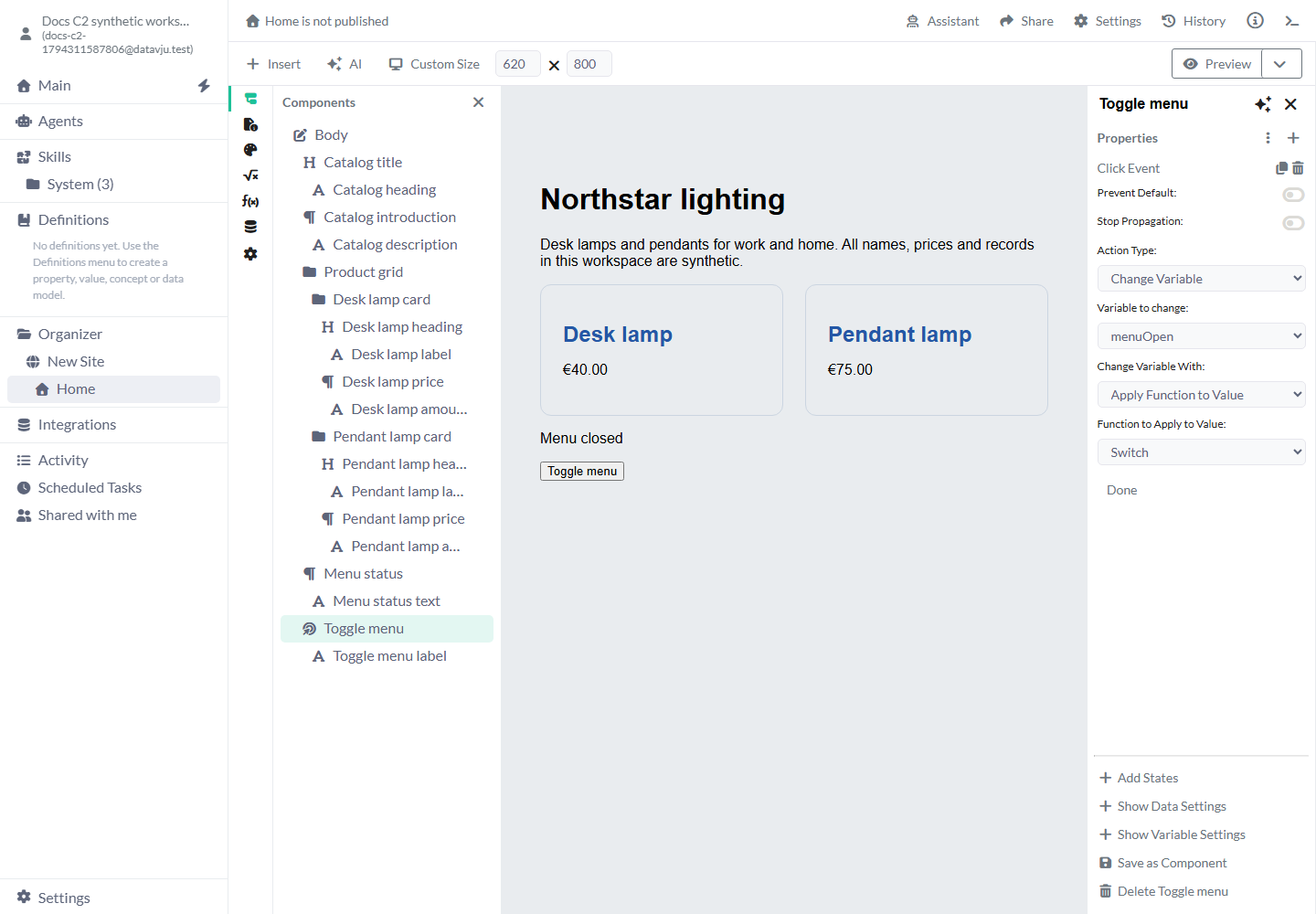
- Edit the initial action. Set Action Type to Change Variable and Variable to change to menuOpen.
- Under Change Variable With, choose Apply Function to Value. Choose Switch, then Done.
- Add a Paragraph with a Plain Text child containing Menu closed. Give that Plain Text a state called Open menu with Value of Variable → menuOpen → Is True, and set its state-specific Plain Text to Menu open.
- Open Preview. Click Toggle menu twice. The status changes from Menu closed to Menu open, then back to Menu closed.
Choose an event
Choose the event that matches how someone will use the element.
- Click Event runs when the containing element is clicked. Select the Button or Link to add it; edit the label in its Plain Text child.
- Change Event runs when a control commits a changed value, such as choosing another Select option.
- Input Event runs as an input value changes. Use it for a search field that responds while someone types.
- Focus Event runs when the element receives focus. Check keyboard focus in Preview.
- Keyup Event runs when a key is released over the focused element.
- Events is a separate property for document events: DOMContentLoaded when the document has been parsed, or Load when its load event fires. It has its own Event Type and Action Type controls.
Add, edit and order actions
Adding an event creates an empty action. Choose its edit control and complete it, or delete it before leaving. Add Action appends another action; the grip lets you move actions within that event. Use the edit icon to change an existing action and its remove control to delete it. Done closes the action editor; ordinary Page saving keeps the configuration.
Prevent Default starts off. Turn it on when the action should replace the browser's usual behavior, such as following a Link. Stop Propagation starts off. Turn it on when a click should be handled by this element without also triggering an ancestor's click handler. Leave both off for an ordinary Button toggle.
Choose an Action Type
No Action Type is preselected. Choose the action and target before setting its value.
- Change Variable: select Variable to change, then choose its new value. Use it for menuOpen, a selected category or a status message.
- Change Property: choose Component to Change and an existing Property to Change. Choose the new value. If you select dataFilters, also choose Data Filter to Change.
- Execute Function: choose Select Function and complete its specific settings. Use it for Dataset reads, writes, downloads or validation.
- Invoke Method: choose Component to Invoke and Method to Invoke. The choices depend on that element; a Dialog offers Show Modal and Close Modal, while a data-connected element offers Dataset methods.
- Use Authentication Service: choose Select Authentication Type and Select Authentication Task for the configured sign-in service. Configure the matching sign-in service and session settings before using this action.
Value settings
Value choices start unselected. Match the value's type to the variable or property you want to change.
- Boolean: choose True or False. Example: set menuOpen to False for a Close button.
- Number: enter a numeric value. Example: set the selected step to 2.
- Text: enter a text value. Example: set a status variable to Ready.
- Object: choose Set as null or Set as empty object when resetting an Object variable.
- Value from Event: choose This Element or Child Element. For a child, enter its CSS selector. Choose Value, Checked, Text Content or Attribute; Attribute also needs its name. Example: This Element → Value reads the selected option from a Select.
- Apply Function to Value: Decrement subtracts one, Increment adds one and Switch reverses a Boolean. Example: Switch changes menuOpen from False to True.
- Data Model of Dataset: choose Select Component with Dataset to read its data model into the target value.
- Object Mapping: available for Object variables. Choose the Object Operation and add mappings. Each mapping has a destination Path and a Source, such as a data item, event element, variable or entered value. Choose Select Path for nested data. Use it to collect several form values into one Object.
Methods for elements and data
For a linked reusable Component, choose the element within it when prompted. Its supported methods include Dialog controls and eligible Next page/Previous page controls. Configure other behavior in the source Component or on the surrounding Page.
- Append Component and Remove Component change the displayed element structure. Choose the target deliberately; check the complete result in Preview.
- Show Modal and Close Modal are available for a Dialog. Select the Dialog as the target.
- Filter Dataset chooses Column to Filter and uses the event value. Filter Dataset (local) filters the rows already available to that element; for an Object/Array value, choose Path to Filter.
- Invoke Method → Query Dataset reloads the selected element using its Data Settings, including its Runtime Query when enabled. Use it after a row write to keep that query’s totals current. Next page and Previous page move through a multi-row Dataset; a single-row Index Query does not offer page navigation.
- Search Dataset searches its selected fields. Search fields starts with all readable Dataset fields for a private query, or returned fields for a Public query. Select explicit fields to narrow the search. If a public result returns no fields and you select none, searching leaves the result unchanged.
- Sort Dataset reads a field selection from an Input or Select. Its value is the field's column key, column:asc, column:desc or none. Only one sorting column is maintained.
- Download File by URL and Download Files from Dataset Column download selected file destinations. Choose the actual URL or file column in their settings.
Functions for data and validation
Execute Function offers the following choices. The destination, field and variable selectors start empty; select the intended resources rather than relying on an element's name.
Write context controls let compatible fields receive server-supplied time or session values. Keep generated keys on their Table defaults. For a conditional write, select its condition source and, when using an Object variable, Conditions path. Check the returned success or error before showing a confirmation. Access and Table validation still apply to every write.
- Check Username Availability: select Dataset, column and the variable that receives the availability result. Use it before requesting a unique username.
- Email Validation: choose the result variable for the input's email check.
- Password Validation: choose minimum/maximum length and whether to require an uppercase letter, lowercase letter, number or special character, then select its result variable. Set the requirements to match your sign-in flow.
- Filter Layer Dataset: choose the layer and filter configuration to change the shown records.
- Execute Function → Query Dataset reads stored Dataset rows. Choose Select Component with Dataset and, optionally, Index Query and its index or Index Variable. For a saved View this reads its stored result; it does not recalculate the component’s Runtime Query. Use Invoke Method → Query Dataset for that.
- Refresh Dataset refreshes the saved Dataset from its source. For a saved View this updates its stored result. It is separate from re-running a visitor component’s Runtime Query.
- Limit Dataset: choose the data-connected component and the row limit.
- Insert Dataset Row: choose the writable Dataset and provide its field values. Optional Progress Variable, Success Variable and Error Variable receive the operation's progress and result.
- Update Dataset Row: choose the Dataset, Operation, Update Source and field. Read the primary key and new value from the event, an Object variable or configured values. For an Object, select Primary Key Object Path. Choose row Conditions when the update must still match a saved condition.
- Delete Dataset Row: choose the writable Dataset and where to read the record's key. Test deletion only with disposable records.
- Update Item Model Property: choose the data-model property you need to change.
- Update Layer Property: choose the layer property to change.
- Rename Columns from Mapping Table: choose Select Data Table, Select Mapping Table and the mapping's current-name and new-name columns.
- Replace File Dataset: select the file Dataset that should receive replacement data.
- Download Dataset: choose the current Dataset or Saved View Result, Control Scope, file format and, for CSV, delimiter and quoting. A saved result downloads its saved rows.
- Download Runtime Query Result: choose the query result and download format to export the currently produced result.
Rows with their own actions and states
Connect a containing element to a Dataset. It repeats for each selected row. Bind its descendants to Data Items so labels, quantities and conditions read the current row. The rows are already stored data; a second list in a Page variable is unnecessary.
Add Data Attributes to a row control: name pk, value Data Item → Primary Key; and name column, value the exact writable column id. In Click Event → Execute Function → Update Dataset Row, select the Table, choose Update Source → Event Element and This Element, then read the key and column as Attribute using data-pk and data-column. Choose Increment Current Value or Decrement Current Value for server-side numeric changes. For Set Value, use an Input or Select whose value supplies the replacement.
Delete Dataset Row uses the same row key. Insert Dataset Row maps values to the destination Table’s fields; omitted fields keep their Table defaults. Change Variable holds temporary interaction values, such as a selected key or a message. It does not save an edited row.
Component States evaluate Data Item conditions separately for each repeated row. For example (non-normative), a control can have Column from Dataset → status → Equals → value → suggested. It then appears only for matching rows. States control presentation; Data Settings conditions, Dataset access and current server write conditions control the permitted records and changes.
Session values identify the signed-in visitor through the configured authentication service. Use current membership rows and Session operands in read conditions and write conditions, and server Write context for fields the visitor must not choose. Hiding a control does not authorize or prevent a request. Check a refused change as well as a successful one.
Keep counts and totals current
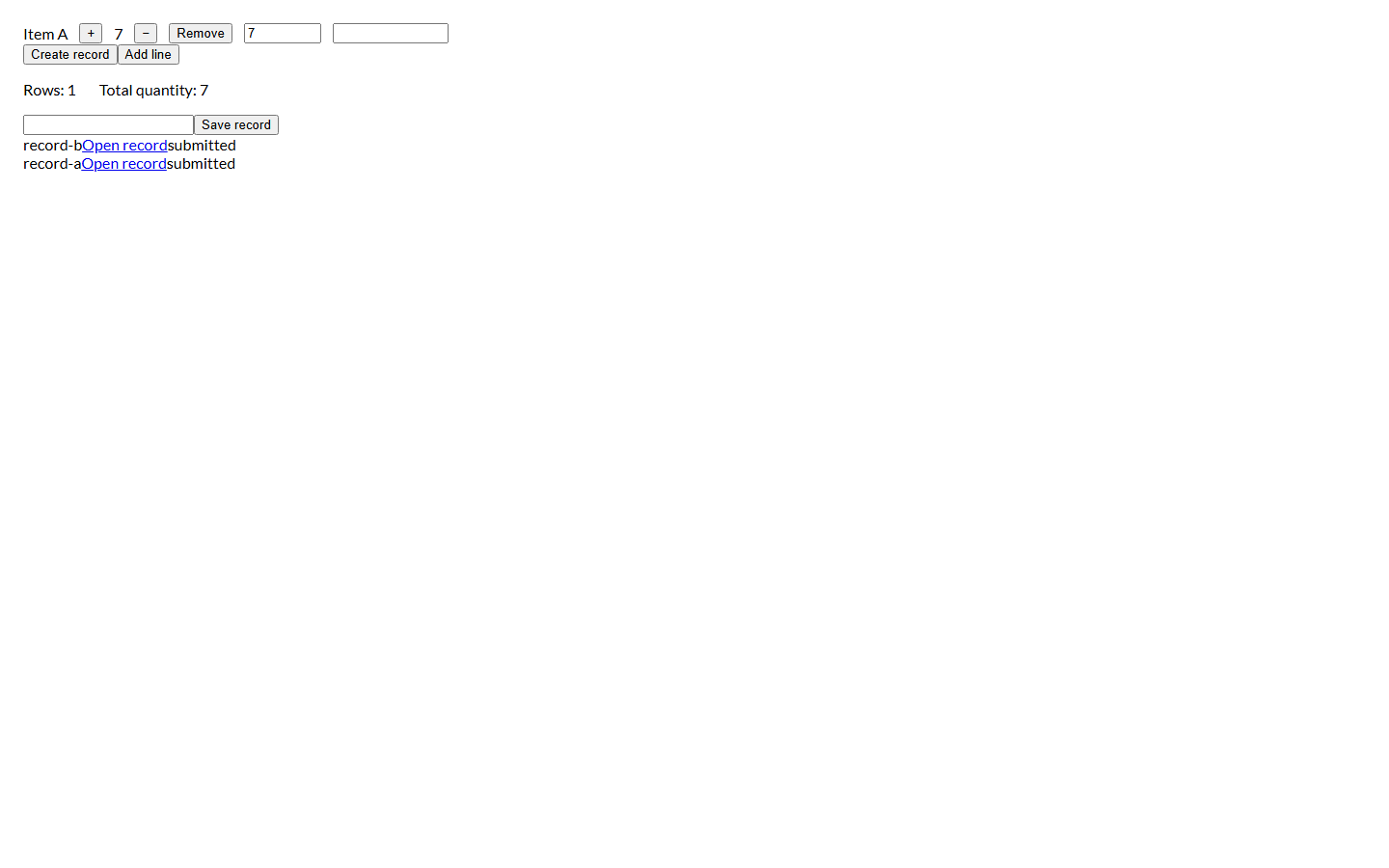
Build counts and sums in a View and bind the summary component to its fields. Enable Runtime Query when the View must be evaluated for the current request. After an accepted insert, update or deletion, add Invoke Method → Query Dataset targeting that summary component. Check the summary after each kind of write.
Two actions currently have the label Query Dataset. Invoke Method → Query Dataset runs the component’s configured query, including Runtime Query. Execute Function → Query Dataset reads stored rows, including a View’s stored result. Selecting the second action for Runtime Query totals can leave an old total visible.
Submit a Form
Select a Form and choose its Action. For Dataset submissions, choose Select Dataset and the writable Table, set Method to Post and choose Submission Type. AJAX keeps the Page open while the request runs; Standard (HTML) uses the browser's normal navigation. Configure the success and failure actions you want.
For each Input, choose its Input Type and the exact Destination Table field under Name. Use a Submit Button or an Input with the submit type. Preview a synthetic submission and read the saved row in the destination Table before collecting real input. Choose the exact Table field in each Input's Name setting, and verify both a saved row and a refused submission before publication.
For a main record with child rows, create the main record first. On Form Success → Redirect can select another Page; Append Created Primary Key adds the accepted key as query parameters named after its column ids. Configure the destination to read that key, then insert each child with its foreign key set to the main record. Finish with an authorized status update and navigate to the record Page. Separate row writes do not promise one transaction for an arbitrary list of children.
Current limit: published Dataset Forms use anonymous Session context on their public submission route. Member Session-dependent writes use the native row event actions; do not assume a hidden field or Page authentication supplies Form write authorization.
Functions while a Page is open
Open Functions and choose Add Function. Observe Visibility starts with no observed elements, no custom root, an empty root margin and threshold 0. Select elements with DOM access enabled, choose the observation behavior and optionally change the root or threshold. Use it when entering the viewport should trigger a visible-state update or load more rows.
Scroll Position starts without a variable. Choose a suitable variable in its editor to receive scrolling updates. Use States to show or style content based on that value.
Update at Intervals starts at 1000 milliseconds, Repeat on, Shuffle off and no items. Add Item and choose the property or variable values for each item. Change the interval for the time between updates; turn Repeat off to finish after the sequence, or Shuffle on to vary its order. Replay in Editor restarts it for inspection.
Examples
Switch reverses the current menu state; setting False gives a Close button the same result on every click.
Example: open and close a menu
Use the menuOpen setup above. Switch changes False → True → False on consecutive clicks; the state changes Menu closed → Menu open → Menu closed. Reloading the Page restores its configured starting value, False.
Example: give a button an explicit Close action
Add a second Button labelled Close menu. Add Click Event → Change Variable → menuOpen. Choose Boolean and False. After opening the menu, select Close menu. Its status returns to Menu closed and stays closed on another click. Use an explicit value when repeating the action should have the same result.
Limits and common mistakes
An action needs a complete target and compatible value before it can respond to an event.
- Complete or remove the empty action created with an event. An incomplete target cannot perform the intended task.
- Select the event's containing element. Plain Text changes the label; Button or Link handles its click.
- Use a Table write when a change should survive a new visit. Variables hold temporary Page values.
- Recheck events after copying a child that depended on its parent's data or variables.
- Test interactive draft and generated output, then publish the reviewed version. Previewing a saved-Agent Form does not start a public Agent request.
- Change Variable added through Add Instance Property on a Component linked inside another Component isn't available yet.