
Mutate
Mutate runs Data, Image or Text tasks using records from a Dataset. You configure each task, review its saved responses and choose which results to combine. Use it to draft descriptions for a product list, extract information from notes or prepare several AI outputs from the same source.
From source records to saved responses
A Dataset is a saved collection of rows and columns. Mutate reads your source, sends configured requests to the chosen AI provider and saves each task’s response in a separate result. You then choose the task results to include in Final Output. Use Transform for fixed calculations and cleaning steps, and Join when two sets of records need matching keys.
Create a task
Start from a saved source such as a product Table or a View of customer notes.
- Open the source, open the arrow beside New and choose Mutate.
- Under Tasks, open the add-task dropdown and choose Data, Image or Text. Data produces structured records, Image produces images and Text produces text.
- Choose Provider, API and Model from the available choices. The task then shows the request settings for that model.
- Enter a clear Task Name, such as Summarize notes. Configure the instructions, input and any other request settings shown for the model.
- Open the gear beside Task Name to choose whether the request uses the source rows.
Task Details
Open the gear beside Task Name. These settings control how Mutate uses your source and combines it with the response.
- Task Name - Starts as New Task. Choose a name you can recognize under Tasks and Output, such as Draft product descriptions.
- Use Dataset - Off by default. Turn it on to run using each source row, or each batch when batching is enabled. Leave it off for one request using the literal text or other input you configured.
- Include Dataset in Output - Off by default and shown when Use Dataset is on. Turn it on to keep original fields beside the generated result, for example productId beside text.
- Prefix AI Output Columns - Off by default and shown when original fields are included. Turn it on when you want generated columns to have a recognizable prefix.
- Output Column Prefix - Starts empty and appears when prefixing is on. Enter a prefix such as draft_ to distinguish generated fields from your source fields.
- Enable Batching - Off by default and shown when Use Dataset is on. Turn it on when the chosen request should receive several rows together. Check that your instructions and expected response are suitable for an array of rows.
- Batch Size - Starts at 10. Set the number of source rows sent in each batch; the last batch can contain fewer rows. Use a smaller batch for larger records or provider request limits.
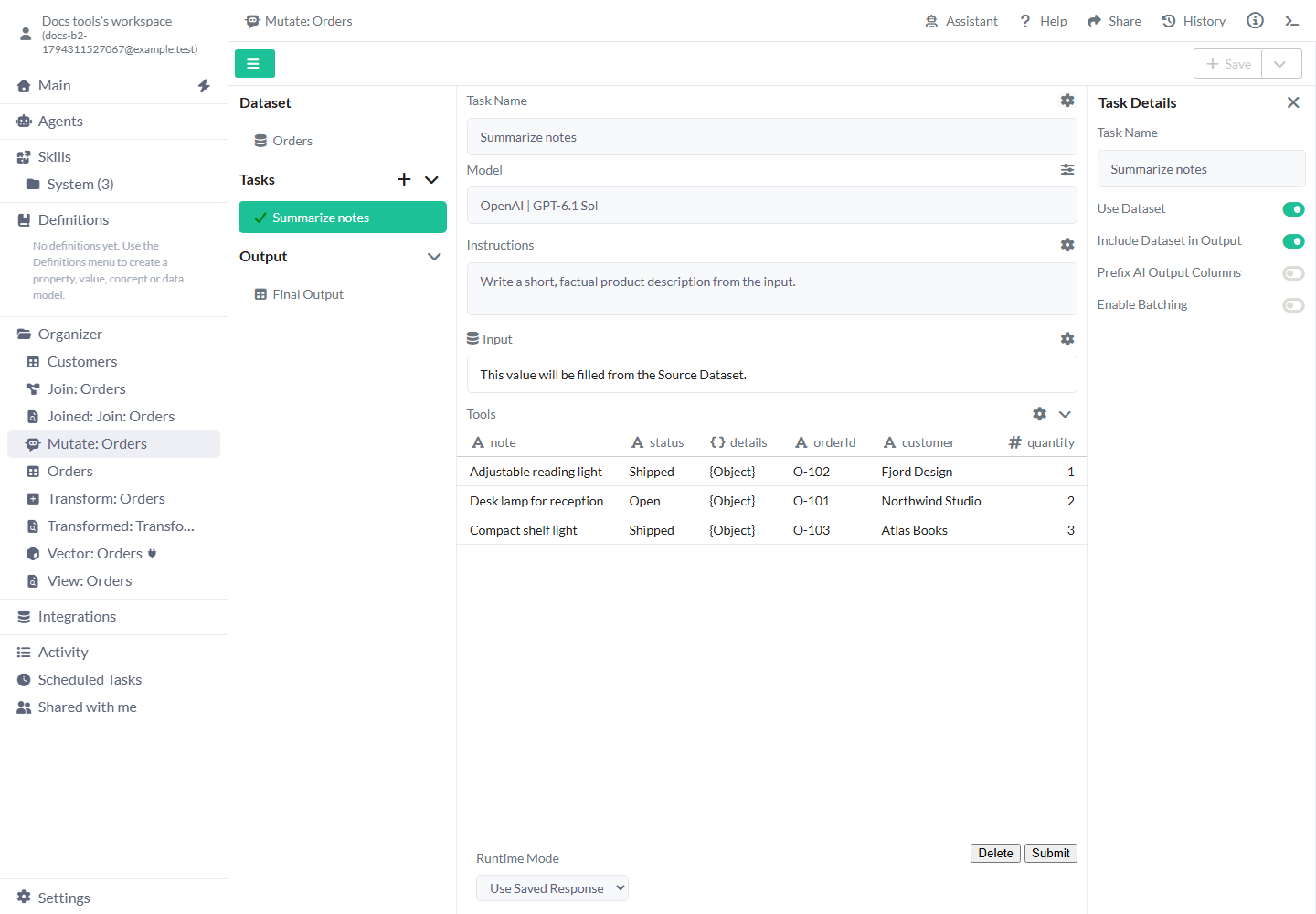
Keep the original fields beside the generated text when each response belongs to a source record.
Choose the input for a request field
A gear beside a text request field opens Edit Text. Source chooses how to fill that field.
- Text Input - Enter fixed text, such as instructions that should be the same for every request.
- Source Dataset - Available when Use Dataset is on. Leave Select Column (optional) empty to send the whole current row as JSON. Select a field such as note to send only its value for an individual-row request. For batching, leave the column empty to send the rows together as a JSON array. Selected-column batching is not available yet.
- Dataset - Choose another saved Dataset and the field to read when offered. This is useful for shared reference text. Check what the request will receive before submitting.
- Task Result - Choose the task result you want to use as input, such as a description produced by an earlier task. Run that task and inspect its response first.
- JSON Builder - Build a structured value with the tree editor when the setting needs nested objects or lists. The containing request still controls how that value is used.
- Model settings - The controls beside Model and inside the request depend on Provider, API and Model. Configure those controls using the Data, Image or Text guide for your chosen task. Mutate’s batching and output settings apply around that request.
Run and inspect a task
Use a few representative source rows when you first configure a request.
- Select the task under Tasks. Check its instructions and source selection.
- Choose Submit. Mutate runs the selected task and shows progress while it processes the input.
- Read the result table in the task. Check that the response has the fields and number of rows you expect.
- Adjust the instructions or settings and Submit again if needed. New execution replaces the task’s current saved response.
- Choose the Runtime Mode you want for later Save or Replace operations.
Choose when to run again
Runtime Mode controls output saving. Submit remains an explicit request to run the selected task.
- Use Saved Response - The default. Save and Replace reuse the current response saved for that task. Run the task first so there is a response to reuse.
- Execute - Run the task again while creating or replacing the output. Choose this when the output needs fresh responses from the current input. Provider requests can use credits.
- Delete - Removes the selected task. Check the Output list and any other task that uses its result before deleting it.
Choose the final output
Creating a task and adding its response to the final result are separate steps.
- Open the dropdown beside Output. Choose the plus beside the task you want to include.
- Select its entry under Output to inspect that saved task result.
- For another result, open Output again and add the next task. Open its Settings to choose Merge Strategy.
- Choose Final Output. Check the combined rows, field names and order before saving.
- Choose Save to create a View, or open the Save arrow for another action.
Append or merge task results
The first selected output supplies the starting rows. Each later output applies its own Merge Strategy.
- Append - The default. Add the next task’s rows below the existing rows. For example, two tasks with three rows each produce six rows. Use it for separate alternatives or batches that belong in one list.
- Merge - Adds the later task’s fields beside rows in the same positions and gives duplicate field names an available suffix. Repeated Final Output previews with Merge are not available yet: reopening the preview can add repeated columns.
- Match by an identifier - Use Join when productId or another key determines which records belong together. Check the row order and counts before using Merge for task results.
- Output item deletion - Remove an unwanted entry from its output-item controls, then select Final Output again to check the remaining combination. The task’s saved response remains available under Tasks.
Worked examples
Process each note, write one brief for a complete list, then keep the two results together.
Example: draft descriptions from order notes
Orders contains orderId and note. You want one text response beside each original record.
- Add a Text task and choose an available Provider, API and Model. Name the task Summarize notes.
- Enter an instruction such as Write a short, factual product description from the input.
- Open the Task Name gear. Turn on Use Dataset and Include Dataset in Output. Leave batching off.
- Open the gear beside Input. Set Source to Source Dataset and Select Column (optional) to note.
- Choose Submit. Check that every original order has a text result. Add Summarize notes under Output, select Final Output and Save with Use Saved Response.
Three source notes.
[
  {
    "orderId": "O-101",
    "note": "Desk lamp for reception"
  },
  {
    "orderId": "O-102",
    "note": "Adjustable reading light"
  },
  {
    "orderId": "O-103",
    "note": "Compact shelf light"
  }
]
Illustrative responses alongside the original fields. Your model’s wording will vary.
[
  {
    "orderId": "O-101",
    "note": "Desk lamp for reception",
    "text": "Desk lamp for reception."
  },
  {
    "orderId": "O-102",
    "note": "Adjustable reading light",
    "text": "Adjustable reading light."
  },
  {
    "orderId": "O-103",
    "note": "Compact shelf light",
    "text": "Compact shelf light."
  }
]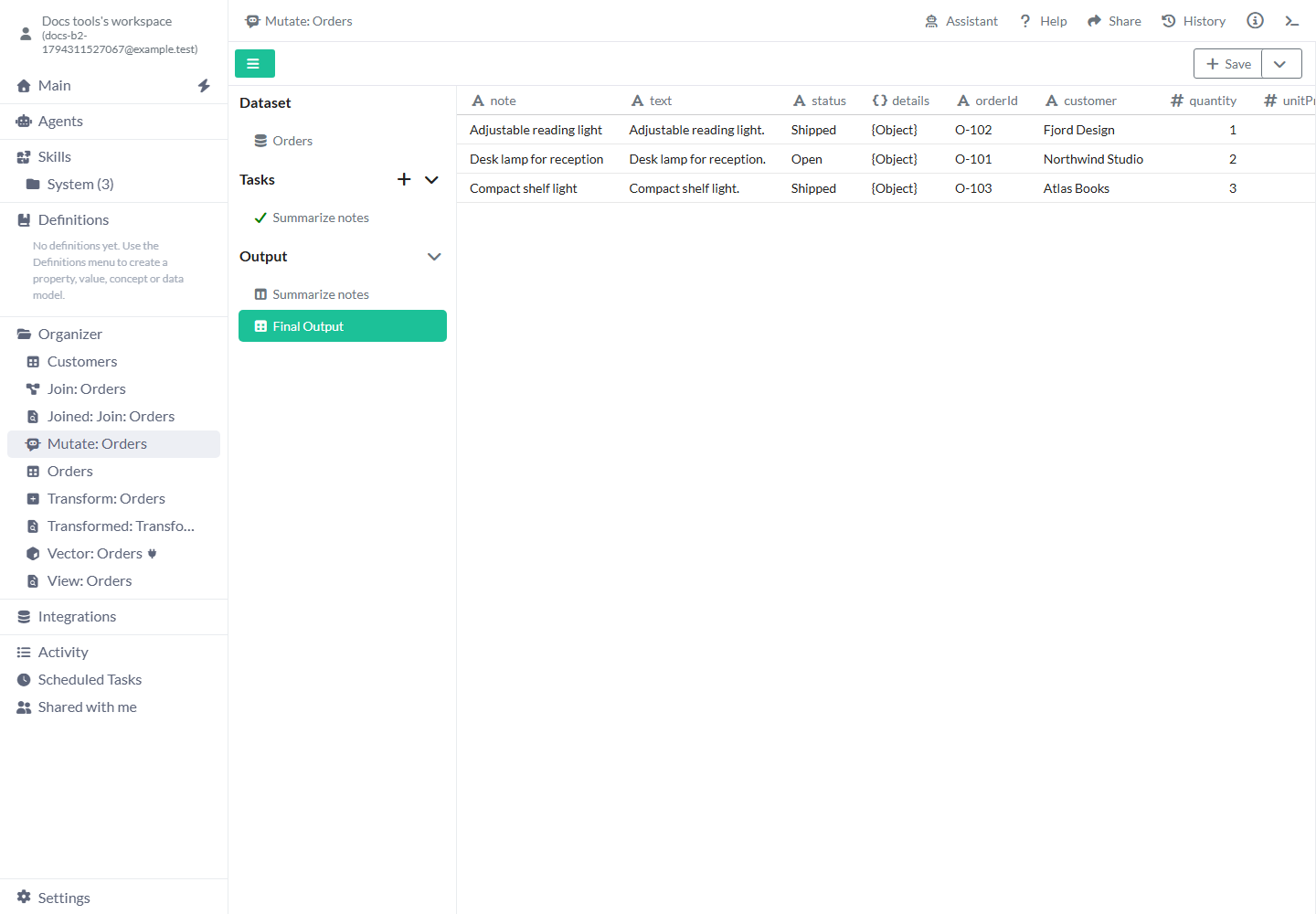
Final Output contains the task results you selected under Output.
Example: write one brief from a saved list
You want a single summary of a list rather than one response for each record.
- Add a Text task and leave Use Dataset off.
- Write instructions that ask for one short brief of the supplied notes.
- Open the Input gear and choose Dataset as Source. Choose Add Dataset, select Orders in the picker, then choose note under Select Column (optional).
- Choose Submit and inspect the single response. Add this task under Output when you want it included in the final result.
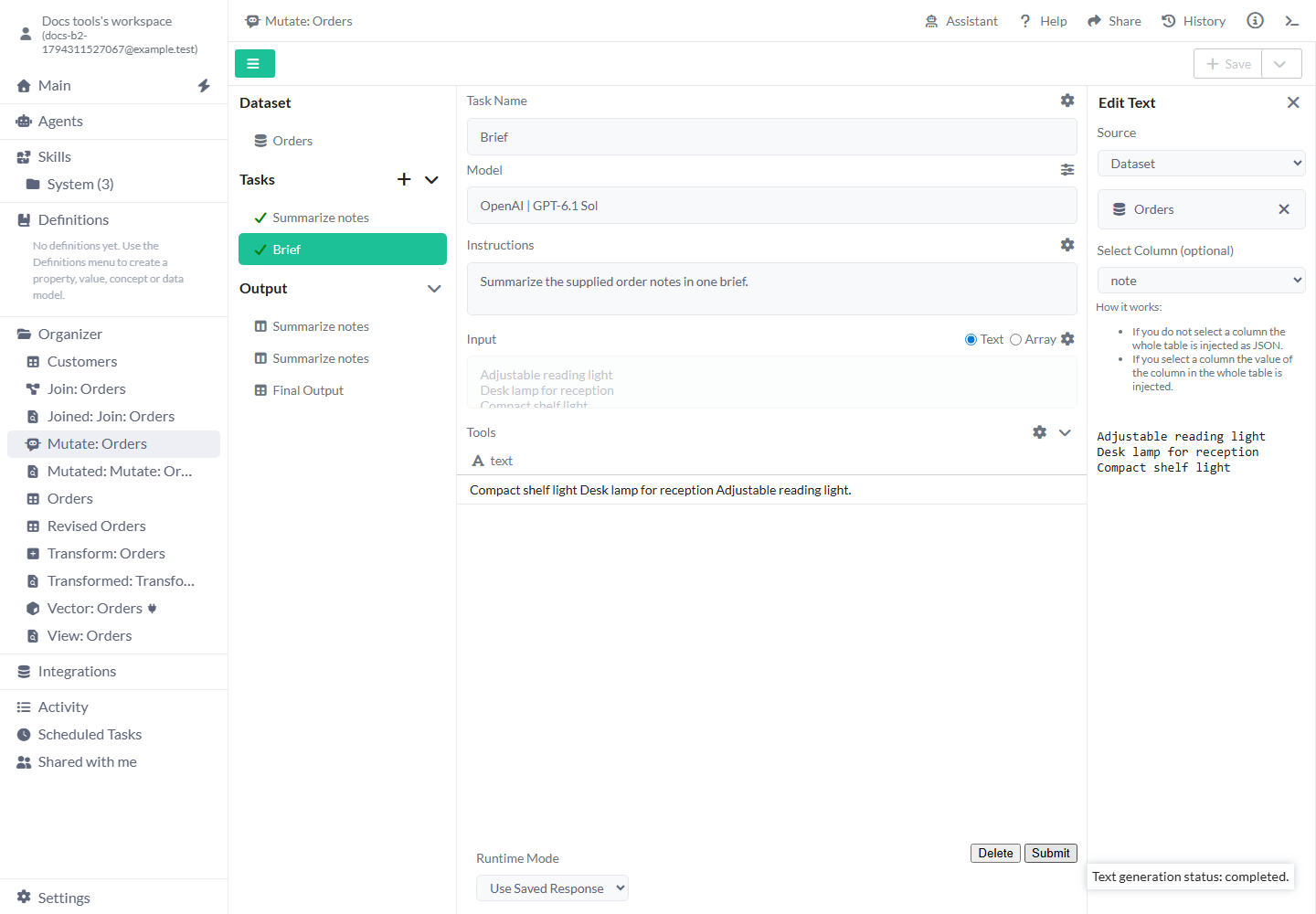
Choose a complete Dataset field when one request should receive the whole list.
Example: keep descriptions and a brief in one list
The description task has three responses. The brief task has one response for the full list.
- Add the description task under Output, then add the brief task.
- Select the brief output item and open Settings. Keep Merge Strategy as Append.
- Choose Final Output. The three descriptions appear first and the single brief appears below them: four rows in total.
- Use separate saved results when the brief and descriptions need different columns or destinations.
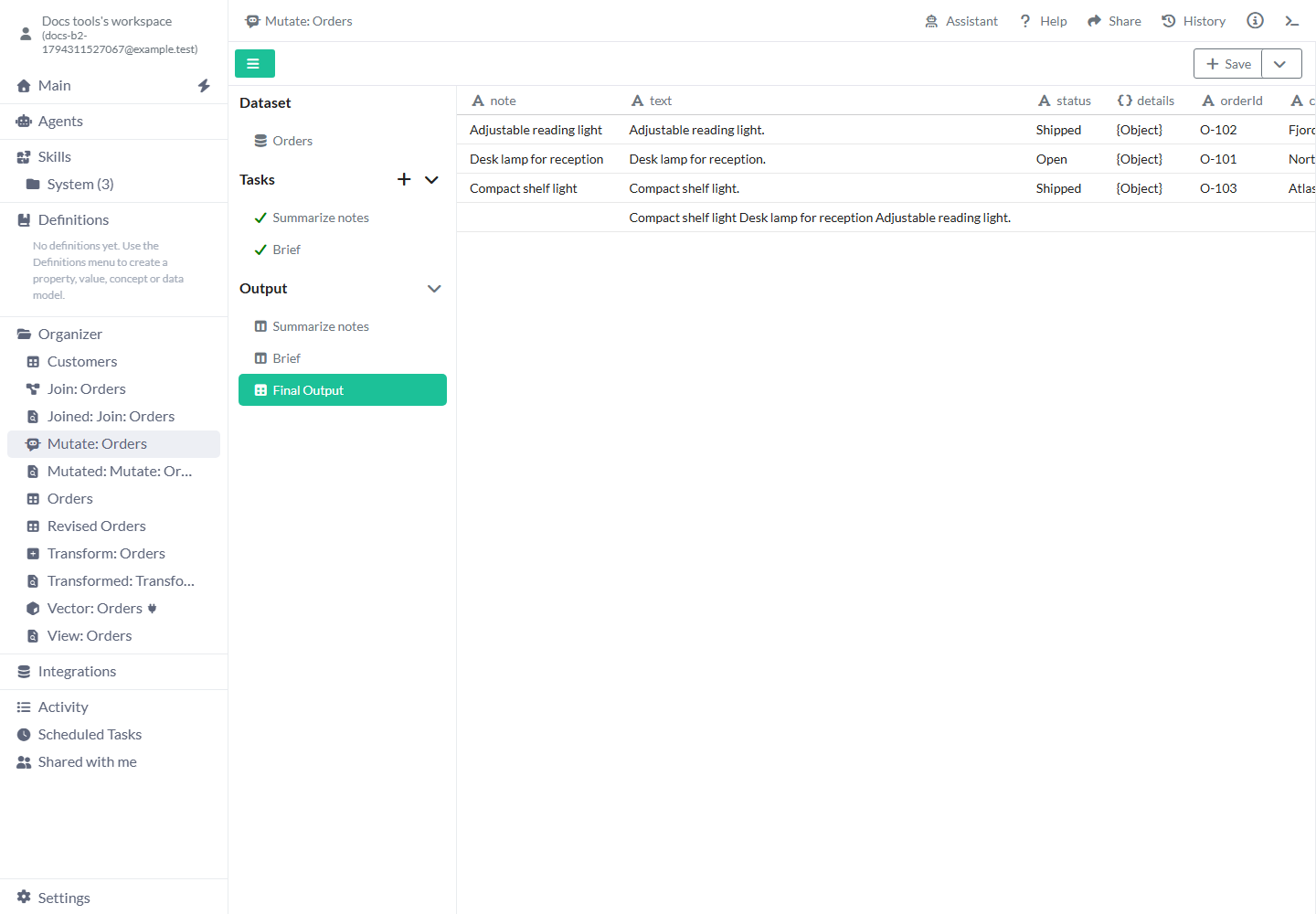
Append places the later task’s rows below the earlier result.
Save or continue working
Choose Final Output before opening Save actions.
- Save / Save as new view - Create a View from the selected outputs. Execute tasks run again; Use Saved Response tasks use their stored results.
- Replace - Choose an existing Table, View or supported tool destination. Its contents or input data are rebuilt from this result. Check the destination name before continuing.
- Group / Mutate / Transform - Use the result as input to the next tool. Group makes summaries, Mutate adds another group of AI tasks and Transform cleans or calculates fields. The destination icon lets you choose a Folder.
- Download Model - Download the Mutate configuration with its included data and saved task responses. Check that required source Datasets are included and that you can use them in the receiving workspace.
Limits and common mistakes
Review generated content before using it in a report or another workflow.
- Provider availability, request limits and response formats depend on the chosen Data, Image or Text model. A task’s response can contain mistakes even when the request succeeds.
- Use Dataset starts off. Turn it on when you intend to process source rows, and bind the request field to Source Dataset.
- Include Dataset in Output starts off. Turn it on to keep the identifiers you need to trace a generated result back to its record.
- A task can have a saved response while Final Output is empty. Add the task under Output and select Final Output before saving.
- Use Append for the examples in this guide. Use Join on an identifier when records from separate results need matching.
- Use Saved Response can retain older results after the source or instructions change. Choose Submit or Execute when you want to regenerate them.
- Keep access to any shared data your tasks use. Some results made from shared data cannot be included in a Model; the download error names the Dataset you need to check.
Related articles
- Data - Configure structured AI responses.
- Text - Configure text requests and model options.
- Image - Configure image generation.
- JSON Builder - Edit structured request values.
- Transform - Apply fixed calculations and cleaning steps.
- Join - Match results by a shared identifier.
- Replace - Update an existing destination.