
Concepts
A Concept explains a shared business term, such as what you include in Carry-on bags. Create one in Definitions when you want people and Agents to use the same meaning and related vocabulary.
How Concepts work
Give your Concept a label and meaning, then add any descriptive properties and links to existing Definitions. For example, Carry-on bags can list a maximum capacity and link to the colour choices you already defined.
Keep the actual bag records in a Table. Use your Concept to explain the category and the shared choices it uses.
Create a Concept
Start from Definitions and select Concept before entering its details.
- Hover over Definitions in the sidebar and open its three-dot menu.
- Choose New definition.
- Set Kind to Concept. New generic definitions initially offer Property, so change this deliberately.
- Enter a Label and Meaning.
- Leave Place in tree at Definitions root, or choose the existing parent under which the Concept belongs.
- In Properties (JSON), enter a JSON object such as the example below, or keep {} if you need no extra properties.
- Choose Add reference to link existing Definitions. Enter Relationship, then choose the Target by its name and path.
- Choose Save definition. Open the Concept to review Description, Properties and References.
Fields and reference options
Use these fields to describe your term and reuse vocabulary you already have.
- Label - Empty initially and required. Enter the term people should recognize, such as Carry-on bags.
- Kind - Choose Concept when creating the entry. After saving, this choice is fixed.
- Meaning - Empty and optional. Explain what belongs in this category, such as Bags sized for cabin travel.
- Place in tree - Definitions root initially from the header menu. Choose a parent when you want to group related terms. Creating from an entry starts beneath it.
- Properties (JSON) - {} initially. Enter an object with named properties. Use numbers for quantities and true/false for yes/no facts; the example below is ready to paste.
- Add reference - Add a link to an existing Definition. Relationship starts at allowedValue and Target starts empty.
- Relationship - Use allowedValue for a permitted Value such as Navy, or uses for a Property such as Color. Both are suggested in the field.
- Target - Choose the existing Definition you want to link. Compare its name, path and kind when names are similar.
- Remove - Remove this link from your draft. The linked Definition stays available.
- Save definition / Cancel - Choose Save definition to keep the completed draft. Choose Cancel to leave your saved entry unchanged.
Example: agree colours for a product category
Start with Property Color and its Values Black (black) and Navy (navy). Link those choices to your bag category.
- Create Concept Carry-on bags with Meaning Bags sized for cabin travel.
- Paste the example object into Properties (JSON).
- Add allowedValue links to Color / Black and Color / Navy.
- Add a uses link to Color, then choose Save definition.
Descriptive properties for Carry-on bags.
{
  "maxCapacityLitres": 40,
  "requiresLaptopSleeve": true
}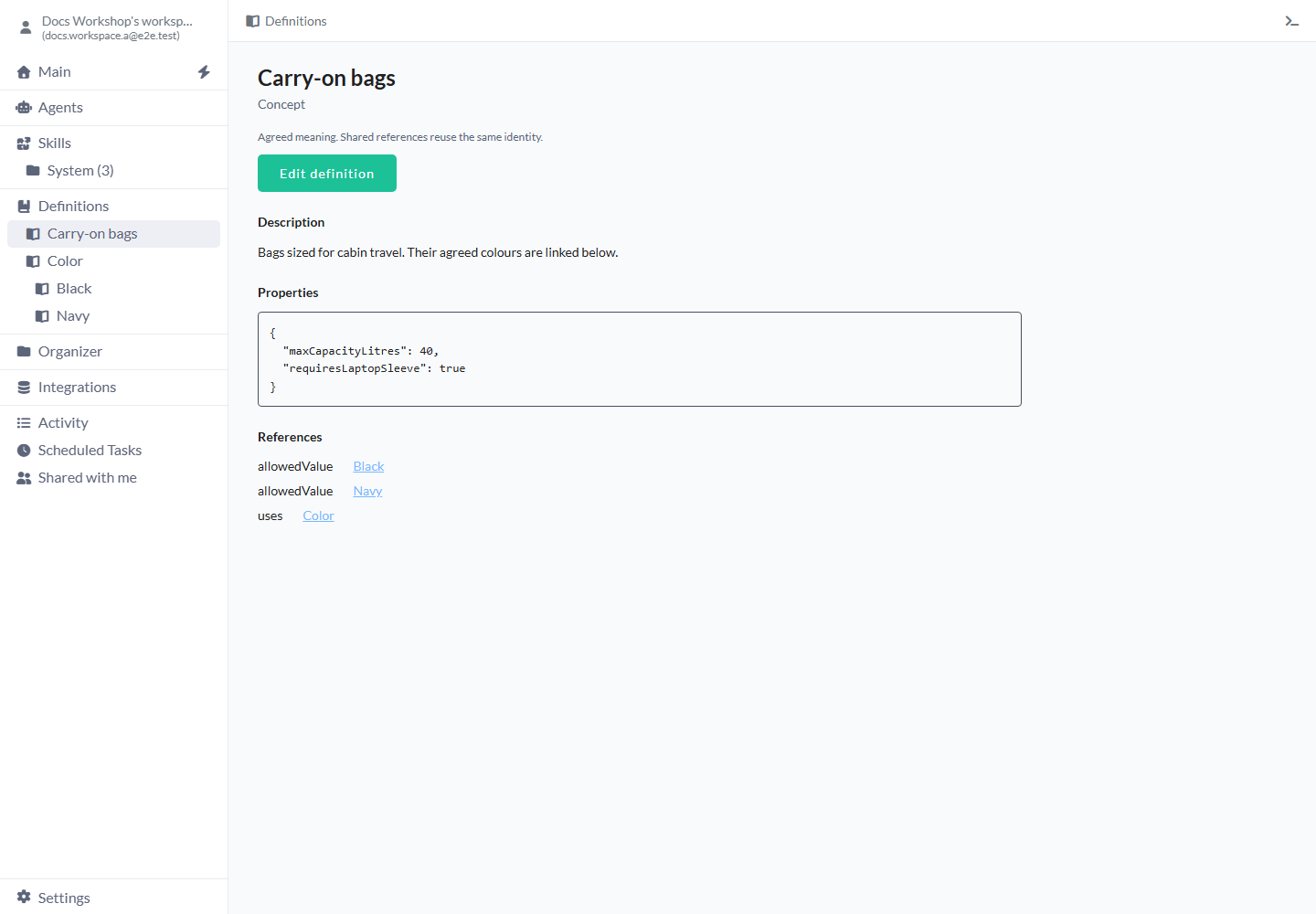
Your saved Concept shows the properties and shared colour choices together.
Example: share one meaning across teams
Create Customer with Meaning An organization with at least one accepted order. Then create Qualified buyer, choose Add reference, set Relationship to uses and choose Customer as Target. Save definition.
You can now follow the link to the shared Customer definition. Update that definition when your team agrees a new meaning; keep customer records and order totals in Tables.
Edit a Concept
Open the saved Concept when you want to change its meaning or related choices.
- Select the Concept in Definitions.
- Choose Edit definition.
- Change Label, Meaning, Properties (JSON), Place in tree or References.
- Choose Save definition and review the result. If another client saved a newer version, use Reload saved entry to load it before making your changes again.
Limits and common mistakes
If a save is refused, read the error and correct the draft.
- Keep descriptive properties on the Concept and reusable attributes such as Color in Property Definitions.
- Use Place in tree to organize entries and Add reference to link related meaning.
- Enter a JSON object in Properties (JSON). Check its quotes, commas and value types if parsing fails.
- Before deleting a referenced Definition, remove or change its links and review the deletion preview.
- Keep Label within 250 characters, Meaning within 2,000 and Properties (JSON) text within 65,536. You can add up to 200 references with relationship names up to 100 characters.
Related articles
- Definitions - shared meaning and data-model agreements.
- Properties - define a reusable attribute and its type.
- Values - define typed vocabulary entries.
- Agents - Choose which Definitions your Agent can use.