
Text
Text generates written output from instructions and input, and saves the latest result in Organizer. Use it for a summary, description, rewrite or other prose you want to reuse. Choose Data when the result needs a defined JSON schema, or Markdown when you want to write and edit the document yourself.
Generate a first response
Enter the task separately from the source facts: Instructions tells the model what to do, and Input contains the material it should use.
- Open the Organizer or destination folder's context menu and choose Generate → Text.
- Select Provider, then API, then Model. Each selector narrows the next one.
- For the OpenAI Responses workflow, enter the task in Instructions and the source material in Input.
- Keep Text selected for your input. Array input is not available yet.
- Choose Generate in the toolbar.
- Read the result. Use the output view menu to switch between Text and Table.
- Open Usage to inspect recorded requests for this Text item.
Provider and model settings
The initial item has no provider, API or model selected. Changing Provider clears the API and model selections. Choosing a model loads that model's starting settings, so review your inputs after changing models.
For Anthropic, enter System instructions and Content. Google shows System Instructions and Contents, but generating from ordinary text in this configuration is not available yet. These fields start empty and show Text as the starting input choice. The following controls describe OpenAI → Responses API. Chat Completions API and Vertex API do not have selectable models yet.
- Anthropic - API: Messages API. Models offered in this tool: Claude Opus 5.5; Claude Sonnet 5.5.
- Google - API: Generative Language API. Models offered in this tool: Gemini 3.1 Pro (Preview).
- OpenAI - API: Responses API. Models offered in this tool: GPT-6 Luna; GPT-6.1 Sol; GPT-5.2; GPT-5.2 Pro; GPT-5.5; GPT-5.4; GPT-5.4 mini; GPT-5.6 Terra.
Instructions and Input
Both fields start empty. Instructions describes the task and constraints; Input contains the material to process. For example, put Summarize in two sentences without adding facts in Instructions and the incident report in Input.
The gear beside an input opens Edit Text. Source starts at Text Input for manually entered text. Choose Dataset, then Add Dataset, to read a saved table; Select Column (optional) restricts the input to one column. Leave the column unset to supply one JSON object per line. Select a column to supply its values as separate lines. Choose JSON Builder to build structured input. In Mutate, Source Dataset uses the current source row and Task Result selects another task; Transformation Columns appears when configuring a transformation.
The dropdown beside Source when editing Instructions offers PDF Instructions for GPT-4.1, PDF Instructions for GPT-4.1 V2 and PDF Instructions. Each inserts a prepared PDF extraction prompt and replaces your current Instructions immediately. Copy any instructions you want to keep before choosing a template.
Tools
Tools start empty. Use the menu beside Tools to add only the capabilities the task requires.
A Dataset tool can query, insert, update and delete rows in the selected table. Add it only when you want the model to have those operations; there is no read-only switch here. Queries read up to 100 rows per page and can request further pages. To supply a table as input without adding these operations, use Input → Edit Text → Source → Dataset.
- Function - Purpose: Defines a named function and its parameter description for model calls. Inspect its name, description and parameter schema. Example: A greeting function with one string name argument.
- Dataset - Purpose: Selects a Dataset the tool can operate on. Dataset calls can query and change rows, subject to the tool's access. Example: Read a selected product Table before writing a description.
- Web Search - Purpose: Allows web-search requests during generation. Example: Research a current public fact and retain its sources.
Runtime Mode
Use Saved Response is the starting mode. Choose it to reuse stored output in a View, or choose Execute when refreshing that View should request new text. Set the mode before generating and saving the View: the View keeps the settings used for that generation. Changing Runtime Mode later does not update a View you already saved. The toolbar Generate always requests a new response in either mode.
Tool settings
Click the Tools gear to choose Tool Choice: Auto (default) lets the model decide whether to call a tool, None prevents tool calls, and Required requires a tool call. For example, keep Auto for a summary that may need a lookup; use None for rewriting only the supplied text.
Click a Function row to edit Name, Description and Parameters. The starting function is hello_world, with description Return a friendly greeting. and one string parameter, name. A function definition describes a call; adding your own function implementation from this screen is not available yet.
Click a Dataset row and choose Dataset; no table is selected initially. Click Web Search to choose Search Context Size: Low, Medium (default) or High. A newly added search tool has no explicit size selected. Choose Medium for ordinary research, Low for a focused lookup or High when the request needs broader context. Use the cross beside a tool to remove it.
Additional Model Settings controls and the response-format Name setting are not available yet. Use Data when you need a defined response schema.
Examples
Generated wording can vary between requests. Compare every factual statement with the input before reusing it.
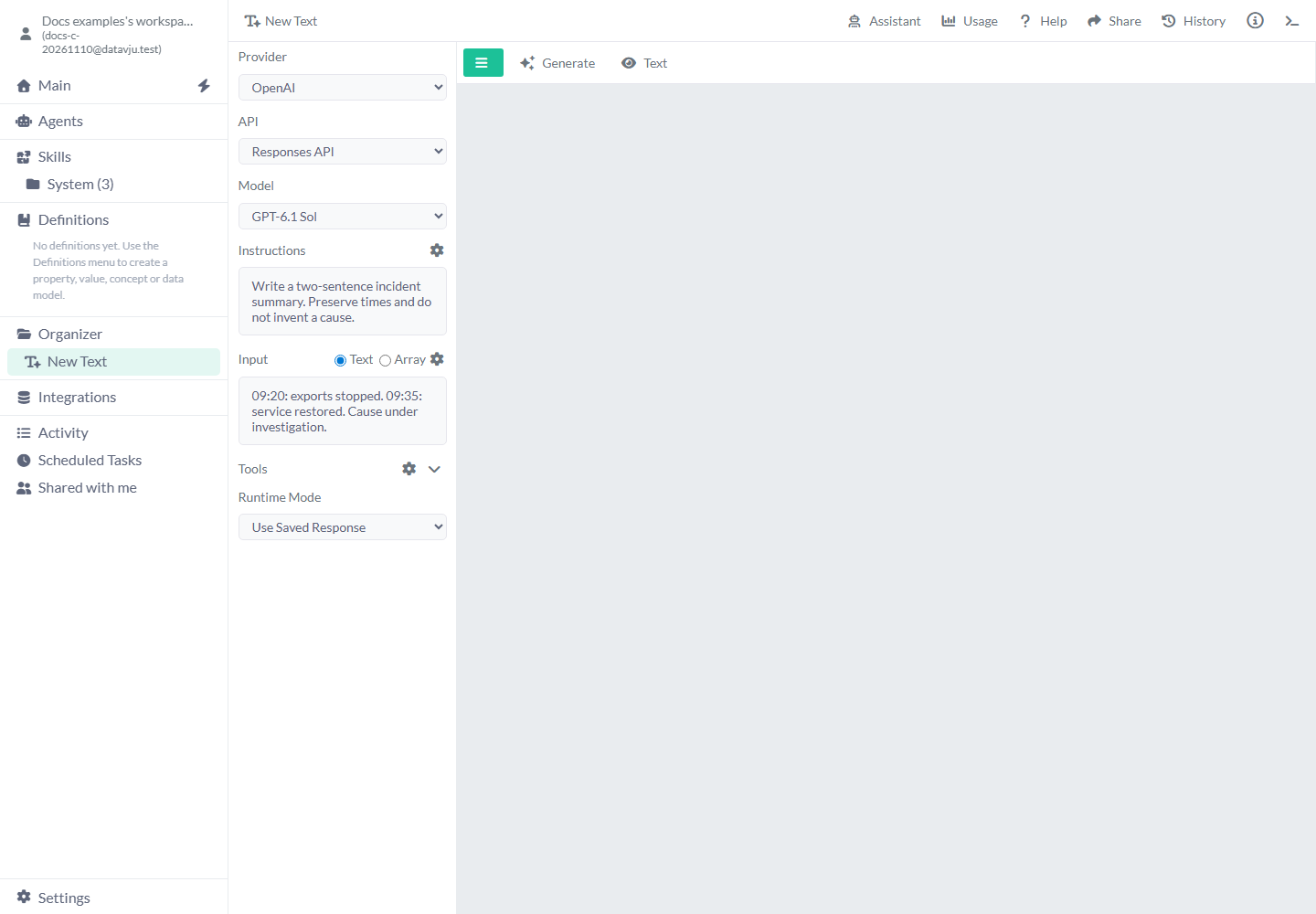
Summarize an incident without inventing a cause
An acceptable response would say that exports stopped at 09:20, service returned at 09:35, and the cause remains under investigation. Wording varies; the source facts are the acceptance check.
- Select a model under OpenAI → Responses API.
- Set Instructions to
Write two sentences. Preserve times and say when the cause is unknown. - Set Input to
09:20: exports stopped. 09:35: service restored. Cause under investigation. - Generate and check that the response keeps both times and does not supply a cause.
Rewrite a product description
Use Instructions Write a 35-word description. Mention only supplied features. and Input Notebook. A5. Recycled paper. 120 pages. Blue cover.
Generate, then compare every factual statement with the input. Claims such as waterproof or locally manufactured would be unsupported. Save a result you want to retain before trying another prompt.
Reuse approved wording in a process
Before generating the product description, select Runtime Mode → Use Saved Response. Generate and review the wording, then save a View from the output menu. Refreshing that View reuses the saved text. For a View that regenerates, select Execute, generate, then save a new View; review its wording after each refresh.
Usage and saved output
Usage shows recorded provider requests and token measurements for this Text item. Missing measurements are different from zero; saved-response reuse makes no new provider request. Use these measurements to understand requests and token use. Cost calculation is not available in this panel yet.
Your Text item saves its model selection, instructions and latest output. Changing the prompt leaves the existing result in place until you generate again. The output menu appears after a result exists. Save a View of wording you want to keep before generating again; your Text item retains its latest output.
Limits and common mistakes
- Prompts describe the intended result; they do not guarantee factual correctness. Review the generated output.
- Changing a model can replace starting settings. Check Instructions, Input and Tools again.
- Use Saved Response can deliberately return old wording. It does not mean the current prompt has been run.
- Plain prose is not a typed schema. Use Data for structured extraction.
- A failed or interrupted response does not prove no provider request occurred. Inspect output and Usage before retrying.
Related articles
- Data generation - require structured fields.
- Markdown - write and edit plain-text documents.
- Generate - choose an output tool.