
Layers
Layers shows the saved steps behind a View, a result built from your data. Open it to find the source, check a filter or calculation, and compare the data before and after a step. You can also recover a separate editable tool from a saved processing step.
Follow the saved steps
Open a saved View. If its sidebar is closed, choose Show Table options, then Layers. The tree lists the steps used to build that View. For example, Csv → Group reads an imported CSV and calculates a grouped summary. A Join or Append can expand into branches for its different inputs.
Select a step to inspect it. The steps run in order, so a filter before Group selects the detail rows to summarize, while a filter after Group selects the summaries to keep.
Inspect a result
Select a saved step to compare its configuration with the data it produces.
- Open the saved View. If needed, choose Show Table options, then Layers.
- Select a layer in the tree, such as Group. It opens in Model mode.
- Open the Model menu and choose Data to inspect the selected step's result.
- Choose Query when it is offered for that layer. Read its result and use the pager to see more rows.
- Select another layer to compare its settings or data.
- Choose View (final result) to return to the saved View, or Exit layer mode to close inspection.
Choose an inspection mode
Each step opens at Model. Switch modes to inspect its settings, rerun its data or use a supported read-only query.
Model
Every new layer selection starts at Model. It displays the settings saved for that step as structured text. For a Group, look for its grouping fields and calculations, such as region and Sum of units.
Use this when you need to check what the View saved. To change the work, open the original tool or use Save this layer to create a separate editable tool.
Data
Choose Data to run the selected step and the steps before it, then inspect the result. A Group opens in a read-only Group screen, where you can see its grouping fields, calculations and list sorting.
Data can rerun imports or AI steps in the saved sequence. Check those source and AI settings before using it on a View that includes work that fetches data or uses AI.
Query
Choose Query for a direct read of the selected result when the menu offers it. It leaves the View's saved result in place and shows a read-only grid with a pager.
The current menu offers Query on supported Query, Join and Group layers among the main steps in the tree, rather than inside an expanded input branch. The earlier steps must start from stored Table or CSV data and use supported processing. Some Transform steps can appear earlier in that sequence. For example, select a Query after a compatible Transform to inspect the transformed fields.
For Group, the offered calculations include Group, Count, Count Unique, Sum, Average, Min, Max, Std Dev (Sample) and Aggregate to Array. Other calculations or input steps can make Query unavailable. A joined View's own saved steps also need support; read any refusal and inspect Model or Data as appropriate.
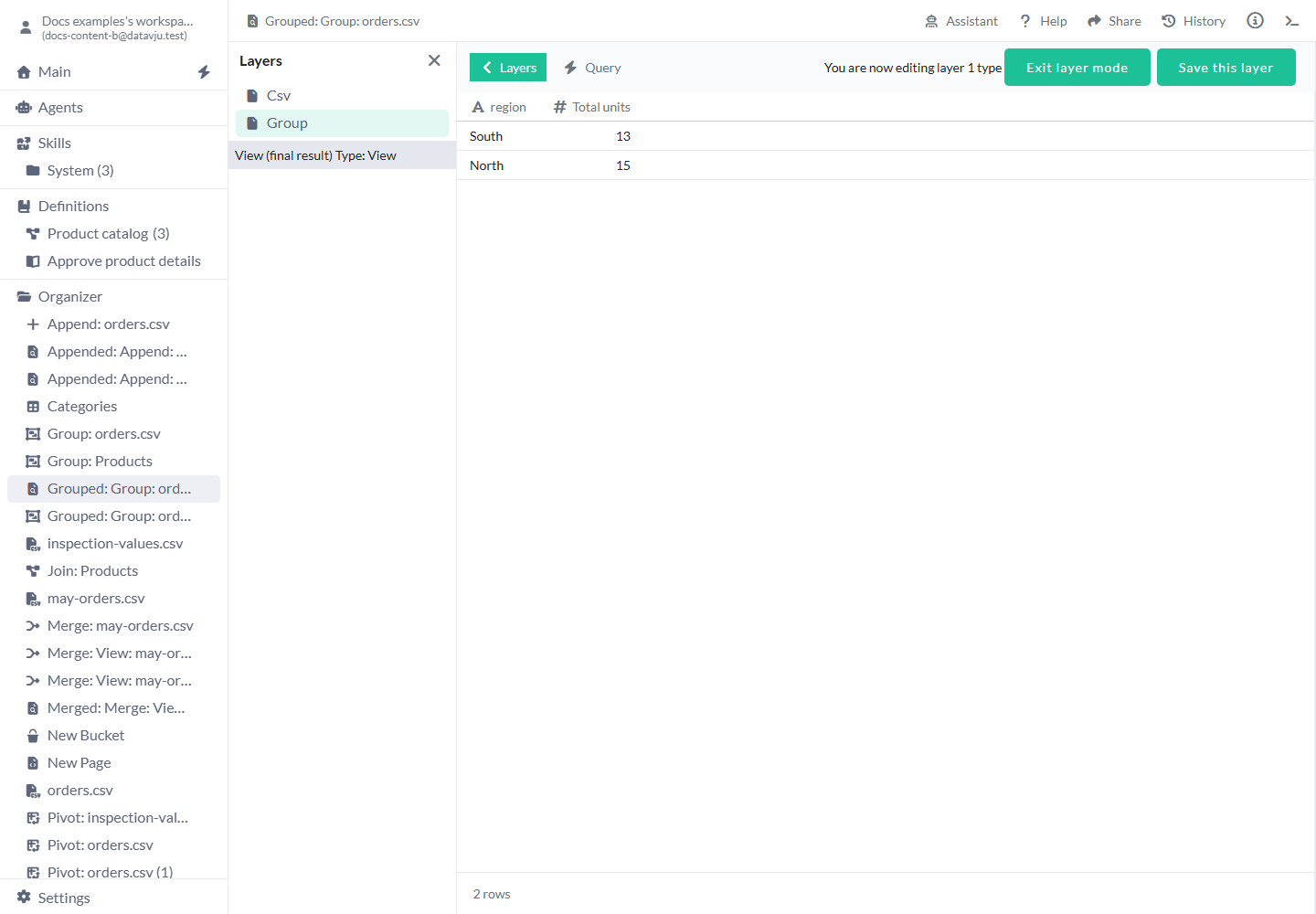
Query shows the result for the selected step.
Return to the saved View
Choose View (final result) in the tree to return to the View's saved output while keeping the tree available. Choose Exit layer mode or Close Layers to end inspection and close the panel. Your saved steps remain available the next time you open Layers.
Create an editable tool from a saved layer
Recover a separate tool when you want to change a saved calculation while keeping the earlier View available.
Saving a Group layer creates a separate Group with a copy of the input data and the saved Group settings. You can also recover separate Join, Append and Transform tools from their saved layers. The new item is created beside the View; for example, Grouped orders: Group-1 identifies the recovered Group step.
Save this layer for a Csv source is not available yet; open the original CSV item to work with its data.
- Select the processing layer you want to reuse, such as Group.
- Inspect Model and Data to confirm its settings and result.
- Choose Save this layer.
- Open the new tool in Organizer and change its settings there. The saved View you inspected keeps its existing steps.
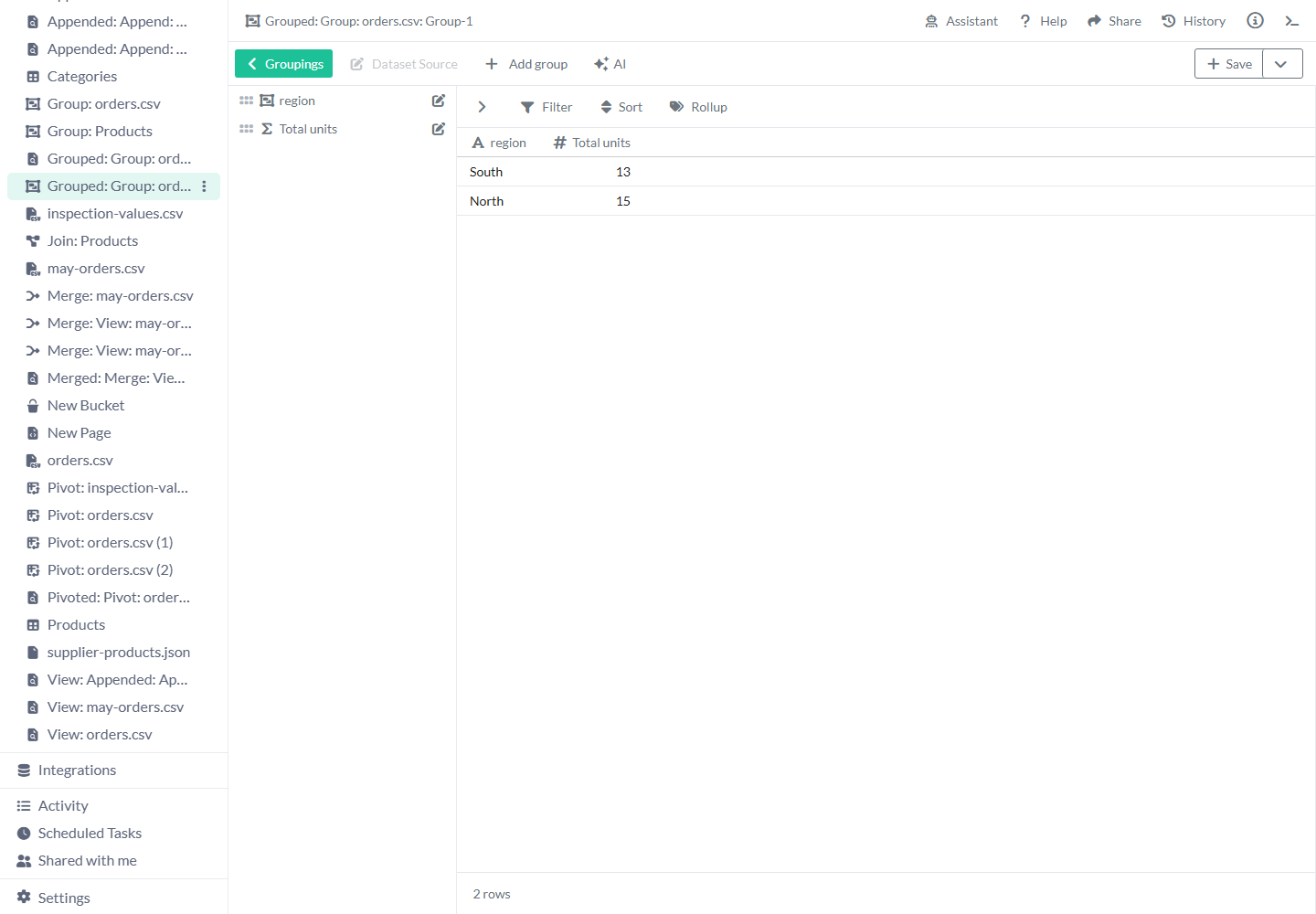
Saving the Group step creates a separate editable Group.
Examples
The regional summary starts with six CSV records: North quantities 8, 3 and 4, and South quantities 5, 2 and 6.
Explain a regional total
Open Layers in the saved regional summary and select Group.
Model shows Group(region) and Sum(units). Data and the supported Query mode show North with 15 units and South with 13, as listed below.
Select Csv to inspect the source settings when you need to trace the six contributing records.
- North - 15
- South - 13
Find where orders were filtered
You saved a View of the six orders with status = Open. Four orders are Open and two are Approved. Open Layers, select Query, then choose Query mode to inspect the four matching rows. Inspect the earlier Csv settings to confirm the source.
This explains why the View has four rows. When a later Group summarizes those rows, its totals use those four orders.
Recover an editable regional summary
Your saved Csv → Group View shows North with 15 units and South with 13, and you want to count orders as well. Select its Group layer and choose Save this layer.
The new Group opens with region and Total units. Add an item with Function → Count and Group Column → all. It shows three orders for each region. Save its result; the earlier View keeps its original 15-unit and 13-unit summary.
Limits and common mistakes
Inspect the steps saved with this View when tracing an older result. A separate tool may have changed since you saved it.
- Check the selected layer and the earlier steps when Query is unavailable. Joined inputs can also contain unsupported work.
- Use Data with awareness that it can rerun steps that fetch data or use AI.
- Open an editable tool to change processing. Layer inspection keeps the saved setup available for comparison.
- Use Save this layer on a supported processing step to create a separate tool.
- Keep access to the underlying sources when inspecting or rebuilding their steps.