
Workspace settings
Workspace settings brings together your account details, external AI connections, recorded AI usage and workspace information. Use it to connect an AI client, download stored Table records, check recorded usage, or identify the workspace you are working in.
Open and navigate Settings
Read the note beneath each card. Some sections show saved information; others show labelled examples of features still being built.
- Open Settings from the workspace navigation.
- Choose a section under Account, Workspace or Infrastructure. A new Settings screen starts on General.
- Use the toolbar's Settings control to hide or restore the section navigation when you need more room.
- On a narrow screen, choose a section in the Settings selector. Choose Back to workspace to leave Settings.
Account: Profile and Security
Open Profile to check your account details, or Security to download data and connect an AI client.
- Profile — Name and Email - Show the current account's display name and email. These cards are read-only.
- Profile — Preferred language and Timezone - Show fixed examples, English and Europe/Berlin. Use your browser's local timezone when reading dates elsewhere in Datavju; these cards currently offer no editing controls.
- Security — Download your stored records - Downloads complete records from eligible saved Tables. See the steps below for format and scope.
- Security — MCP connections - Creates or revokes access for an external AI client. This is distinct from signing in to that client's provider account.
- Security — Password, Two-factor authentication and Active sessions - Are labelled placeholders. Check their notes for availability; these rows currently offer no password, two-factor or device-management controls.
- Security — Delete your account - Opens a separate confirmation for irreversible account and data deletion. Download any records you need first. Choose No to leave the account intact.
Workspace: General and Members
Open General to identify your workspace. Members currently shows an example of a member listing.
- General — Workspace name - The workspace's saved name; use it to check where you are working. There is no rename field on this screen.
- General — Identifier - The workspace's saved identifier; use it when distinguishing workspaces with similar names.
- General — Owner - The recorded owner's email.
- General — Created - The recorded creation time in your browser's local format. Missing recorded fields are omitted.
- Members - Shows your current account labelled Owner with a placeholder note. Use General's Owner field for the recorded workspace owner. Invites shows Not yet available.
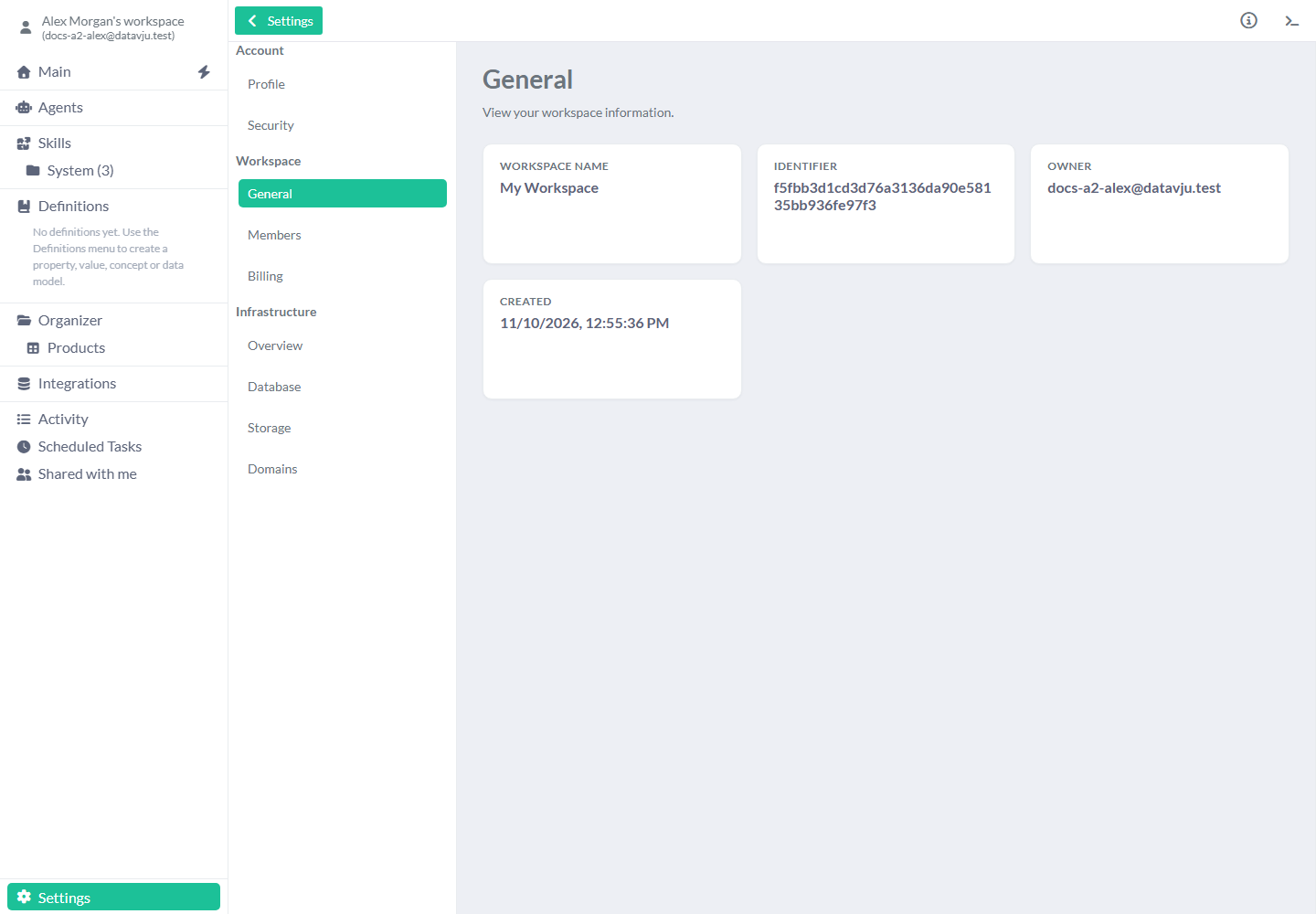
Use General to identify the workspace.
Read monthly AI usage
Choose a UTC month to compare recorded AI work and see how much of it has measurements and prices.
- Open Workspace → Billing and find Monthly AI usage.
- Choose Billing month (UTC). It defaults to the current UTC month; choosing another month loads that month's recorded usage automatically.
- Choose Refresh period when you need to reconcile records again, including records that arrived late.
- Check the period boundaries, freshness, coverage and missing measurements alongside the totals.
- Expand Usage by area, operation and provider to see the groups. Expand Recorded history details to inspect recent recorded requests.
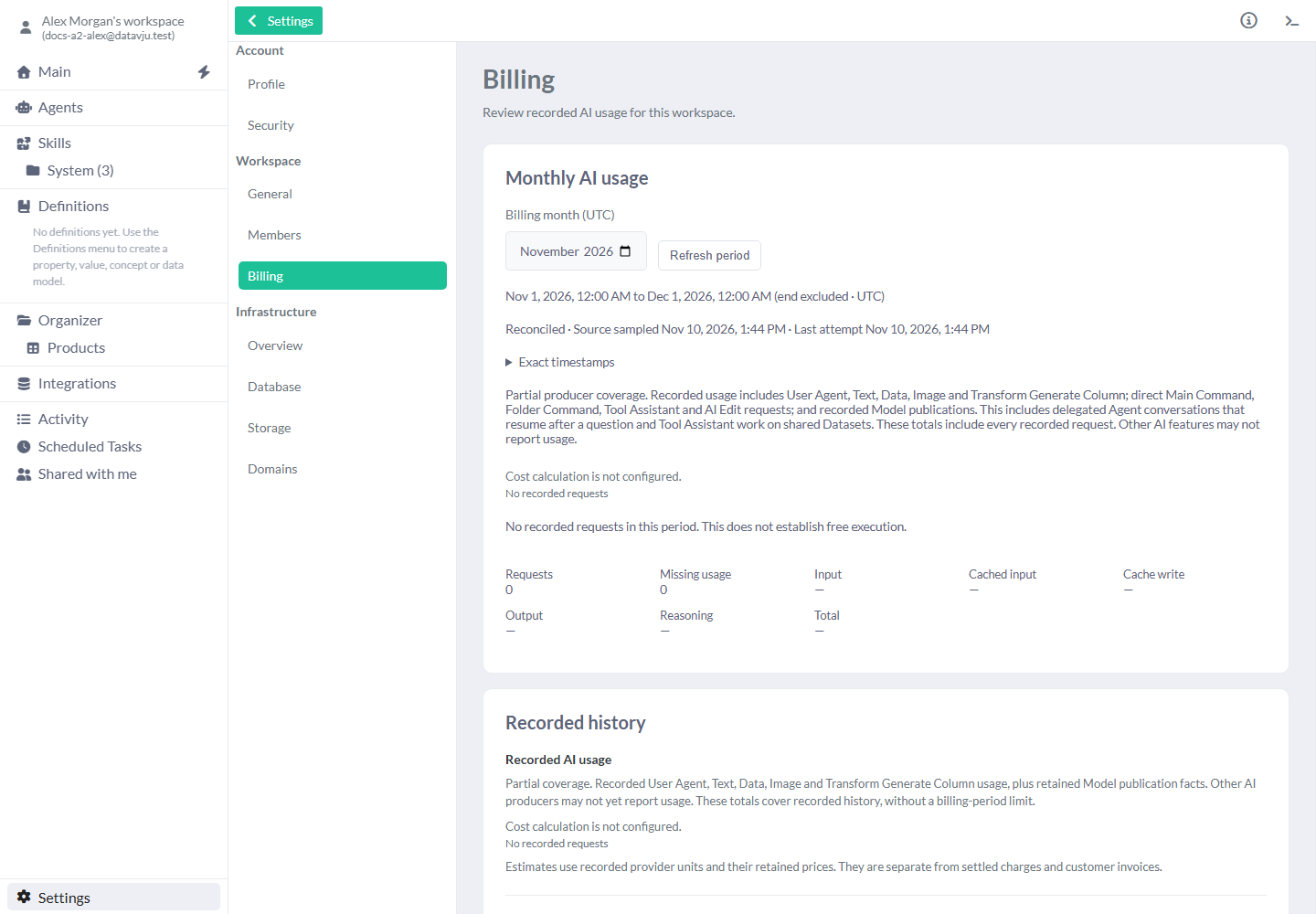
Choose a month, then read the coverage alongside its totals.
Understand the usage figures
Check which requests were measured and when the figures were last updated before comparing costs.
These figures cover the AI work Datavju has recorded, including supported AI tools and Model publications. Other work may be missing. Read a dash as an unavailable measurement and zero as a reported zero. Read Settled charges unavailable and Subscription and invoices for the current availability of charges, plans and invoices; use the usage figures as estimates.
- Period boundaries - The start is included and the end is excluded, in UTC. November covers 1 November 00:00 UTC up to, but not including, 1 December 00:00 UTC.
- Reconciled / Previous result, stale - Identifies whether reconciliation succeeded or a previous result is being retained. Check Source sampled and Last attempt; Exact timestamps shows the unambiguous timestamps. Refresh a stale or failed result when the source is available.
- Requests / Missing usage - A request can be recorded without a provider measurement. Missing usage is counted rather than treated as free.
- Input, Cached input, Cache write, Output, Reasoning and Total - Show the token measurements supported and reported by each provider. A measurement's coverage says how many recorded requests supplied it. Non-token units appear when recorded.
- Estimated provider cost - Estimates the recorded work from its measured usage and recorded prices. Use it to compare the recorded work, and read the coverage information alongside it.
- Known priced subtotal - Shows the portion with both measurements and prices. Read the incomplete label and reasons to find what is missing before estimating the rest.
- Usage by area, operation and provider - Expand a group to see which tools and providers contributed to the total. Open Technical details if you need the exact provider/model identifiers.
- Recorded history - Includes the complete recorded-history summary and up to 100 recent requests. This is separate from the selected monthly result.
Connect an external AI client
Expand Server URL and access token to view the individual fields. Setup text starts masked; choose Show access token only when you need to read it, then Hide access token afterwards. If copying is unavailable, show the token and select and copy the setup manually before choosing Done. Keep that private setup out of screenshots and shared files.
The connection expires after 30 days. You can have up to five active connections in this list; revoke one to make room for another. Manage Agent workspace sessions in that panel. Choose Revoke to stop a client's access and invalidate its unused CSV-import upload links and MCP-issued Model Snapshot links. Bucket upload and download links already issued remain usable until their five-minute expiry. Review any changes the client already made in the affected items.
- Open Account → Security → MCP connections.
- Choose Claude Code, Codex or Other client. Claude Code is initially selected. Enter an optional Connection name; leaving it blank uses the selected client name.
- Select the tools and resources described below, then choose Create connection.
- Follow the selected client's setup instructions. Copy command, Copy configuration, or the individual Copy URL and Copy token buttons copy the private setup. Copy first request gives you a starter request.
- Save the setup privately and choose Done. The token is shown only during this setup; if you lose it, revoke the connection and create a replacement.
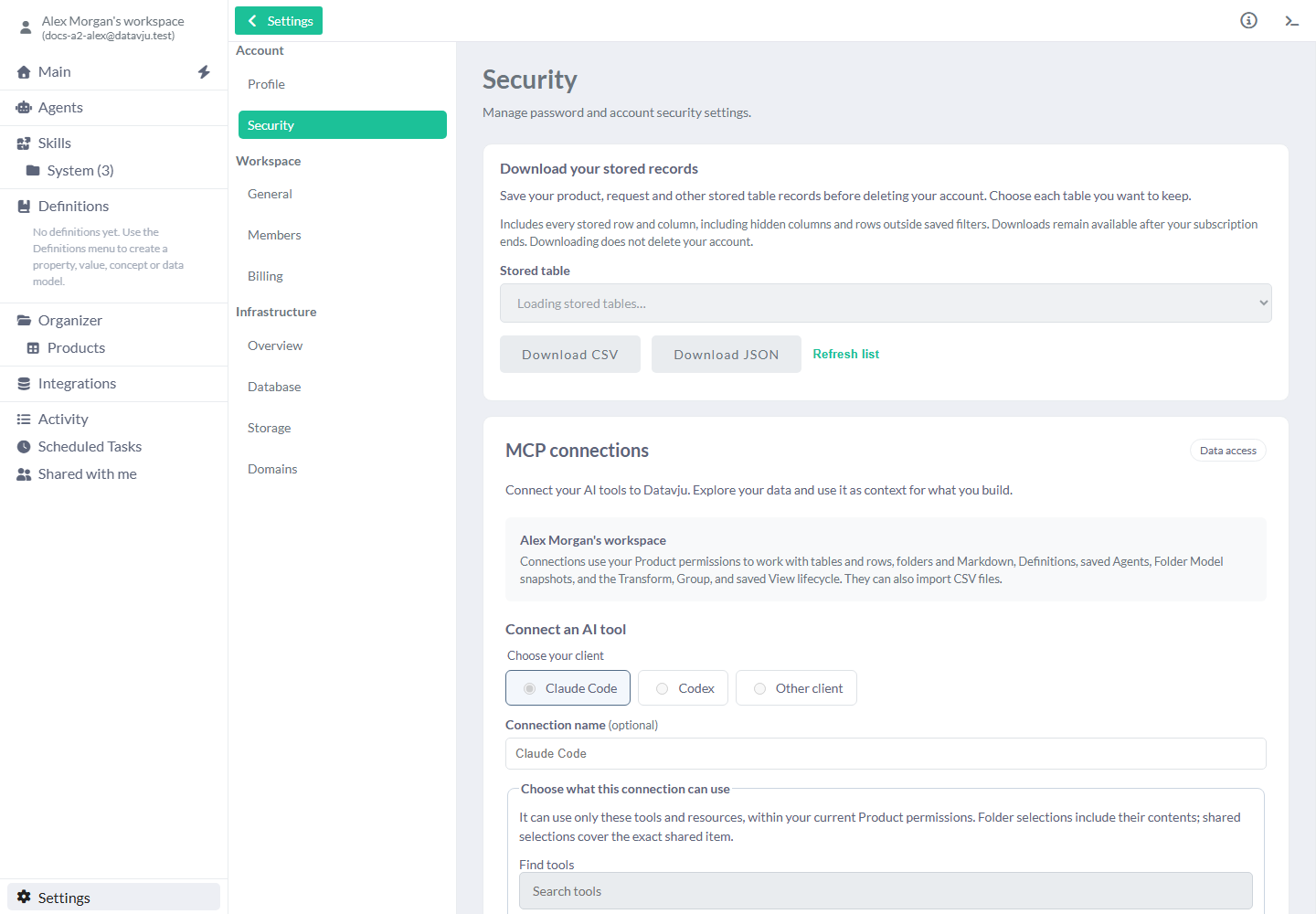
Choose tools and items before creating a client connection.
Choose connection tools and resources
Choose what the client may do and which items it may work with. Definitions describe your business terms, fields and rules; selecting a Definition graph includes the related Definitions shown by that choice.
Select at least the tools and items needed for the task: an empty item selection gives the client nothing to work with in that category. Your existing access still applies. Open Having trouble connecting? for help with lost tokens, conflicting setup or an unreachable server. Use the supplied bearer-token setup in a compatible client; a local server address works only on the same computer.
- Find tools / Search tools - Filters the available tool list. Initially no tools are selected. Select the operations the client needs, for example read tools for catalog inspection.
- Select read tools - Chooses the current reading tools. Select all current tools chooses today's full list. Review the selection when you need a newly added tool; existing connections keep their original list. Clear tools clears the choice.
- Organizer — Resources - Defaults to Selected items with no item selected. Choose exact items, or All items I can access when the client needs all currently authorized and future accessible items. A selected folder includes its contents; a selected shared item covers that exact shared item.
- Organizer — Read / Write - Read starts checked, Write unchecked. Resource selection is still required in Selected items mode. Add Write only for intended changes, such as updating a selected Products Table.
- Integrations — Selected Integrations - Starts empty. Select each exact HTTP, Mail, Stripe connection or Computer for its operations; selecting the Integrations root is for service management. Review Selected connections to distinguish similar names, environments and merchant accounts. An operation still needs its matching tool and current workspace permissions.
- Definitions — Meaning - Defaults to Selected Definition graphs with none selected. Choose a Definition graph to add it with Read; select Write when you want the client to change it. Use Remove to remove that choice, or All Definitions to include all your Definitions.
- Agents — Agents tree - Defaults to Selected items, no items selected, Read checked and Write unchecked. Choose exact saved Agents or All Agents, then the intended permissions. Selecting an Agent is separate from choosing a tool that can run it.
Use selected connection capabilities
To inspect an Agent's usage, choose Read Agent AI usage and cost, Read and that saved Agent. Select the Agent whose Run you want to inspect. To include work by its child Agents, include access to every child you need. Read the cost labels to distinguish estimates from settled charges.
To use an HTTP service, choose Send HTTP request, workspace Read and Write and its saved connection. Leave unrelated Definitions and Agents empty. For Mail or Stripe, likewise choose the matching tools and exact connection. Review each action: a Mail preview shows a draft, sending submits email, and Stripe reconciliation checks an existing payment. Buyers make payments through the published Site.
You can also select tools to build a Model: a reusable package of data, Definitions, documents, Pages and Agents. Inspect the result in Datavju and use the Folder's Model export/import controls when you want an independent copy. Keep snapshot download links private. For a large result, ask the client to read every page of saved data; Transform and Group previews show samples.
If a connection drops during a change, inspect the affected item before trying again so you avoid creating it twice. For a refused replacement, refresh or deletion, read the error and check whether another item still uses the result. Review access when setting up a replacement connection.
Download stored records
You can download records after a subscription ends while your account and read access remain available.
You get every stored row and column, including hidden fields and rows outside your current filters, search or page range. Choose JSON to preserve objects, lists and null values. Choose CSV for a spreadsheet; both null and empty text appear as empty CSV fields. For a website, design or Model package, use that tool's export controls. If a Table fails to download, refresh the list and check that you can still open it before retrying.
- Open Account → Security → Download your stored records.
- Choose a Table by its business/Definition or workspace location.
- Choose Download CSV or Download JSON. Repeat for each Table you need.
- Wait for the completed file to reach your browser. The progress message shows received bytes. Choose Cancel download if you want to stop the download; your Table stays as it is.
Infrastructure sections
Open Database for recorded database information. Read the notes on the other infrastructure screens: they currently show examples.
- Overview - Read the notes beside the example Region, Database, Storage and Domains cards. Open Database for the available database details.
- Database - Read Engine, Region and Status for the database service; Logical database and Database size identify your workspace's database and its size. Instance class, Allocated storage and Max storage describe the shared database server. These fields are read-only. Choose Retry if loading fails.
- Storage - Storage used, Status and Asset categories currently show fixed examples, including 14.2 GB. Check the notes before using these numbers in a report.
- Domains - Default domain, Custom domains, DNS status and SSL status currently show examples. Open your Site's publishing controls to configure its actual domain.
Examples
These examples restrict a client’s access, compare incomplete usage figures and download records beyond a Table filter.
Give a client read access to Products
Limit an external client to reading one product Table before asking it to describe the catalog.
- Start with a saved Products Table containing
LAMP-01, Desk lampandLAMP-02, Floor lamp. - In MCP connections, choose your client and name the connection Catalog inspection. Choose Select read tools.
- Keep Organizer at Selected items, select Products and keep only Read. Leave unrelated resources empty, then choose Create connection and finish setup.
- Ask the connected client to describe Products. You get a description of the two saved products while keeping the connection read-only.
Compare a month's recorded usage
Use measurement coverage to avoid treating a partly measured month as a complete cost report.
- Open Billing, select the month you want and choose Refresh period.
- If the result says
3 requestsand a metric saysMeasured in 2 of 3 requests, read that metric as incomplete. Do not divide it by three and describe the result as complete cost per request. - Expand the area/provider groups to see which operations were recorded. Use Known priced subtotal to find the priced portion and the reasons other measurements or prices are missing before comparing complete costs.
Export a filtered Table completely
Download both stored products even when the Table’s current filter shows only the more expensive one.
- A Products Table stores
LAMP-01, 49andLAMP-02, 89, but its current filter displays only prices over 60. - In Download your stored records, choose Products and Download JSON.
- The completed download includes both stored products and hidden columns. Clear or change the filter in the Table separately if you want a different workspace view.
For a Table with only sku and price columns, the downloaded JSON contains:
[
  {"sku":"LAMP-01","price":49},
  {"sku":"LAMP-02","price":89}
]
Limits and common mistakes
Read each card’s availability and measurement notes before using its values or changing account access.
- Check the notes on example profile preferences, Members, security and infrastructure cards for current availability. Use the Site's controls for domain setup and read Billing's Subscription and invoices note for invoice availability.
- Check coverage, missing measurements and stale-result notices each time you compare usage. Wait for the missing records or prices before treating a subtotal as a complete cost.
- Copying a connection setup includes a secret token. Keep it out of screenshots, chat, shared documents and project repositories. Existing connections gain no newly released tools automatically.
- Use Download CSV or Download JSON to keep a copy of your data. If you open Delete your account by mistake, choose No in its separate, irreversible-deletion confirmation.
- Browser timezone display, UTC billing periods and the example Profile timezone are different. Use exact UTC timestamps when comparing periods.
Related articles
Use MCP for external client access, or Table and Site for the data and publishing controls linked from Settings.
- MCP: Understand external AI access and supported operations.
- Agent workspace: Run a connected external agent on a Computer.
- Integrations: Configure the services selected in connection access.
- Table: Work with the records you download.
- Site: Configure and publish actual Sites.