
Datasets
A Dataset is a set of rows, columns and saved settings used by Datavju's data tools. You work with Datasets when you enter records in a Table, import a file or save a View of a calculation. Use this guide to inspect your data, choose suitable column types and decide where to save your next result.
Find your data
Open the item in Organizer to work with its rows. The tool that opens determines how you update them.
Keep both the calculation and its result when you want to adjust the calculation later. Saving a new output leaves the original input rows in place.
- Table - What you keep: Editable records with columns, keys and rules. How you update it: Enter or change records in the Table.
- Imported CSV, JSON or XML - What you keep: Uploaded content, import choices and imported rows. How you update it: Use that format's Reimport, Replace File or Refresh, where offered.
- View - What you keep: A saved result and the steps used to produce it. How you update it: Use Refresh to rebuild from its saved steps, or deliberately replace the result.
- Group, Join, Append, Pivot or Transform - What you keep: The settings for a calculation. How you update it: Edit those settings and save the resulting rows as a separate View or Table.
Inspect rows and columns
Start with known records and check their values before building another calculation.
Top Values shows up to 50 values, ordered by Count from highest to lowest. Use keys and constraints when you need to enforce a rule across every record.
- Open the item in Organizer and wait for its rows to load.
- Check the column names, type symbols and row count at the bottom of the table.
- Open Columns to check which fields are visible and their order.
- Open a column's menu to inspect its name, Change type and Change format controls.
- Choose Table Details to inspect the data, or choose Column details from a column's menu to open Column Details. Top Values shows frequent values; Data Types helps you spot mixed value kinds.
- Select a cell and press F2 for Cell Details, or press Enter for Row Details, when you need the complete content.
- For a View, open Layers to inspect its saved input and calculation steps.
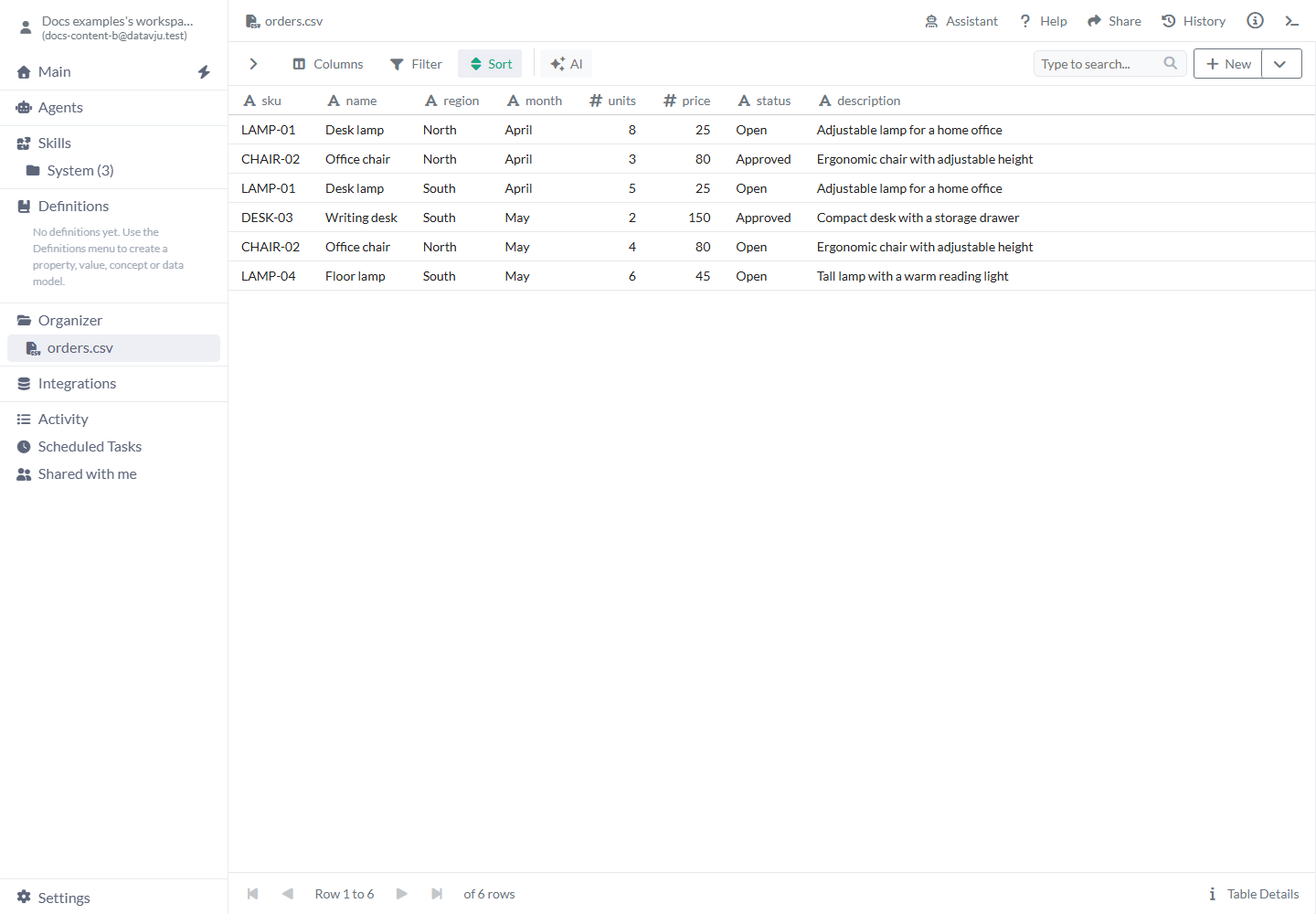
Inspect the types, values and complete row count before using imported data.
Choose column types
A name such as price describes a column. Its type tells Datavju how to compare, calculate and store its values. Check the type as well as the displayed sample.
The initial type comes from the Table's declared fields or the import's settings and inferred values. Keep identifiers as String when leading zeroes, letters or punctuation matter.
- String - Use it for: Text and identifiers whose exact characters matter. Example: Product code
0007. - Number - Use it for: Numeric quantities and calculations. Example: 8 units.
- Boolean - Use it for: True or false. Example: Whether a product is active.
- Array, Object, JSON - Use it for: Lists and structured information. Example: Product tags or an address.
- Date - Use it for: A calendar day. Example: A delivery date.
- DateTime - Use it for: Local date and time. Example: A shop's local opening time.
- DateTime TZ - Use it for: A particular instant, displayed in the viewer's timezone. Example: When an order was accepted.
- Money - Use it for: An amount together with its currency. Example: An amount of 25 in USD.
- Duration - Use it for: Months, days and time. Example: A one-month subscription period.
- Password - Use it for: Passwords used for authentication, with protected reads. Example: A sign-in password in an accounts Table.
- Null - Use it for: Read every value as empty. Example: An output column that should contain empty values.
Change a type or its appearance
Use the column's Change type control to choose the intended type. Check any conversion choices and the displayed count of values that would become empty before confirming. For example, a String column containing 10, an empty string and 30 can become Number with one value shown as empty.
Within the same step, an ordinary type conversion keeps the original values and changes how they are read. You can change the type back to read those originals again. A later saved result contains the values produced by the conversion, so check them before saving it.
Password conversion protects the stored sign-in values by hashing them. Changing the type back cannot recover the original password text. Converting an imported source to Password also turns it into a Table and removes its uploaded source file.
Use Change format to change how values look. Displaying a Number with a currency format keeps it a Number; use Money when each value must include its currency.
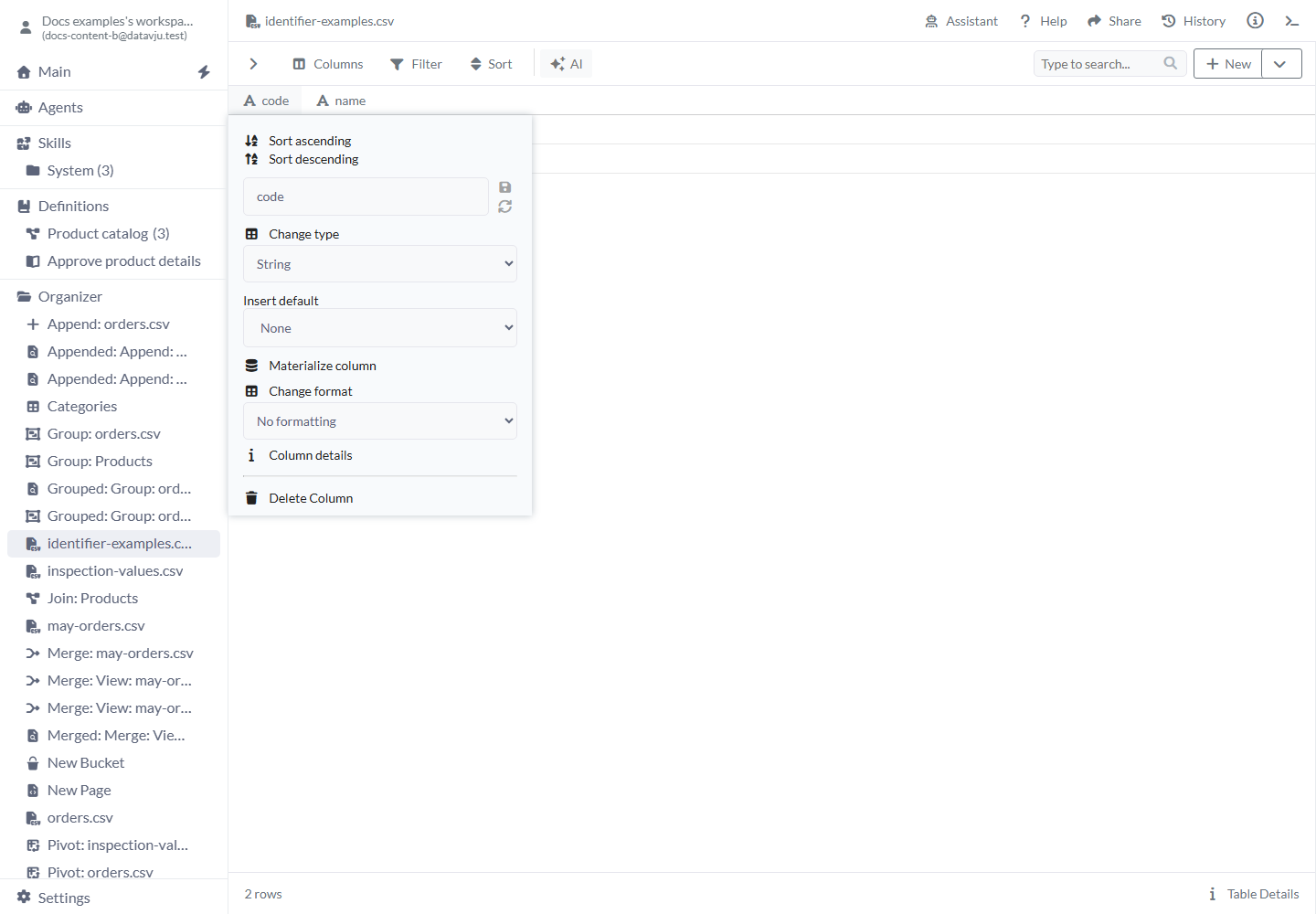
Use Change type to choose how the column’s values are read.
Choose the rows you need
New data starts without extra filters, sorting or row-range restrictions. Reopened items use their saved settings.
The page of rows currently displayed and the result's configured range serve different purposes. Inspect the saved output's row count when you need to confirm that all intended records were included.
Use sharing and access settings to control who can read data. Hiding a column or filtering the grid changes the view of the data and leaves the underlying records available to people who have access.
- Columns - Initial setting and purpose: Uses the saved field order and visibility. When to change it: Show the columns needed for your result, then arrange them in reading order.
- Filter - Initial setting and purpose: Empty until you add conditions. When to change it: Keep orders whose status is Open. Use And for conditions that must all match and Or for alternatives.
- Sort - Initial setting and purpose: No explicit order until you add one. When to change it: Sort by region, then units descending. Add a further field when equal values need a consistent order.
- Search - Initial setting and purpose: Empty until you enter a search. When to change it: Find a known SKU among the searchable fields.
- From Row, To Row - Initial setting and purpose: Empty for the unrestricted result range. When to change it: Select a particular range after applying the intended sort.
- Normalize - Initial setting and purpose: No rules until you add them. When to change it: Remove surrounding spaces so
LAMP-01becomesLAMP-01before matching. Check the resulting values. - Arrow beside New - Initial setting and purpose: Opens output and processing choices supported by the current tool; New itself saves a View directly. When to change it: Create a Group summary or choose where to save a View.
Identify and connect records
A primary key is the field, or combination of fields, that uniquely identifies each record. Choose Primary Key to configure it. Use a product SKU for a product, or order identifier plus line number for an order line. Keep every field of a combined key when referring to a record.
A foreign key connects records to an existing parent record. Open Foreign Keys to configure the complete matching fields, such as a product's category identifier and the category Table's primary key. Open Constraints when you need Unique, Check or Exclude rules on stored records.
Use a Data Model to plan these Tables, fields and relationships together, then check their implementation. Use the Table guide for the complete key and constraint controls.
Prepare a column for matching
Materialize column prepares a column in the database form required by some operations. For an equality Join, check that the identifiers are String, contain single values and have been materialized. Use Dematerialize column to remove that preparation where allowed; key fields and some native types require it to remain.
Check the Join guide for its matching requirements before comparing supplier identifiers.
Protect a write with inspected facts
When an Agent or MCP client makes a conditional change, copy the returned revision string unchanged into that source condition's expectedRevision. Schema and row queries supply this value; complete Row Review preparation supplies one entry per included Table in datasetRevisions.
Use that exact string rather than the displayed update time, a History number or a Row Review snapshot's numeric revision. Changes less than a millisecond apart can display the same update time and still be different versions.
If the source changed, Datavju reports that it changed since the expected revision and saves none of the proposed rows. Read the current facts, review the difference and deliberately prepare a new proposal. Removing the condition or automatically replacing its revision can discard the protection you chose. The revision supplies no additional read or edit access.
Save the next result
Choose the output after checking filters, sorting, visible columns and the configured row range.
Available choices depend on the tool. Each saved View keeps its own steps. Editing a Group later changes that Group; save or replace the intended output when you want those edits in a saved result.
- Open the arrow beside New, or the arrow beside the processing tool's Save button, to see its output choices.
- Choose Save as View for a saved calculated result with its processing steps. Use Save as View to... to select its Folder. The main New button creates a View directly.
- In menus that offer Save as Table, choose it when you want editable stored rows.
- To update an existing result, use Replace and select the intended target. To add rows to a writable target, use Insert, where offered.
- Open the output and check its columns, values and complete row count.
Examples
The order example turns six records into two regional totals while keeping the imported details available.
Summarize an order file
An imported CSV has six order rows. North has unit quantities 8, 3 and 4; South has 5, 2 and 6. Check that units is Number, then open the arrow beside New and choose Group. Group by region and sum units.
The result has two rows: North with 15 units and South with 13. Save creates a View of that summary. The imported file still contains all six order records for detailed work.
Keep a product Table and an approval queue
Your Products Table contains LAMP-01 with status Open and CHAIR-02 with status Approved. Add a Filter for status Open, then choose New to save a View. Rename it Products to review in Organizer. That View contains LAMP-01.
Update the actual product records in Products. Use the View's Refresh when you want to rebuild the queue from its saved filter and current source records. Keep earlier signed acceptances separately with Row Review when you need to retain what someone accepted.
Keep supplier codes intact
A supplier file contains product codes 0007 and 0012. Check that the code column is String and keep those exact characters when preparing a Join. A Number conversion displays 7 and 12, which changes how those codes compare with the supplier's original text.
To check the difference on that imported column, open its menu and choose Change type → Number. Reopen the menu and choose Change type → String to read the original 0007 and 0012 again within this import. Inspect the values before saving any converted output.
Check the identifiers on both sides and materialize the String fields before an equality Join. Use a new saved output when you need to retain a prepared list alongside its original import.
Limits and common mistakes
Check the source, type and saved steps when a result differs from what you expected.
- Apply an explicit Sort whenever record order matters. Visible row numbers can change after filtering, sorting or refresh; use a primary key to identify a record.
- Inspect the converted values before saving another result. A displayed format or column name alone does not establish its type.
- Check the row count in the actual output as well as the preview.
- Keep hidden columns and filtered records in mind when granting access to the underlying data.
- Use the source's own Refresh or Reimport controls. A Table created from a file contains editable rows; upload newer source content through the file tool when you want to update that import.
- Read a refused replacement, deletion or schema change before proceeding. Existing references and key rules may require you to update dependent work first.