
Schedule
Schedule refreshes saved data or starts a saved Agent's instruction at recurring UTC times. Use a data task to replace an existing result from its saved source, such as a remote CSV or View. Use an Agent schedule when the recurring work needs the Agent's saved instructions, access and responsibility limits.
Schedule a data refresh
Finish importing and check a manual refresh before scheduling the source. The task reuses the saved source and settings, and replaces the existing result when it succeeds.
A new task starts at midnight UTC every day. Cancel, Close schedule or Escape discards an unsaved editor draft. Closing the panel keeps saved tasks running.
- Open the imported Table, refreshable View or supported Integration result.
- Open its sidebar and choose Schedule. For a Table or View, use Show Table options if needed.
- Choose Add Task.
- Set Name, such as
Daily catalog refresh, and keep Action → Refresh (Replace). - Set Minute and Hour, then review Day of Month, Month and Day of Week.
- Check the chosen UTC time and choose Save.
- Select the saved task to read its History after an occurrence.
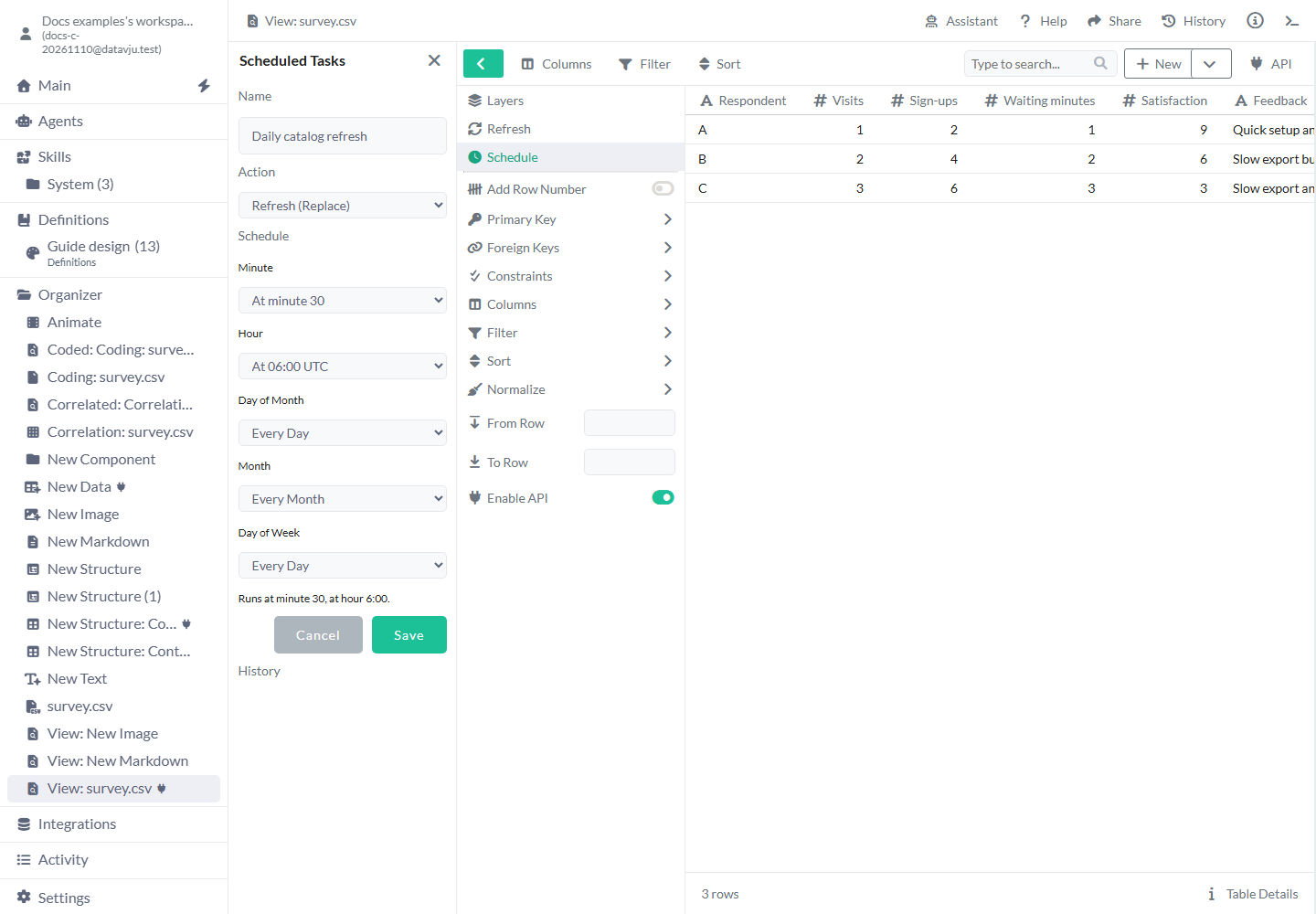
Choose refresh times
Minute and Hour combine with the calendar fields. Keep the day and month fields unrestricted for an ordinary daily or hourly schedule.
Custom entry and full descriptive previews for interval or weekday-range choices are not available yet. Check the selected fields. For example, Every 15 Minutes with Every Hour runs through the day; Every 15 Minutes with At 09:00 UTC limits those minutes to the 09:00 hour.
Use one calendar restriction at a time unless you intend the underlying cron behavior. Restricting both Day of Month and Day of Week can run on either matching day rather than requiring both to match.
- Name - Default: New Task. Give the task a readable label. Daily catalog refresh leaves the source item's name unchanged.
- Action - Default: Refresh (Replace). Refresh from the saved source and replace the existing result. This is the available data action.
- Minute - Default: At minute 0. Every Minute, Every 5 Minutes, Every 10 Minutes, Every 15 Minutes, Every 30 Minutes, or an exact minute 0–59. Choose At minute 30 for half past the selected hour.
- Hour - Default: At 00:00 UTC. Every Hour, Every 2 Hours, Every 4 Hours, Every 6 Hours, Every 12 Hours, or an exact UTC hour 00–23. Choose At 06:00 UTC with minute 30 for 06:30.
- Day of Month - Default: Every Day. Every Day, 1st of Month, 15th of Month or Last Day of Month. For a monthly run, choose its day and leave Day of Week unrestricted.
- Month - Default: Every Month. Every Month or any month from January through December. Choose January for an annual January task.
- Day of Week - Default: Every Day. Monday through Sunday, Weekdays (Mon-Fri), Weekends (Sat-Sun), or Every Day. Choose Monday with unrestricted Day of Month for a weekly refresh.
Sources, saved tasks and history
You can schedule imported refreshable local CSV and JSON, CSV by URL, FTP CSV, HTTP API queries, saved refreshable Views and BetterStack results. JSON needs its saved main selections. Unsupported targets explain the limitation and keep existing tasks available for inspection or removal.
A local-file refresh rereads the uploaded content saved in Datavju. Upload newer content separately when your computer's copy changes. Remote refreshes use the saved URL, connection and parameters; their access must still work when the task runs.
Select a task to load History. completed means the refresh succeeded; failed includes source errors and unsupported targets or actions. An unresolved job can remain after a connection failure. A failed refresh before new data is saved keeps the last usable rows and settings. If new data was saved before its status response was lost, those saved rows remain in place.
Use the task's pencil control to edit it or its × control to remove future refreshes. Scheduled Tasks in the main navigation lists scheduled work across the workspace. If Schedule is unavailable, Retry reloads its list after recovery. History errors retain the last loaded history; save and removal errors retain your form or task so you can retry.
Schedule a saved Agent
An Agent schedule saves the recurring instruction and timing. Before unattended work can start, its Responsibility needs a business outcome, completion criteria, future expiry and explicit change, duration, outcome-window and cost limits. Its current access and existing financial setup must cover the work. See Agents for that setup.
- Open the saved Agent and review Responsibility, Scope and Capabilities.
- Choose Schedule → Add Schedule.
- Enter Name, Every, Unit and Instruction.
- Choose Save inactive draft if you want to keep the proposal without starting recurring work.
- When ready to register, reopen Review saved intent if you saved an inactive draft, then choose Register Schedule. Check the saved registration and its current status.
- Use Refresh Schedule to reload the saved settings and history. Edit Schedule opens changes; Save Schedule saves them. Remove Schedule stops future starts and keeps history.
Agent settings
A new proposal uses Agent Schedule, Every 10 minutes and an empty Instruction. A saved proposal supplies its earlier values instead.
An imported Model can include an unregistered proposal. Review saved intent opens it, Save inactive draft saves changes without registration, and Discard schedule draft removes that proposal.
When chat or MCP adds a schedule or changes its instruction or interval, previous responsibility limits are cleared. The Agent shows Inactive until you grant limits again in Responsibility. A name-only edit or unchanged replay keeps the grant; your own manual Schedule changes keep it too. An Agent carrying out an active responsibility cannot create, change or remove saved-Agent schedules.
- Name - Default: Agent Schedule. Required, up to 250 characters. Use Daily support review for a recurring support check.
- Every - Default: 10. A positive whole number. Minutes allow 1, 2, 3, 4, 5, 6, 10, 12, 15, 20 or 30. Hours allow 1, 2, 3, 4, 6, 8 or 12. Days and weeks allow 1.
- Unit - Default: minutes. minutes, hours, days or weeks. Intervals align to UTC clock boundaries; one day starts at midnight, one week on Monday at midnight.
- Instruction - Default: Empty. Required, up to 50,000 characters. Say what to review and what to produce, such as a summary of unresolved support requests.
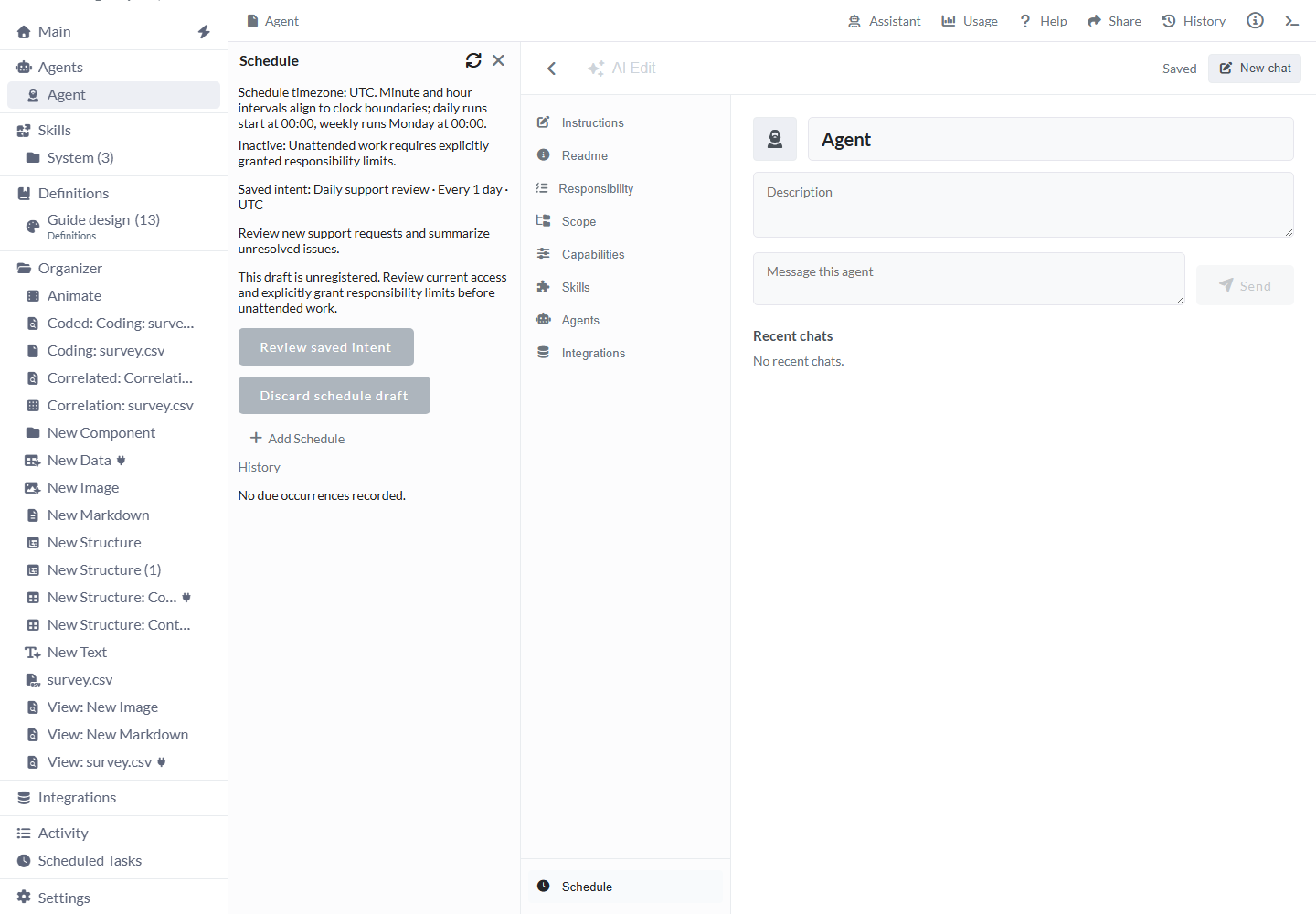
Read Agent outcomes
History separates the due time, start status and actual Agent outcome. Use Inspect run to read a recorded run and Open thread to open its conversation when available. An Agent waiting for input has not finished the scheduled work.
A missed start without a recorded run stays visible and is not automatically replayed. The outcome window starts at the original due time, so a late start has less time left. Another occurrence cannot compete with that Agent's active or waiting responsibility. Later success leaves earlier misses and spent money in the history.
Examples
These schedules change when saved work runs. The source or Agent still determines its inputs and result.
Refresh a catalog at 06:30 UTC
Use a source-backed catalog View whose manual refresh already returns the expected rows.
- Open Schedule → Add Task and name it
Daily catalog refresh. - Keep Refresh (Replace), choose At minute 30 and At 06:00 UTC.
- Keep Day of Month → Every Day, Month → Every Month and Day of Week → Every Day.
- Choose Save. Reopen the task with its pencil control and check minute 30 and hour 06.
- After the due time, select the task and inspect History, then open the View to check its saved rows.
Poll a remote CSV every quarter hour
Use an imported CSV by URL when the file at that URL changes during the day.
- Open the imported source and confirm Refresh returns the current remote rows.
- Choose Schedule → Add Task and name it
Quarter-hour source refresh. - Select Minute → Every 15 Minutes, Hour → Every Hour, and unrestricted days and months.
- Save. The recurring minutes are 00, 15, 30 and 45 of each hour.
- Check History and the refreshed table after an occurrence. Uploading a local file with the same name does not change the saved remote URL.
Prepare a daily support review
Start with a saved Agent that can read the relevant support requests.
- Choose Schedule → Add Schedule and set Name to
Daily support review. - Set Every to 1, Unit to days, and Instruction to
Review new support requests and summarize unresolved issues. - Choose Save inactive draft. The panel shows the saved intent and says it is unregistered.
- Review and save the necessary Responsibility limits and access. Reopen Review saved intent and choose Register Schedule.
- Check the next due occurrence and its run/thread to establish whether the review finished. A registration without granted limits remains inactive.
Limits and common mistakes
- Times are UTC. A change to your local daylight-saving time leaves the UTC schedule in place.
- Schedule uses saved source credentials and current access. A schedule cannot renew expired access.
- Refresh (Replace) is the available data action. Retained append, upsert, update or delete tasks need explicit correction; opening them does not convert them.
- Save inactive draft keeps an Agent proposal. Register Schedule creates recurring work; it grants no access, money or responsibility limits.
- Inspect actual history and data. Creating a task or seeing it listed does not establish that its work completed.
- Task configuration, refresh history and ordinary scheduled refreshes appear in Schedule rather than as Activity entries.
Related articles
- View - configure the saved result to refresh.
- CSV - import and refresh CSV sources.
- Agents - configure a saved Agent and Responsibility.
- Interactions - respond to visitor actions in a Page.