
Properties
A Property defines an attribute you want to describe consistently, such as Color, Capacity or Release date. Create it in Definitions, choose the kind of value it holds and add the choices your team will reuse.
How Properties work
Give the Property a readable label and an Attribute association: a short, stable code such as color. Its child Values use the same association and value type. For Color, those Values could be Black storing black and Navy storing navy.
You can link a Concept to this shared Property and its choices. To store product records, add the corresponding fields to a Table or data-model agreement.
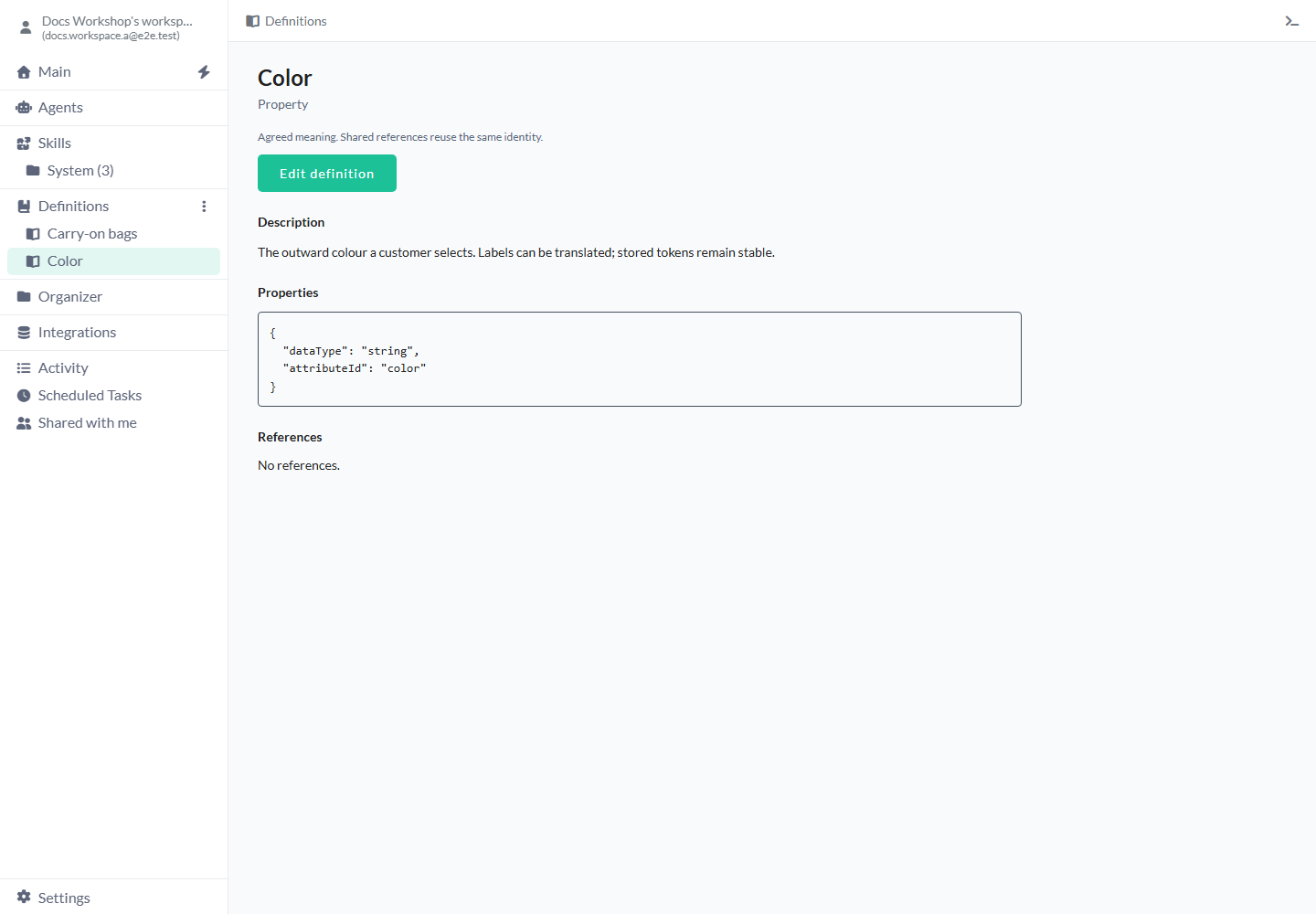
Create a Property
Choose the value type before adding vocabulary choices.
- Open the three-dot menu beside Definitions and choose New definition.
- Keep Kind at Property.
- Enter Label and Meaning, then a short Attribute association such as color.
- Choose Value type. String is selected initially.
- Add Unit or System if needed and choose Place in tree.
- Choose Save definition and review the Property.
- To add a choice, open the Property’s three-dot menu and choose New definition.
- Enter the child Value’s Label and Stored value, then choose Save definition.
Property settings
Name the attribute, choose how its values are stored and add any unit or convention needed to understand them.
- Label - Empty and required. Enter a readable name such as Capacity.
- Kind - Property initially. After saving, this choice is fixed.
- Meaning - Empty and optional. Explain what this attribute measures or classifies, such as Usable internal storage capacity.
- Place in tree - Definitions root from the header menu, or the entry where you began. Choose where you want to find the Property in the tree.
- Attribute association - Empty and required. Enter a short stable code such as capacity. Once saved, this field is read-only; you can still change the readable Label.
- Value type - String initially. Choose one of the types below to match the meaning of your values.
- Unit - Empty and optional. Enter GB for a capacity measured in gigabytes. Your values keep the number you enter; convert source data separately if its units differ.
- System - Empty and optional. Enter a convention such as EU for European sizes.
- References - No links initially. Add reference starts an allowedValue link with an empty Target. Choose the existing Value you want to allow, or enter another Relationship such as uses to link a Definition. Remove unlinks that row.
- Save definition / Cancel - Choose Save definition to keep the complete draft or Cancel to leave the saved Property unchanged.
Choose the value type
Choose the meaning of the value. For example, keep a code with leading zeroes as String and a measurable quantity as Number.
- String - Exact text tokens, including codes with leading zeroes. For example, Color token navy, size code 042.
- Number - Use it for numeric quantities. For example, Capacity 128, with Unit GB.
- Boolean - A true/false distinction. For example, true for a declared availability flag.
- Date - A calendar day that should stay the same across timezones. For example, Release date 2027-02-01.
- DateTime - Local wall-clock date and time without timezone conversion. For example, A store's local opening date and time.
- DateTime TZ - One instant with timezone information. For example, A globally coordinated launch time.
- Money - An exact amount with its currency. For example, 25 in EUR.
- Duration - A duration entered through value/unit parts. For example, 30 minutes.
Example: create a shared Color vocabulary
Create Color with association color and type String, keeping Unit and System empty. Open Color’s menu → New definition. Enter Label Black and Stored value black, then Save definition. Repeat for Navy and navy.
You now have one place to find the colour labels and their exact stored text. Link these Values from your product-category Concepts so each category can use the same vocabulary.
Example: distinguish a quantity from a code
Create Capacity with association capacity, type Number and Unit GB. Add child Value 128 GB with Stored value 128, then Save definition. Separately create Product code as String and add Value 042 storing 042.
Capacity holds a number you can interpret as gigabytes. Product code keeps its leading zero because you chose text. When you import records, choose matching Table field types for those quantities and codes.
Edit or organize a Property
Open the Property and choose Edit definition to update its label, meaning or other editable fields.
- Select the Property and choose Edit definition.
- Make your change and review its existing child Values. Keep their association and type compatible.
- Choose Save definition. If a newer version was saved elsewhere, choose Reload saved entry, review it and make your changes again.
Limits and common mistakes
Check existing Values before changing the Property’s type.
- Use one shared Property for the same meaning, then link it from each Concept that needs it.
- Choose Unit and System to describe how to read the values. Convert quantities explicitly when changing units.
- Keep each child Value under a Property with the same association and type. A conflicting save keeps your draft for correction.
- For extra descriptive facts on a Concept, use its Properties (JSON) field. For reusable attributes and choices, use Properties and Values.
- Keep Label and Attribute association within 250 characters each, Meaning within 2,000 and Unit/System within 250 each. You can add up to 200 references.
Related articles
- Values - add typed child Values.
- Concepts - reuse Properties and permitted Values.
- Definitions - agree and implement data models.
- Locale System - language and formatting conventions.