
Vector
Vector helps you search text by similarity of meaning. You choose text from a Dataset, turn it into embeddings—lists of numbers that represent the text—and search the saved result. Use it for product descriptions, document summaries or other records where exact-word search misses useful matches.
Prepare text for similarity search
You start from a saved collection of rows, called a Dataset. Vector copies the selected fields into a separate table and generates an embedding for each selected text value. When you search, the selected model also embeds your phrase and Datavju orders the stored rows by similarity. Your original records stay available in the source Table or file.
Create a Vector table
This example uses Orders with orderId, note and status. Each orderId is unique and filled in.
- Open Orders. Open the arrow beside New and choose Vector.
- Open the Vector sidebar with its left-hand arrow. Choose Primary Key, select orderId and choose Create Primary Key.
- Use the back arrow, then Source Columns. Turn on note and status so you can read the text and status beside each search result. The key is already included.
- Return to the sidebar and choose Vector Column. A new column called Embedding opens for editing.
- Keep OpenAI text-embedding-3-small for this example. Under Source Column, choose note. The preview shows the selected text with an embedding placeholder.
- Return to the sidebar and choose Populate Vector Table. Wait for the operation to finish before searching.
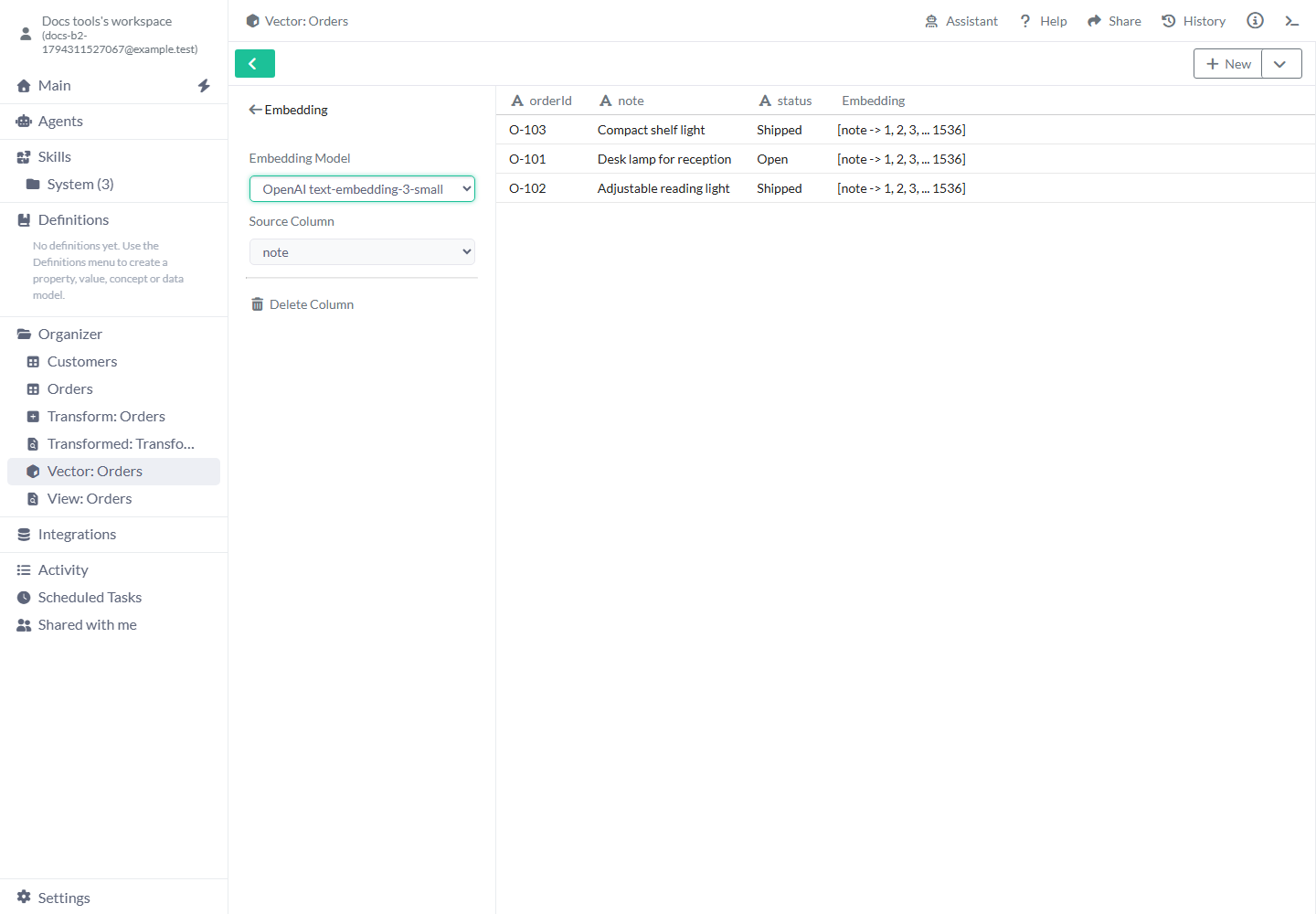
Choose the text and model before populating the Vector table.
Choose keys and source fields
A new Vector starts with no selected fields or key.
- Primary Key - Choose one or more String or Number fields that identify every source record. Each key field must have a non-NULL value and each combination must be unique. NULL means a missing value. Create Primary Key validates the source before creating the key.
- Delete Primary Key - Remove the current key so you can change the selected key fields. Check your source data before creating the replacement key.
- Source Columns - Turn on the fields to copy with your search results, such as a title, description or record identifier. Key fields stay selected while the key uses them.
- Column list - Drag a field’s handle to arrange it. Remove an optional source field with its cross, or choose the pencil beside an embedding field to edit its settings.
Configure an embedding column
Choose Vector Column to add a field that will hold the generated embeddings.
- Embedding - The first generated field uses this name. Additional fields get an available suffix such as Embedding 1. Use separate embedding fields when you want to search different text columns.
- Source Column - Starts unselected. Choose the text you want the model to embed, such as note. The copied fields and the embedded field can be different choices.
- Embedding Model - Starts with OpenAI text-embedding-3-small and 1536 dimensions. OpenAI text-embedding-3-large uses 3072; OpenAI text-embedding-ada-002 uses 1536. Keep the default for the steps in this guide. See the model-switching limit below before changing it.
- Google Vertex AI - Embedding generation for this choice is not available yet. Choose OpenAI text-embedding-3-small or OpenAI text-embedding-ada-002.
- Delete Column - Remove this embedding field and its configuration. Check which field your searches or API settings use before deleting it.
Preview and populate
Check your fields before generating embeddings.
- Preview - Shows up to 100 source rows. A value such as [note → 1, 2, 3, ... 1536] shows which source and dimensions you chose. These numbers are placeholders for the future embedding.
- Populate Vector Table - Reads the source records, generates embeddings and saves the selected fields in the Vector table. The operation processes the source in batches; the 100-row preview is separate from the number of records processed.
- After population - The toolbar shows a search field, Select Vector Column and Search. Open the table again to read its stored results. An embedded field displays whether its value was embedded.
Search your saved text
Search becomes available after population.
- Enter a phrase in Type to search…, for example light for a reception desk.
- Choose Embedding under Select Vector Column. This selects which text and model to search.
- Choose Search. Read the returned notes and order identifiers, starting with the closest matches.
- Change the phrase or select another embedding column and choose Search again. To return to the ordinary stored order, clear the phrase and run Search.
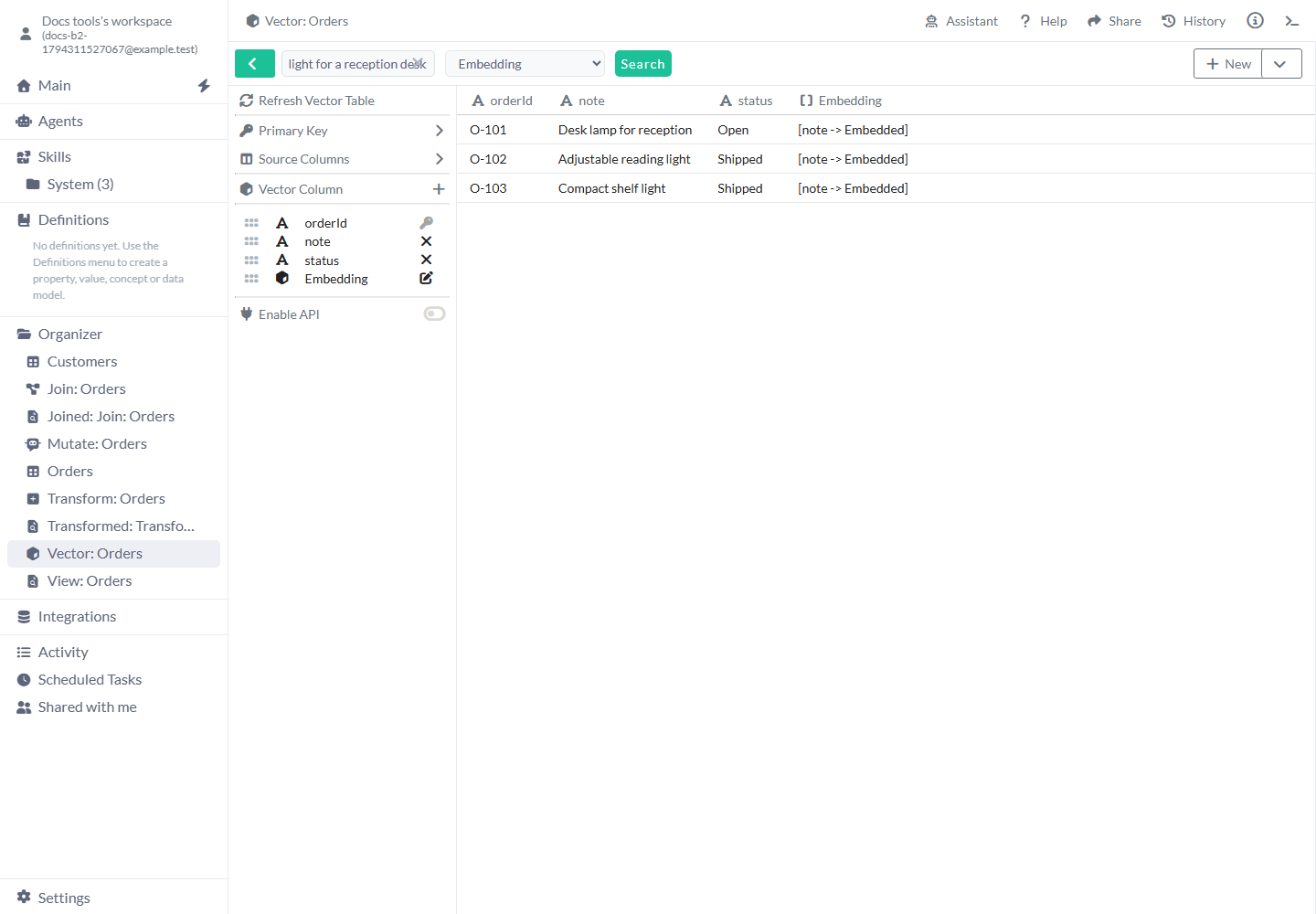
Read the matching notes beside their order identifiers. This screenshot uses synthetic data and deterministic example embeddings.
Worked examples
Search order notes or choose between two text fields.
Example: find relevant product notes
Suppose your notes are “Desk lamp for reception”, “Adjustable reading light” and “Compact shelf light”. Create Embedding from note, populate it and search for “light for a reception desk”. You get the saved records ordered by the selected model’s similarity calculation. Keep orderId in Source Columns so you can open the matching original record. The exact ranking depends on the embeddings produced by your model.
The text records used in this example.
[
  {
    "orderId": "O-101",
    "note": "Desk lamp for reception"
  },
  {
    "orderId": "O-102",
    "note": "Adjustable reading light"
  },
  {
    "orderId": "O-103",
    "note": "Compact shelf light"
  }
]
Example: search titles and descriptions separately
Use two text fields when the short title and longer description answer different questions.
- Before populating, include productId, title and description under Source Columns.
- Choose Vector Column, then set Source Column to title. Add another Vector Column and set its source to description.
- Populate Vector Table. Enter a phrase and choose the title embedding under Select Vector Column when you want to search titles.
- Choose the description embedding and Search again when you want the longer descriptions to determine the order.
Configure a similarity-search API
After population, Enable API and API show the endpoint settings. User-managed authentication for this Vector endpoint is not available yet.
- Enable API - Off by default. Turn it on to show the API settings for this Vector table.
- Domain Type - Datavju Domain by default. Use Own Domain shows Own Domain Name for an already configured host.
- Own Domain Name - Shown for Use Own Domain. Enter your configured host name, such as search.example.com. The field alone does not configure DNS or hosting.
- Endpoint Path - Starts empty. Enter the path you want in the endpoint, such as products. Read the resulting URL in Endpoint.
- Similarity Search - Off by default. Enable it for the similarity endpoint. The Endpoint shown below it ends in similarity-search.
- Search Column - Starts unselected. Choose the embedding column the similarity endpoint should search. The configured response includes distance and the selected source fields.
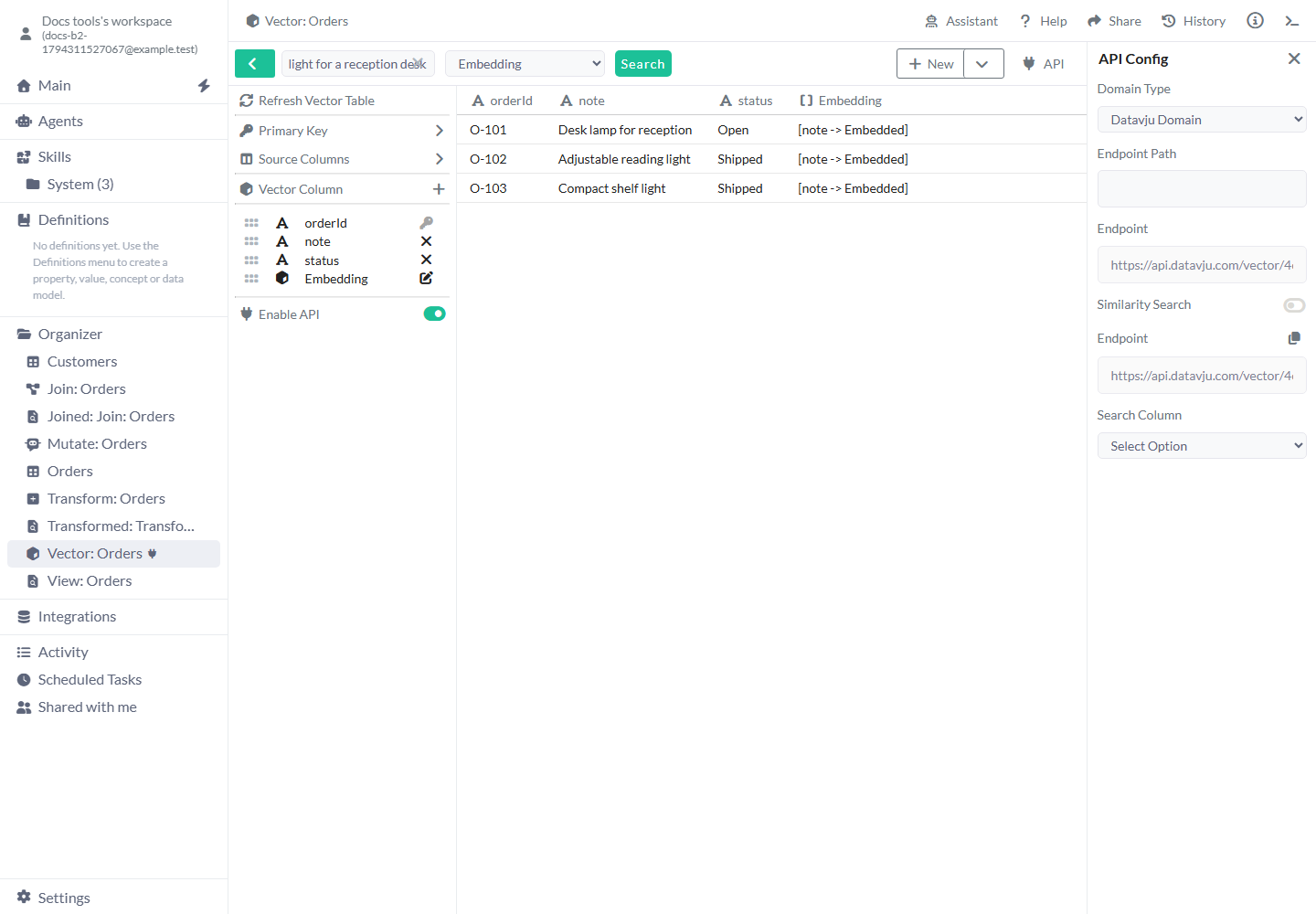
Configure the endpoint and select the embedding field to search.
Limits and common mistakes
The stored Vector table contains the data from its population. Changes to your source do not automatically update those saved embeddings.
- OpenAI embedding fields accept nonblank text up to 5000 characters. Clean empty or incorrectly typed values in the source before populating.
- Populate Vector Table replaces the Vector table’s previous stored contents as it runs. Check your input and provider availability before starting a new population.
- Refresh Vector Table is currently unavailable. Your saved search data stays as it was when you populated the table.
- OpenAI text-embedding-3-large is not available for new embedding fields yet: population requires a different field size. Keep text-embedding-3-small for this guide.
- Google Vertex AI generation is currently unavailable. The New menu’s Save as new query, Nearest Neighbor, Semantic Correlation and Semantic Search entries are also unavailable.
- The table’s ordinary search display returns up to 100 rows. Use the API’s explicit result limit when connecting another application.
- Inspect similarity results before using them to make a decision. Use Filter or Join on an exact identifier when you need exact matching.