
Image
Image generates image files from a prompt and saves the latest results in Organizer. Use it for an illustration, photograph or product-image draft that you want to inspect and reuse. Choose Animate when you need editable SVG animation.
Generate an image
Describe the subject, composition and constraints before generating. For example, say where the notebook should sit and whether the image should contain text.
- Open the Organizer or destination folder's context menu and choose Generate → Image.
- Select Provider, API and Model.
- Enter the scene, composition and constraints in Prompt.
- Review the model-specific size, quality and format controls below it.
- Choose Generate in the toolbar.
- Inspect the thumbnails. Select one to open the Image Viewer and review it at a useful size.
Provider and model choices
A new item starts without a provider, API or model selected. Selecting a model loads its starting settings. Only the controls supported by that selection appear.
Changing provider resets API and model selection. Review your prompt and options after changing models rather than assuming the previous configuration carried over.
- Fal.ai → Fal.ai API - Models: FLUX.2 Flex, FLUX.2 Pro. Main controls: Prompt, image-size preset or custom dimensions, output format.
- Google → Generative Language API - Models: Nano Banana, Nano Banana Pro. Main controls: Prompt, aspect ratio, Google Search grounding; Pro also has output size.
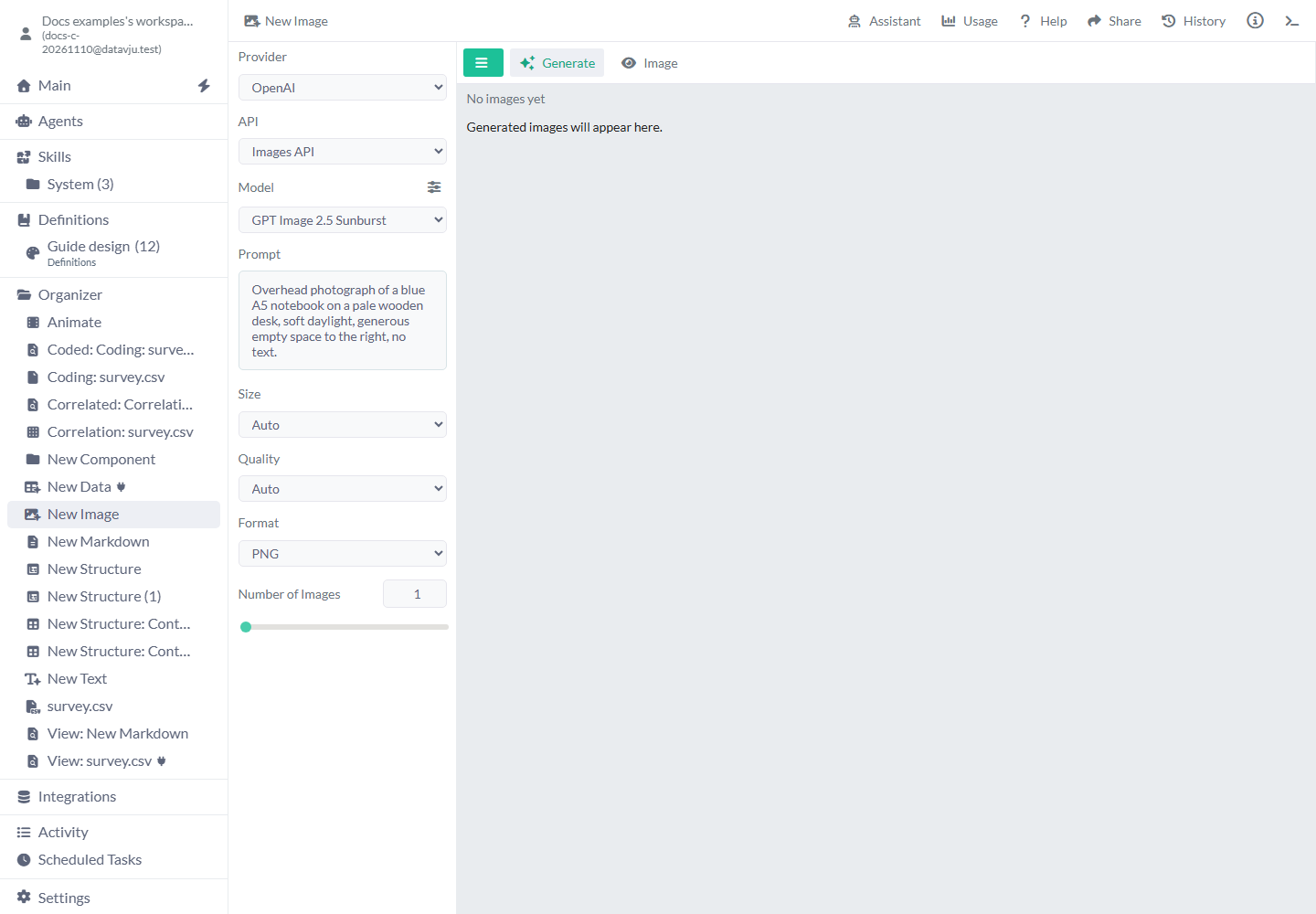
- OpenAI → Images API - Models: GPT Image 2.5 Sunburst. Main controls: Prompt, size, quality, format and image count.
- Stability AI → Stability API V2 Beta - Models: Stable Image Core. Main controls: Generation with this selection is not available yet.
Settings
The controls below the model change with your selection. Selecting another model loads new starting settings, including an empty Prompt. Additional Model Settings controls are not available yet.
Prompt
Prompt starts empty. Describe what should be visible, its position and intended treatment. For example: Overhead photograph of a blue A5 notebook on a pale wooden desk, soft daylight, generous empty space to the right, no text.
For Fal.ai and Google, the Prompt gear opens Edit Text. Source → Text Input is the starting choice. Choose Dataset → Add Dataset to supply a saved table as one JSON object per line; Select Column (optional) supplies only that column’s values. Choose JSON Builder to build structured text. In Mutate, Source Dataset and Task Result use the current row or another task; Transformation Columns appears within a transformation. The OpenAI image screen has a direct Prompt field.
FLUX.2
Image Size starts at Landscape 4:3. Default leaves the size choice to the provider. The choices are Default, Custom, Square HD, Square, Portrait 4:3, Portrait 16:9, Landscape 4:3 and Landscape 16:9. Choose the composition that fits the destination; a portrait card and a wide article illustration need different framing.
Custom shows Custom Image size with Width and Height; the starting dimensions are 512 × 512. Enter dimensions deliberately and review the accepted result for the selected model. Format starts at JPEG and also offers PNG.
Nano Banana
Aspect Ratio starts at 1:1. It offers 1:1, 2:3, 3:2, 3:4, 4:3, 4:5, 5:4, 9:16, 16:9 and 21:9. Choose a wide ratio such as 16:9 for a banner, or a portrait ratio such as 4:5 for a tall card.
Grounding with Google Search starts off. Enable it when the request needs current public information; keep it off for a self-contained creative prompt. It is a generation option, not a guarantee that the visible result is factually correct.
Nano Banana Pro additionally offers Image Size → 1K, 2K or 4K, starting at 1K. Change it when the destination needs a larger image and check the resulting dimensions and provider usage.
GPT Image 2.5 Sunburst
Choose the same size and format across alternatives when comparing images for one destination.
- Size - Starting value: Auto. Options and use: Auto, 3:2 (1536x1024), 1:1 (1024x1024), 2:3 (1024x1536). Choose a fixed shape when the receiving layout needs one.
- Quality - Starting value: Auto. Options and use: Auto, High, Medium, Low. Select deliberately when the task needs a specific quality request; inspect the actual result.
- Format - Starting value: PNG. Options and use: JPEG, PNG, WebP. Choose the format your destination accepts.
- Number of Images - Starting value: 1. Options and use: Whole numbers from 1 through 10. Request several alternatives only when you intend to review them.
Inspect results and usage
Changing Prompt leaves the current images in place. The next Generate replaces them. Save a result you need before generating again.
The eye menu starts with Image in the toolbar. Its choices are Table for the result records and Text to return to the image display. Thumbnails remain visible in both modes. Select a thumbnail to open the viewer; use its arrows, the left/right arrow keys or the thumbnails to move between results. Press Escape to close it.
Usage shows recorded requests for this Image item. Its totals cover the complete recorded history and its recent list shows up to 100 requests. A dash means a measurement was unavailable; a measured zero is shown as zero. Read the reported estimates and coverage before interpreting a request’s cost; a missing measurement does not mean zero.
Keep a result in a View
A saved View contains the image records and their file references, including dimensions and format. Use it to read the selected result from another data tool.
CSV and JSON in the output menu download the image records, including file references; they do not download the image files themselves. Google Sheets export is not available yet.
- After generation, open Output options beside New.
- Choose Save as View for the default name and location, or Save as View to... to choose the destination folder. Rename the saved View in Organizer when you need a different name.
- Open the saved View and check its image rows, dimensions and format.
- Keep that View unchanged if you need this version. Refreshing it can read later results from the Image source.
Examples
The prompts below describe the desired images. Review the returned composition, color and details before using a result.
Make a wide guide illustration
Different runs can produce different arrangements. Keep the version you want before generating again.
- Choose Nano Banana and set Aspect Ratio → 16:9.
- Enter
Overhead photograph of an open notebook and blue pen on a pale wooden desk, soft daylight, no visible words. - Generate and inspect the composition at full size.
- Check for stray lettering and unwanted objects before using it in a guide.
Review three product-image alternatives
A square PNG fits the same image box across a set of product cards.
- Choose GPT Image 2.5 Sunburst.
- Set Size → 1:1 (1024x1024), Format → PNG and Number of Images → 3.
- Prompt for
A blue unbranded notebook on a neutral background, front three-quarter view, soft studio lighting, no text. - Choose Generate.
- Compare all three results for shape, color and unwanted details.
Fit a portrait destination
Choose FLUX.2 Flex → Portrait 4:3 and a prompt describing a tall composition, such as a standing desk lamp with empty space above it. Generate, then inspect the actual crop in the destination Page. Set the final display width, height and crop on the destination Page.
Limits and common mistakes
- Prompt edits keep the current images. Save results you need before the next Generate replaces them.
- A requested count, format or size still needs provider acceptance. Inspect errors and the returned output before retrying.
- Generated lettering and factual details require review. A prompt is not evidence of correctness.
- Use Animate for editable SVG motion, then place the chosen image or animation on a Page.
- Usage can contain a failed provider request. A failed output does not establish a zero charge.