
Row Review
A Row Review brings together the complete record, related information, terms and files that you ask someone to accept. Use it to approve a quotation, inspection or product record and keep a signed copy of what the person reviewed. That copy keeps the accepted content, signing account and acceptance time even when the live records change later.
Set up the review
Describe the review once in Definitions, where you keep shared business descriptions and rules. Choose its starting Table and the information to include. A person can then open a record in that Table, read the complete review and sign it.
For a product approval, start with Products and include its category. For a quotation, start with Quotes and include the customer, quote lines, terms and specification files.
Before you create the review, use a Data Model to describe and connect those Tables. Implement the model and run Check implementation so their fields, identifying keys and relationships are ready.
Create a Row review Definition
The saved review becomes available from records in its Root Table.
- Open the menu beside Definitions and choose New definition.
- Set Kind to Row review and enter a clear Label, such as Approve product details.
- Enter Statement of acceptance. This is the full statement the person will read and accept.
- Enter Signing capacity, such as Catalog reviewer, and Audience, such as Catalog team.
- Under References, keep the initial Root Table entry and choose its Target. Select the Table description from your data model.
- Choose Add reference for each related record, term or file to include. Choose its Include option and Target.
- Add Required record conditions if the review needs record-specific restrictions or will be used by people signed in through Dataset Authentication.
- Choose Save definition. Correct any displayed error or remove an unwanted empty reference before saving again.
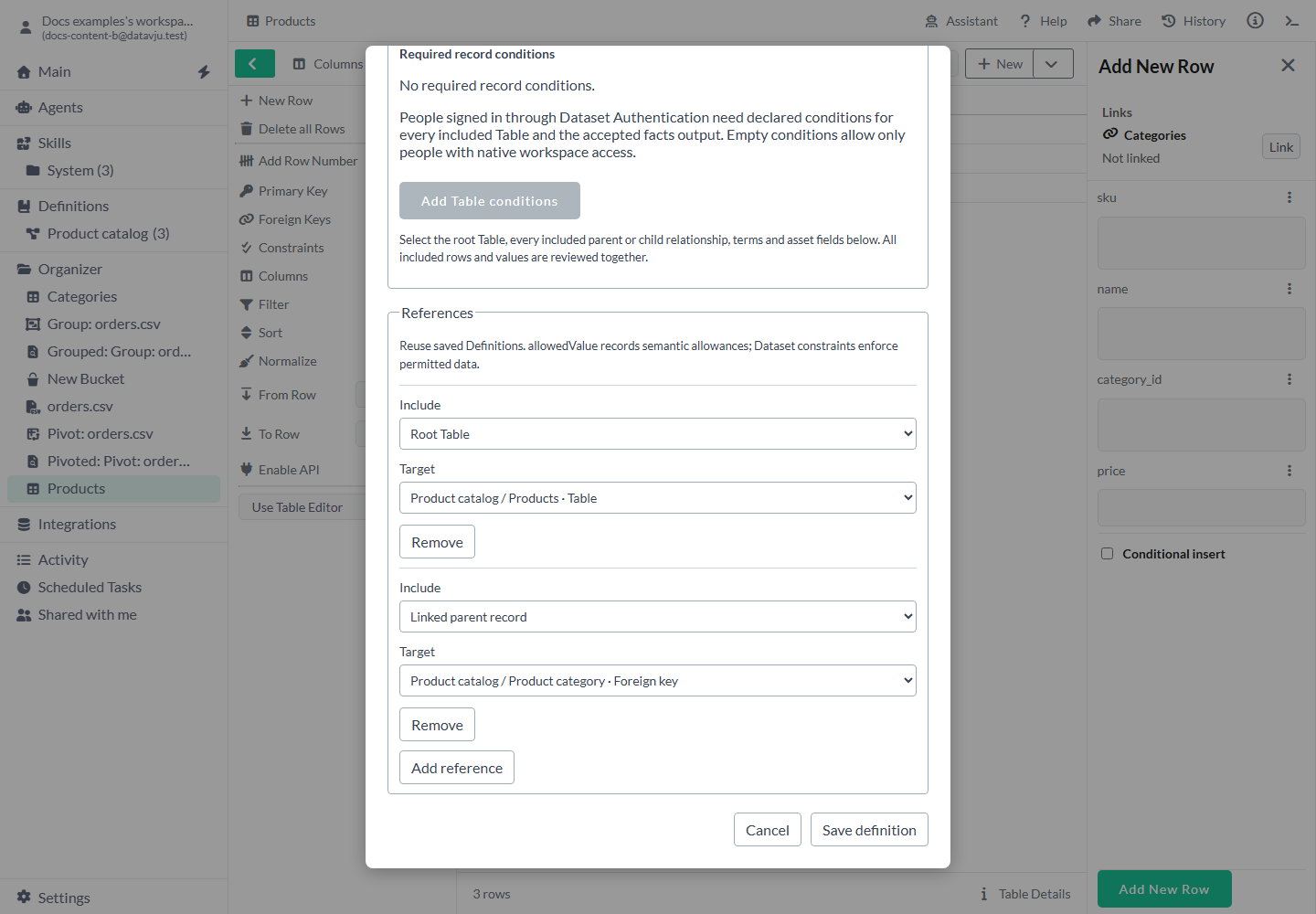
Choose the complete information that the person will accept.
Review and sign a record
Signing keeps a separate copy of the content you read, together with the signing account and time.
If you see Changed · a new review is required, open a fresh review and read its current content before confirming again. This protects the person from signing different information from the content they read.
- Open the Table and select the intended record. Press Enter on a focused cell to open Row Details.
- Expand Signed row copies.
- Choose the intended Review, then Review complete row.
- Read the included records, terms and files. Check the Statement of acceptance, Capacity, Audience and signing account.
- Select I have reviewed the complete content and accept this statement. The confirmation starts unchecked.
- Choose Sign accepted copy. The button becomes available after confirmation.
- Check Signed · verification passed, Signer, Accepted time and Copy identity. Choose Download accepted copy to keep the accepted copy as a JSON file.
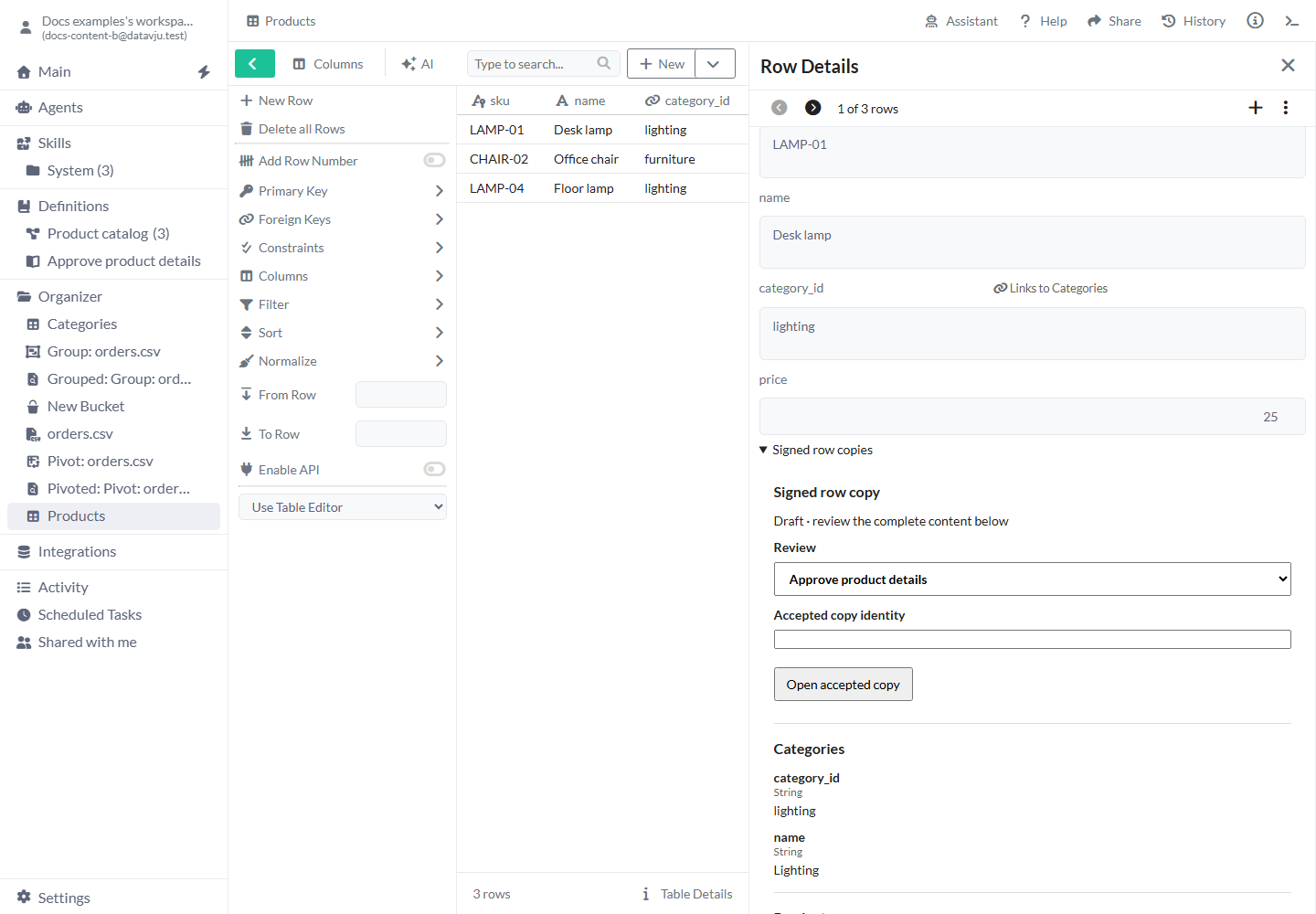
Read the included records before confirming the statement.
Definition settings
The review specifies the acceptance statement and included content. Set Table access and required record conditions for the people who will use it.
Describe the acceptance
The person sees this wording before confirming and signing.
- Label - Default and purpose: Blank and required. Name the review so people can choose it. Example: Approve product details.
- Kind - Default and purpose: Choose Row review when creating it. A saved Definition keeps its kind. Example: Create a separate review for approving a quotation.
- Meaning - Default and purpose: Optional; starts blank. Explain when to use this review. Example: Used before publishing a product in the catalog.
- Place in tree - Default and purpose: The selected location in Definitions. Move it to keep related descriptions together. Example: Put it beside Product catalog.
- Statement of acceptance - Default and purpose: Blank and required; up to 10,000 characters. The signed copy keeps this full statement. Example: I approve these product details for catalog use.
- Signing capacity - Default and purpose: Blank and required; up to 500 characters. Say the role in which the person signs. Example: Catalog reviewer.
- Audience - Default and purpose: Blank and required; up to 500 characters. Say who the acceptance is intended for. Set permissions separately. Example: Catalog team.
- Save definition / Cancel - Default and purpose: Save keeps your changes; Cancel keeps the earlier saved review. Example: Finish the setup before asking someone to sign.
Choose what to include
The first reference starts as Root Table with no Target chosen. Add further references with Add reference, then choose Include and Target for each. Remove removes the selected reference from this draft.
Connect every included record back to the Root Table through the data model's relationships. Keep these included paths free of loops. For files, select an uploaded image, PDF or plain text file; upload a remote file first if you need its content kept with the review.
- Root Table - What to select: Exactly one Table description from the data model. Its selected record starts the review. Example: Products.
- Linked parent record - What to select: A relationship from the current record to one parent. Example: A product's category.
- Linked child records - What to select: A relationship from the current record to its related child records. Example: Every line belonging to a quotation.
- Terms Definition - What to select: A saved Definition containing the terms, including the Definitions it references. Example: The quotation's agreed delivery terms.
- Asset field - What to select: An included String field containing an uploaded file supported by Row Review. Example: A PDF specification stored on the product.
Require conditions on records
The section starts at No required record conditions. People using ordinary workspace accounts still need access to the included Tables. To apply restrictions, choose Add Table conditions, select Table, then Add required record condition.
Use the offered field, comparison and value controls to state which records the person may review. Combine requirements with And or Or, and use related-record controls when a requirement depends on a linked record. For example, compare the stored reviewer identifier with Session → User Id to use the person who is currently signed in.
For a Page that uses Dataset Authentication, where people sign in using accounts stored in a Table, add conditions for every included Table. Also cover the Accepted facts output Table if you configure one. Each included record must meet its Table's conditions.
Use Clear required record conditions to clear a Table's rules or Remove Table conditions to remove that Table's group. Check the access you intend afterwards: empty conditions keep workspace-account behavior and do not admit Dataset Authentication accounts.
Read an earlier acceptance
Open the record's Signed row copies, then choose an entry under Accepted copies. Read its retained content and Signer, Accepted time and Copy identity.
If you already have the identifier, enter it in Accepted copy identity and choose Open accepted copy. Your current access still applies.
- Verify accepted copy - Check the stored copy again. Signed · verification passed confirms that its retained content verified.
- Download accepted copy - Download that retained content as JSON. Keep its verification result with the file.
- Start a new review - Read current content for another acceptance. The earlier signed copy remains.
- Refresh review - Replace an unsigned review with current content, then read and confirm it again.
- Changed - Start a fresh review because the prepared content changed.
- Review unavailable - Check the displayed access, Table or source problem with the person maintaining the review.
- Verification failed - Investigate the failed verification before relying on the copy. Downloading it keeps the same failure status.
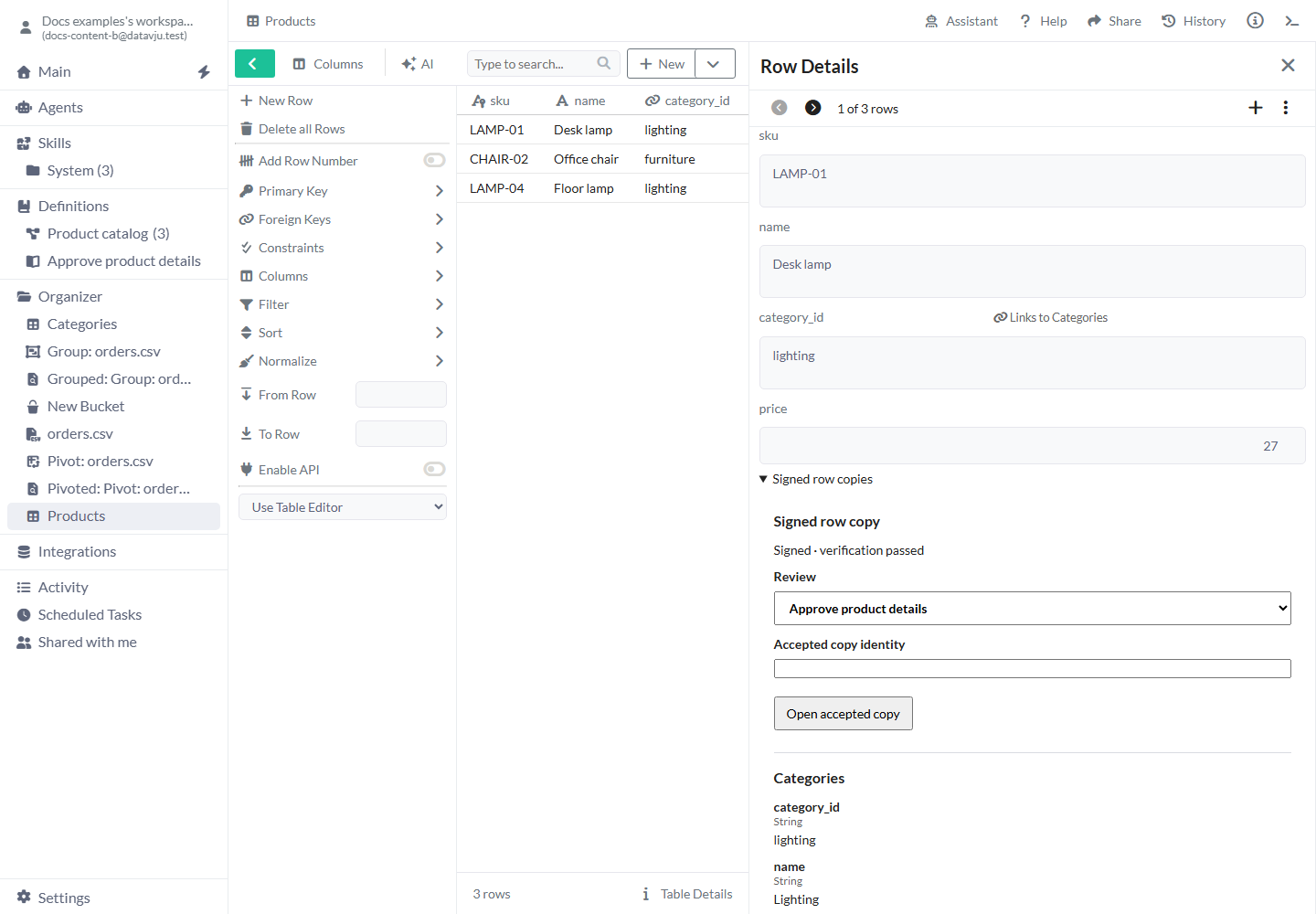
Open an earlier accepted copy to read what was accepted.
Put a review on a Page
Use a Page when the review belongs in an approval screen you share with other people.
- Open your Page in the editor and select the place where people should review the record.
- Open Insert → All Components and choose Row review.
- Select the component and open Properties. In its Row review binding controls, choose Row review. The initial choice is Choose review.
- Use Find record by key and Find records to find the record, then select Record. It starts at Choose record. Use Previous records or Next records for further choices.
- Keep Accepted facts output at No ordinary output if you only need the signed copy.
- Choose Save review binding, then preview the Page and inspect the displayed record before sharing it.
Save facts in an approvals Table
To record the acceptance in a list or workflow, select a Table under Accepted facts output. Use a separate Table in the same workspace, outside every Table included in the review. Map each field you need to the offered accepted fact or reviewed key.
Map the complete output primary key and include Accepted copy identity in that key. For example, use a String copy_id as the output's primary key. To connect the approval to its product, map the product field to Reviewed key · sku. If you map a field used by a foreign key, map that whole foreign key to the reviewed Root Table's complete key.
Unmapped leaves a field without a supplied value; required fields and other Table rules still apply. Keep the signed copy and verification for the complete accepted content, and use this output row for your approval list.
Accepted facts and field types
The choices show only compatible field types. These facts are supplied by the person's acceptance.
- Accepted copy identity - Output field type: String. What it records: The identifier of this signed copy.
- Complete reviewed key - Output field type: Object or JSON. What it records: Every field of the reviewed record's key.
- Authenticated signer - Output field type: String. What it records: The signing account's identifier.
- Signer audience - Output field type: String. What it records: The account audience used for signing.
- Review audience - Output field type: String. What it records: The audience described in the review.
- Signing capacity - Output field type: String. What it records: The role in which the person accepted.
- Whole acceptance statement - Output field type: String. What it records: The complete statement they accepted.
- Required record conditions met - Output field type: Object or JSON. What it records: The record-condition checks retained with this acceptance.
- Acceptance instant - Output field type: DateTime TZ. What it records: When the acceptance occurred.
- Reviewed key · followed by a field - Output field type: The reviewed key field's type. What it records: That individual key value, such as a product SKU.
Examples
For the product examples, Products contains LAMP-01, Desk lamp, lighting and price 25. Categories contains lighting and Lighting.
Approve a product and its category
Choose Products as Root Table and add Product category as Linked parent record. Enter the statement: I approve these product details for catalog use.
Open LAMP-01, choose Review complete row and check both records. After you confirm and sign, the accepted copy shows price 25 and category Lighting. If the live product price later becomes 27, open the earlier entry under Accepted copies to read the approved price 25. Start a new review when price 27 needs approval.
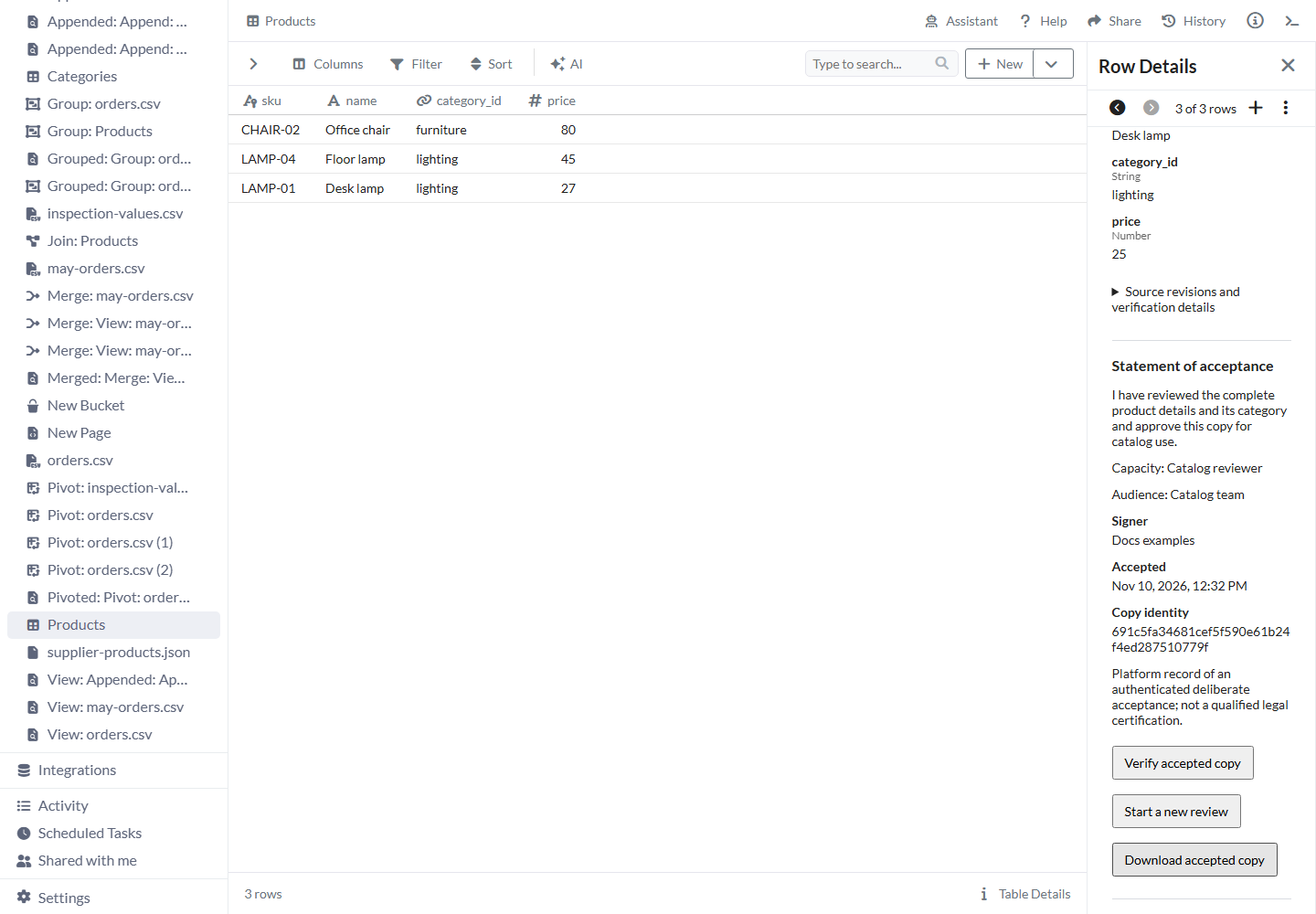
The signed copy keeps price 25 after the live product changes to 27.
Handle a change while someone is reviewing
You open a review at price 25. Before you sign, a colleague changes the live price to 27. Choosing Sign accepted copy returns Changed · a new review is required. Refresh the review, read price 27 and the other content, then confirm and sign that new review.
Include all quotation lines
Quotation Q101 has customer C20 and two lines: two desk lamps at 25 each and one chair at 80. Its total is 130. Choose Quotes as Root Table, its customer as Linked parent record, and quote lines as Linked child records. Include the agreed delivery terms with Terms Definition.
The review brings together Q101, customer C20, both lines and those terms. Read them together before signing. Adding a third line or changing the terms requires a new review for a new acceptance; the earlier copy continues to show the two lines accepted originally.
Limits and common mistakes
Read the included content and access requirements before inviting another person to accept a record.
- Implement and check the data model before preparing reviews. Include the complete keys and relationships needed to find every record.
- Select every record, term and file that belongs to the acceptance. Check the displayed content before inviting someone to sign.
- Use PNG, JPEG, WebP, GIF, SVG, PDF or plain text for included files. Reviews are limited to 10,000 records, 8 MiB of record/file content and 12 MiB for the complete review with its details.
- Set Table permissions and any required conditions separately from the Audience label.
- Keep accepted copies for earlier decisions and start a new review for changed content.
- The person signs from their signed-in account after confirmation. Use Agents to help configure the review, then let the person read and accept it themselves.
- Keep ordinary approval rows for reporting and the verified signed copy for the accepted content.
Related articles
- Data Model - prepare the Tables and their relationships.
- Table - open records and signed copies.
- Definitions - describe the terms used in a review.
- Page - build a Page where people review information.